


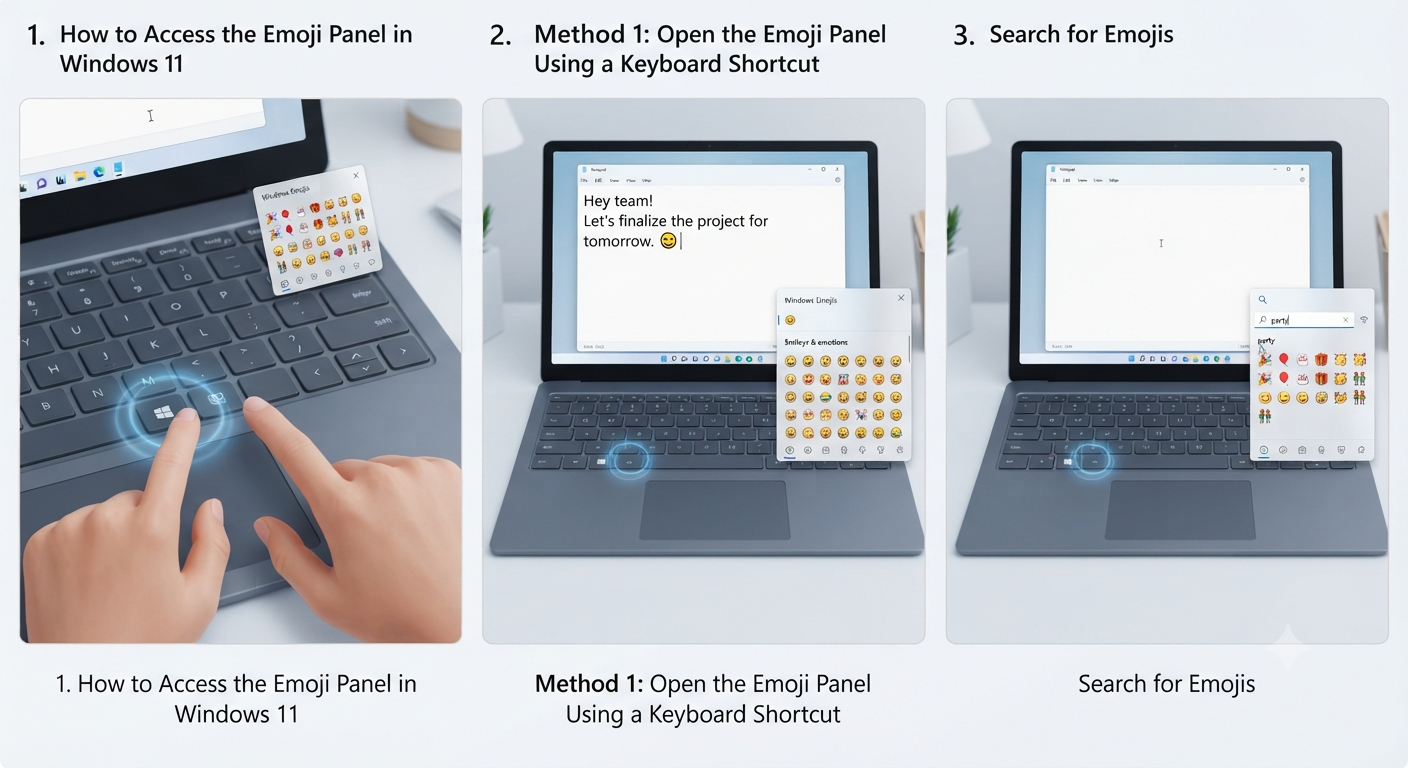
How to Access the Emoji Panel in Windows 11
Emojis have become an essential part of modern digital communication. Whether you’re sending emails, chatting with friends, posting on social media, or collaborating with coworkers, emojis help express emotions, emphasize ideas, and make conversations more engaging. Windows 11 includes a built-in emoji panel that allows you to quickly insert emojis, GIFs, kaomoji, symbols, and special characters into almost any application.
Unlike older versions of Windows, Windows 11 offers an improved emoji picker with a cleaner interface, better search functionality, and support for the latest Unicode emoji updates. You don’t need to install third-party software or browser extensions—everything is built right into the operating system.
In this guide, you’ll learn how to use emojis on Windows 11, explore the emoji panel’s features, and discover useful tips for improving your communication.
What Is the Windows 11 Emoji Panel?
The Windows 11 Emoji Panel is a built-in tool that lets you insert emojis and other characters into text fields across most applications.
Besides standard emojis, the panel also includes:
- GIFs
- Kaomoji
- Symbols
- Clipboard history (if enabled)
- Recently used emojis
- Search functionality
The panel works with many popular applications, including Microsoft Word, Outlook, Microsoft Teams, Notepad, web browsers, messaging apps, and social media platforms.
Benefits of Using Emojis
Although emojis are often associated with casual conversations, they can also improve communication in many situations.
Some benefits include:
- Express emotions more clearly
- Add personality to messages
- Improve readability
- Highlight important information
- Make online conversations feel more natural
- Enhance social media posts
- Improve engagement in informal communications
When used appropriately, emojis can help make digital communication more expressive and engaging.
Method 1: Open the Emoji Panel Using a Keyboard Shortcut
The fastest way to access emojis is through a keyboard shortcut.
Step 1
Click inside any text field.
For example:
- Microsoft Word
- Notepad
- Outlook
- Microsoft Teams
- Google Chrome
- Microsoft Edge
Step 2
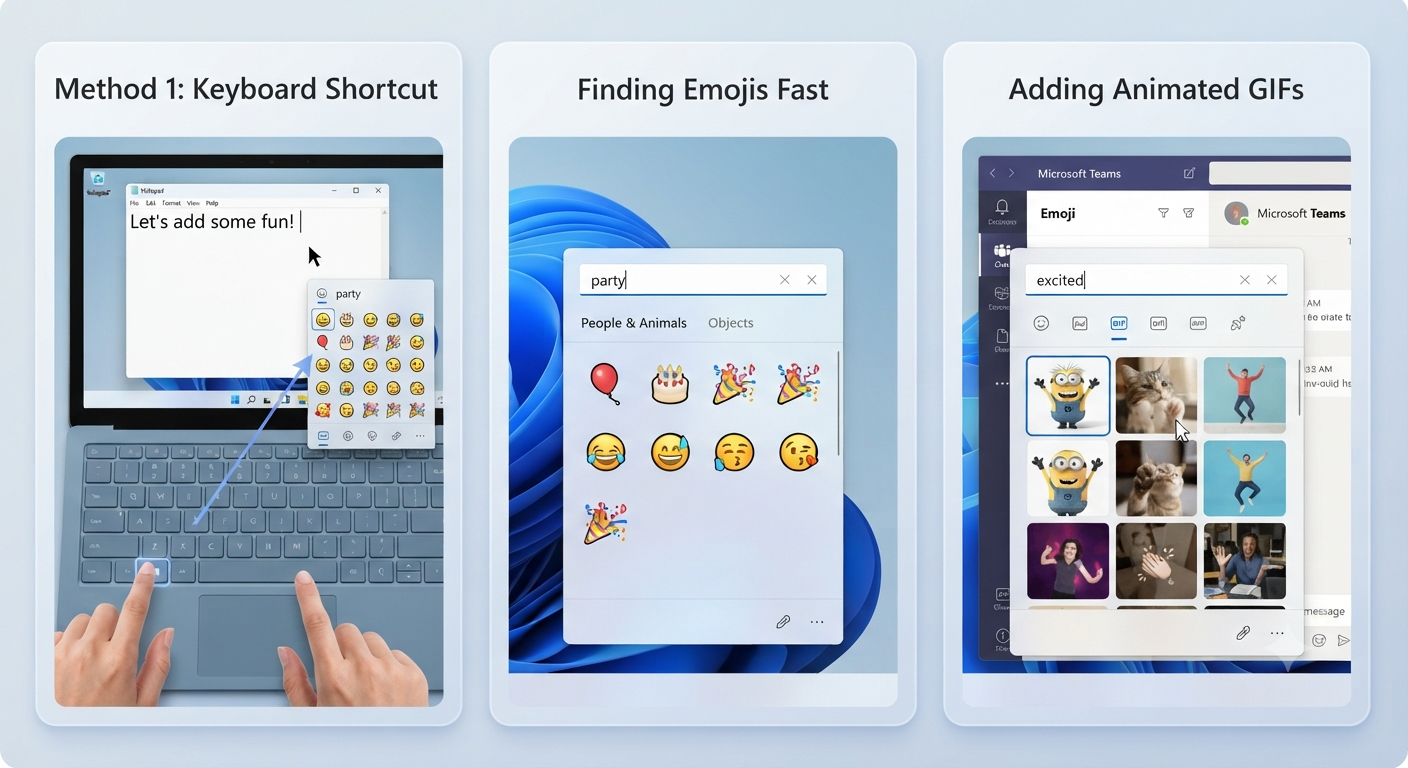
Press:
Windows + .or
Windows + ;Both shortcuts open the Windows 11 Emoji Panel.
Image: Windows 11 Emoji Panel.
Step 3
Click any emoji.
It is immediately inserted into the active text field.
Browse Emoji Categories
The emoji picker organizes emojis into categories.
These typically include:
- Smileys and emotions
- People
- Animals and nature
- Food and drink
- Travel and places
- Activities
- Objects
- Symbols
- Flags
Selecting a category makes it easier to find the emoji you’re looking for.
Search for Emojis
Instead of browsing hundreds of emojis manually, you can search for them.
How to Search
- Open the Emoji Panel.
- Click the search box.
- Type a keyword.
Examples:
- Happy
- Cat
- Heart
- Coffee
- Laptop
- Birthday
Matching emojis appear automatically.
This is the quickest way to locate specific emojis.
Use Recently Used Emojis
Windows automatically remembers emojis you’ve used recently.
The Recently Used section appears near the top of the emoji panel.
This feature saves time if you frequently use the same emojis in conversations.
Insert GIFs
Windows 11 also supports animated GIFs directly from the emoji panel.
To Insert a GIF
- Open the emoji panel.
- Select the GIF tab.
- Search for a keyword.
- Click the desired GIF.
If the application supports GIFs, they will be inserted automatically.
Examples of supported applications include many messaging and collaboration platforms.
Use Kaomoji
Kaomoji are text-based Japanese emoticons created using punctuation and special characters.
Examples include:
(•‿•)

¯\_(ツ)_/¯

(╯°□°)╯︵ ┻━┻
Windows includes an extensive collection of kaomoji organized into categories.
These work well in applications that do not fully support graphical emojis.
Insert Symbols
The emoji panel also includes many useful symbols.
Examples include:
- Mathematical symbols
- Currency symbols
- Arrows
- Greek letters
- Punctuation marks
- Technical symbols
This makes the panel useful for more than casual messaging.
Students and professionals can quickly insert commonly used symbols without memorizing keyboard codes.
Use Emojis in Microsoft Word
Adding emojis to Word documents is straightforward.
- Open Microsoft Word.
- Click where you want to insert an emoji.
- Press:
Windows + .- Select an emoji.
Word automatically inserts it into your document.
This works well for newsletters, presentations, and informal documents.
Use Emojis in Microsoft Outlook
Emojis can make emails friendlier when appropriate.
To insert one:
- Create a new email.
- Place the cursor inside the message.
- Open the emoji panel.
- Select an emoji.
For professional communication, use emojis sparingly and only when appropriate for the audience.
Use Emojis in Microsoft Teams
Microsoft Teams fully supports Windows emojis.
They’re useful for:
- Chat messages
- Team conversations
- Status updates
- Reactions
- Informal workplace communication
Many organizations use emojis to improve engagement during remote collaboration.
Use Emojis on Social Media
Windows 11 emojis work in most web browsers.
Popular platforms include:
- X (formerly Twitter)
Simply open the emoji panel while typing a post or comment.
Enable Clipboard History
The emoji panel integrates with Clipboard History.
To enable it:
- Open Settings.
- Navigate to:
System > Clipboard
- Turn on:
Clipboard History
Now you can access recently copied items alongside emojis and symbols.
Customize Emoji Appearance
Windows follows the latest Unicode standards for emoji design.
While the appearance of emojis is consistent within Windows, they may look slightly different when viewed on:
- Android
- iPhone
- macOS
- Social media platforms
This difference is normal and does not usually affect the meaning of the emoji.
Common Problems and Solutions
Emoji Panel Doesn’t Open
Make sure you’re pressing one of the correct shortcuts:
Windows + .or
Windows + ;If it still doesn’t appear:
- Restart your computer.
- Install the latest Windows updates.
- Verify that your keyboard is functioning correctly.
Emojis Appear as Empty Boxes
This usually indicates that the application or font doesn’t support newer Unicode emojis.
Updating the application or using a modern font often resolves the issue.
GIFs Don’t Insert
Not every application supports GIF insertion.
If GIFs don’t work, try using:
- Microsoft Teams
- Compatible messaging apps
- Supported web platforms
Search Doesn’t Find an Emoji
Try a simpler keyword.
For example:
Instead of:
Birthday CelebrationSearch:
Birthdayor
CakeTips for Using Emojis Effectively
To communicate clearly and professionally:
- Match emojis to the tone of the conversation.
- Avoid overusing emojis in business documents.
- Use emojis to emphasize rather than replace words.
- Keep accessibility in mind, as screen readers may describe emoji names aloud.
- Test how emojis appear if you’re communicating across different platforms.
Using emojis thoughtfully can make your messages more engaging without distracting from the main content.
Keyboard Shortcuts Worth Remembering
Here are a few useful shortcuts related to Windows 11 productivity:
| Shortcut | Function |
|---|---|
| Windows + . | Open Emoji Panel |
| Windows + ; | Open Emoji Panel |
| Windows + V | Open Clipboard History |
| Windows + Shift + S | Open Snipping Tool |
| Windows + E | Open File Explorer |
| Windows + I | Open Settings |
Learning these shortcuts can improve your overall Windows experience.
Frequently Asked Questions
Are emojis built into Windows 11?
Yes. Windows 11 includes a built-in Emoji Panel that provides access to emojis, GIFs, kaomoji, symbols, and clipboard history without requiring additional software.
Can I use emojis in every application?
Most modern Windows applications support emojis, including Microsoft Office, web browsers, messaging apps, and social media platforms. However, some older programs may have limited Unicode support.
Do Windows 11 emojis work in Microsoft Word and Outlook?
Yes. You can insert emojis into Word documents, Outlook emails, PowerPoint presentations, Excel comments, and many other Microsoft Office applications using the built-in emoji panel.
Can I search for emojis by name?
Yes. The emoji panel includes a search feature that lets you find emojis using keywords such as “smile,” “heart,” “dog,” or “coffee.”
What’s the difference between emojis and kaomoji?
Emojis are graphical icons, while kaomoji are text-based emoticons created with punctuation marks and characters. Windows 11 supports both through the same emoji panel.
Conclusion
The built-in Emoji Panel in Windows 11 makes it easier than ever to add personality and expression to your digital communication. Whether you’re writing emails, chatting in Microsoft Teams, posting on social media, or creating documents in Microsoft Word, you can quickly insert emojis, GIFs, kaomoji, and symbols using simple keyboard shortcuts.