


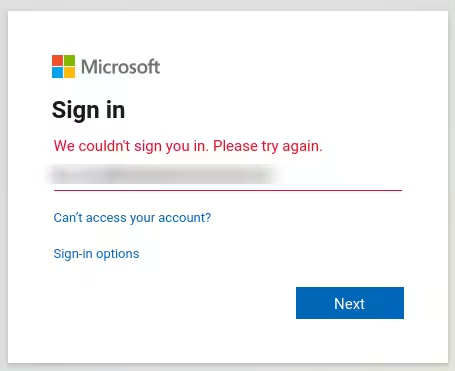
How to Resolve Microsoft Teams Sign-In Problem: “We Couldn’t Sign You In”
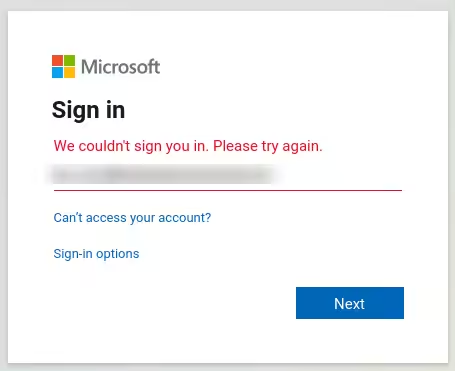
Microsoft Teams has become an essential tool for collaboration, video conferencing, and team communication in workplaces and schools around the world. However, one of the most frustrating errors users encounter is the “We Couldn’t Sign You In” message during login.
This error can prevent access to chats, meetings, and files, and it often appears with additional error codes or vague messages. Fortunately, this issue can usually be resolved with some simple troubleshooting steps. In this article, we’ll walk through multiple solutions to fix Microsoft Teams login problems on Windows 10 and Windows 11.
Common Causes of the “We Couldn’t Sign You In” Error
Before diving into solutions, it helps to understand why Teams might not let you sign in:
-
Incorrect username or password
-
Cached credentials causing conflicts
-
Outdated Teams application
-
Network connectivity issues
-
Corrupted local files or tokens
-
Conflicts with Office 365 or Azure Active Directory
-
Firewall or proxy settings
Now let’s explore how to fix these issues step by step.
Fix 1: Verify Your Credentials
This might seem basic, but it’s worth double-checking.
-
Make sure your username (usually your email) and password are correct.
-
If your organization uses multi-factor authentication (MFA), ensure that you complete the verification step.
-
Try logging in from the Teams web app at https://teams.microsoft.com to verify that your account is working.
If you’re able to log in via the web but not the desktop app, it points to a local issue on your device.
Fix 2: Clear Teams Cache
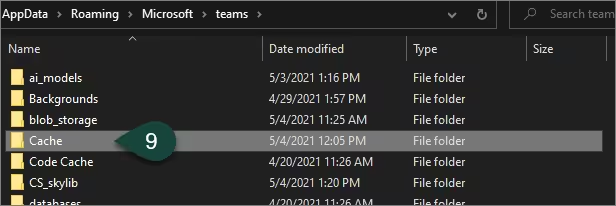
One of the most common causes of login errors in Teams is corrupted cached files.
To clear the cache:
-
Make sure Microsoft Teams is completely closed.
-
Press Windows + R to open the Run dialog.
-
Type the following and press Enter:
-
In the folder that opens, delete all contents (files and folders).
-
Restart Teams and try logging in again.
This does not delete any of your chats or data—it only removes temporary files that Teams will recreate.
Fix 3: Reset Windows Credentials
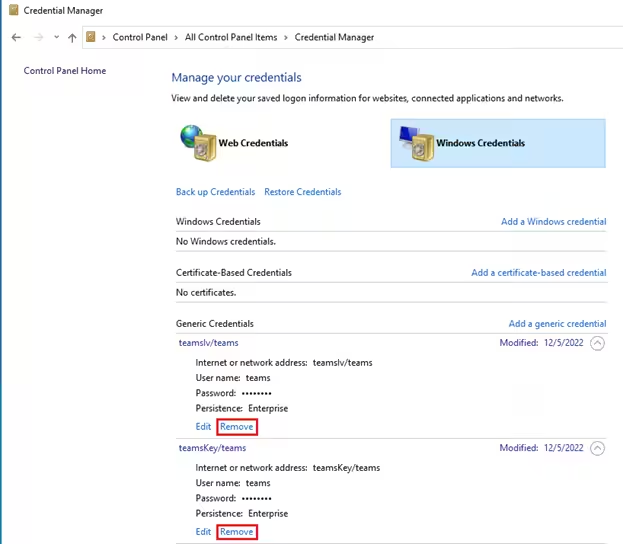
Stored login tokens or credentials in Windows Credential Manager may cause sign-in issues.
Steps to reset credentials:
-
Open Control Panel and go to User Accounts > Credential Manager.
-
Click on Windows Credentials.
-
Look for any credentials related to Microsoft Teams, Office 365, or msteams.
-
Remove those credentials by clicking Remove.
-
Restart your PC and try to sign in again.
Fix 4: Check Your Internet Connection
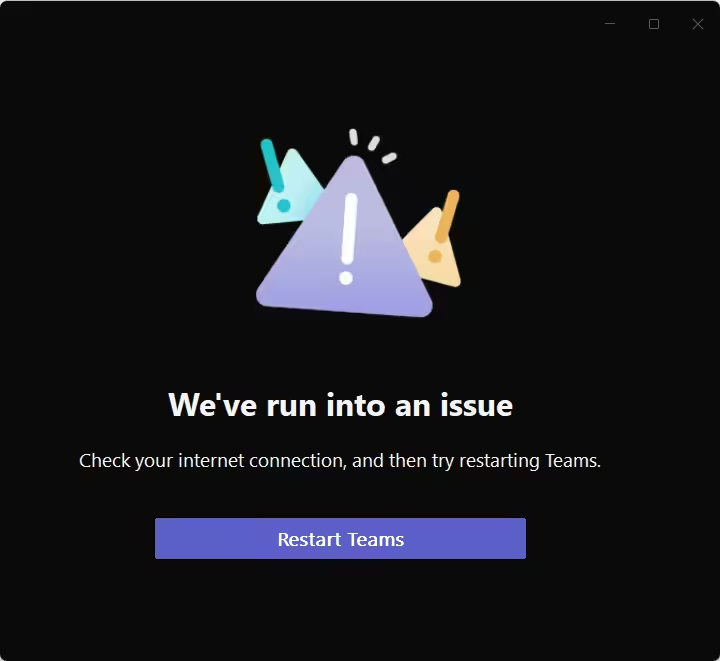
A slow or unstable internet connection can prevent Microsoft Teams from connecting to Microsoft’s servers.
-
Run a speed test to check your internet connection.
-
Switch to a wired Ethernet connection if using Wi-Fi.
-
Restart your modem or router.
-
Try connecting using a mobile hotspot to see if the issue is network-specific.
Also, ensure that your firewall or proxy settings are not blocking Teams. If you’re on a work or school network, contact your IT administrator.
Fix 5: Update Microsoft Teams
Using an outdated version of the Teams app can lead to bugs and compatibility issues.
How to update:
-
If Teams is open, click on your profile picture > Check for updates.
-
If you can’t log in, uninstall and reinstall the latest version from the official website:
After reinstalling, try logging in again.
Fix 6: Sign In Using the Web App
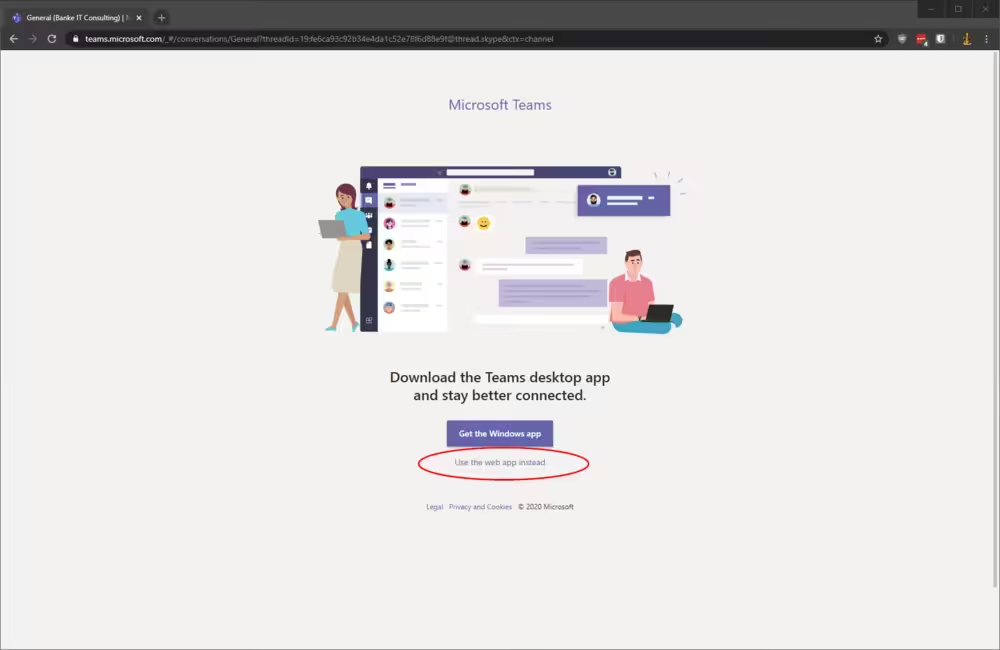
Sometimes the desktop app may not work, but the browser version might.
To sign in via browser:
-
Open your browser and go to https://teams.microsoft.com
-
Enter your email and password
-
If it works, you can continue using Teams in the browser or use this to troubleshoot further
Fix 7: Check for Conflicting Accounts
If you’ve signed into multiple Microsoft accounts (personal and work/school), Teams may get confused.
What to do:
-
Sign out of all Microsoft accounts from your browser and Teams.
-
Open an incognito or private window and try logging into Teams.
-
Avoid logging into Teams with multiple accounts at once unless using separate profiles.
Fix 8: Repair or Reset Microsoft Teams App
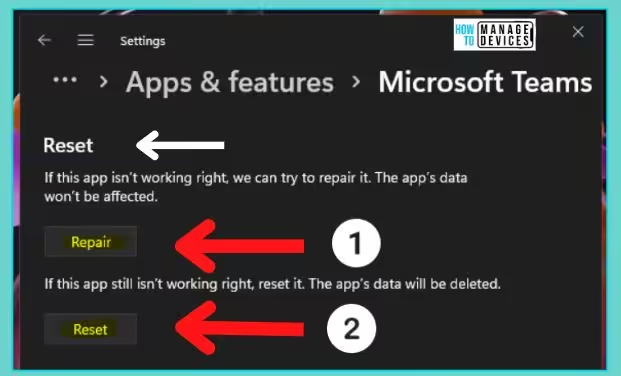
On Windows 10 and 11, you can reset or repair Teams through the Settings app.
Steps:
-
Press Windows + I to open Settings
-
Go to Apps > Installed Apps
-
Scroll down and find Microsoft Teams
-
Click on the three-dot menu > Advanced options
-
First click Repair. If that doesn’t work, try Reset
Note: Resetting the app will remove all local data, including sign-in info, and restore it to default settings.
Fix 9: Check Microsoft Teams Service Status
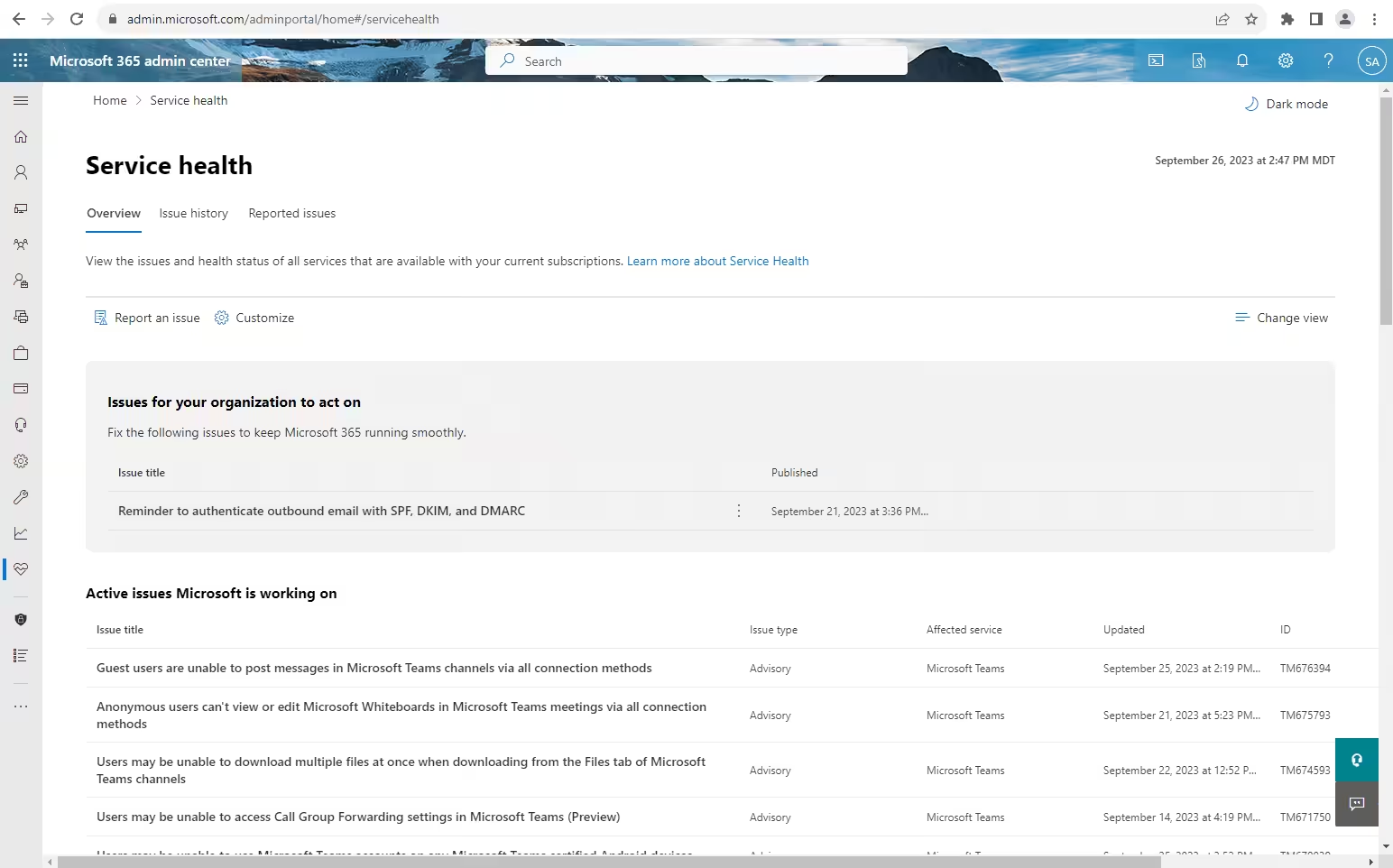
At times, the issue may not be on your end. Microsoft Teams might be experiencing a server outage.
Check status:
-
Visit the Microsoft 365 Service Health page at https://status.office365.com
-
Look for any issues reported for Microsoft Teams
If there’s a known outage, you’ll need to wait until Microsoft resolves it.
Fix 10: Contact Your Administrator (If on Work or School Account)
If you’re using Teams as part of an organization, it’s possible that:
-
Your account hasn’t been provisioned properly
-
You don’t have the right licenses assigned
-
Conditional Access policies are preventing login
In such cases, reach out to your IT administrator or Microsoft 365 admin to check your account status and permissions.
Conclusion
The “We Couldn’t Sign You In” error on Microsoft Teams can be incredibly disruptive, but in most cases, it’s caused by a simple local issue like corrupted cache, invalid credentials, or internet connectivity problems. Following the step-by-step fixes in this guide should help you resolve the problem and get back to collaborating with your team.
Quick Recap of Fixes:
-
Verify your email and password
-
Clear the Teams cache
-
Remove saved credentials in Windows
-
Check internet and firewall settings
-
Update or reinstall Teams
-
Use the web version as a temporary workaround
-
Reset or repair the Teams app
-
Ensure there are no account conflicts
By carefully applying these methods, you should be able to overcome login issues and continue using Microsoft Teams smoothly on Windows 10 or 11.