


Windows 10 Stuck on Preparing Automatic Repair? Here’s the Fix
If your computer is stuck on the “Preparing Automatic Repair” screen every time you start it, you’re not alone. This common issue in Windows 10 can be incredibly frustrating, especially when the system seems to be caught in a never-ending loop.
While the Automatic Repair tool is meant to fix startup problems, it can sometimes fail itself, causing your system to get stuck in a reboot cycle. In this article, we’ll walk you through practical steps to fix this issue and prevent it from recurring.
What Causes the “Preparing Automatic Repair” Loop?
This problem usually happens when Windows fails to boot properly and automatically launches the built-in repair tool. However, instead of resolving the issue, the process gets stuck.
Common causes include:
-
Corrupt or missing system files
-
Problems with the Master Boot Record (MBR) or Boot Configuration Data (BCD)
-
Failed or incomplete updates
-
Faulty drivers or recent hardware changes
-
Disk errors or bad sectors
-
Malware or third-party software interference
Step 1: Wait It Out
Sometimes, patience is all you need. If this is the first time you’ve seen this screen:
-
Wait at least 15 to 30 minutes.
-
The repair process may still be working in the background.
If it’s been more than 30 minutes with no change, move on to the next steps.
Step 2: Perform a Hard Reboot
Sometimes a simple hard reset can kick the system out of the loop.
How to do it:
-
Hold the power button down for 10 seconds until the PC turns off.
-
Disconnect all external devices like USB drives, printers, or external hard drives.
-
Wait a few seconds, then turn your PC back on.
If this doesn’t work, you’ll need to access the Advanced Recovery Options.
Step 3: Boot into Advanced Startup Options
.
You’ll need to interrupt the normal boot process to access recovery tools.
Here’s how:
-
Turn on your PC and, as soon as you see the Windows logo, hold the power button to shut it down again.
-
Repeat this 2 or 3 times. On the next reboot, Windows will enter Recovery Mode.
-
Click Advanced options.
From here, you can attempt several fixes.
Step 4: Try Startup Repair

The first tool to try is Startup Repair, which is designed to fix boot issues.
Steps:
-
In the Advanced Options menu, choose Troubleshoot > Advanced options > Startup Repair.
-
Select your operating system.
-
Wait while Windows attempts to repair startup problems.
If this doesn’t work, try the next method.
Step 5: Boot into Safe Mode

Safe Mode allows Windows to start with only essential drivers and services.
Steps to enter Safe Mode:
-
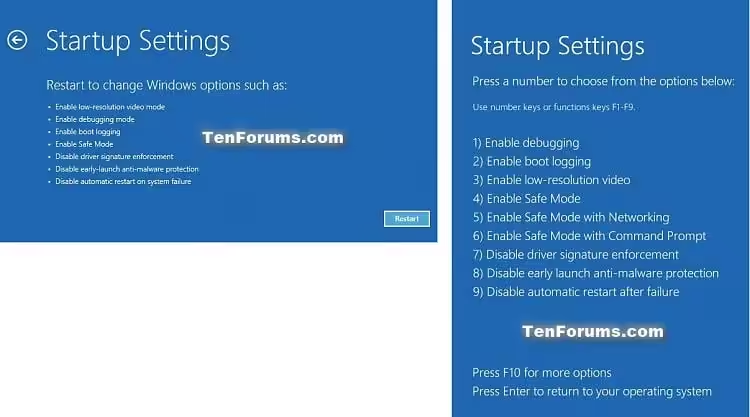
Go to Advanced Options > Startup Settings > Restart.
-
After restart, press 4 or F4 to start in Safe Mode.
Once in Safe Mode, you can uninstall updates, remove drivers, or run diagnostics.
Step 6: Run System File Checker and DISM

Corrupted system files are a major cause of repair loops.
To fix them:
-
From Advanced Options, open Command Prompt.
-
Type the following and press Enter:
This checks for and repairs damaged system files. Next, run:
This command checks for deeper system image problems.
Step 7: Repair the Boot Configuration
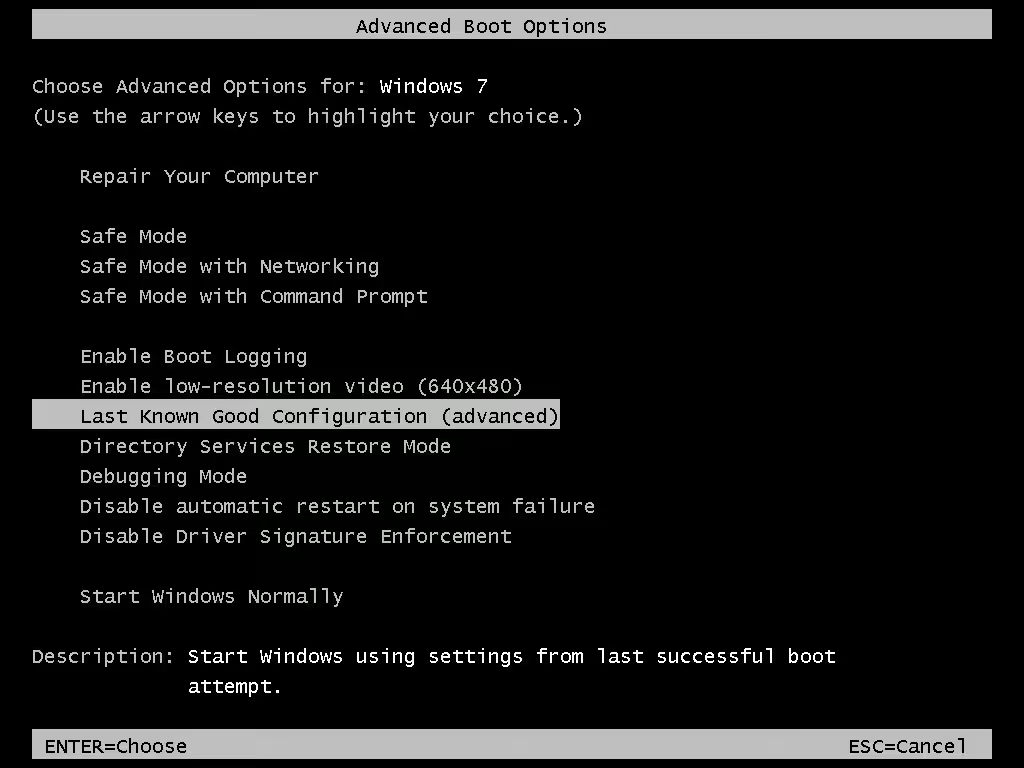
Boot errors can be resolved by fixing the Master Boot Record and Boot Configuration Data.
Commands to run in Command Prompt:
Note: If you get “Access is denied” on bootrec /fixboot, skip it and run the rest.
Restart your PC after running these commands.
Step 8: Check Disk for Errors

If the hard drive has bad sectors or errors, Windows may fail to boot.
Use this command:
-
Replace
C:with the drive where Windows is installed. -
This will take time and may fix disk-level problems.
Step 9: Disable Automatic Repair

You can try disabling automatic repair altogether to stop the loop.
Use this command:
After executing this, reboot your system. If it works, the PC should bypass the repair screen.
Step 10: Perform a System Restore
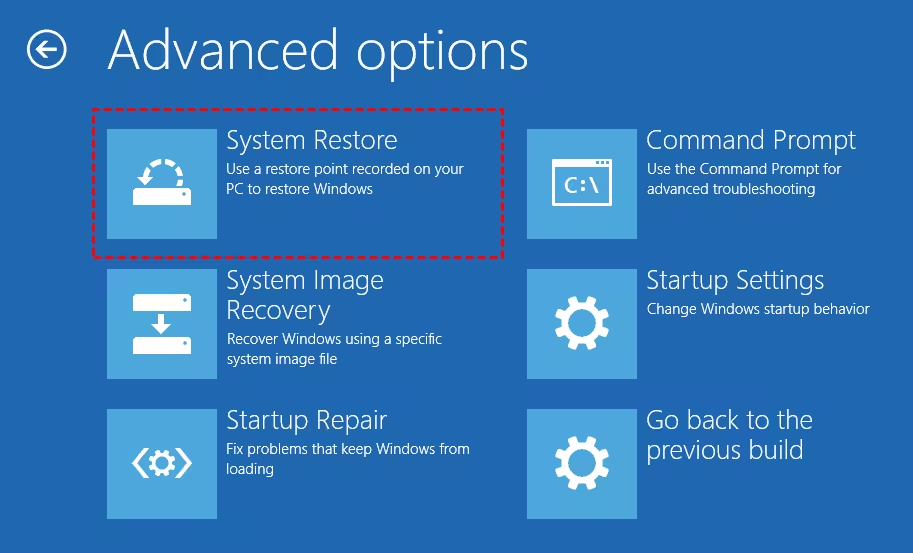
If System Restore was enabled previously, you can roll your system back to a point before the problem started.
To do this:
-
Go to Advanced Options > System Restore.
-
Choose a restore point before the issue began.
-
Let Windows complete the restoration.
This process won’t affect your personal files, only system settings and apps.
Step 11: Reset Windows While Keeping Files
If nothing works, consider resetting Windows as a last resort.
To reset:
-
Go to Troubleshoot > Reset this PC.
-
Select Keep my files.
-
Follow the on-screen prompts to reinstall Windows.
This will remove all apps and drivers but keep your documents and personal data.
Step 12: Check Hardware (Optional but Important)
If you’re still stuck:
-
Test your RAM using the Windows Memory Diagnostic tool.
-
Use a bootable USB tool to check hard drive health (e.g., from the manufacturer’s website).
-
Consider disconnecting or replacing recently added hardware.
Hardware failures can often mimic software problems and interfere with the boot process.
Conclusion
The “Preparing Automatic Repair” loop in Windows 10 can be annoying and time-consuming, but it is usually fixable with the right approach. From basic restarts to advanced command-line tools and recovery options, this guide has covered every major fix that can help bring your system back to life.
Summary of Solutions:
-
Try a hard reboot
-
Boot into Safe Mode
-
Run Startup Repair
-
Use SFC and DISM to repair files
-
Run bootrec and chkdsk
-
Perform a System Restore or a Reset
-
Diagnose potential hardware failures
By applying these steps carefully and methodically, you should be able to break the loop and restore full functionality to your Windows 10 PC.