


Fixing the “Audio Renderer Error” on YouTube
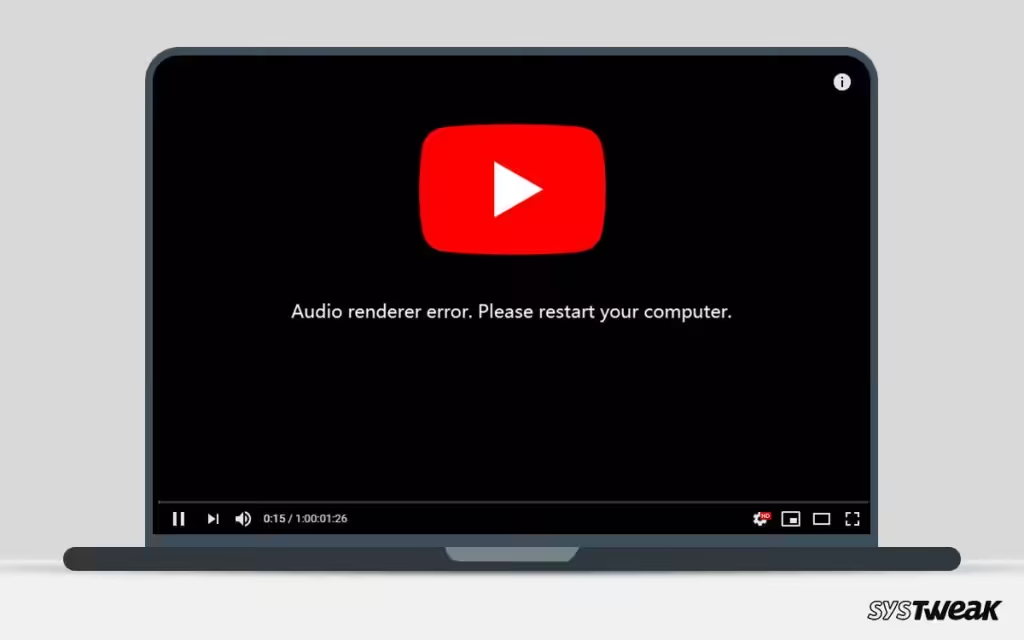
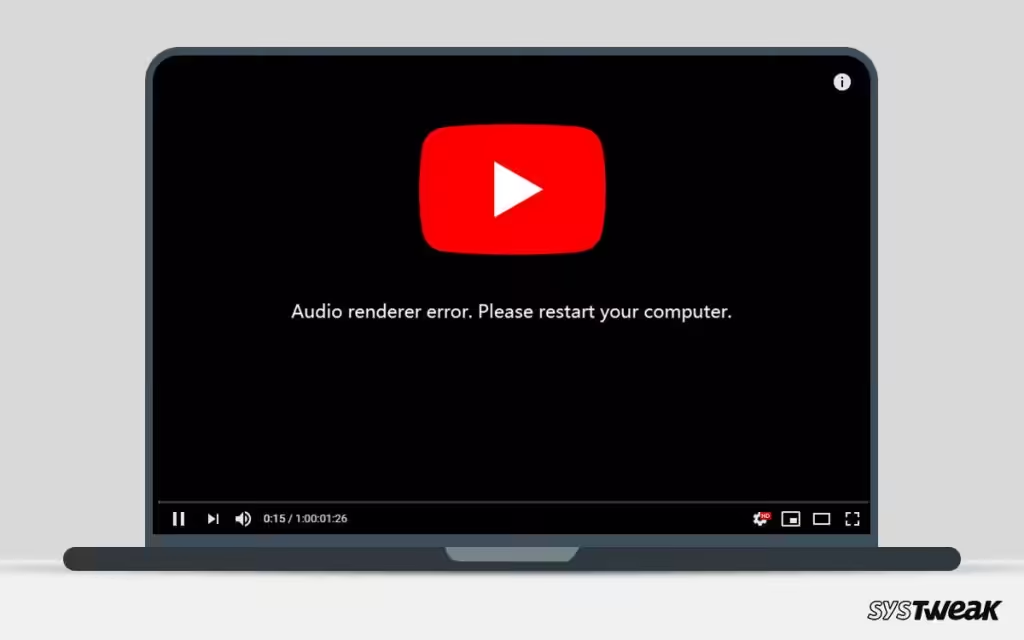
The “Audio Renderer Error. Please restart your computer” message on YouTube can be incredibly frustrating, especially when it suddenly interrupts your music, tutorial, or livestream. This issue is more common than you might think and can occur on various browsers, including Chrome, Firefox, and Edge, often due to problems with your audio drivers, settings, or external devices.
Fortunately, there are multiple proven methods to resolve the error. This guide will help you understand the cause and show you how to fix the problem quickly and efficiently.
What Causes the “Audio Renderer Error” on YouTube?
Before jumping into solutions, it’s helpful to understand what might trigger the error. Common causes include:
-
Audio driver conflicts or corruption
-
Multiple audio output devices being active simultaneously
-
Outdated or broken sound drivers
-
Issues with exclusive audio mode in Windows
-
Audio enhancements interfering with playback
-
External devices like headphones or audio interfaces
-
BIOS or system firmware bugs (in rare cases)
Now let’s go through the most effective fixes.
Fix 1: Unplug and Replug Your Audio Device
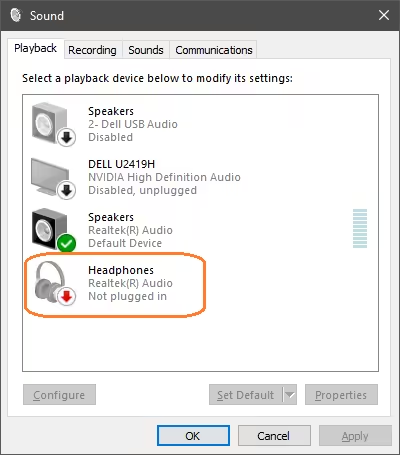
This is the quickest and simplest solution.
Steps:
-
If you are using headphones, speakers, or an audio interface connected via USB or 3.5mm jack, unplug the device.
-
Wait a few seconds, then plug it back in.
-
Refresh the YouTube page.
This method often resolves minor audio conflicts caused by sudden hardware detection issues.
Fix 2: Restart Your Computer
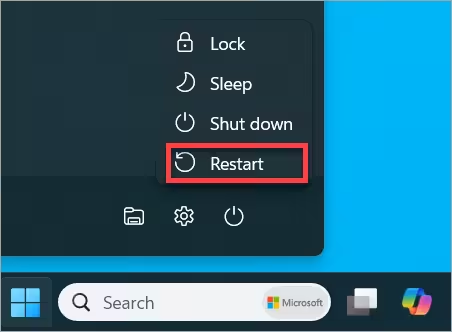
The error message itself often suggests this—and for good reason.
-
Restarting resets hardware assignments and clears out temporary glitches.
-
It’s particularly effective if the issue was caused by driver conflicts or system resources being locked.
After restarting, test YouTube again to check if the problem persists.
Fix 3: Disable and Re-Enable Audio Drivers
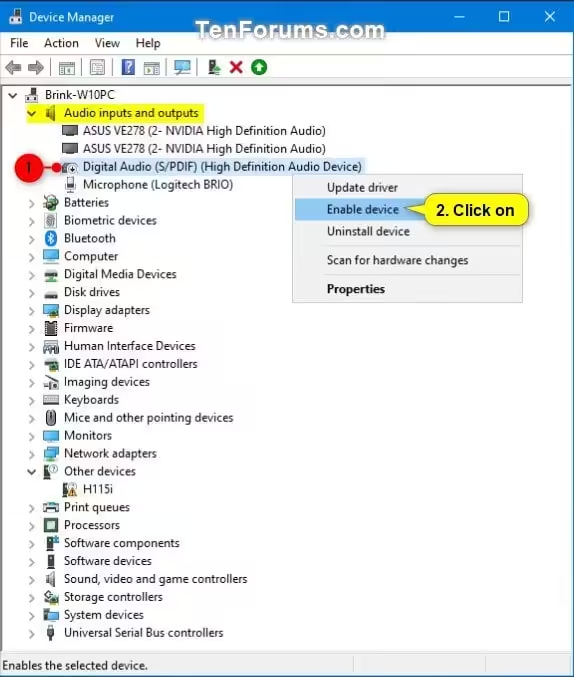
Sometimes your audio drivers may be active but not functioning correctly. A quick disable/enable cycle in Device Manager can resolve this.
Steps:
-
Right-click the Start Menu and select Device Manager.
-
Expand the Sound, video and game controllers section.
-
Right-click your active audio device (e.g., Realtek, Intel, etc.) and choose Disable device.
-
Wait a few seconds, then right-click again and choose Enable device.
-
Restart your browser or refresh the YouTube page.
Fix 4: Update or Roll Back Audio Drivers
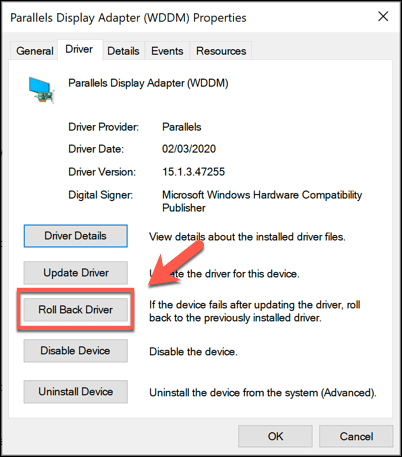
Driver issues are one of the top causes of YouTube playback errors. Keeping your drivers up to date—or reverting to a previous version—can help.
To update the driver:
-
Open Device Manager.
-
Right-click your audio device and select Update driver.
-
Choose Search automatically for drivers.
If the issue started after a recent update, try rolling back:
-
Right-click the device > Properties > Driver tab > Roll Back Driver (if available).
Restart your PC afterward and check YouTube again.
Fix 5: Run the Audio Troubleshooter
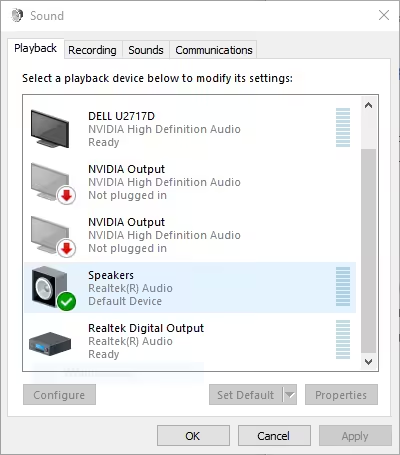
Windows comes with a built-in troubleshooter that automatically detects and resolves common sound problems.
How to run it:
-
Go to Settings > System > Sound.
-
Scroll down and click Troubleshoot under the Output section.
-
Follow the on-screen instructions.
This tool can fix misconfigurations or restart stuck services related to audio.
Fix 6: Change the Audio Format
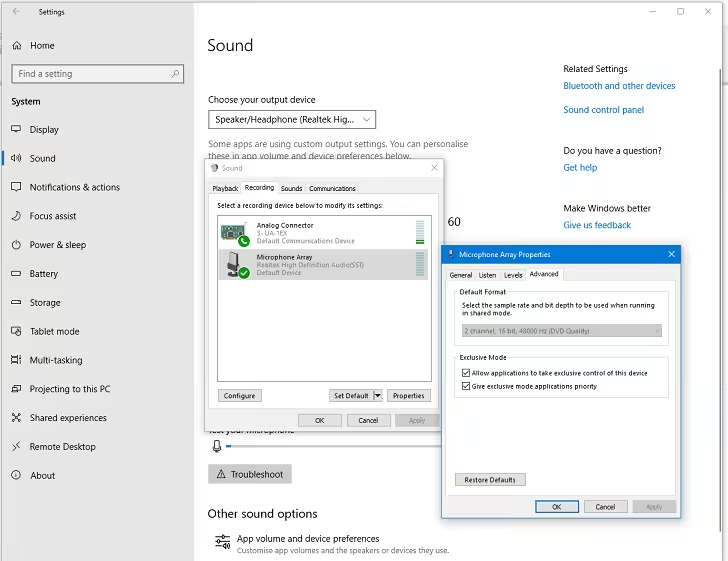
Sometimes the default audio format set in your system isn’t compatible with YouTube playback or your audio hardware.
How to change it:
-
Right-click the Sound icon in the taskbar and select Sounds.
-
Go to the Playback tab and double-click your default playback device.
-
In the Advanced tab, change the default format to something like 16 bit, 44100 Hz (CD Quality) or 24 bit, 48000 Hz (Studio Quality).
-
Click Apply, then OK.
Reopen YouTube and test audio playback.
Fix 7: Turn Off Hardware Acceleration in Your Browser
Hardware acceleration can improve performance but may cause compatibility issues with audio drivers.
To disable in Chrome:
-
Click the three-dot menu > Settings > System.
-
Turn off Use hardware acceleration when available.
-
Relaunch the browser.
Repeat this process for other browsers you may be using.
Fix 8: Disable Exclusive Mode
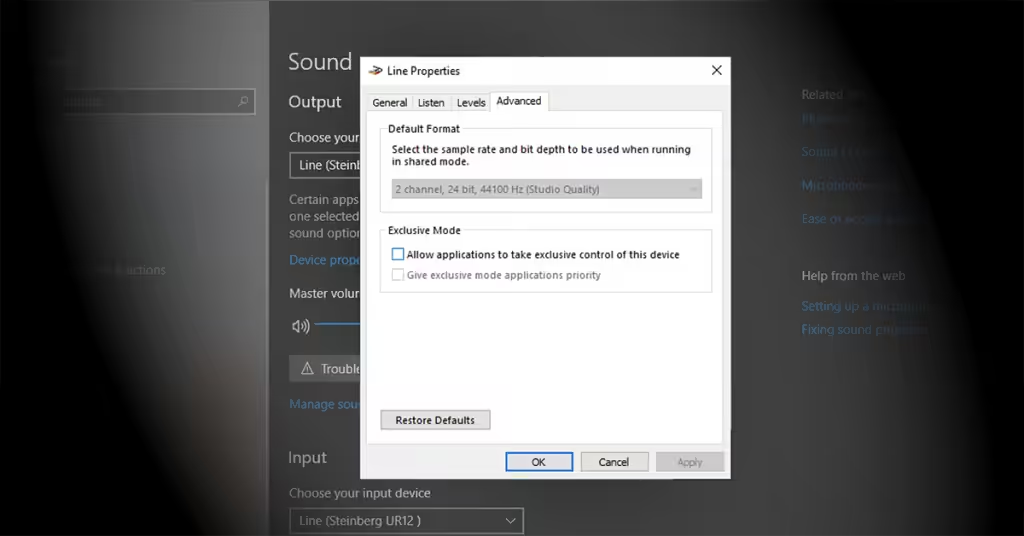
Windows sometimes allows apps to take exclusive control of your audio device, which can interfere with YouTube and other apps.
Steps:
-
Open Sound Settings > Sound Control Panel.
-
In the Playback tab, right-click your active device > Properties.
-
Go to the Advanced tab.
-
Uncheck Allow applications to take exclusive control of this device.
-
Click Apply and restart your browser.
Fix 9: Disable Audio Enhancements
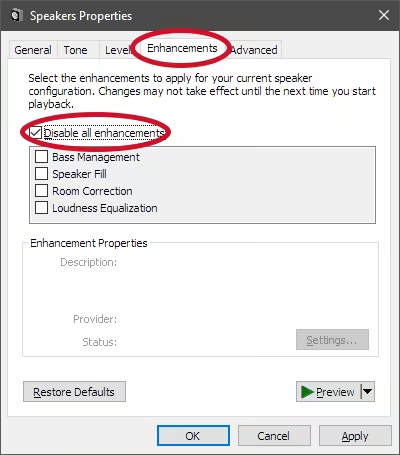
Audio enhancements are intended to improve sound quality, but they can sometimes cause playback errors.
To disable:
-
Open the Sound Control Panel.
-
Go to the Playback tab and open your default device’s Properties.
-
Under the Enhancements tab, check Disable all enhancements.
-
Click Apply and OK.
Then test YouTube again.
Fix 10: Update BIOS (Advanced Users)
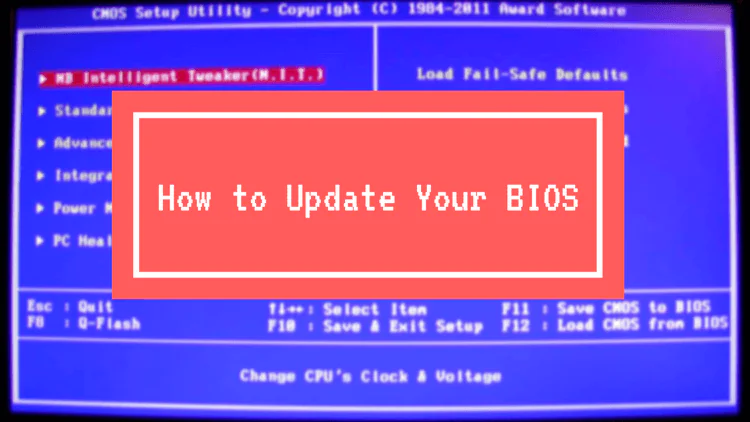
If none of the above solutions work and you’re still experiencing issues—especially on laptops—consider updating your system BIOS. Some motherboards have audio-related bugs that can only be fixed with a firmware update.
Warning: Updating BIOS is risky if done incorrectly. Only proceed if you’re familiar with your PC’s manufacturer instructions and confident in performing this task.
Conclusion
The “Audio Renderer Error. Please restart your computer” message on YouTube can be caused by anything from minor driver hiccups to deeper system-level conflicts. Fortunately, it is usually fixable without needing technical expertise or third-party software.
Quick Summary of Fixes:
-
Reconnect your audio device
-
Restart your PC
-
Disable/re-enable audio drivers
-
Update or roll back drivers
-
Run Windows’ audio troubleshooter
-
Adjust audio format and disable enhancements
-
Disable hardware acceleration
-
Check exclusive mode settings
-
(Optional) Update BIOS
By carefully following these steps, you can eliminate the audio renderer error and enjoy uninterrupted playback on YouTube and other media platforms.