


How to Fix Windows 10 Stuck in the “Preparing Automatic Repair” Loop
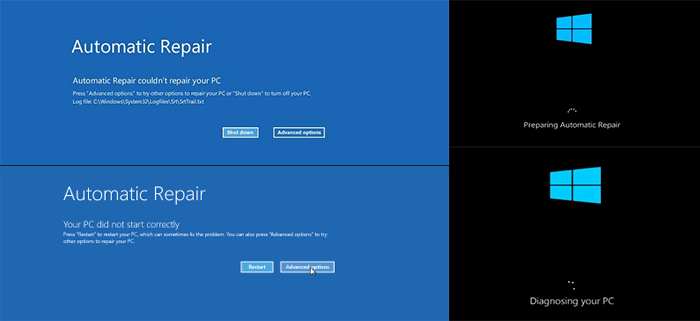
When you boot your Windows 10 computer and see the message “Preparing Automatic Repair”, it’s usually a sign that something has gone wrong during startup. While this feature is intended to help fix startup issues automatically, sometimes it gets stuck in a loop, preventing you from accessing your desktop entirely.
If your computer is stuck in this loop and keeps restarting or freezing without fixing the issue, don’t worry. In this guide, we’ll walk through the most effective solutions to break the loop and get your PC running again.
What Is the “Preparing Automatic Repair” Loop?
The Automatic Repair tool is part of the Windows Recovery Environment (WinRE). It activates when Windows detects a problem with the startup process—such as corrupt system files, disk errors, or failed updates.
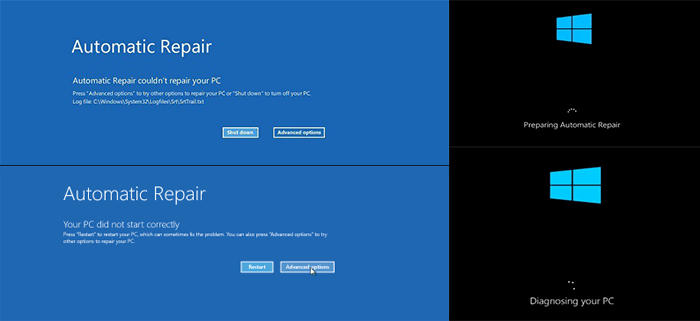
In normal situations, Windows will attempt to diagnose and fix the issue automatically. However, in some cases, it fails to complete the repair and reboots repeatedly, displaying the same message over and over again.
Common Causes of the Loop
Several factors can lead to a stuck repair loop:
-
Corrupted or missing system files
-
Damaged boot configuration data (BCD)
-
Incompatible drivers or recent hardware changes
-
Failed Windows updates
-
Malware or virus infection
-
Disk errors or hardware failure
Fix 1: Perform a Hard Reboot
Before diving into advanced troubleshooting, try a simple hard reboot:
-
Hold down the power button for about 10 seconds until your computer shuts off.
-
Wait for a few seconds and then power it back on.
Sometimes, this breaks the loop and lets you boot normally.
Fix 2: Boot into Safe Mode
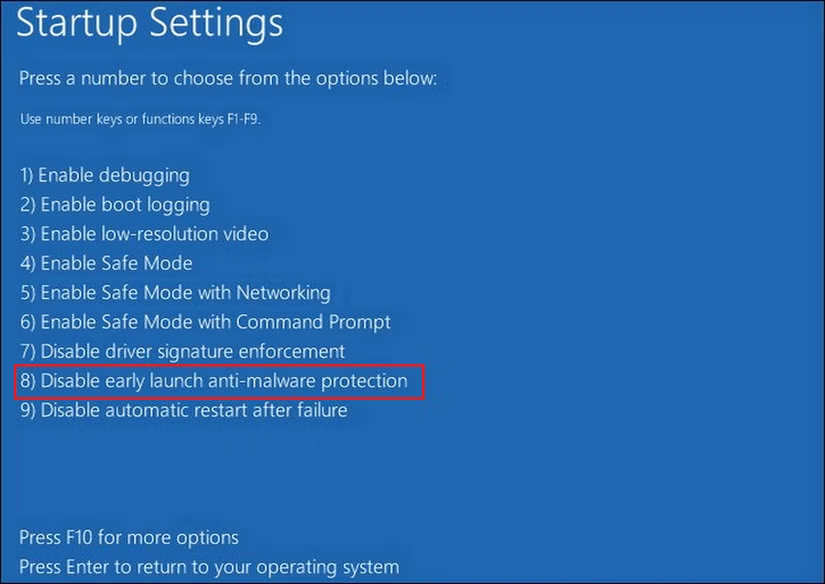
If a hard reboot doesn’t help, try entering Safe Mode, which loads only essential drivers and services.
Steps to enter Safe Mode:
-
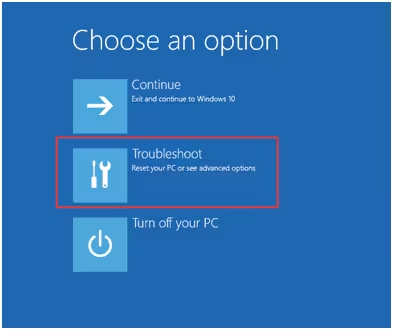
Force shutdown the computer three times during boot to trigger Advanced Startup.
-
On the Choose an Option screen, go to:
-
Troubleshoot > Advanced Options > Startup Settings
-
-
Click Restart and then press 4 to boot into Safe Mode.
If you successfully boot into Safe Mode, you can uninstall problematic updates or drivers.
Fix 3: Run System File Checker and DISM
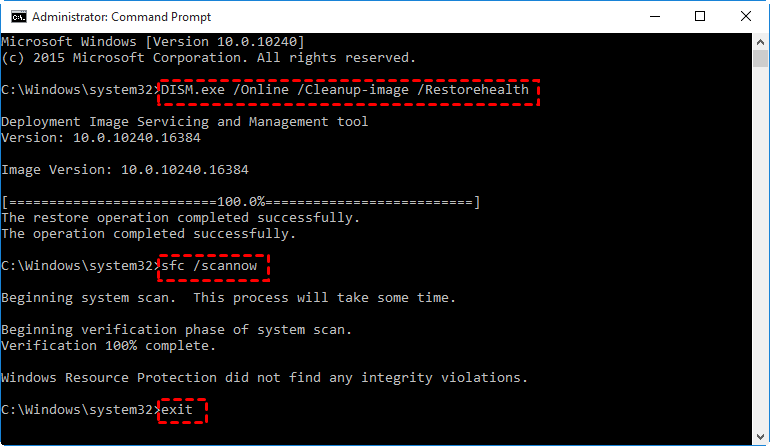
Corrupt system files can prevent Windows from starting properly. Use these tools to repair them.
In Safe Mode or from Command Prompt (in Advanced Options):
-
Open Command Prompt (Admin)
-
Run the following command:
Wait for the scan to complete. Then run:
These tools will scan and repair damaged or missing system components.
Fix 4: Use the Bootrec Commands
If the problem lies in the boot sector or BCD, the bootrec tool can help repair it.
Steps:
-
From the Advanced Options screen, choose Command Prompt
-
Run the following commands one at a time:
If bootrec /fixboot gives you “Access is denied,” skip it and proceed with the others.
After running these, restart your PC and check if it boots normally.
Fix 5: Check Disk for Errors

Faulty hard drives or file system errors can also cause startup loops.
To check for disk errors:
-
Open Command Prompt from Advanced Options
-
Type:
Replace C: with the correct drive letter if Windows is on another partition.
This scan may take a while but will attempt to repair any found disk issues.
Fix 6: Disable Automatic Repair Loop
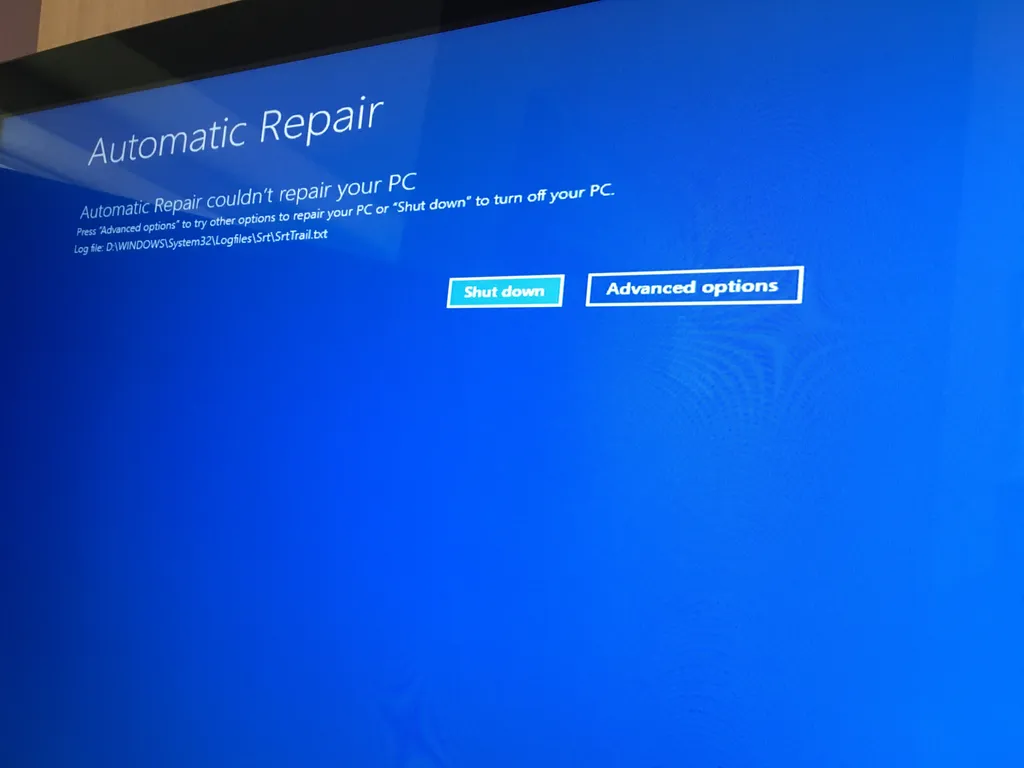
You can try disabling the automatic repair feature to stop it from interfering.
Command to disable:
Reboot your system after this. If the repair tool was malfunctioning, this may allow a normal boot.
Fix 7: Uninstall Problematic Updates or Drivers
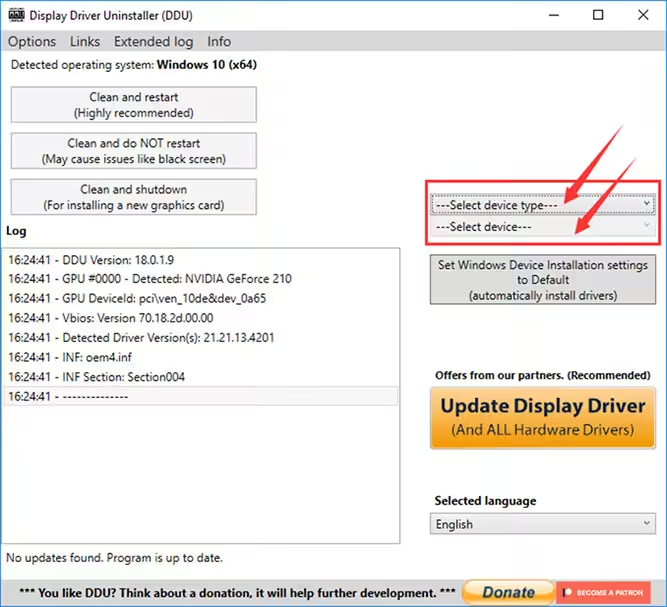
If the loop started after a recent update or driver installation, removing it could fix the issue.
Steps:
-
Boot into Safe Mode
-
Go to Settings > Update & Security > Windows Update > View update history
-
Click Uninstall updates and remove any recent updates
You can also use Device Manager to roll back or uninstall any recently added drivers.
Fix 8: Perform a System Restore
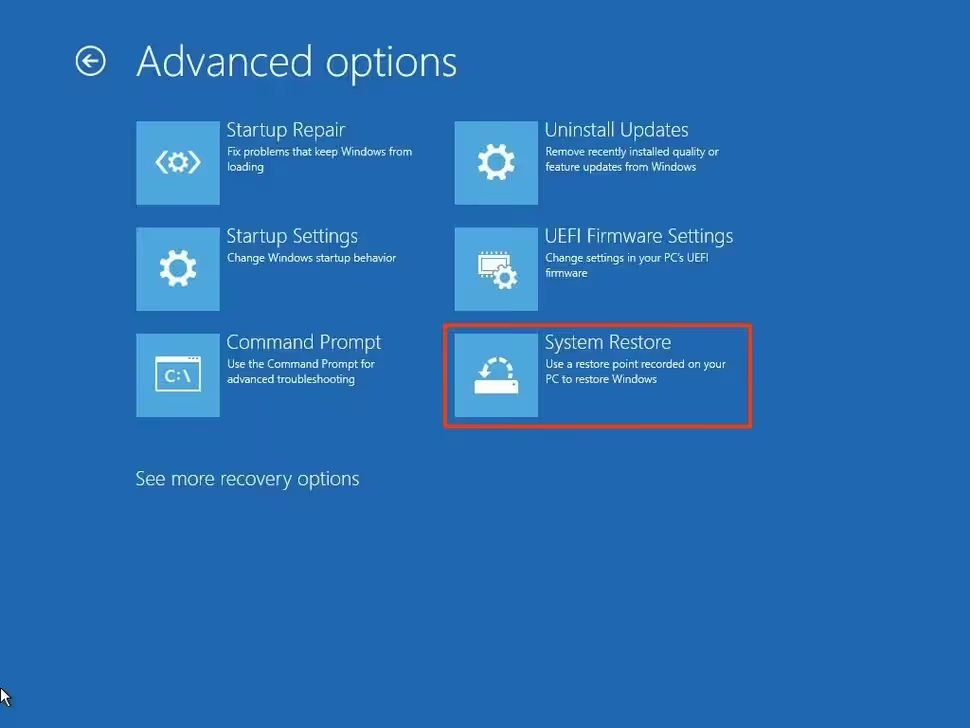
System Restore can revert your system to a working state without affecting personal files.
How to do it:
-
Boot to Advanced Options
-
Select System Restore
-
Choose a restore point created before the issue started
-
Follow the prompts to complete the process
After restoration, reboot and see if the problem is resolved.
Fix 9: Reset Windows (Keep Files)
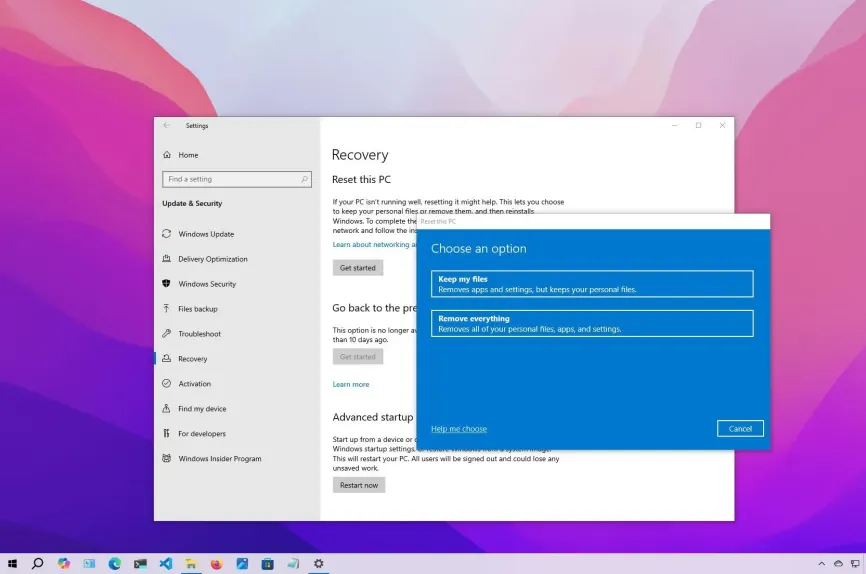
If none of the above works, consider resetting your PC. This reinstalls Windows while keeping your personal files.
To reset:
-
From Advanced Options, select Reset this PC
-
Choose Keep my files
-
Follow the on-screen instructions
Note: This will remove all apps and settings, but your files will remain.
Fix 10: Check for Hardware Issues
If you’re still stuck in the loop after all software fixes, your hardware could be the problem.
-
Run a memory test using Windows Memory Diagnostic
-
Check your hard drive health using tools from the drive manufacturer
-
Try reseating or replacing RAM modules
-
If using an SSD or HDD over 5 years old, consider replacing it
Hardware issues often mimic software problems during startup.
Conclusion
The “Preparing Automatic Repair” loop is a frustrating but common issue on Windows 10. Fortunately, in most cases, it can be resolved with a combination of Safe Mode access, command-line repairs, system restore, or a system reset.
Summary of Solutions:
-
Hard reboot
-
Boot into Safe Mode
-
Run SFC and DISM
-
Repair boot records with bootrec
-
Check disk with chkdsk
-
Uninstall problematic updates or drivers
-
Use System Restore or Reset this PC
-
Consider hardware diagnostics if nothing works
By methodically applying these solutions, you should be able to break the loop and bring your PC back to normal operation.