



Fixing Common Windows 10 Login Failures
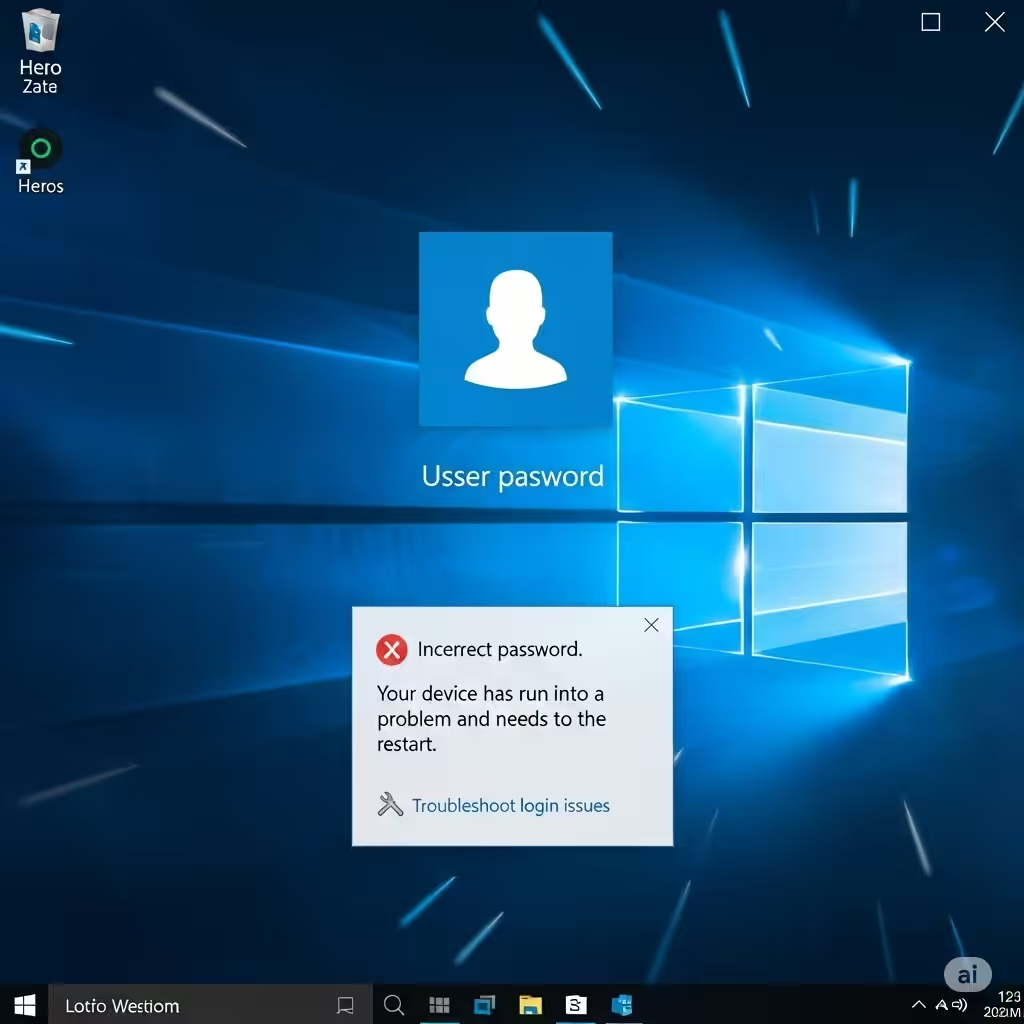
Logging into Windows 10 should be a smooth process, but sometimes, unexpected errors can leave users stuck at the login screen. Whether your password isn’t accepted, your profile won’t load, or the system simply freezes, Windows 10 login issues can be both frustrating and alarming.
Fortunately, there are several tried-and-true methods to troubleshoot and resolve these problems. This guide will walk you through the most effective ways to fix login issues in Windows 10, from basic checks to more advanced system recovery methods.
Common Windows 10 Login Problems

Windows 10 users may experience various login-related problems, including:
-
Password or PIN not accepted
-
Stuck on the “Welcome” or “Preparing Windows” screen
-
User profile not loading properly
-
Black screen after entering login credentials
-
Login options missing or grayed out
-
System restarting or crashing before login
Each of these problems can be caused by different issues, such as corrupted system files, profile errors, Windows updates, or driver conflicts.
Restart Your Computer First
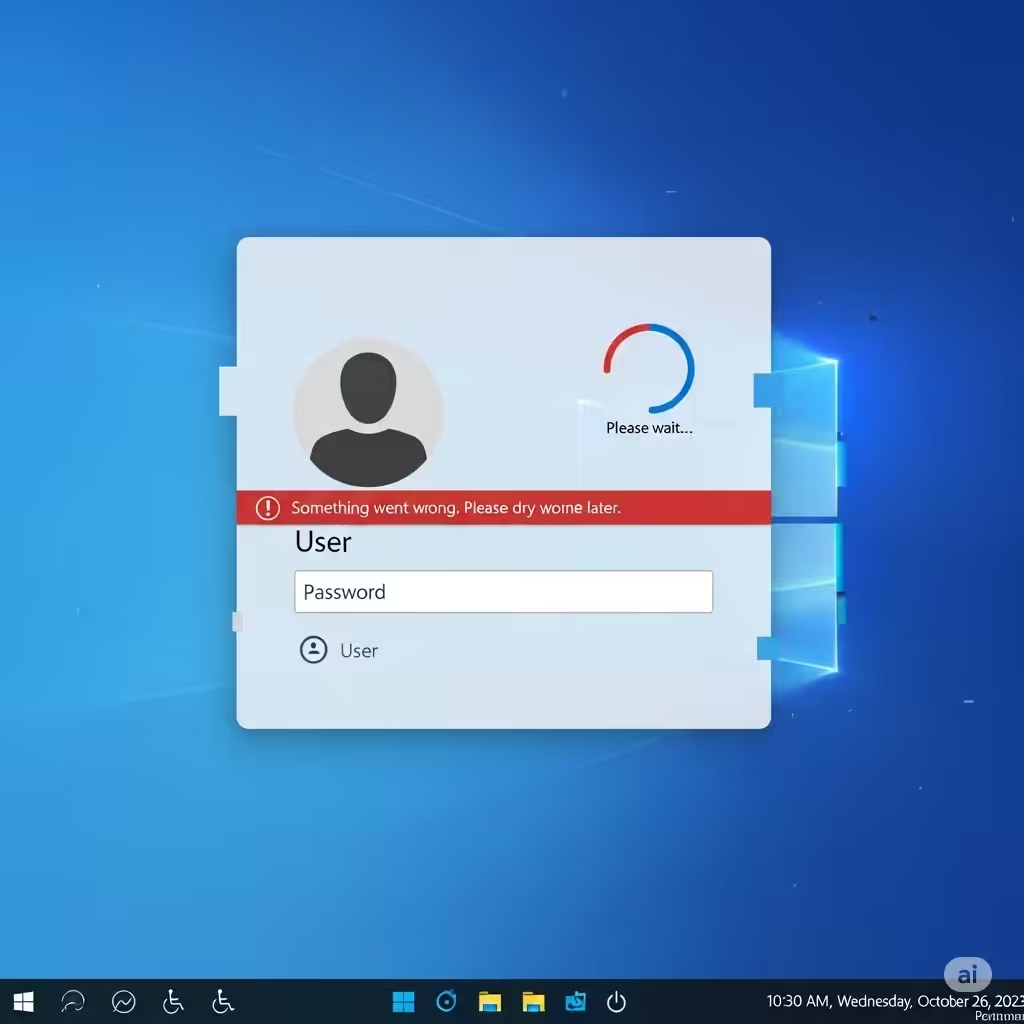
Before diving into deeper solutions, try restarting your computer. This basic step can often resolve temporary glitches and system hiccups that prevent proper login.
If you’re stuck at the login screen, try pressing Ctrl + Alt + Delete, then select the power icon in the bottom-right corner and choose Restart.
If this doesn’t help, move on to the methods below.
Method 1: Use Safe Mode to Bypass Login Problems
Safe Mode is a special Windows mode that loads only essential drivers and services. If a recent change or corrupted driver is causing your login issue, booting into Safe Mode can help.
How to Enter Safe Mode:
-
Restart your PC and hold Shift while selecting Restart from the login screen’s power menu.
-
Go to Troubleshoot > Advanced options > Startup Settings.
-
Click Restart.
-
When the Startup Settings screen appears, press 4 or F4 to boot into Safe Mode.
Once you’re in Safe Mode, you can:
-
Create a new user account if your profile is corrupted
-
Uninstall recent drivers or updates
-
Run virus scans or system restore
Method 2: Check for Keyboard Layout Issues
Sometimes login failures are simply due to the wrong keyboard layout. For instance, if you’re using a different region’s layout, your password may not type correctly.
To check or switch keyboard layout:
-
On the login screen, click the keyboard icon or language option in the bottom-right corner.
-
Select the correct language (e.g., US keyboard).
-
Re-enter your password or PIN.
This is especially important if your password contains special characters.
Method 3: Perform a System Restore
If login issues began after a recent update or software installation, a system restore can roll back your computer to an earlier working state.
Steps:
-
Boot into Advanced Startup options (via Safe Mode or by interrupting boot three times).
-
Navigate to Troubleshoot > Advanced options > System Restore.
-
Select a restore point before the login issue started.
-
Follow the prompts to restore your system.
This won’t affect your personal files but may uninstall recently installed applications.
Method 4: Create a New User Account
Corrupted user profiles are a common cause of login issues. If you can access Safe Mode or another admin account, you can create a new user account.
To create a new account:
-
Press Windows + I to open Settings.
-
Go to Accounts > Family & other users.
-
Click Add someone else to this PC.
-
Follow the prompts to set up a new user (you can choose a local or Microsoft account).
Once done, restart your PC and try logging in with the new account.
Method 5: Disable Fast Startup
Fast Startup is a Windows feature that speeds up boot time, but it can sometimes cause problems with login or hibernation.
To disable it:
-
Boot into Safe Mode.
-
Press Windows + R, type
powercfg.cpl, and press Enter. -
Click Choose what the power buttons do.
-
Click Change settings that are currently unavailable.
-
Uncheck Turn on fast startup, then click Save changes.
Restart your PC and see if the login issue is resolved.
Method 6: Run System File Checker (SFC)
Corrupted system files can prevent Windows from loading the login screen correctly. The System File Checker scans for and fixes these files.
How to use SFC:
-
Boot into Safe Mode.
-
Open Command Prompt as Administrator.
-
Type the following command and press Enter:
Let the scan complete, then restart your system and try logging in again.
Method 7: Check for Malware or Viruses
In some rare cases, malware can interfere with Windows login processes. If you can access Safe Mode with Networking, update and run a full scan with Windows Defender or a trusted third-party antivirus.
Alternatively, you can use a bootable antivirus tool from a USB drive to scan your system before Windows loads.
Method 8: Use Automatic Repair
Windows 10 offers an Automatic Repair tool that can fix boot and login issues.
Steps:
-
Boot to the Advanced Startup screen.
-
Select Troubleshoot > Advanced options > Startup Repair.
-
Choose your user account and enter your password when prompted.
-
Let Windows attempt to repair the system.
If successful, this will return you to a working login screen.
Method 9: Reset Your PC
As a last resort, you can reset Windows 10. This will reinstall the operating system, and you can choose to keep or remove your personal files.
To reset your PC:
-
Boot into the Advanced Startup screen.
-
Go to Troubleshoot > Reset this PC.
-
Choose either Keep my files or Remove everything.
-
Follow the prompts to complete the reset.
This method should be used if all else fails and you’ve backed up your important data.
Final Thoughts
Windows 10 login issues can be alarming, especially if you’re worried about losing access to your data. Thankfully, most problems can be resolved using built-in tools like Safe Mode, System Restore, and SFC. By following the steps in this guide, you should be able to regain access to your system without a complete reinstall.
If you continue to face issues after trying all methods, you might be dealing with more serious hardware problems or deep system corruption—at which point, professional help or a clean installation of Windows may be necessary.
Always remember to back up your important files regularly to avoid data loss in case of system failure.