


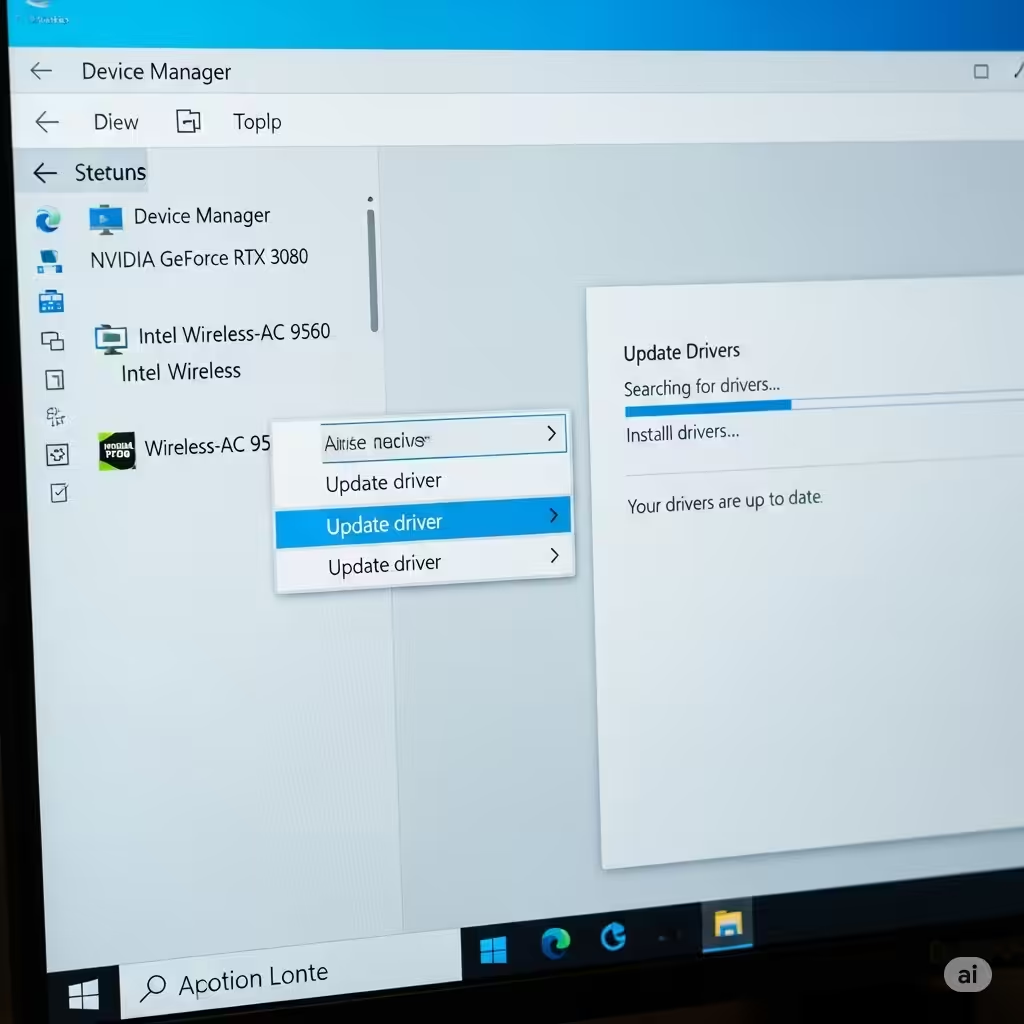
How to Manually or Automatically Update Windows 10 Drivers
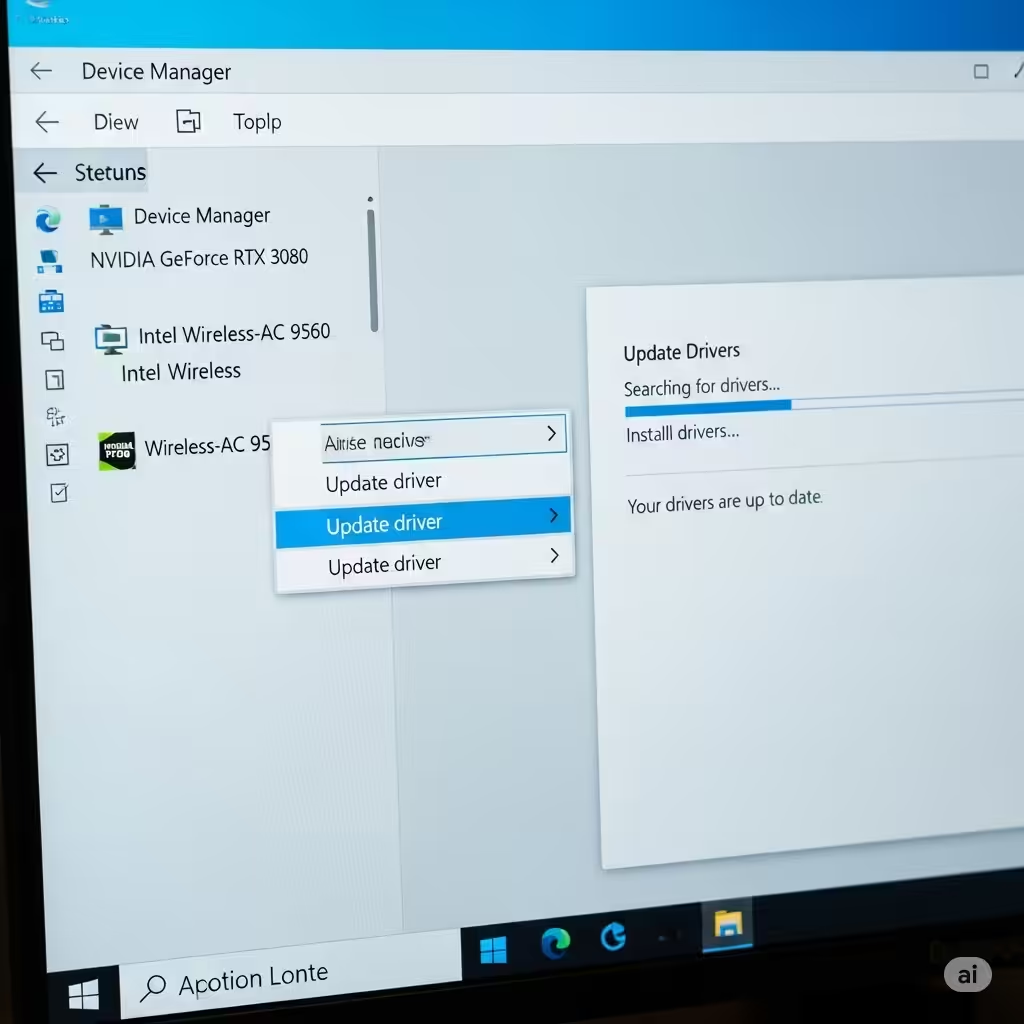
Keeping your device drivers updated is essential for maintaining system performance, stability, and compatibility. Drivers are the software components that allow your operating system to communicate with your hardware—everything from graphics cards and sound devices to network adapters and printers.
When drivers become outdated or corrupt, you may experience problems such as lagging performance, system crashes, hardware not working correctly, or even the dreaded Blue Screen of Death (BSOD). Fortunately, Windows 10 provides several easy methods to update your drivers.
In this guide, we’ll walk you through different ways to update device drivers in Windows 10, from using built-in tools to downloading updates directly from manufacturers.
What Are Device Drivers?
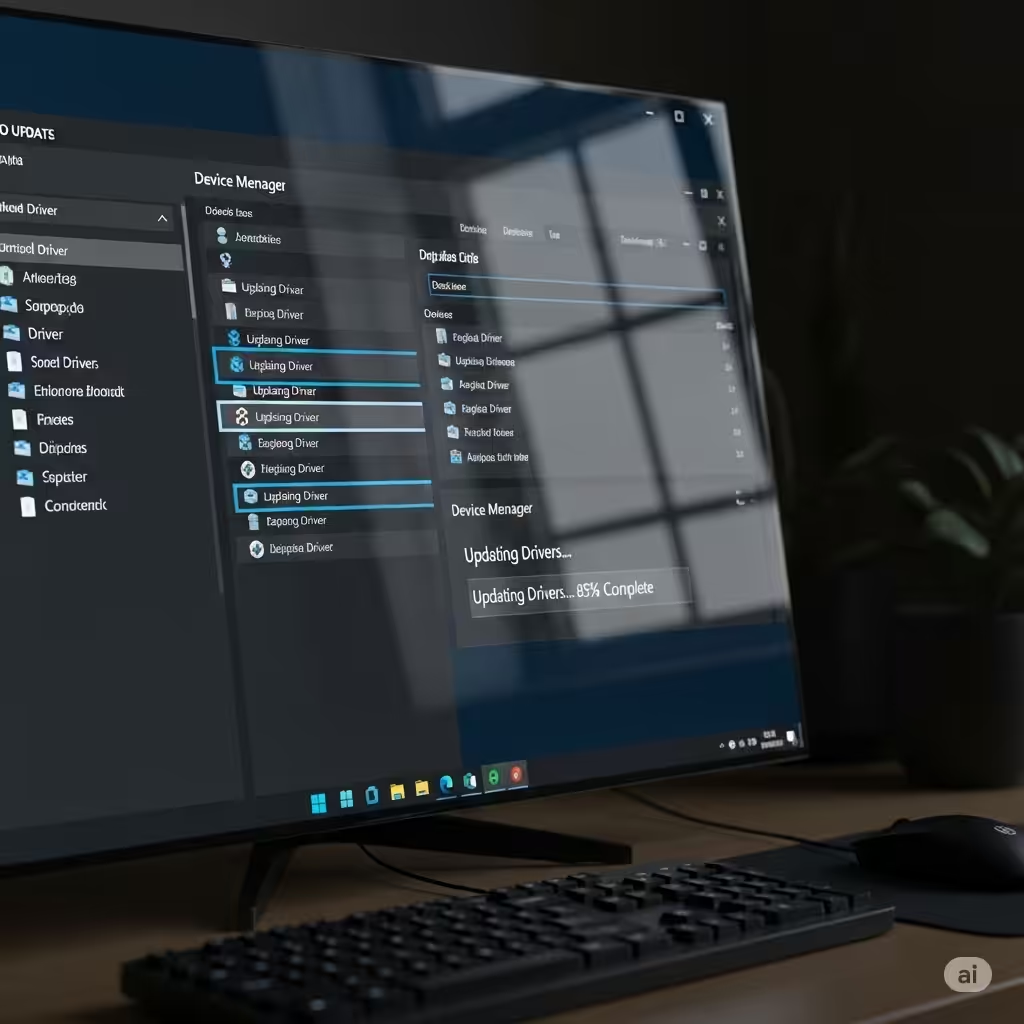
Device drivers are small programs that act as a translator between your operating system and hardware devices. Each device connected to your computer needs a driver to function properly. Without drivers, your system wouldn’t know how to interact with components like your graphics card, keyboard, or Wi-Fi adapter.
There are two types of drivers:
-
Generic drivers provided by Microsoft through Windows Update
-
Manufacturer-specific drivers offered by hardware vendors for optimized performance and features
Why Should You Update Drivers?
There are several good reasons to keep your drivers up to date:
-
Improved hardware performance
-
Bug fixes and compatibility enhancements
-
New features and security patches
-
Prevention of crashes or hardware failures
While not every update is critical, outdated drivers can be a major source of problems on your PC.
Method 1: Use Windows Update
Windows Update is the easiest and safest way to update many drivers, especially for basic system components like chipset drivers, audio, and network devices.
Steps:
-
Click the Start menu and open Settings.
-
Go to Update & Security.
-
Click on Windows Update in the left pane.
-
Click Check for updates.
If Windows detects any updated drivers, it will automatically download and install them.
Pros:
-
Simple and automated
-
Ensures compatibility with Windows 10
-
Requires no technical knowledge
Cons:
-
Not always the latest driver version
-
May miss specific manufacturer updates
Method 2: Use Device Manager
Device Manager gives you manual control to update specific drivers on your system.
Steps:
-
Press Windows + X and select Device Manager.
-
Locate the device you want to update (e.g., Display adapters > your GPU).
-
Right-click the device and choose Update driver.
-
Select Search automatically for updated driver software.
Windows will look for the best driver and install it if available.
Pros:
-
Allows per-device control
-
Easy to navigate for power users
Cons:
-
Doesn’t always find the most recent drivers
-
May not work for specialized hardware
Method 3: Download Drivers from the Manufacturer’s Website
For the latest and most optimized drivers, it’s best to download them directly from the hardware manufacturer.
Common hardware manufacturers:
-
Intel (chipset, CPU graphics): https://downloadcenter.intel.com
-
NVIDIA (graphics): https://www.nvidia.com/Download/index.aspx
-
AMD (graphics and processors): https://www.amd.com/en/support
-
Realtek (audio and LAN): https://www.realtek.com/en/downloads
-
HP, Dell, Lenovo, ASUS, etc. for system-specific drivers
Steps:
-
Go to the manufacturer’s official support page.
-
Enter your hardware model or product number.
-
Download the appropriate driver for Windows 10 (check if 64-bit or 32-bit).
-
Run the installer and follow on-screen instructions.
Pros:
-
Usually the most up-to-date drivers
-
May include advanced features and tools
Cons:
-
Requires knowledge of your hardware
-
Risk of downloading incorrect drivers if not careful
Method 4: Use Driver Updater Tools (Optional)
Several third-party tools offer automated driver scans and updates. Examples include:
-
Driver Booster
-
Driver Easy
-
Snappy Driver Installer
These tools can simplify the process by scanning your system and downloading drivers in bulk.
Caution:
While these tools can be helpful, be selective and use only well-reviewed software. Some may install unnecessary programs or outdated drivers.
Pros:
-
One-click updates for multiple drivers
-
Great for novice users
Cons:
-
Potential for bloatware
-
Not always reliable for rare devices
How to Check If a Driver Was Updated Successfully
After updating a driver, you can verify the version to confirm the update.
Steps:
-
Open Device Manager.
-
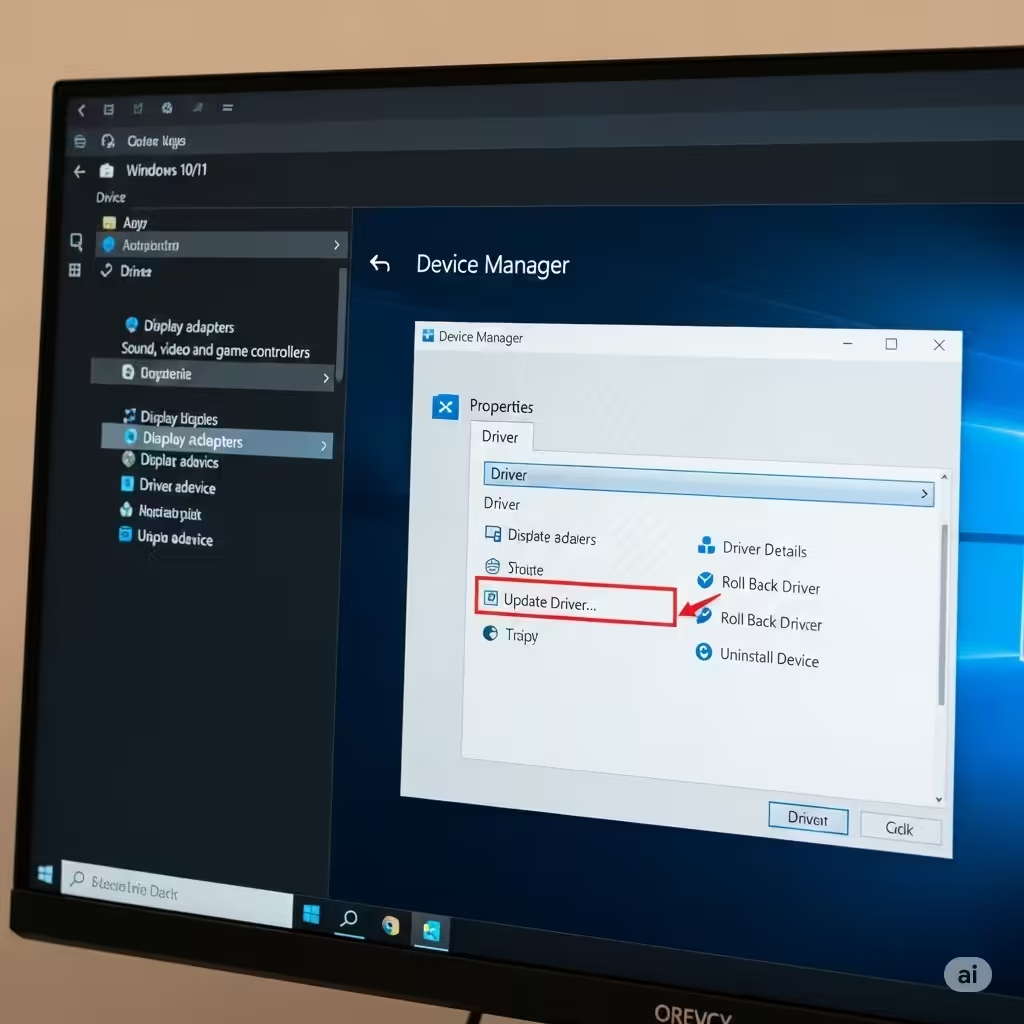
Right-click the device > Properties.
-
Click the Driver tab.
-
View the Driver Date and Driver Version.
Compare this with the version listed on the manufacturer’s website.
Roll Back a Driver If Something Goes Wrong
Sometimes, updating a driver can introduce issues. If that happens, you can easily revert to the previous version.
Steps:
-
Open Device Manager.
-
Right-click the device > Properties.
-
Go to the Driver tab.
-
Click Roll Back Driver (if the option is available).
-
Follow the prompts.
When Should You Update Drivers?
Here are the most common scenarios when updating drivers makes sense:
-
You’re installing a new game or application and encounter performance issues
-
You’ve just upgraded your operating system
-
A hardware device is not recognized or not working properly
-
Your system is crashing or freezing regularly
-
You’re experiencing slowdowns or lag
On the other hand, if everything is working fine, frequent updates may not be necessary unless you’re after specific performance improvements.
Final Thoughts
Updating your device drivers in Windows 10 is essential for maintaining a smooth, fast, and secure computing experience. Whether you’re a casual user or a tech enthusiast, understanding how to keep drivers current can help you avoid annoying issues and make the most of your hardware.
You can use Windows Update and Device Manager for quick fixes, or dive into manufacturer websites for the latest versions. Whichever method you choose, always create a system restore point before updating critical drivers—just in case something goes wrong.
Let your hardware work at its best—by keeping its drivers in top shape.