


How to Use Excel Conditional Formatting Like a Pro
Microsoft Excel is one of the most powerful tools for managing and analyzing data. While formulas and functions often receive most of the attention, Excel’s Conditional Formatting feature can be just as valuable. Conditional Formatting allows you to automatically apply formatting to cells based on specific rules or conditions, making it easier to identify trends, spot errors, compare values, and visualize important information.
Whether you’re managing financial reports, sales records, attendance lists, project timelines, or inventory data, Conditional Formatting can help transform a plain spreadsheet into an easy-to-read and professional-looking report.
In this tutorial, you’ll learn what Conditional Formatting is, why it’s useful, and how to use it effectively with practical examples.
What Is Conditional Formatting in Excel?
Conditional Formatting is an Excel feature that automatically changes the appearance of cells when certain conditions are met.
For example, you can:
- Highlight sales figures above a target
- Identify duplicate values
- Color-code deadlines
- Display data bars to compare values
- Use color scales to show performance levels
- Highlight blank or missing data
Instead of manually formatting cells, Excel applies formatting dynamically based on your rules.
Why Use Conditional Formatting?
Conditional Formatting improves data visualization and helps users quickly understand large datasets.
Benefits of Conditional Formatting
- Makes important data stand out
- Saves time compared to manual formatting
- Helps identify trends and patterns
- Improves data accuracy
- Simplifies reporting
- Enhances spreadsheet readability
For businesses and professionals, Conditional Formatting can significantly improve data analysis efficiency.
How to Access Conditional Formatting
Conditional Formatting is located on the Home tab of the Excel ribbon.
Steps
- Select the cells you want to format.
- Click the Home tab.
- Choose Conditional Formatting.
- Select the desired formatting rule.
Excel provides several built-in options and allows custom rule creation.
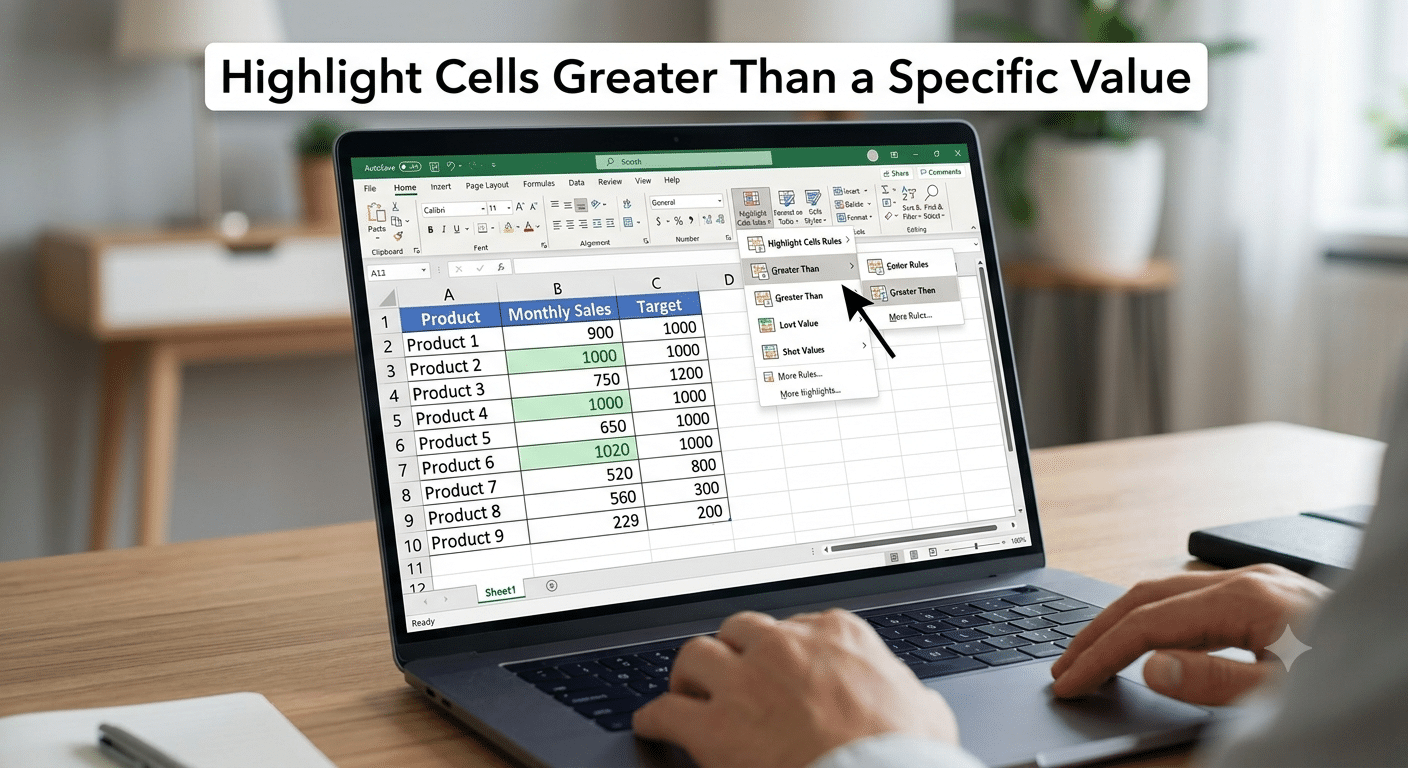
Highlight Cells Greater Than a Specific Value
One of the most common uses of Conditional Formatting is highlighting values above or below a threshold.
Example
Suppose you have monthly sales data.
| Sales |
|---|
| 500 |
| 1200 |
| 800 |
| 1500 |
To highlight values greater than 1000:
- Select the sales column.
- Click Conditional Formatting.
- Choose:
Highlight Cells Rules → Greater Than- Enter:
1000- Select a formatting style.
- Click OK.
Excel immediately highlights qualifying values.
Highlight Cells Less Than a Specific Value
You can also identify underperforming values.
Example
To highlight sales below 500:
- Select the data range.
- Go to:
Conditional Formatting → Highlight Cells Rules → Less Than- Enter:
500- Choose a format.
This helps identify areas requiring attention.
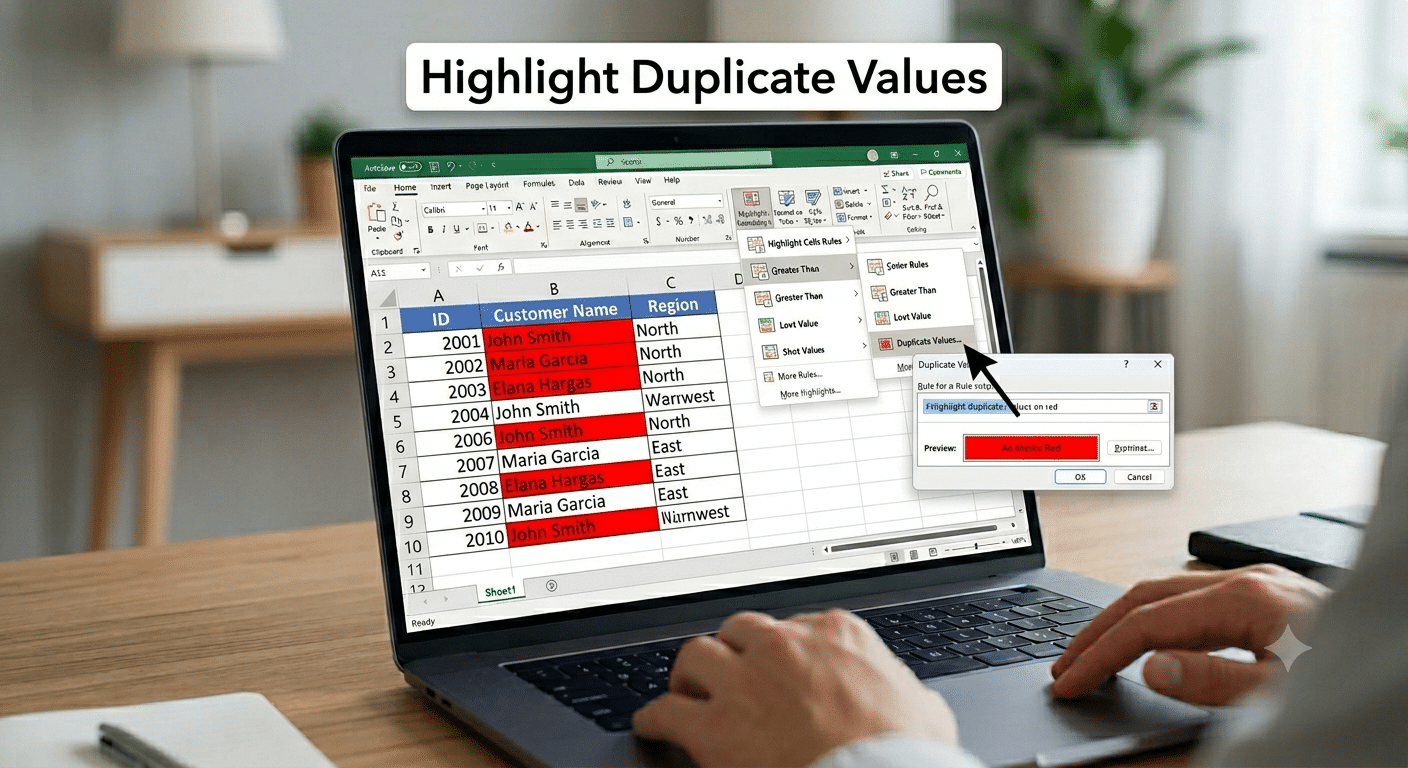
Highlight Duplicate Values
Duplicate entries can cause reporting and analysis issues.
How to Find Duplicates
- Select the dataset.
- Click:
Conditional Formatting → Highlight Cells Rules → Duplicate Values- Choose a formatting style.
- Click OK.
Excel highlights every duplicate entry automatically.
Highlight Unique Values
In some cases, unique values are more important than duplicates.
Steps
- Select the data.
- Choose:
Conditional Formatting → Highlight Cells Rules → Duplicate Values- Change the dropdown option from Duplicate to Unique.
- Apply formatting.
Using Data Bars
Data Bars provide a visual representation of values within cells.
Example
Sales figures can be displayed using horizontal bars.
Steps
- Select numeric data.
- Click:
Conditional Formatting → Data Bars- Choose a style.
Larger values display longer bars, making comparisons easier.
Using Color Scales
Color Scales apply different colors based on cell values.
Example
A sales report might show:
- Green for high values
- Yellow for medium values
- Red for low values
Apply a Color Scale
- Select your data.
- Click:
Conditional Formatting → Color Scales- Choose a predefined scale.
Excel automatically applies gradient-based formatting.
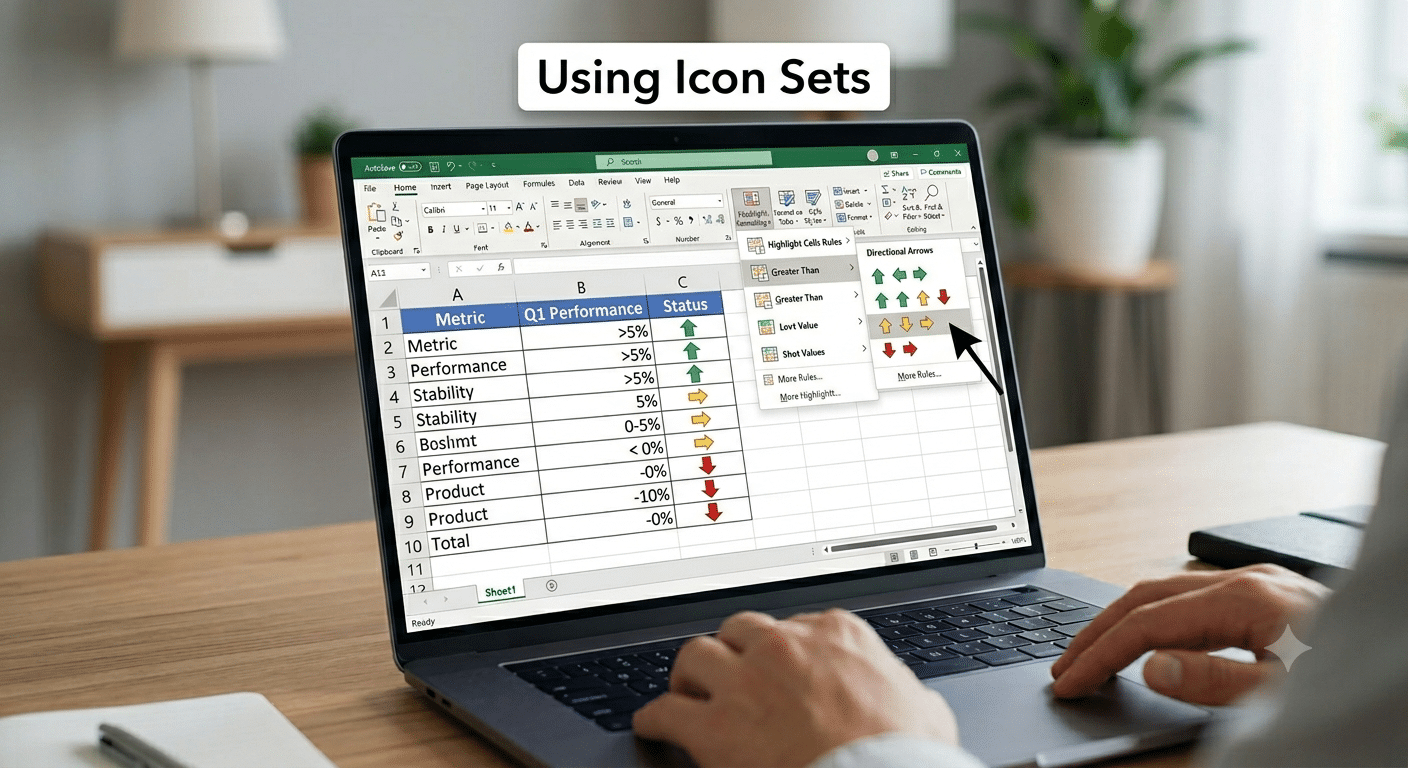
Using Icon Sets
Icon Sets provide visual indicators such as arrows, flags, or symbols.
Examples
- Green arrows for growth
- Yellow arrows for stability
- Red arrows for decline
Apply Icons
- Select the data range.
- Choose:
Conditional Formatting → Icon Sets- Select the preferred icon style.
These indicators help communicate performance quickly.
Highlight Dates Automatically
Conditional Formatting works exceptionally well with dates.
Examples
You can highlight:
- Upcoming deadlines
- Overdue tasks
- Current month activities
Highlight Overdue Dates
- Select date cells.
- Create a new rule.
- Use a formula based on today’s date.
Example:
=A2<TODAY()Apply a red fill to overdue dates.
Highlight Blank Cells
Missing information can affect reports and calculations.
Steps
- Select the range.
- Click:
Conditional Formatting → New Rule- Choose:
Format only cells that contain- Select:
Blanks- Apply formatting.
Blank cells become easier to identify.
Highlight Non-Blank Cells
You can also emphasize completed entries.
Create a Rule
Select:
Cell Value → Not BlankChoose a formatting style to indicate completed data.
Using Formula-Based Conditional Formatting
Advanced users often create custom rules using formulas.
Benefits
- Greater flexibility
- Complex logic
- Dynamic formatting
Example: Highlight Entire Rows
Suppose column C contains the word “Completed.”
Formula
=$C2="Completed"Apply this rule to the entire table.
Whenever “Completed” appears in column C, Excel highlights the corresponding row.
Highlight Alternate Rows
Alternating row colors improve readability.
Formula
=MOD(ROW(),2)=0This highlights every second row automatically.
Highlight Top Values
Excel can identify top-performing values quickly.
Steps
- Select the dataset.
- Click:
Conditional Formatting → Top/Bottom Rules → Top 10 Items- Modify the number if needed.
- Apply formatting.
Highlight Bottom Values
To identify poor-performing entries:
- Select:
Conditional Formatting → Top/Bottom Rules → Bottom 10 Items- Customize the quantity.
- Apply formatting.
Manage Existing Rules
As spreadsheets grow, multiple formatting rules may exist.
Open Rules Manager
Navigate to:
Home → Conditional Formatting → Manage RulesFrom here, you can:
- Edit rules
- Delete rules
- Change priority
- Adjust ranges
Clear Conditional Formatting
If formatting is no longer needed:
Steps
- Select the cells.
- Click:
Conditional Formatting → Clear Rules- Choose:
- Clear rules from selected cells
- Clear rules from the entire sheet
Best Practices for Conditional Formatting
Following best practices helps maintain clean and effective spreadsheets.
Use Formatting Sparingly
Too many colors can make data harder to read.
Choose Meaningful Colors
For example:
- Green = Positive
- Red = Negative
- Yellow = Warning
Keep Rules Simple
Complex rules may slow workbook performance.
Review Rules Regularly
Remove outdated formatting that no longer serves a purpose.
Common Conditional Formatting Mistakes
Applying Rules to Incorrect Ranges
Always verify the selected range before creating rules.
Using Conflicting Rules
Multiple rules may override one another.
Forgetting Absolute References
Formula-based rules often require proper use of:
$to lock rows or columns.
Excessive Formatting
Applying too many conditions can make worksheets confusing.
Conditional Formatting for Business Reports
Conditional Formatting is especially useful in business environments.
Applications Include
- Sales dashboards
- Budget tracking
- KPI monitoring
- Inventory management
- Employee performance reports
- Project tracking systems
The ability to instantly visualize important data improves decision-making.
Advantages of Conditional Formatting
Key Benefits
- Automatic updates
- Improved data visibility
- Faster analysis
- Professional-looking reports
- Better decision support
- Reduced manual effort
These advantages make Conditional Formatting one of Excel’s most valuable features.
Final Thoughts
Excel Conditional Formatting is a powerful tool that transforms ordinary spreadsheets into dynamic and visually informative reports. By automatically highlighting important values, trends, duplicates, deadlines, and performance indicators, Conditional Formatting helps users analyze data more efficiently and make better decisions.
Whether you’re a beginner learning Excel or an experienced professional managing large datasets, mastering Conditional Formatting can significantly improve your productivity. From simple highlighting rules to advanced formula-based formatting, this feature offers countless ways to enhance your spreadsheets and present information more effectively.