


How to Perform Data Analysis in Excel Using Charts, Models, and Regression
Microsoft Excel is far more than a simple spreadsheet application. Over the years, it has evolved into a powerful data analysis platform used by businesses, researchers, financial analysts, students, and professionals across countless industries. With its extensive collection of formulas, charts, analytical tools, and automation features, Excel enables users to transform raw data into meaningful insights.
Whether you are analyzing sales performance, forecasting future trends, evaluating business metrics, or conducting statistical research, Excel provides a flexible environment for data analysis. From data visualization and predictive modeling to regression analysis and dashboard creation, Excel offers tools suitable for both beginners and advanced users.
This guide explores the essential aspects of Excel data analysis, including visualization techniques, data modeling, regression analysis, and other powerful features that can help you make better data-driven decisions.
What Is Data Analysis in Excel?
Data analysis is the process of collecting, organizing, transforming, and interpreting data to uncover patterns, trends, and actionable insights.
In Excel, data analysis typically involves:
- Cleaning and organizing data
- Summarizing information
- Creating visualizations
- Applying statistical methods
- Building predictive models
- Generating reports and dashboards
Excel’s built-in functions and tools make these tasks accessible without requiring advanced programming skills.
Why Use Excel for Data Analysis?
Excel remains one of the most popular data analysis tools because of its accessibility and versatility.
Key Advantages
- Easy to learn
- Widely available
- Powerful calculation engine
- Extensive charting options
- Built-in statistical tools
- Automation capabilities
- Integration with other Microsoft applications
For many organizations, Excel serves as the foundation for reporting and decision-making.
Preparing Data for Analysis
Before analyzing data, it is important to ensure that it is accurate and well-organized.
Best Practices for Data Preparation
- Remove duplicate entries
- Correct formatting inconsistencies
- Fill or handle missing values
- Standardize date formats
- Validate numerical data
- Organize data into tables
Clean data leads to more reliable analysis and better results.
Using Excel Tables for Better Data Management
Excel Tables provide a structured way to manage datasets.
Benefits of Tables
- Automatic formatting
- Dynamic ranges
- Built-in filtering
- Easier formula management
- Improved data organization
Create a Table
- Select your dataset.
- Press:
Ctrl + T- Confirm the table range.
Excel converts the data into a structured table.
Data Visualization in Excel
Visualization helps users understand data quickly by presenting information graphically.
Why Visualization Matters
Charts and graphs make it easier to:
- Identify trends
- Compare values
- Detect outliers
- Communicate findings
- Support decision-making
Excel offers numerous visualization options.
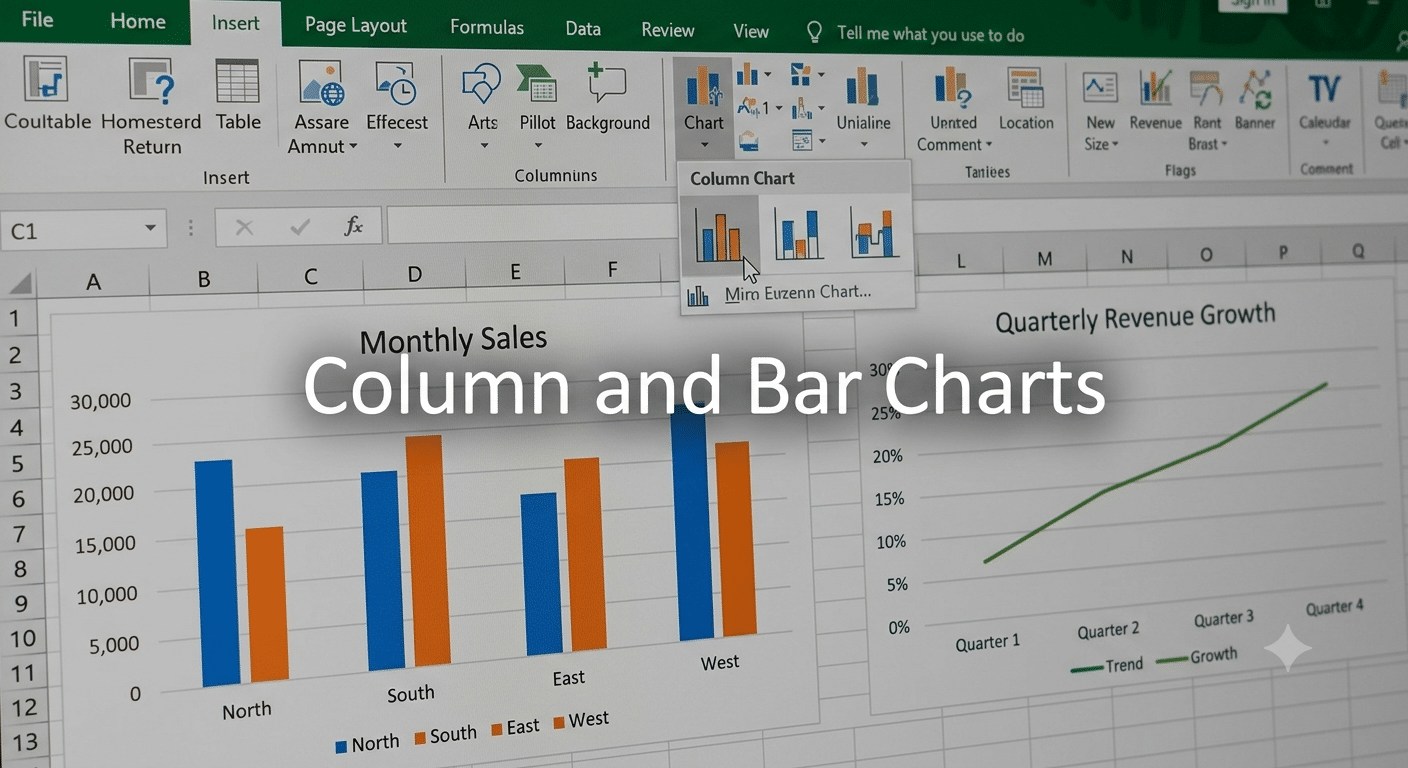
Column and Bar Charts
Column and bar charts are ideal for comparing values across categories.
Examples
- Monthly sales
- Department budgets
- Product performance
How to Create
- Select the data.
- Click the Insert tab.
- Choose Column Chart or Bar Chart.
Line Charts
Line charts are commonly used to display trends over time.
Best Uses
- Revenue growth
- Website traffic
- Stock prices
- Customer growth
They provide a clear view of changes across a timeline.
Pie Charts
Pie charts display proportions within a dataset.
Examples
- Market share
- Expense categories
- Survey responses
While useful for simple comparisons, pie charts work best with a limited number of categories.
Scatter Plots
Scatter plots help identify relationships between variables.
Examples
- Advertising spend vs. sales
- Study hours vs. exam scores
- Temperature vs. energy usage
These charts are especially valuable in regression analysis.
Conditional Formatting for Visualization
Conditional Formatting adds visual cues directly to worksheet cells.
Popular Options
- Color scales
- Data bars
- Icon sets
- Highlight rules
These tools help users spot trends and anomalies without creating separate charts.
PivotTables for Data Analysis
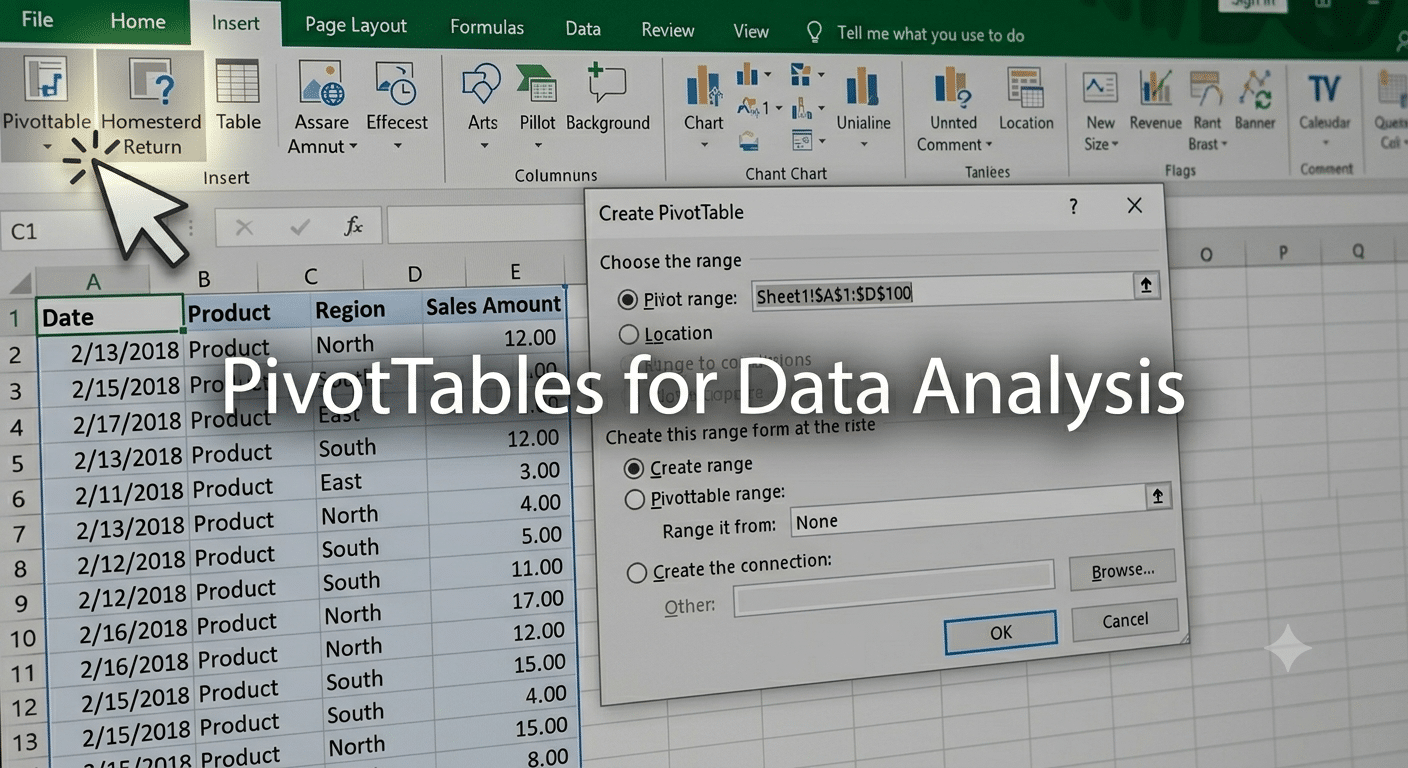
PivotTables are among Excel’s most powerful analytical features.
What PivotTables Can Do
- Summarize large datasets
- Calculate totals and averages
- Group information
- Compare categories
- Create dynamic reports
Create a PivotTable
- Select the dataset.
- Click Insert.
- Choose PivotTable.
- Configure rows, columns, and values.
PivotTables simplify complex data analysis significantly.
Using PivotCharts
PivotCharts provide visual representations of PivotTable data.
Benefits
- Interactive filtering
- Dynamic updates
- Easy reporting
They are ideal for dashboards and executive reports.
Data Modeling in Excel
Data modeling involves creating relationships between datasets to support advanced analysis.
What Is a Data Model?
A data model combines multiple tables into a connected structure.
Instead of storing everything in one large worksheet, related tables can interact through relationships.
Advantages
- Reduced duplication
- Improved scalability
- More advanced reporting
- Better data organization
Using Relationships Between Tables
Suppose you have:
- Customer table
- Orders table
- Product table
Relationships allow Excel to analyze information across all three datasets.
Create Relationships
- Open the Data tab.
- Select Relationships.
- Connect matching fields between tables.
This feature is especially useful when working with large datasets.
Power Query for Data Transformation
Power Query helps import and clean data from multiple sources.
Common Uses
- Importing CSV files
- Connecting to databases
- Merging datasets
- Removing duplicates
- Transforming columns
Benefits
- Automation
- Consistency
- Faster preparation
Power Query significantly reduces manual data-cleaning tasks.
Regression Analysis in Excel
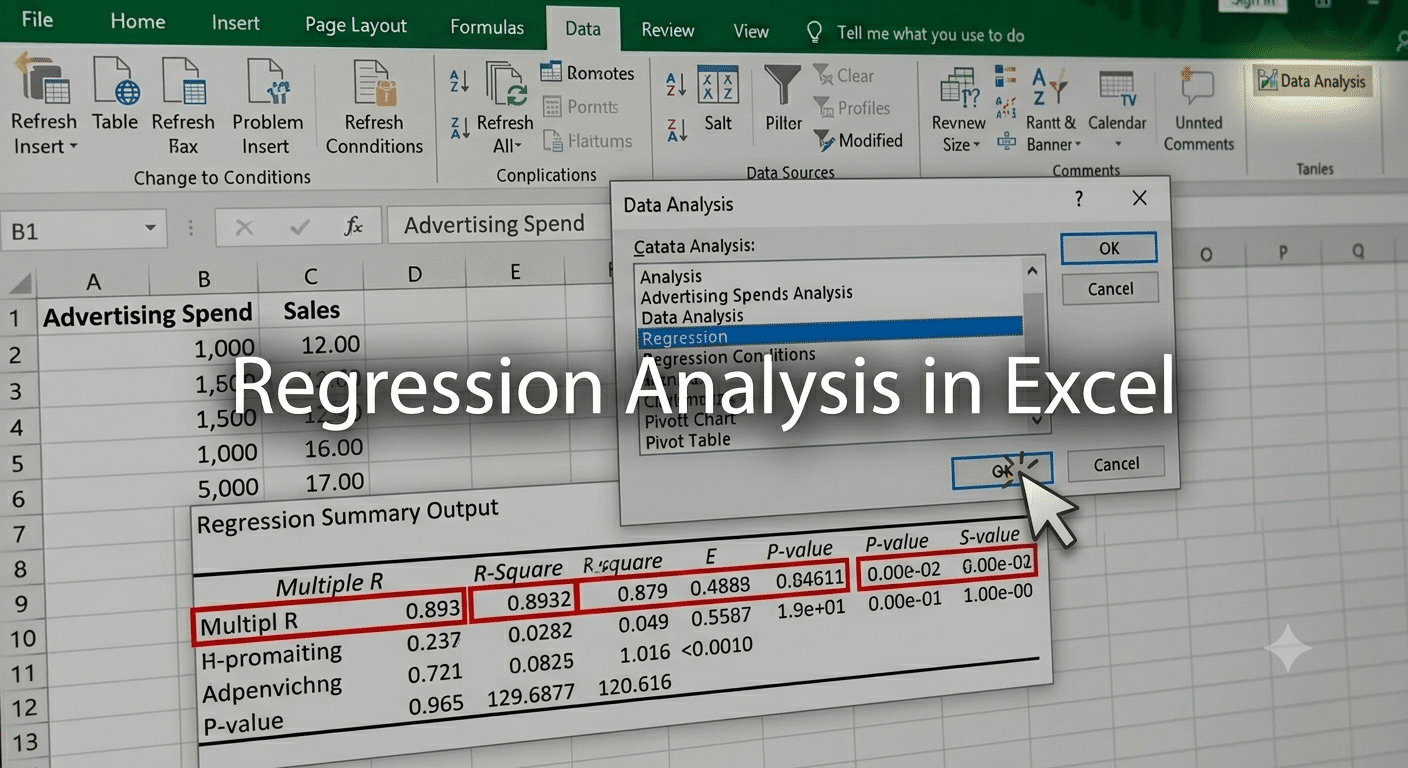
Regression analysis helps identify relationships between variables and predict future outcomes.
What Is Regression Analysis?
Regression examines how one variable affects another.
Example
You may want to determine whether increased advertising spending leads to higher sales.
Regression analysis can quantify this relationship.
Enable the Analysis ToolPak
Regression analysis requires the Analysis ToolPak.
How to Enable It
- Click File.
- Select Options.
- Choose Add-ins.
- Select:
Analysis ToolPak- Click OK.
The Data Analysis tools become available.
Running a Regression Analysis
Steps
- Open the Data tab.
- Click Data Analysis.
- Select Regression.
- Specify:
- Input Y Range (dependent variable)
- Input X Range (independent variable)
- Choose output options.
- Click OK.
Excel generates a regression report.
Understanding Regression Results
The output includes several important metrics.
R-Squared
Measures how well the model explains the data.
Higher values generally indicate a stronger relationship.
Coefficients
Show how much the dependent variable changes when the independent variable changes.
P-Values
Help determine statistical significance.
Lower p-values typically indicate stronger evidence of a meaningful relationship.
Forecasting with Excel
Excel includes forecasting capabilities for predicting future values.
Examples
- Sales forecasting
- Demand planning
- Budget projections
- Inventory planning
Forecast Sheet Feature
- Select historical data.
- Open the Data tab.
- Click Forecast Sheet.
Excel generates projected values automatically.
Using Excel Functions for Analysis
Many built-in functions support data analysis.
AVERAGE
Calculates mean values.
=AVERAGE(A2:A20)COUNTIF
Counts cells matching criteria.
=COUNTIF(A2:A20,">100")SUMIFS
Adds values based on multiple conditions.
=SUMIFS(B2:B20,A2:A20,"East")XLOOKUP
Retrieves information from large datasets.
=XLOOKUP(E2,A2:A100,B2:B100)These functions form the foundation of many analytical workflows.
Creating Dashboards in Excel
Dashboards combine multiple visualizations into a single reporting interface.
Common Dashboard Elements
- Charts
- PivotTables
- KPIs
- Slicers
- Conditional formatting
Benefits
- Real-time insights
- Interactive analysis
- Executive reporting
- Improved decision-making
Dashboards allow users to monitor performance efficiently.
Automating Analysis with Macros
Macros help automate repetitive tasks.
Examples
- Data imports
- Report generation
- Formatting routines
- Calculations
Recording or writing VBA macros can save significant time for recurring analyses.
Common Data Analysis Mistakes
Avoiding common mistakes improves the reliability of your findings.
Poor Data Quality
Incorrect or incomplete data leads to misleading conclusions.
Using the Wrong Visualization
Select charts that match the type of data being analyzed.
Ignoring Outliers
Extreme values may distort results.
Misinterpreting Correlation
Correlation does not always imply causation.
Careful interpretation is essential.
Best Practices for Excel Data Analysis
Keep Data Organized
Use structured tables whenever possible.
Document Your Work
Add notes and labels to improve clarity.
Validate Results
Double-check calculations and formulas.
Use Consistent Formatting
Consistent formatting improves readability and reduces errors.
Leverage Built-In Tools
Excel’s analytical features can often replace complex manual calculations.
Final Thoughts
Excel remains one of the most versatile and powerful tools for data analysis. From basic calculations and visualizations to advanced data modeling and regression analysis, Excel provides everything needed to transform raw information into meaningful insights.
By mastering features such as PivotTables, Power Query, data models, regression tools, dashboards, and forecasting capabilities, users can analyze data more effectively and make better-informed decisions. Whether you are a student, business professional, financial analyst, or researcher, developing strong Excel data analysis skills can significantly enhance productivity and support data-driven success.