


Creating Hyperlinks in Microsoft Excel
Hyperlinks in Microsoft Excel are more than just shortcuts to websites—they can also connect to different sheets, specific cell ranges, documents, email addresses, and more. If you work with Excel spreadsheets often, learning how to insert and manage hyperlinks will enhance your productivity and streamline navigation within large or complex workbooks.
This comprehensive guide will walk you through the various methods of creating hyperlinks in Excel, how to edit or remove them, and how to use advanced hyperlinking techniques to boost functionality in your spreadsheets.
What Is a Hyperlink in Excel?
A hyperlink in Excel is a clickable text, image, or shape that takes you to another location. This location could be:
-
A webpage
-
An email address
-
Another cell or sheet in the same workbook
-
A different workbook or external file
-
A folder or server location
Hyperlinks are especially useful in dashboards, reports, and data entry templates where users need quick access to related content.
Benefits of Using Hyperlinks in Excel
-
Improved Navigation: Jump between sheets or key reference points quickly.
-
Professional Appearance: Add polish to reports and presentations.
-
Data Integration: Link to external files or online sources.
-
Enhanced Workflow: Save time when managing large spreadsheets or multiple documents.
How to Insert a Hyperlink in Excel
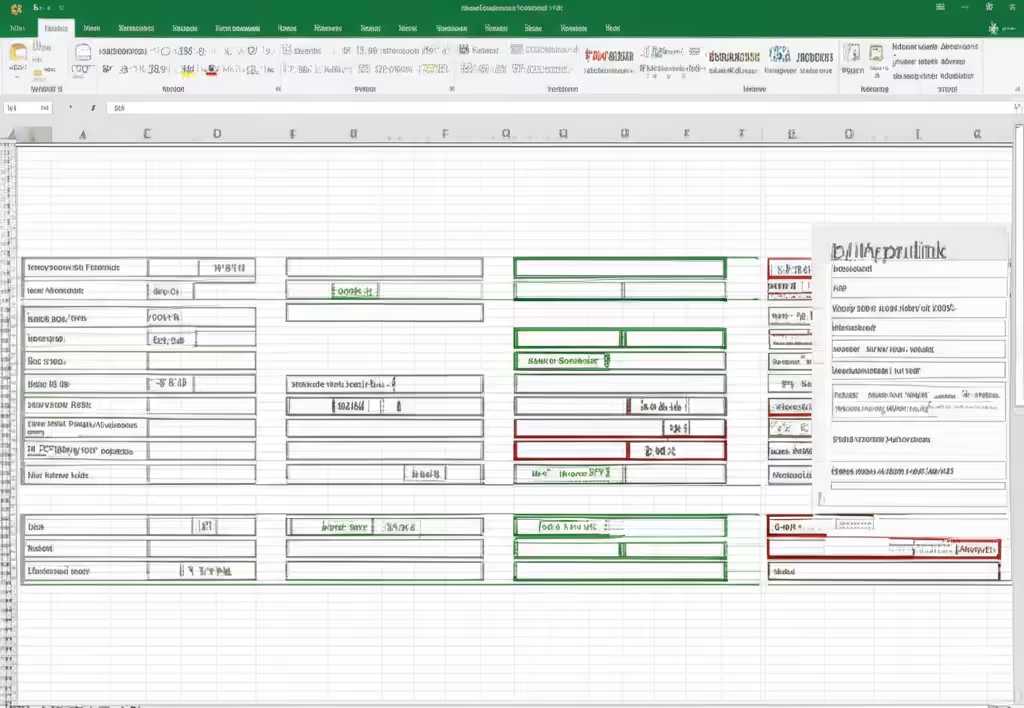
Using the Insert Hyperlink Dialog Box
This is the most common and beginner-friendly method.
-
Select the Cell where you want to insert the hyperlink.
-
Go to the Insert tab on the Excel ribbon.
-
Click Link (or use the shortcut Ctrl + K).
-
In the Insert Hyperlink window, choose the link type:
-
Existing File or Web Page
-
Place in This Document
-
Create New Document
-
Email Address
-
-
Enter the address or location.
-
Customize the Text to display (what appears in the cell).
-
Click OK.
Example
To link to Google:
-
Text to display:
Visit Google -
Address:
https://www.google.com
Now the text in your cell will act as a clickable link to Google.
Creating a Hyperlink to Another Sheet or Cell
To link to another cell or worksheet:
-
Select the cell for the hyperlink.
-
Press Ctrl + K.
-
Choose Place in This Document on the left panel.
-
Select the worksheet from the list.
-
In the Type cell reference, type the cell (e.g.,
B2). -
Set your display text (e.g.,
Go to B2 in Sheet2). -
Click OK.
This is great for dashboards, summaries, and forms where you want to guide users through different sheets.
Creating a Hyperlink to an Email Address
If you want users to send an email by clicking the link:
-
Select a cell and open the hyperlink dialog (Ctrl + K).
-
Click Email Address on the left.
-
Type the email (e.g.,
[email protected]). -
Optionally, add a subject line:
mailto:[email protected]?subject=Support Request -
Enter the display text like “Email Support” and click OK.
Creating Hyperlinks with the HYPERLINK Function
Excel’s built-in HYPERLINK function gives you more control and flexibility, especially when you want to create dynamic links.
Syntax:
Example 1: Link to a Website
Example 2: Link to a File on Your PC
Example 3: Link to Another Worksheet Cell
Benefits of Using HYPERLINK Function:
-
Create links programmatically
-
Combine with other formulas (e.g., CONCATENATE, TEXTJOIN)
-
Better suited for large datasets or auto-generated links
How to Remove a Hyperlink in Excel
If you want to get rid of a hyperlink:
-
Right-click the linked cell.
-
Choose Remove Hyperlink.
Or, to remove multiple hyperlinks at once:
-
Select the cells or entire worksheet (Ctrl + A).
-
Right-click and choose Remove Hyperlinks (on older Excel versions).
-
Alternatively, press Ctrl + Shift + F9 to remove all hyperlinks from a selection.
Customizing Hyperlink Appearance
Hyperlinks usually appear in blue and underlined. You can change their appearance:
-
Go to Home > Cell Styles.
-
Right-click Hyperlink or Followed Hyperlink.
-
Choose Modify, then change font, size, or color.
-
Click OK.
You can also use conditional formatting to style hyperlinks dynamically.
Advanced Hyperlink Techniques
Hyperlinking Images or Shapes
You can add hyperlinks to objects like shapes, charts, or images:
-
Insert a shape or image.
-
Right-click it and choose Link.
-
Add your desired hyperlink and click OK.
Creating Dynamic Hyperlinks with Data Validation
You can create a dropdown list of destinations and use the HYPERLINK function to make dynamic navigation:
-
Create a list of sheet names or URLs.
-
Use Data Validation to create a dropdown menu.
-
Use a formula like:
This approach is ideal for interactive dashboards.
Troubleshooting Common Hyperlink Issues
-
Link Not Working: Check for typos in URLs or file paths.
-
Broken File Links: Ensure the linked file exists and hasn’t moved.
-
Email Link Opens Wrong App: Change your system’s default mail client.
-
Hyperlink Cell Doesn’t Look Clickable: Reapply cell style or recreate the link.
Conclusion
Hyperlinks in Excel are a simple yet powerful feature that can greatly improve how users interact with your spreadsheets. Whether you’re linking to internal cells, external documents, websites, or email addresses, mastering hyperlink techniques makes your data more connected and functional.
Start with the basics using the Insert Hyperlink dialog, then explore advanced options using formulas and objects. Once you integrate hyperlinks into your workflow, your spreadsheets will become more efficient, professional, and user-friendly.