

How useful was this guide?
Click on a star to rate it!
Average rating 0 / 5. Vote count: 0
No votes so far! Be the first to rate this post.
How useful was this guide?
Click on a star to rate it!
Average rating 0 / 5. Vote count: 0
No votes so far! Be the first to rate this post.
How useful was this guide?
Click on a star to rate it!
Average rating 0 / 5. Vote count: 0
No votes so far! Be the first to rate this post.
How useful was this guide?
Click on a star to rate it!
Average rating 0 / 5. Vote count: 0
No votes so far! Be the first to rate this post.
How useful was this guide?
Click on a star to rate it!
Average rating 0 / 5. Vote count: 0
No votes so far! Be the first to rate this post.
How useful was this guide?
Click on a star to rate it!
Average rating 0 / 5. Vote count: 0
No votes so far! Be the first to rate this post.
How useful was this guide?
Click on a star to rate it!
Average rating 0 / 5. Vote count: 0
No votes so far! Be the first to rate this post.
How useful was this guide?
Click on a star to rate it!
Average rating 0 / 5. Vote count: 0
No votes so far! Be the first to rate this post.
How useful was this guide?
Click on a star to rate it!
Average rating 0 / 5. Vote count: 0
No votes so far! Be the first to rate this post.

Hyperlinks in Microsoft Excel are more than just shortcuts to websites—they can also connect to different sheets, specific cell ranges, documents, email addresses, and more. If you work with Excel spreadsheets often, learning how to insert and manage hyperlinks will enhance your productivity and streamline navigation within large or complex workbooks.
This comprehensive guide will walk you through the various methods of creating hyperlinks in Excel, how to edit or remove them, and how to use advanced hyperlinking techniques to boost functionality in your spreadsheets.

A hyperlink in Excel is a clickable text, image, or shape that takes you to another location. This location could be:
A webpage
An email address
Another cell or sheet in the same workbook
A different workbook or external file
A folder or server location
Hyperlinks are especially useful in dashboards, reports, and data entry templates where users need quick access to related content.

Improved Navigation: Jump between sheets or key reference points quickly.
Professional Appearance: Add polish to reports and presentations.
Data Integration: Link to external files or online sources.
Enhanced Workflow: Save time when managing large spreadsheets or multiple documents.
This is the most common and beginner-friendly method.
Select the Cell where you want to insert the hyperlink.
Go to the Insert tab on the Excel ribbon.
Click Link (or use the shortcut Ctrl + K).
In the Insert Hyperlink window, choose the link type:
Existing File or Web Page
Place in This Document
Create New Document
Email Address
Enter the address or location.
Customize the Text to display (what appears in the cell).
Click OK.
To link to Google:
Text to display: Visit Google
Address: https://www.google.com
Now the text in your cell will act as a clickable link to Google.
To link to another cell or worksheet:
Select the cell for the hyperlink.
Press Ctrl + K.
Choose Place in This Document on the left panel.
Select the worksheet from the list.
In the Type cell reference, type the cell (e.g., B2).
Set your display text (e.g., Go to B2 in Sheet2).
Click OK.
This is great for dashboards, summaries, and forms where you want to guide users through different sheets.
If you want users to send an email by clicking the link:
Select a cell and open the hyperlink dialog (Ctrl + K).
Click Email Address on the left.
Type the email (e.g., [email protected]).
Optionally, add a subject line:mailto:[email protected]?subject=Support Request
Enter the display text like “Email Support” and click OK.
Excel’s built-in HYPERLINK function gives you more control and flexibility, especially when you want to create dynamic links.
=HYPERLINK(link_location, [friendly_name])
=HYPERLINK("https://www.microsoft.com", "Microsoft Site")
=HYPERLINK("C:\Users\YourName\Documents\Report.xlsx", "Open Report")
=HYPERLINK("#Sheet2!A1", "Jump to Sheet2 A1")
Create links programmatically
Combine with other formulas (e.g., CONCATENATE, TEXTJOIN)
Better suited for large datasets or auto-generated links
If you want to get rid of a hyperlink:
Right-click the linked cell.
Choose Remove Hyperlink.
Or, to remove multiple hyperlinks at once:
Select the cells or entire worksheet (Ctrl + A).
Right-click and choose Remove Hyperlinks (on older Excel versions).
Alternatively, press Ctrl + Shift + F9 to remove all hyperlinks from a selection.
Hyperlinks usually appear in blue and underlined. You can change their appearance:
Go to Home > Cell Styles.
Right-click Hyperlink or Followed Hyperlink.
Choose Modify, then change font, size, or color.
Click OK.
You can also use conditional formatting to style hyperlinks dynamically.
You can add hyperlinks to objects like shapes, charts, or images:
Insert a shape or image.
Right-click it and choose Link.
Add your desired hyperlink and click OK.
You can create a dropdown list of destinations and use the HYPERLINK function to make dynamic navigation:
Create a list of sheet names or URLs.
Use Data Validation to create a dropdown menu.
Use a formula like:
=HYPERLINK("#'" & A1 & "'!A1", "Go to " & A1)
This approach is ideal for interactive dashboards.
Link Not Working: Check for typos in URLs or file paths.
Broken File Links: Ensure the linked file exists and hasn’t moved.
Email Link Opens Wrong App: Change your system’s default mail client.
Hyperlink Cell Doesn’t Look Clickable: Reapply cell style or recreate the link.
Hyperlinks in Excel are a simple yet powerful feature that can greatly improve how users interact with your spreadsheets. Whether you’re linking to internal cells, external documents, websites, or email addresses, mastering hyperlink techniques makes your data more connected and functional.
Start with the basics using the Insert Hyperlink dialog, then explore advanced options using formulas and objects. Once you integrate hyperlinks into your workflow, your spreadsheets will become more efficient, professional, and user-friendly.
Let Excel do more for you—one link at a time.
Sure! Here’s a complete article titled “How to Compare Two Excel Files”, written in fluent English with over 800 words. All major and subheadings are clearly structured and formatted with enlarged styling in mind—without SEO tags or decorative dashes above each title.
Comparing two Excel files is a common task when working with data, especially in business, accounting, or analysis roles. You may want to find differences in data entries, formulas, formatting, or even structure across different Excel files. Fortunately, Excel and some third-party tools offer several ways to do this.
Whether you’re comparing Excel workbooks to catch updates, detect changes, or ensure consistency, this guide will walk you through different methods—from simple built-in techniques to more advanced comparisons using specialized software.
Before jumping into the methods, it’s important to understand why you might need to compare Excel files. Here are a few common use cases:
Tracking changes between two versions of a file
Verifying calculations or formulas across datasets
Comparing data exports from different systems
Checking for inconsistencies before consolidating data
Auditing financial or transactional data
Now let’s explore different ways to perform file comparison in Excel.
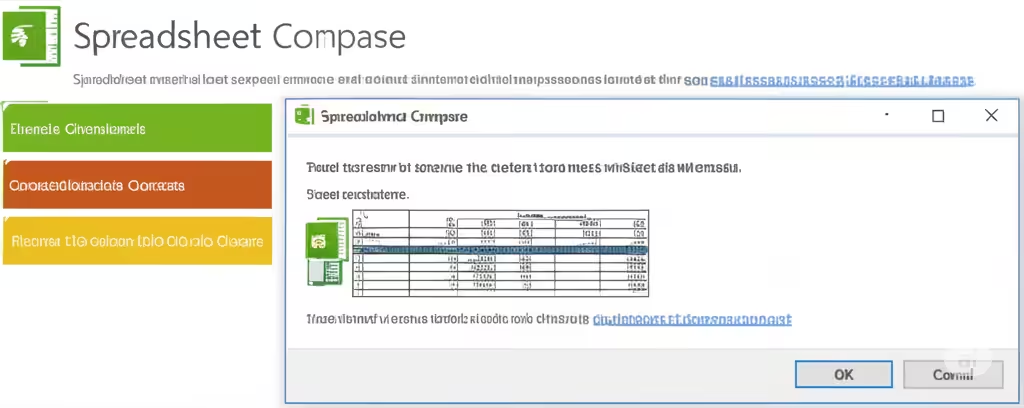
Microsoft provides a dedicated tool called Spreadsheet Compare, which is part of the Office Professional Plus or Microsoft 365 subscription.
Press the Start button on Windows and search for Spreadsheet Compare.
Launch the application.
Click on Compare Files in the top toolbar.
Browse and select the first Excel file and then the second Excel file.
Click OK to start the comparison.
Compare values, formulas, macros, and formatting
Highlight changes and differences clearly
Generate a comparison report for auditing
This is one of the most thorough ways to compare Excel files if you have access to the tool.
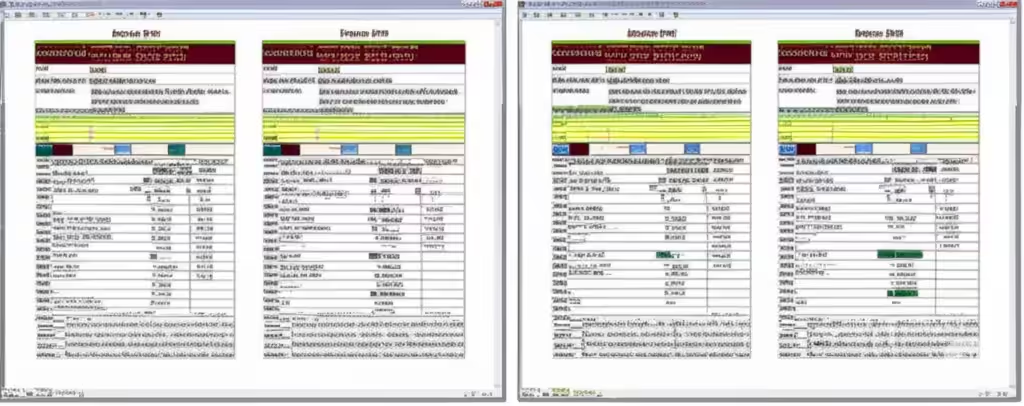
If you want a quick visual comparison between two Excel workbooks, use the View Side by Side feature.
Open both Excel files.
Go to the View tab on the Ribbon.
Click View Side by Side.
Use Synchronous Scrolling to scroll both files together.
Simple and built-in to Excel
Good for manually reviewing changes
No automatic detection of differences
Time-consuming for large datasets
This method works best for visual inspection when files aren’t too long or complex.
You can use formulas to find differences between two datasets.
Suppose you have two workbooks: File1.xlsx and File2.xlsx. You want to compare their content in Sheet1, specifically cell-by-cell.
Open both files.
In a new column or workbook, use a formula like:
=IF([File1.xlsx]Sheet1!A1=[File2.xlsx]Sheet1!A1, "Match", "Different")
Drag the formula across the relevant data range.
This will show “Match” where the cells are the same and “Different” where they aren’t.
Be sure both files are open in the same Excel session.
You can use conditional formatting to highlight differences visually.
For a more dynamic approach, especially within a single workbook or two sheets copied into one file, conditional formatting works well.
Copy both datasets into separate sheets (e.g., Sheet1 and Sheet2).
Go to the sheet where you want to compare.
Select the range of cells.
Go to Home > Conditional Formatting > New Rule.
Choose Use a formula to determine which cells to format.
Enter a formula like:
=A1<>Sheet2!A1
Set a formatting style (e.g., red fill).
Click OK.
Now, all mismatched cells will be highlighted.
If you’re working with large or complex files, third-party tools can offer robust comparison features.
Beyond Compare: File comparison software that supports Excel formats.
DiffEngineX: Specifically built for comparing Excel spreadsheets.
XLTools Compare Spreadsheets: An Excel add-in that compares sheets with just a few clicks.
Highlight differences in values, formulas, and even structure
Exportable comparison reports
Time-saving for large datasets
Some of these tools are paid, but they offer free trials.
If you’re familiar with Power Query (Get & Transform), you can use it to compare data across two Excel files.
Go to the Data tab and click Get Data > From File > From Workbook.
Load both files into Power Query.
Merge the two tables using Join Queries.
Choose Full Outer Join to see all mismatches.
Filter the resulting data to show only rows where values are different.
This method is very powerful, especially for comparing lists or database-like tables.
Always back up your files before starting comparisons.
Ensure data formats (e.g., dates, currencies) are consistent.
Remove unnecessary formatting or empty rows/columns.
Use named ranges to simplify reference in formulas.
Highlight differences using colors or comments for easy review.
Comparing two Excel files can be simple or complex depending on your goals and data size. For basic checks, Excel’s built-in tools like View Side by Side and formulas may be sufficient. For detailed and automated comparisons, tools like Spreadsheet Compare or third-party solutions provide better accuracy and speed.
Whether you’re validating reports, reviewing collaborative changes, or auditing data, mastering Excel file comparison ensures data integrity and saves time in your workflow.
How useful was this guide?
Click on a star to rate it!
Average rating 0 / 5. Vote count: 0
No votes so far! Be the first to rate this post.
| Cookie | Duration | Description |
|---|---|---|
| cookielawinfo-checkbox-analytics | 11 months | This cookie is set by GDPR Cookie Consent plugin. The cookie is used to store the user consent for the cookies in the category "Analytics". |
| cookielawinfo-checkbox-functional | 11 months | The cookie is set by GDPR cookie consent to record the user consent for the cookies in the category "Functional". |
| cookielawinfo-checkbox-necessary | 11 months | This cookie is set by GDPR Cookie Consent plugin. The cookies is used to store the user consent for the cookies in the category "Necessary". |
| cookielawinfo-checkbox-others | 11 months | This cookie is set by GDPR Cookie Consent plugin. The cookie is used to store the user consent for the cookies in the category "Other. |
| cookielawinfo-checkbox-performance | 11 months | This cookie is set by GDPR Cookie Consent plugin. The cookie is used to store the user consent for the cookies in the category "Performance". |
| viewed_cookie_policy | 11 months | The cookie is set by the GDPR Cookie Consent plugin and is used to store whether or not user has consented to the use of cookies. It does not store any personal data. |