


Installing Fonts on Windows 10: A Step-by-Step Guide
Fonts play a crucial role in how your documents, designs, and user interface appear. Whether you are a graphic designer, a student working on a project, or simply someone who wants to personalize their PC, installing new fonts in Windows 10 is quick and straightforward. This guide will walk you through multiple ways to install fonts, manage them, and troubleshoot issues that may arise.
Understanding Fonts in Windows 10
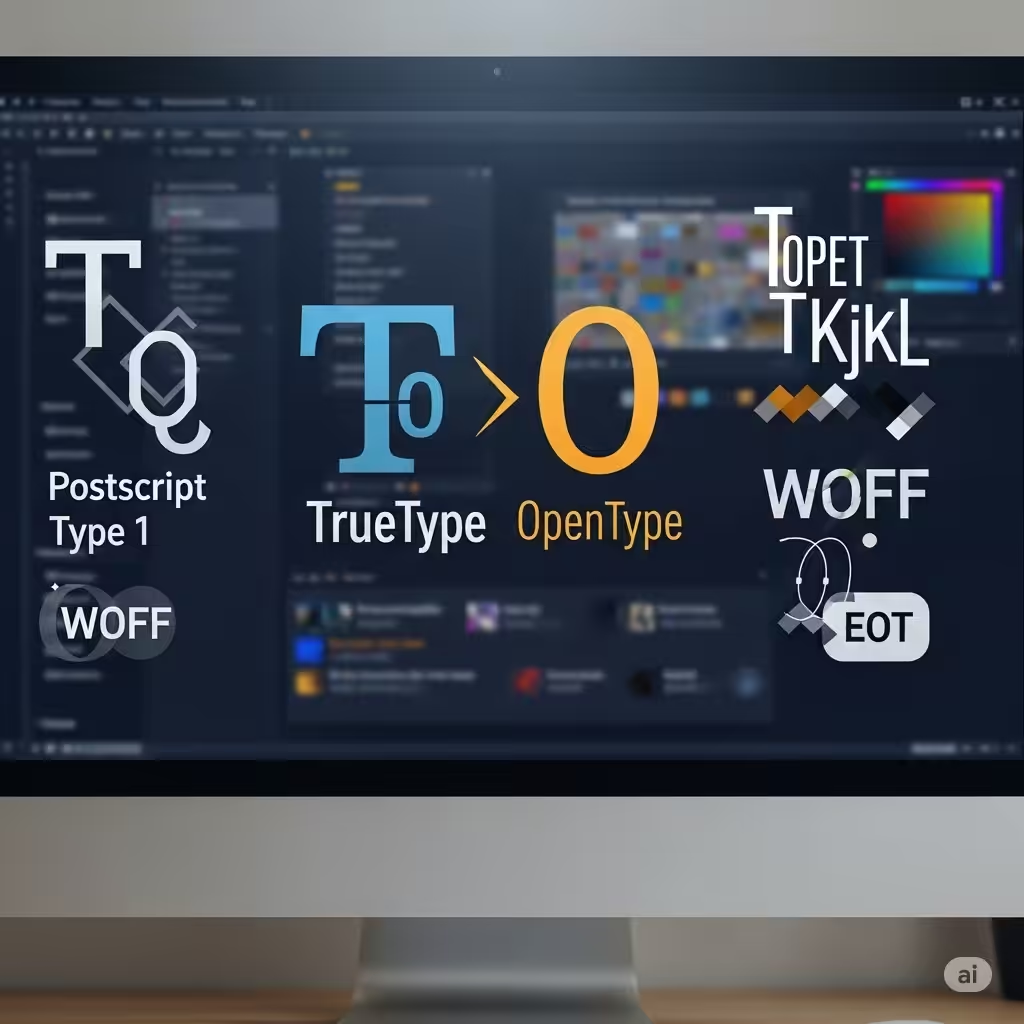
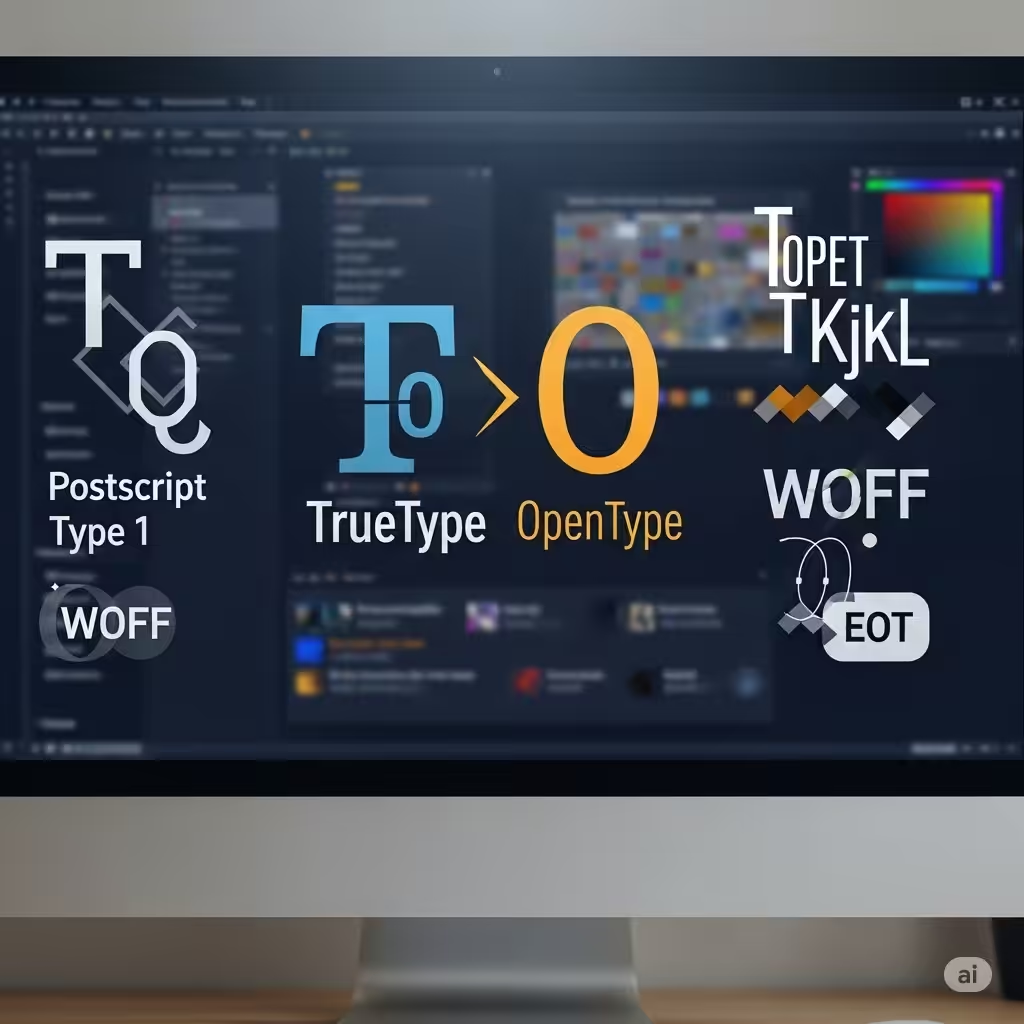
Fonts are sets of text characters with specific styles, weights, and sizes. Windows 10 comes with a large selection of default fonts, but you can install more to suit your needs. Fonts can be TrueType (.ttf), OpenType (.otf), or PostScript.
Adding new fonts allows you to customize your documents, presentations, and design projects. They can also be used in applications such as Microsoft Word, Photoshop, and Illustrator.
Where to Get Fonts
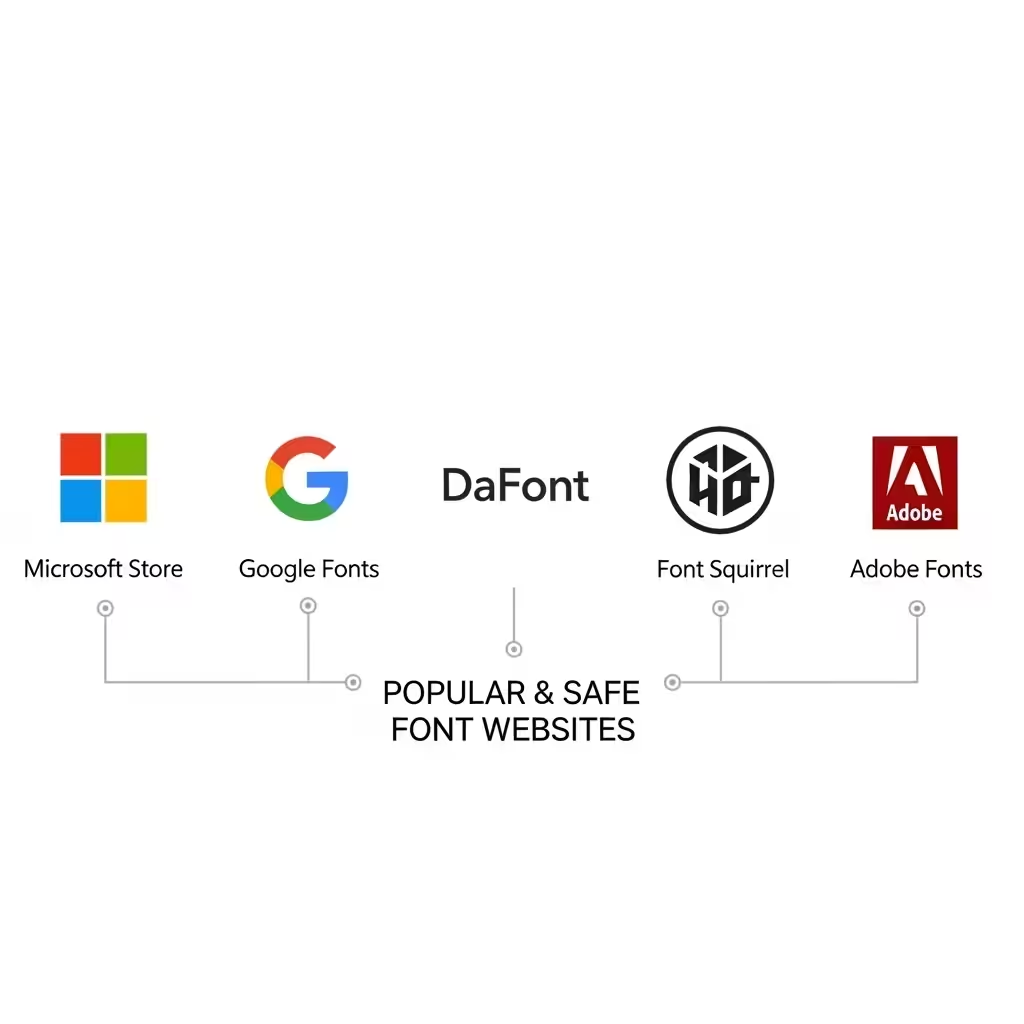
Before you install fonts, you need to find them. Many websites offer free and paid fonts. Some popular and safe sources include:
-
Microsoft Store – Directly integrated with Windows 10 for easy installation.
-
Google Fonts – Free and open-source fonts for both personal and commercial use.
-
DaFont – A huge collection of decorative and themed fonts.
-
Font Squirrel – High-quality fonts that are free for commercial use.
-
Adobe Fonts – Subscription-based service with professional fonts.
Tip: Always download fonts from reputable sources to avoid malware.
Method 1: Install Fonts Using Windows Settings
Windows 10 has a built-in font management system that makes installation easy.
-
Download your desired font file (.ttf or .otf).
-
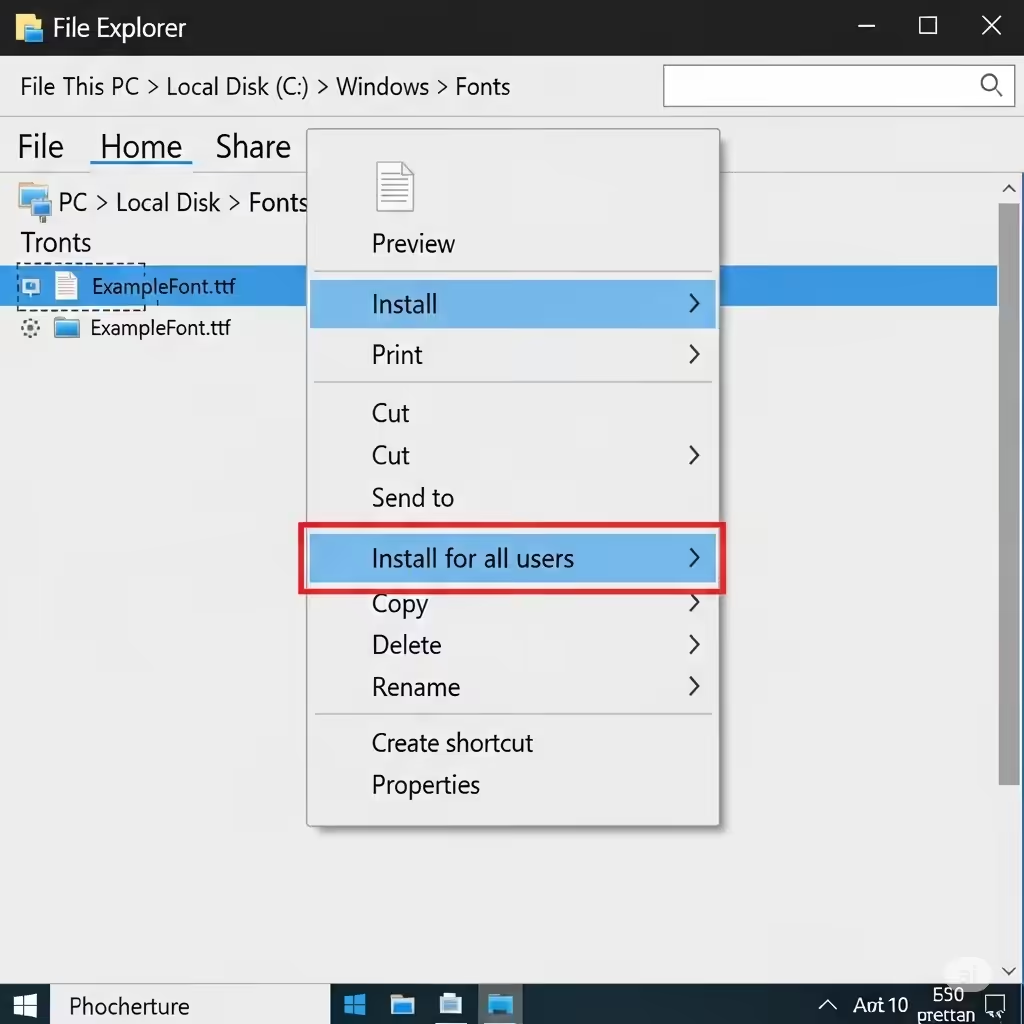
Right-click the file and choose Install or Install for all users.
-
Install adds the font for your account only.
-
Install for all users requires administrator rights and makes the font available system-wide.
-
-
The font will appear in your Fonts settings and will be available in supported applications.
Alternatively:
-
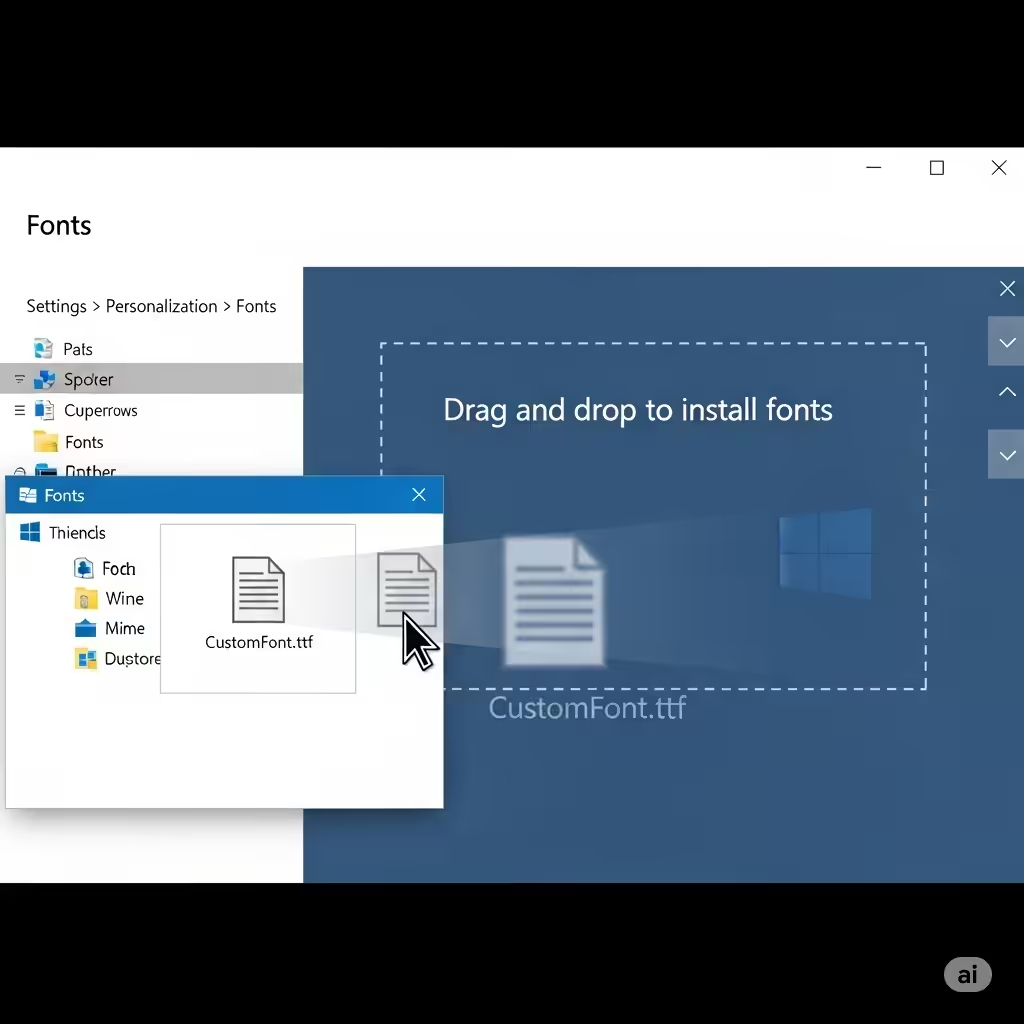
Open Settings → Personalization → Fonts.
-
Drag and drop the downloaded font file into the window.
Method 2: Install Fonts from the Microsoft Store
-
Go to Settings → Personalization → Fonts.
-
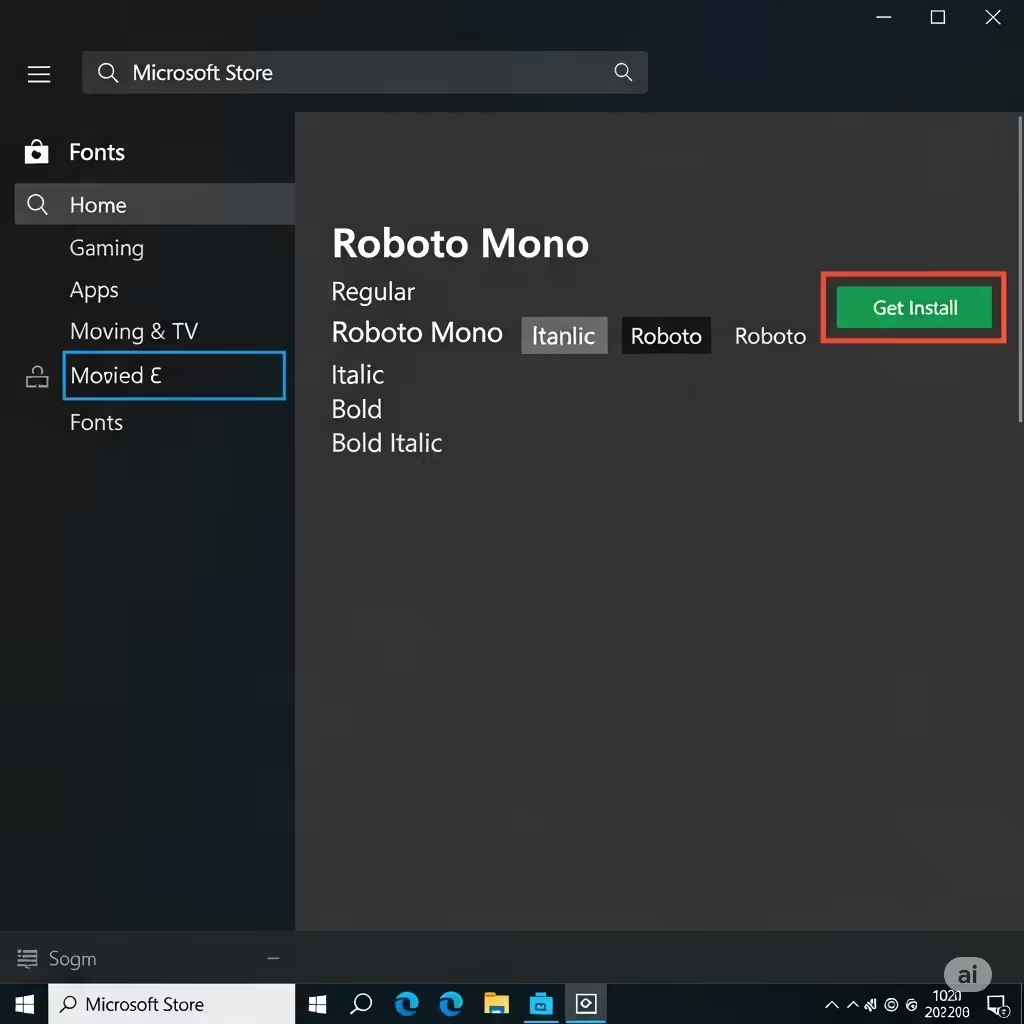
Click Get more fonts in Microsoft Store.
-
Browse the available fonts, select one, and click Get to install.
-
Once installed, the font will be ready for use in all supported apps.
This method is the safest because fonts are verified by Microsoft.
Method 3: Install Fonts via Control Panel
The traditional Control Panel method still works in Windows 10.
-
Press Windows + R, type
control, and press Enter. -
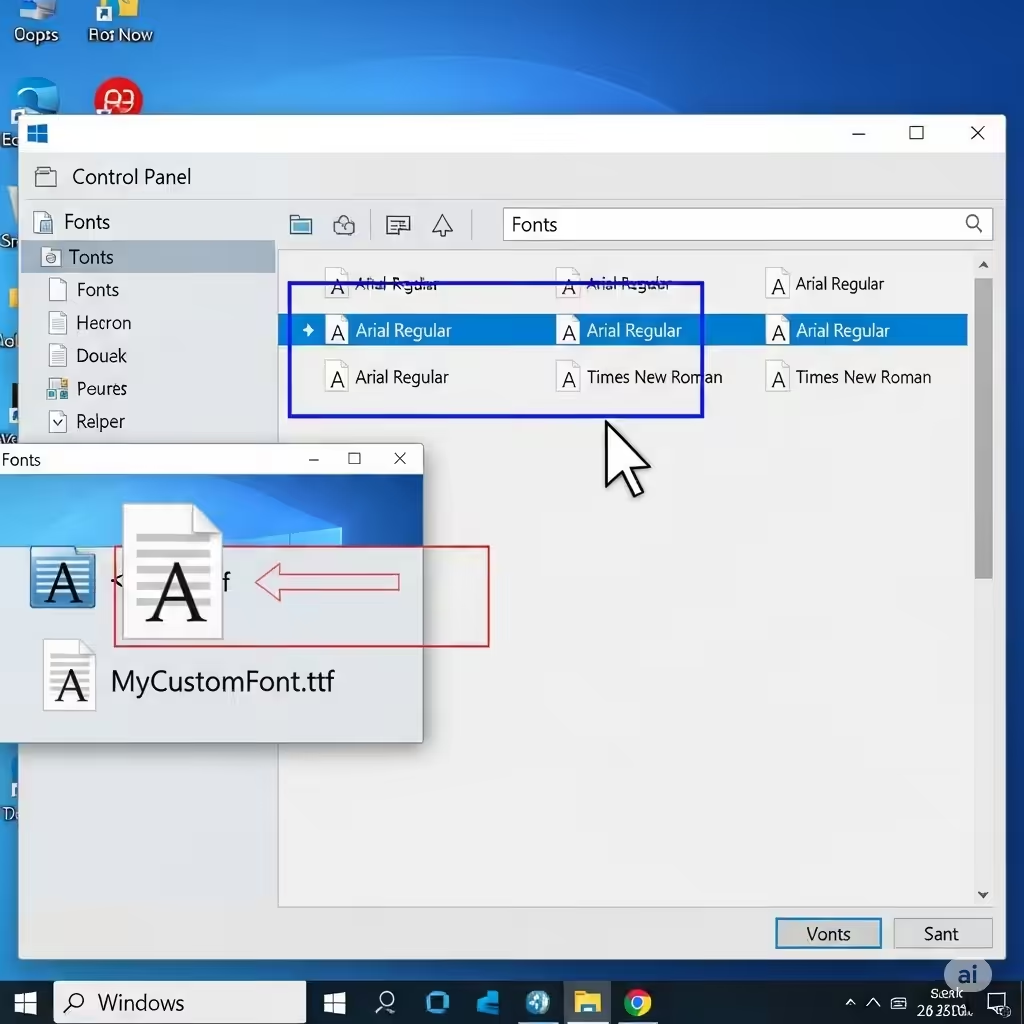
Go to Appearance and Personalization → Fonts.
-
Drag and drop your downloaded font file into this folder.
-
The font will install automatically.
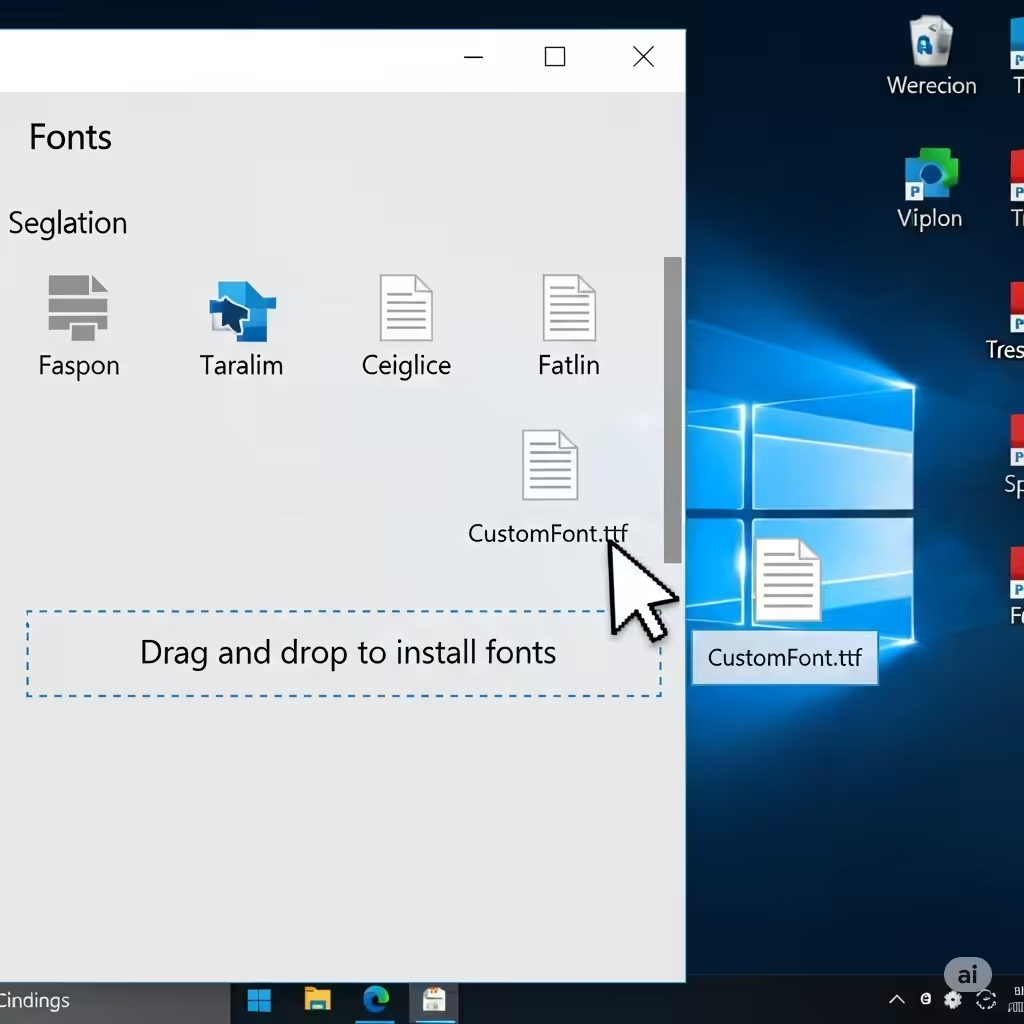
Method 4: Install Fonts by Drag and Drop
If you have the font file on your desktop or in your Downloads folder:
-
Open Settings → Fonts.
-
Drag and drop the font file into the font installation area.
-
Windows will process and install it within seconds.
Method 5: Install Multiple Fonts at Once
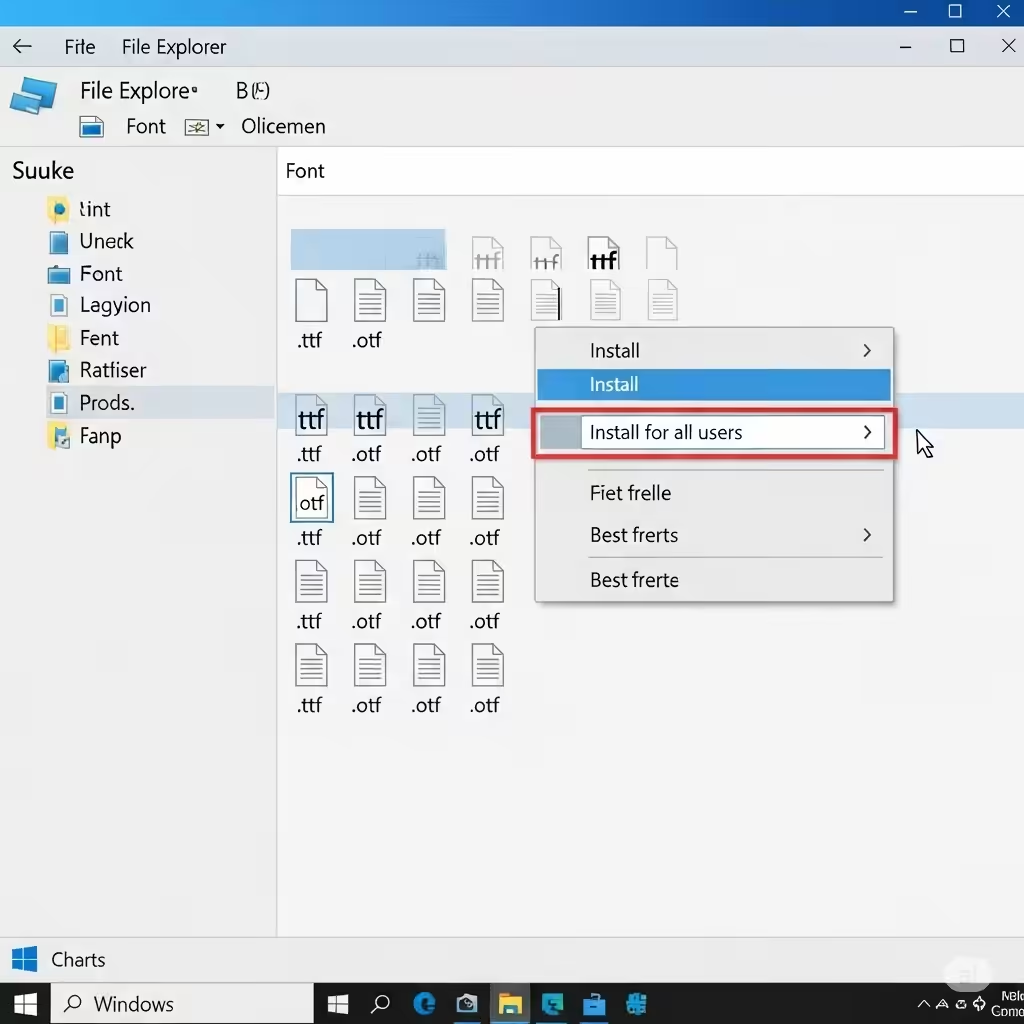
If you have downloaded a large font pack:
-
Extract the ZIP file containing all the fonts.
-
Select all the font files (.ttf or .otf).
-
Right-click and choose Install or Install for all users.
-
Windows will install each font in the selection.
How to Preview Fonts Before Installing
Windows allows you to preview a font before installation:
-
Double-click the font file.
-
A preview window will open showing the alphabet, numbers, and special characters in that style.
-
Click Install if you like the preview.
How to Uninstall Fonts
If you no longer need a font or want to free up space:
-
Open Settings → Fonts.
-
Select the font you want to remove.
-
Click Uninstall.
Alternatively, go to Control Panel > Fonts, right-click the font, and choose Delete.
Troubleshooting Font Installation Issues
Sometimes, fonts may not install or appear in applications. Here are some fixes:
-
Check file format – Ensure the font is .ttf or .otf.
-
Run as administrator – Right-click the font and choose Install for all users.
-
Restart the app – Some applications need a restart to detect new fonts.
-
Clear font cache – Use the Windows Disk Cleanup tool to remove old font cache files.
-
Check licensing – Some fonts require activation or special permissions.
Managing Fonts for Better Performance
Having too many fonts installed can slow down your PC and certain applications. To keep things running smoothly:
-
Uninstall fonts you don’t use.
-
Group fonts by category for easier access.
-
Keep a separate folder for fonts you use occasionally, and install them only when needed.
Tips for Choosing the Right Fonts
-
For business documents: Use professional fonts like Calibri, Arial, or Times New Roman.
-
For creative projects: Experiment with decorative or handwritten styles.
-
For presentations: Use clean, readable fonts like Verdana or Segoe UI.
-
For web design: Choose web-safe fonts that render well on different devices.
Conclusion
Installing fonts in Windows 10 is an easy way to personalize your computer and enhance your documents or designs. Whether you use Settings, Control Panel, or the Microsoft Store, the process is quick and simple. Remember to download fonts only from trusted sources, manage them wisely to maintain system performance, and uninstall unused ones to keep things tidy.
By following the steps in this guide, you’ll have full control over your fonts and the creative possibilities they offer.