


Troubleshooting the “Err Cache Miss” Problem on Chrome
The “Err_Cache_Miss” error in Google Chrome is a common issue that can interrupt your browsing experience. It usually appears when a website requests data to be resent or re-entered, often due to caching problems. While this error isn’t typically harmful, it can be frustrating, especially when it prevents you from accessing certain websites or submitting forms.
This guide will explain why the error occurs, and how you can fix it quickly and effectively.
Understanding the “Err_Cache_Miss” Error
When you visit a website, your browser temporarily stores certain data in its cache to speed up future visits. Sometimes, problems with this cached data can cause Chrome to display the “Err_Cache_Miss” message.
Typical causes include:
-
Corrupted cache data
-
Browser bugs or outdated versions
-
Incorrect browser settings
-
Website coding errors
-
Unstable internet connection
In many cases, this error appears after submitting a form or reloading a page that requires a POST request.
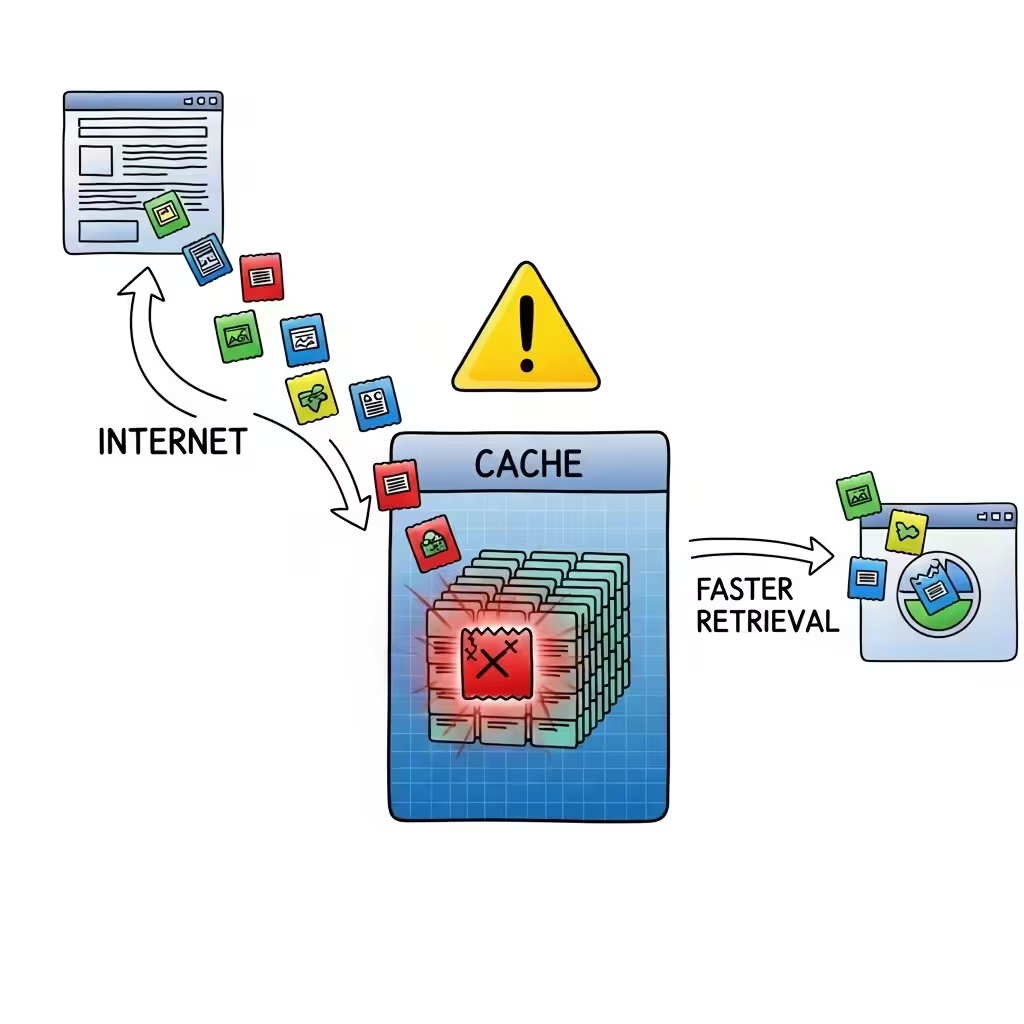
Common Scenarios Where the Error Appears
You might see the “Err_Cache_Miss” error in situations like:
-
Reloading a payment form after checkout
-
Submitting a contact or registration form
-
Accessing a secure login page
-
Refreshing a page with dynamic content
Recognizing these scenarios can help you troubleshoot more effectively.
Method 1: Refresh the Web Page
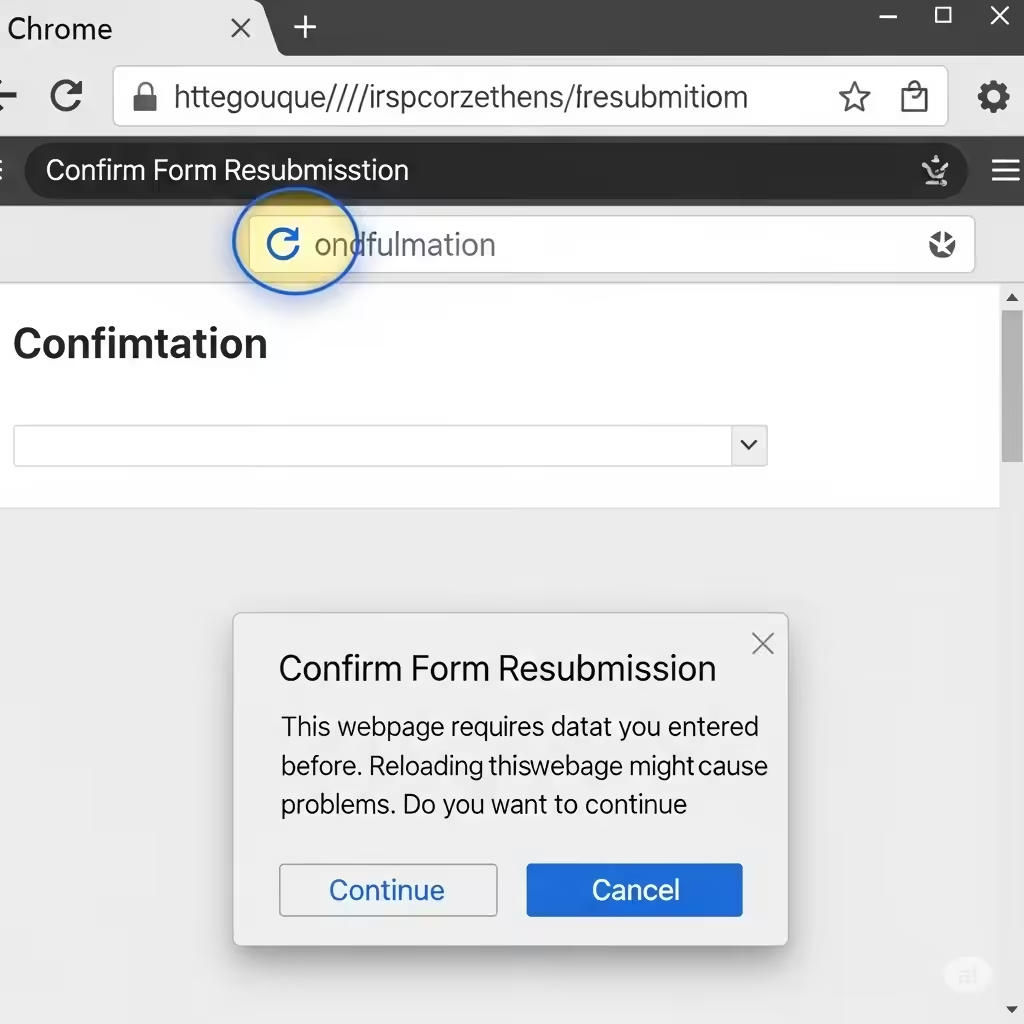
The simplest first step is to refresh the page.
-
Press F5 or click the Refresh button in Chrome.
-
If prompted to resend form data, confirm it.
Sometimes the error is temporary, and a quick reload will solve the issue.
Method 2: Clear Chrome Cache and Cookies
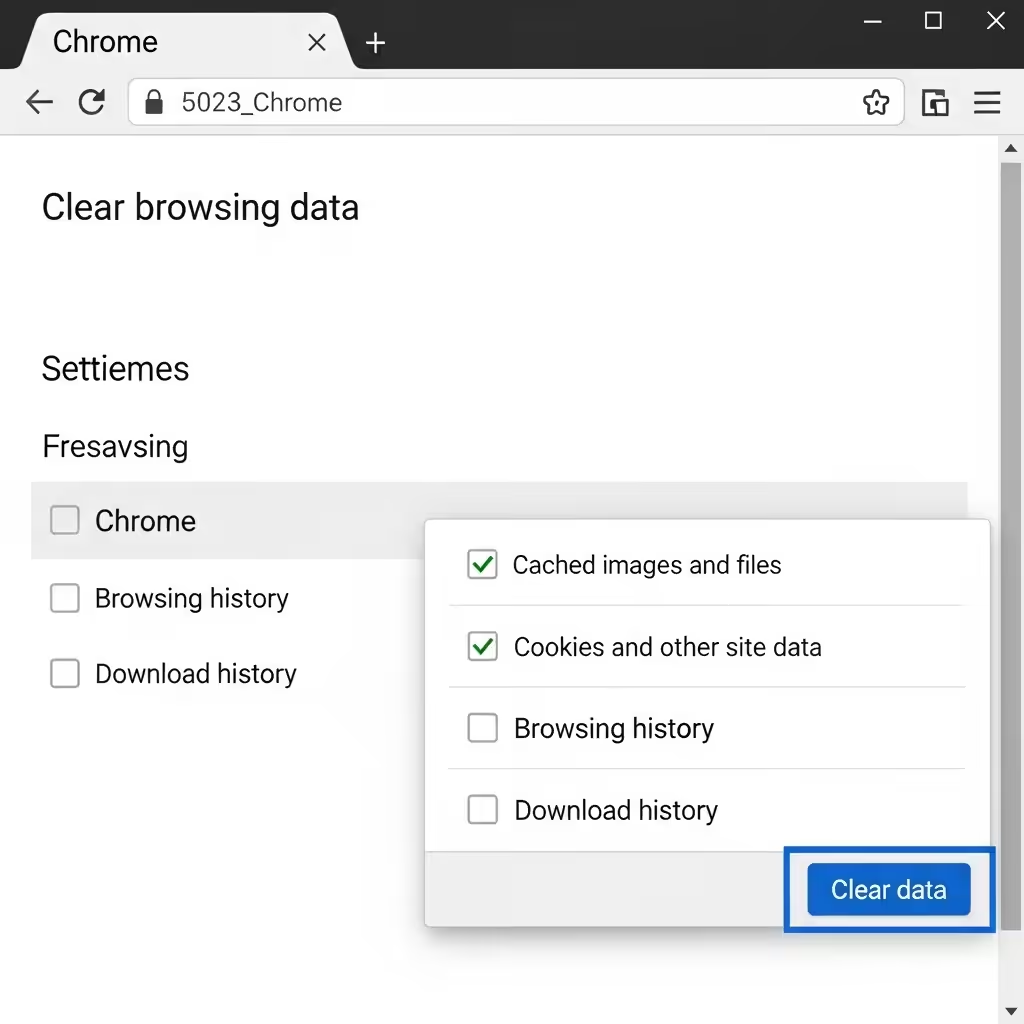
If the problem is caused by corrupted cached files or cookies, clearing them often fixes it.
-
Open Chrome and press Ctrl + Shift + Delete.
-
Choose All time as the time range.
-
Check Cached images and files and Cookies and other site data.
-
Click Clear data.
After clearing, restart Chrome and revisit the website.
Method 3: Update Google Chrome
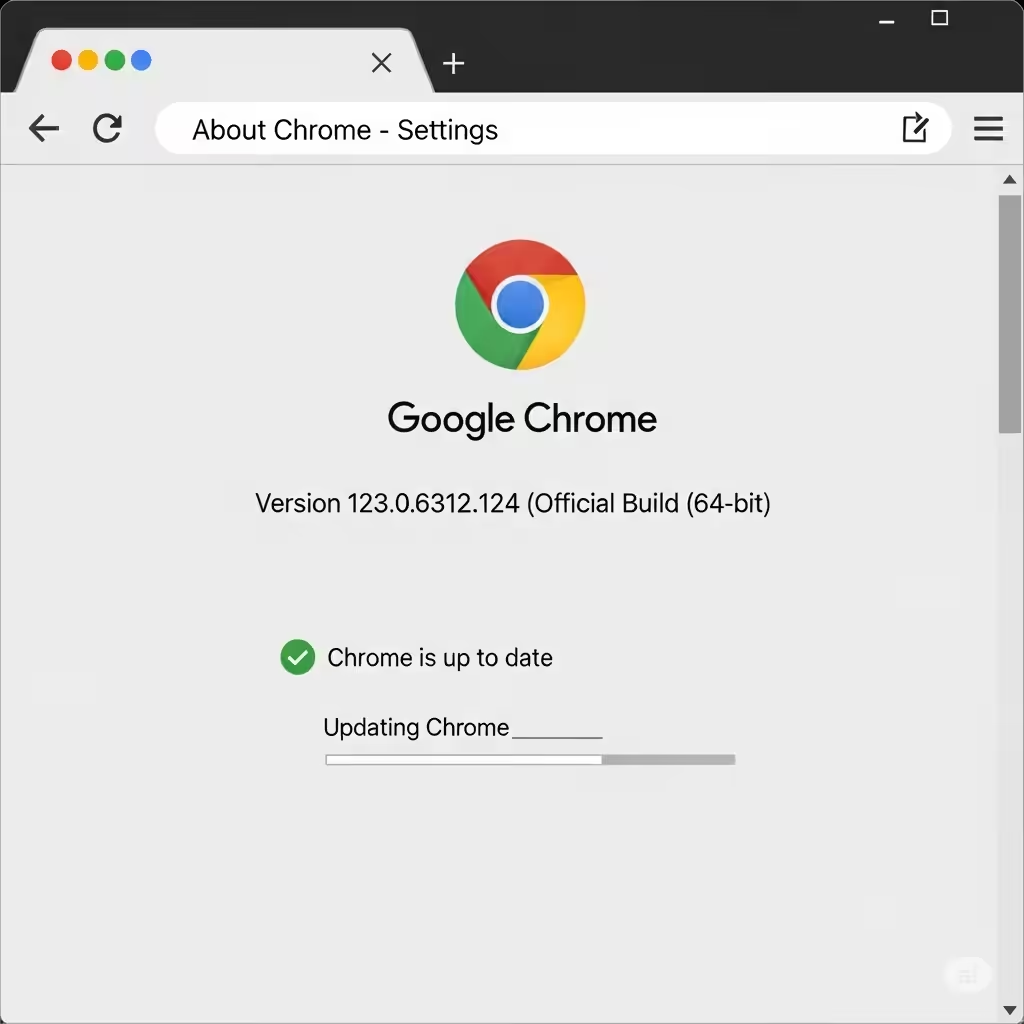
An outdated Chrome version may have bugs causing the error.
-
Click the three-dot menu in the top right corner.
-
Go to Help → About Google Chrome.
-
Chrome will automatically check for updates.
-
Restart the browser after updating.
Method 4: Disable Browser Extensions
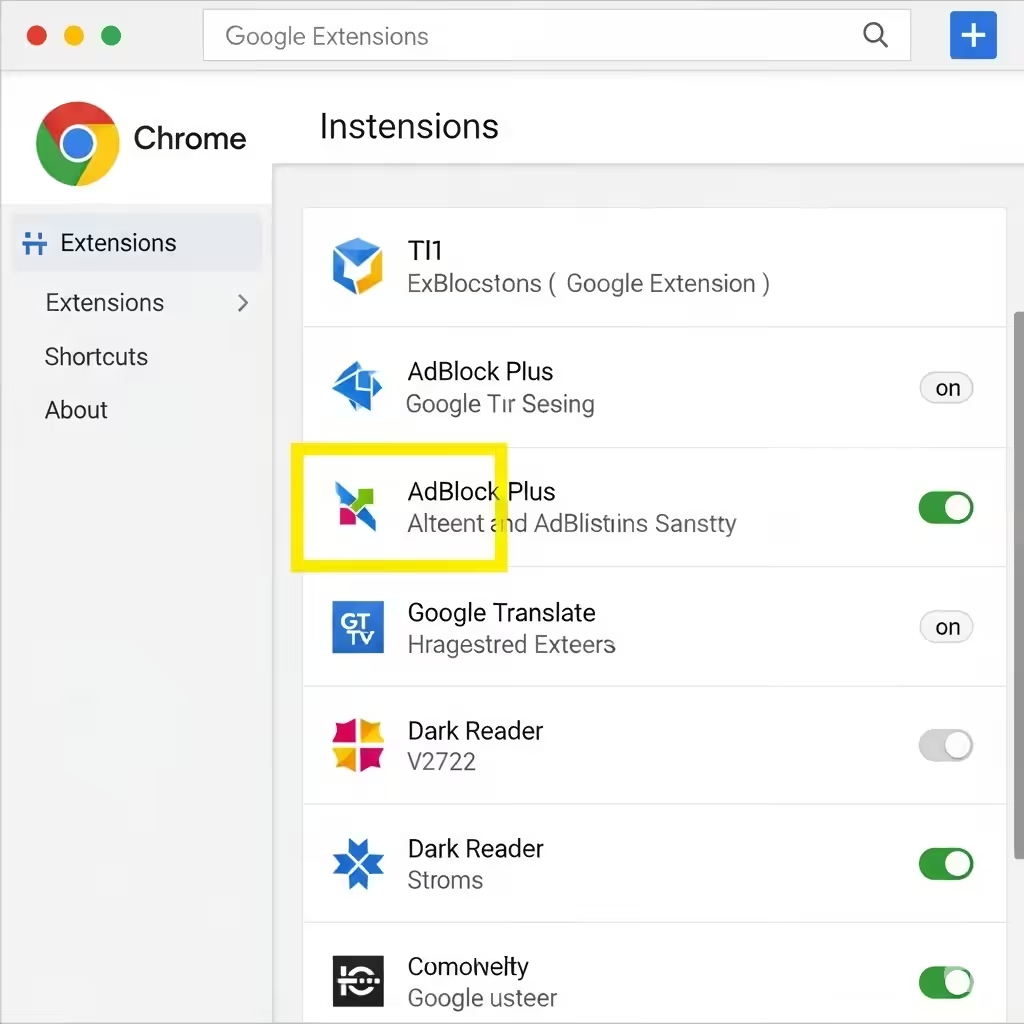
Extensions can sometimes interfere with website loading and caching.
-
Type chrome://extensions/ in the address bar and press Enter.
-
Toggle off all extensions or remove the ones you don’t need.
-
Reload the problematic website.
If the error disappears, enable extensions one by one to identify the culprit.
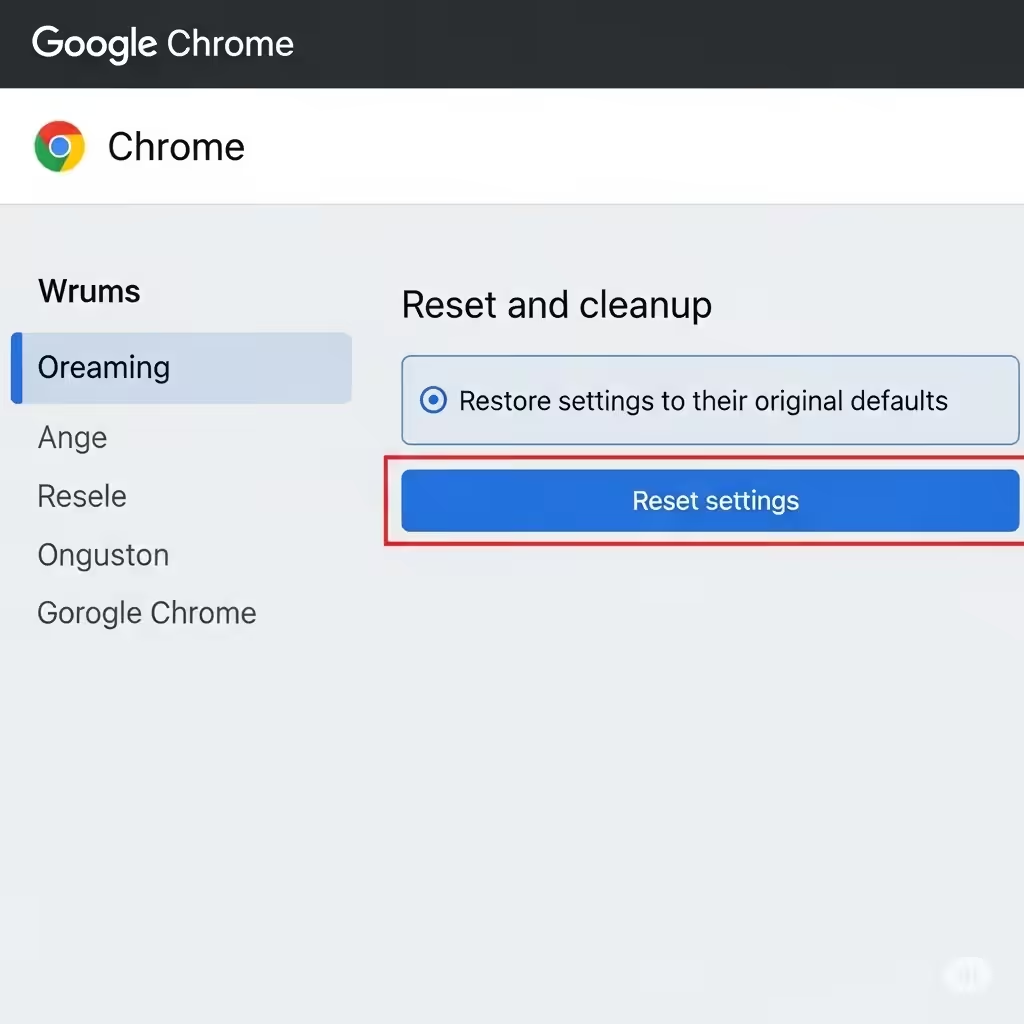
Method 5: Reset Chrome Settings to Default
Resetting Chrome can resolve misconfigured settings.
-
Open Chrome and click the three-dot menu.
-
Go to Settings → Reset settings → Restore settings to their original defaults.
-
Confirm by clicking Reset settings.
This will disable extensions, clear temporary data, and restore default browser settings.
Method 6: Disable Cache in Developer Tools
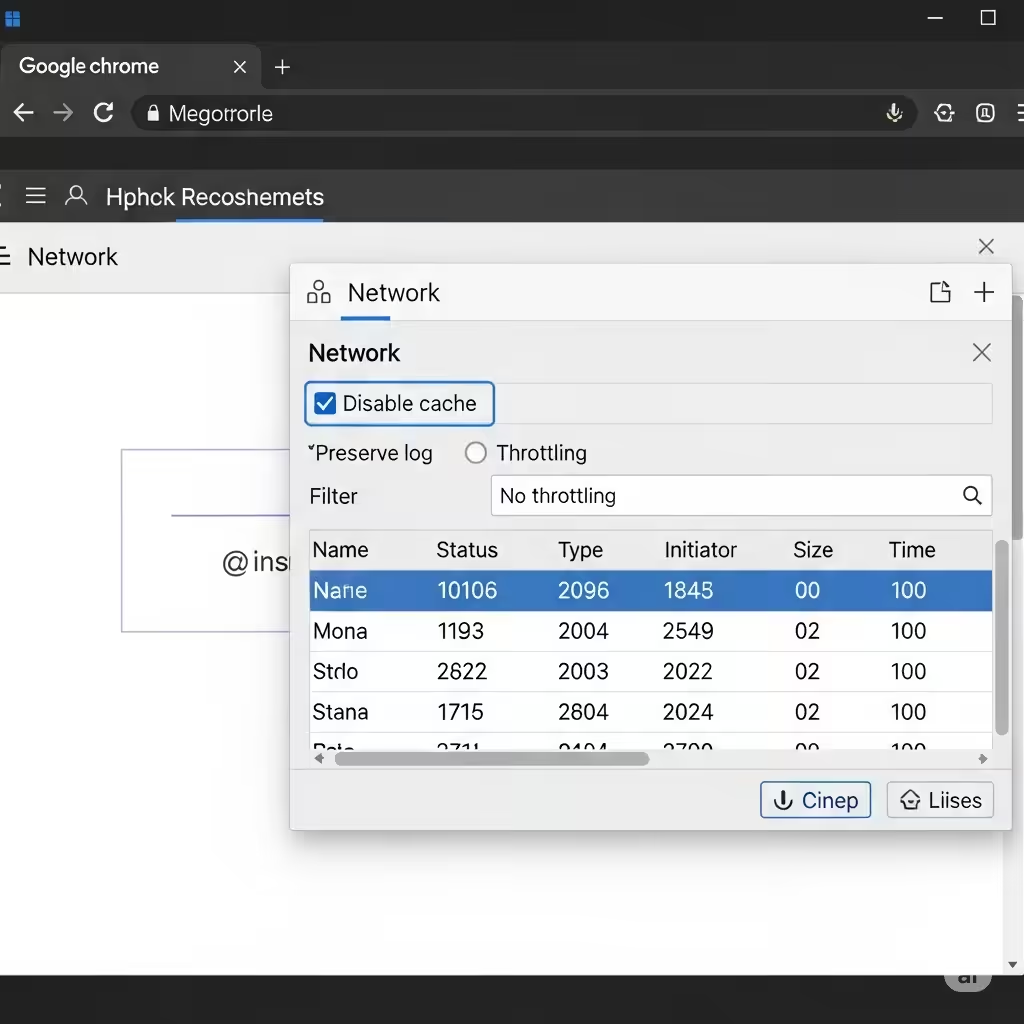
For testing purposes, you can disable caching in Chrome’s Developer Tools.
-
Press F12 or Ctrl + Shift + I to open Developer Tools.
-
Click the Network tab.
-
Check Disable cache (only works while Developer Tools is open).
-
Reload the page.
This helps identify if cache issues are the root cause.
Method 7: Check Your Internet Connection
A weak or unstable internet connection can also trigger caching errors.
-
Restart your router.
-
Switch to a wired connection if possible.
-
Test your speed at websites like Speedtest.net.

Method 8: Reset Network Settings
If the issue persists, resetting network settings can help.
For Windows:
-
Open Command Prompt as Administrator.
-
Type and run these commands one by one:
-
Restart your PC.
For macOS:
-
Go to System Preferences → Network.
-
Select your active network and click Advanced.
-
Click Renew DHCP Lease.
Method 9: Contact the Website Administrator
If none of the above fixes work, the issue may be on the website’s side. Contact their support team or wait until they resolve it.
Preventing the “Err_Cache_Miss” Error
While you can’t completely avoid it, you can reduce the chances by:
-
Keeping Chrome updated
-
Regularly clearing cache and cookies
-
Limiting unnecessary browser extensions
-
Maintaining a stable internet connection
Conclusion
The “Err_Cache_Miss” error in Google Chrome is usually related to cache or connection problems. In most cases, a simple refresh, clearing the cache, or updating Chrome solves the issue. For more persistent problems, disabling extensions, resetting browser settings, or troubleshooting network connections can help.
By following the steps in this guide, you can quickly get back to browsing without interruptions.