



Troubleshooting the “Err Cache Miss” Issue on Chrome
The “Err_Cache_Miss” error in Google Chrome is a frustrating yet fairly common issue that can disrupt your browsing experience. This error message usually appears when a website requests data to be re-entered or resent, often due to caching problems. While it’s not harmful, it can prevent you from submitting forms, logging in, or accessing certain pages.
In this guide, you’ll learn the causes of this error and multiple step-by-step solutions to resolve it.
Understanding the “Err_Cache_Miss” Error
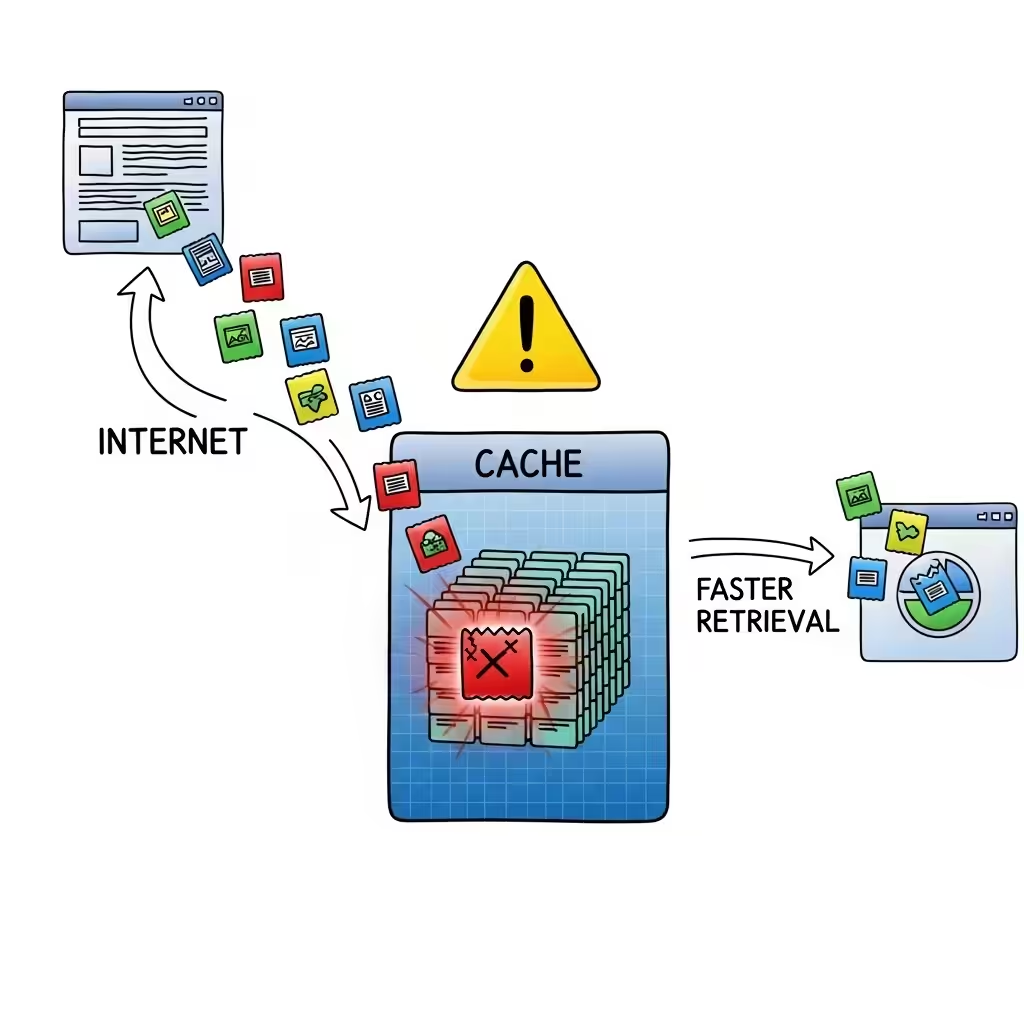
When you visit a website, your browser stores temporary data in its cache to load pages faster in the future. However, if that cached data is incomplete or corrupted, Chrome may struggle to process your request, triggering the “Err_Cache_Miss” message.
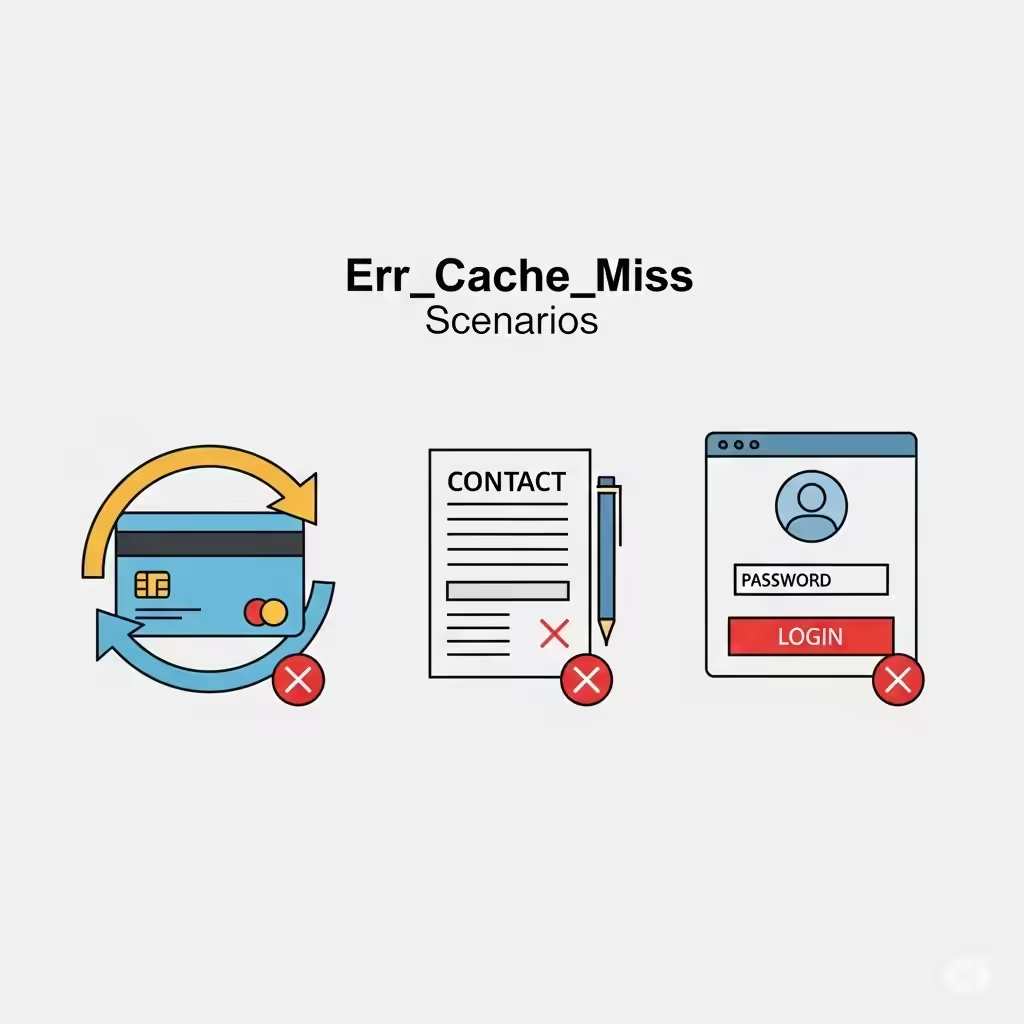
This error is particularly common when:
-
Submitting forms more than once
-
Reloading a payment or checkout page
-
Accessing secure login portals
-
Navigating websites that use POST requests
Causes of the Error
Several factors can lead to this issue:
-
Corrupted browser cache or cookies
-
Outdated Chrome version
-
Interfering browser extensions
-
Incorrect Chrome settings
-
Unstable or poor internet connection
-
Website-side coding or server issues
Method 1: Refresh the Page
Sometimes the error is temporary and can be fixed simply by reloading the page.
-
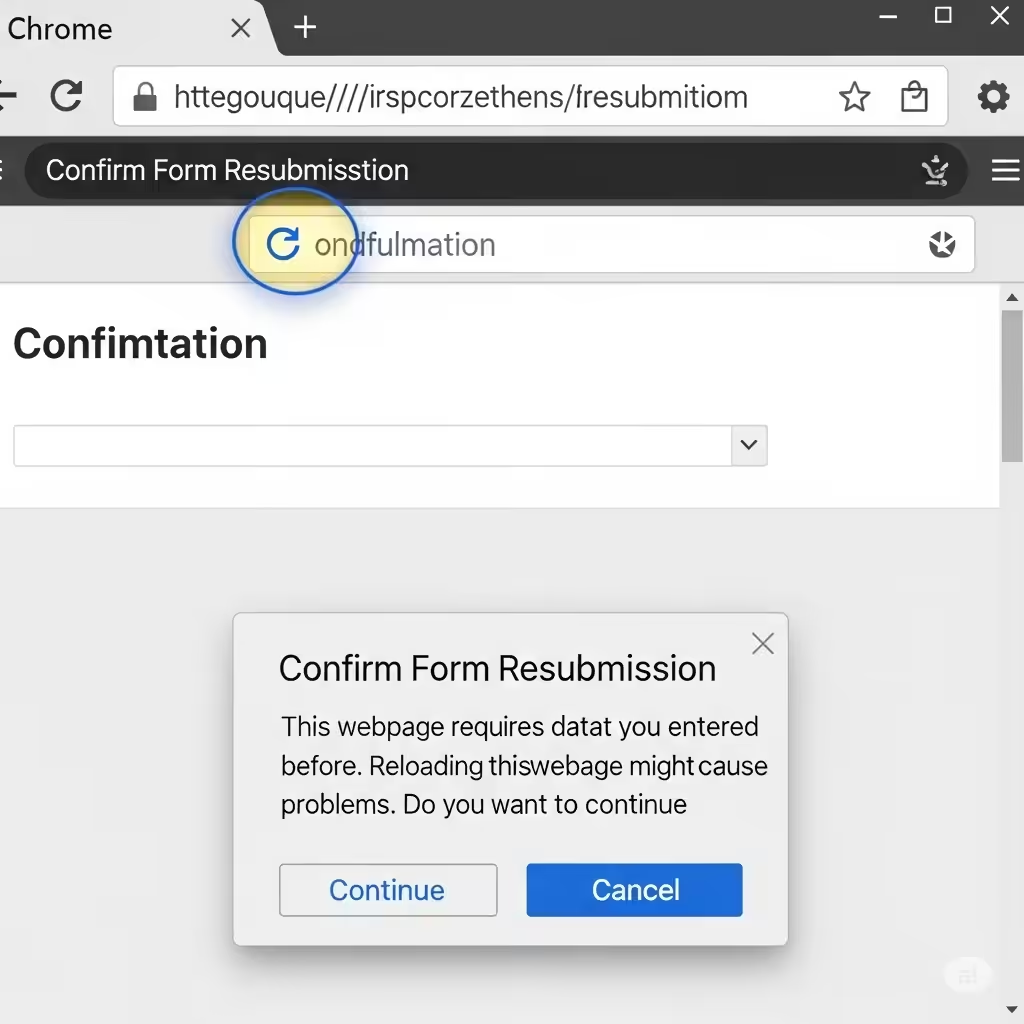
Press F5 or click the Refresh icon in Chrome.
-
If prompted to resend form data, confirm the action.
This works if the issue was just a brief network or server hiccup.
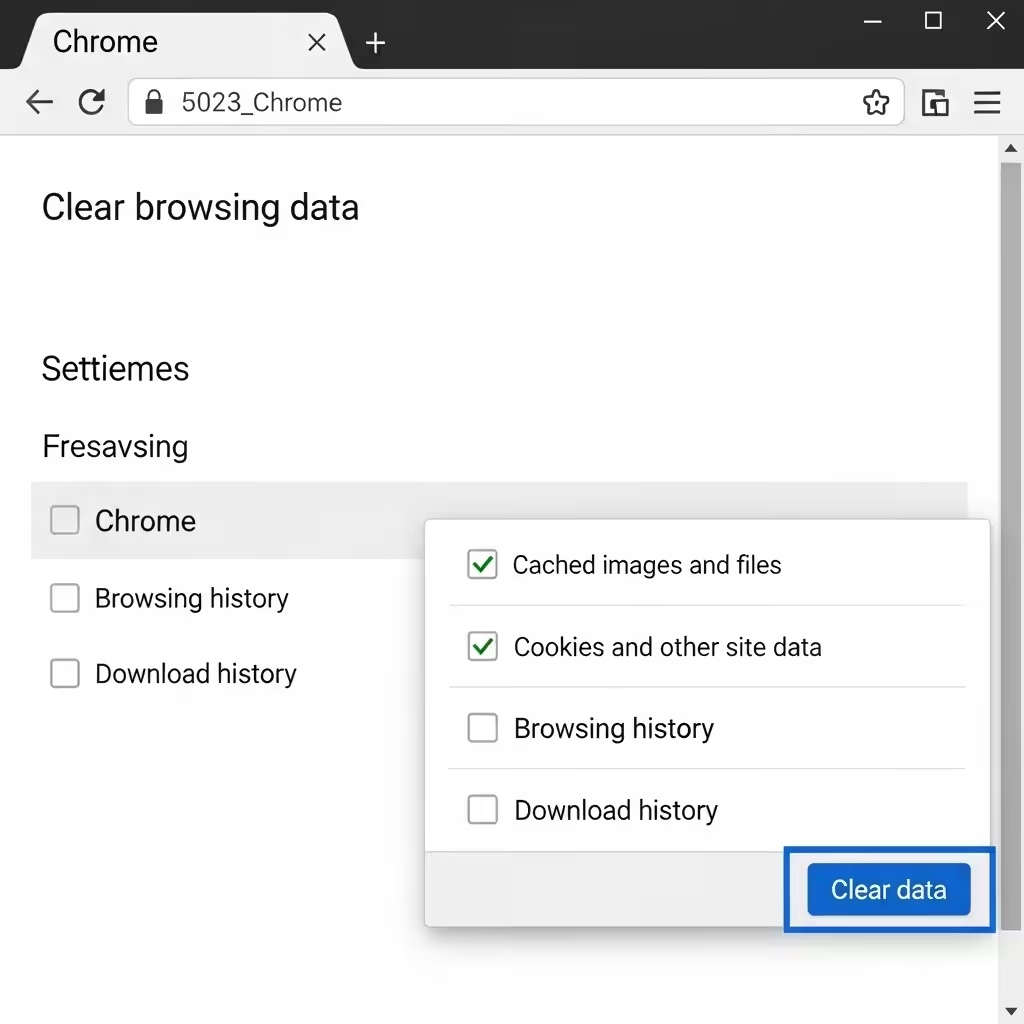
Method 2: Clear Browser Cache and Cookies
One of the most effective fixes is clearing corrupted cache and cookies.
-
Open Chrome and press Ctrl + Shift + Delete.
-
Select All time in the time range.
-
Check Cookies and other site data and Cached images and files.
-
Click Clear data.
Restart Chrome and try accessing the website again.
Method 3: Update Google Chrome
Using an outdated browser can cause compatibility problems.
-
Click the three-dot menu in the top right corner.
-
Go to Help → About Google Chrome.
-
Chrome will check for updates and install them automatically.
-
Restart the browser.
Method 4: Disable Extensions
Faulty or incompatible extensions can interfere with page loading.
-
Type chrome://extensions/ in the address bar.
-
Disable all extensions by toggling them off.
-
Reload the problematic page.
If the error disappears, re-enable extensions one at a time to identify the cause.
Method 5: Reset Chrome Settings
Resetting Chrome to its default state can resolve misconfigured settings.
-
Open Chrome and click the three-dot menu.
-
Select Settings → Reset settings → Restore settings to their original defaults.
-
Confirm by clicking Reset settings.
This will disable extensions and clear temporary data without deleting bookmarks.
Method 6: Disable Cache in Developer Tools
This method is useful for diagnosing caching issues.
-
Press F12 or Ctrl + Shift + I to open Developer Tools.
-
Go to the Network tab.
-
Check Disable cache (works only while Developer Tools is open).
-
Reload the page.
If the page loads fine with the cache disabled, you’ll know the cache was the problem.
Method 7: Check Internet Connection
Slow or unstable internet can prevent Chrome from fetching the required data.
-
Restart your router or modem.
-
Try using a wired Ethernet connection.
-
Test your speed using services like Speedtest.net.
Method 8: Reset Network Settings
If the problem persists, reset your network configuration.
On Windows:
-
Open Command Prompt as Administrator.
-
Type and run each command:
-
Restart your PC.
On macOS:
-
Go to System Preferences → Network.
-
Select your active connection → Advanced.
-
Click Renew DHCP Lease.
Method 9: Contact the Website Administrator
If none of these solutions work, the issue may be on the website’s server. In that case, contact their support team or try again later.
Tips to Prevent the “Err_Cache_Miss” Error
While you can’t completely avoid this error, you can reduce its likelihood:
-
Keep Chrome updated to the latest version.
-
Clear cache and cookies regularly.
-
Limit the number of installed extensions.
-
Maintain a stable internet connection.
Conclusion
The “Err_Cache_Miss” error in Google Chrome is usually a result of caching or connection issues, but it can also be triggered by browser settings, extensions, or website-side problems.
In most cases, clearing the cache, updating Chrome, or disabling extensions resolves the problem. If the issue is caused by network settings, resetting them can help. For website-related errors, contacting the site’s administrator is the best option.
By following the steps in this guide, you can quickly get back to smooth, uninterrupted browsing.