


Easy Ways to Resolve Calculator Issues on Windows 10
The Calculator app is one of the simplest yet most important tools in Windows 10. Whether you need it for quick math, financial calculations, or unit conversions, it is something many people use daily. However, some users encounter a frustrating problem: the Calculator app not working, crashing, or failing to open in Windows 10.
If you’re experiencing this issue, don’t worry. There are several proven methods to restore the Calculator app to normal functionality. This guide will walk you through the possible causes and the step-by-step solutions to fix the problem.
Common Causes of Calculator App Issues in Windows 10
Before diving into the fixes, let’s explore why the Calculator app might stop working:
-
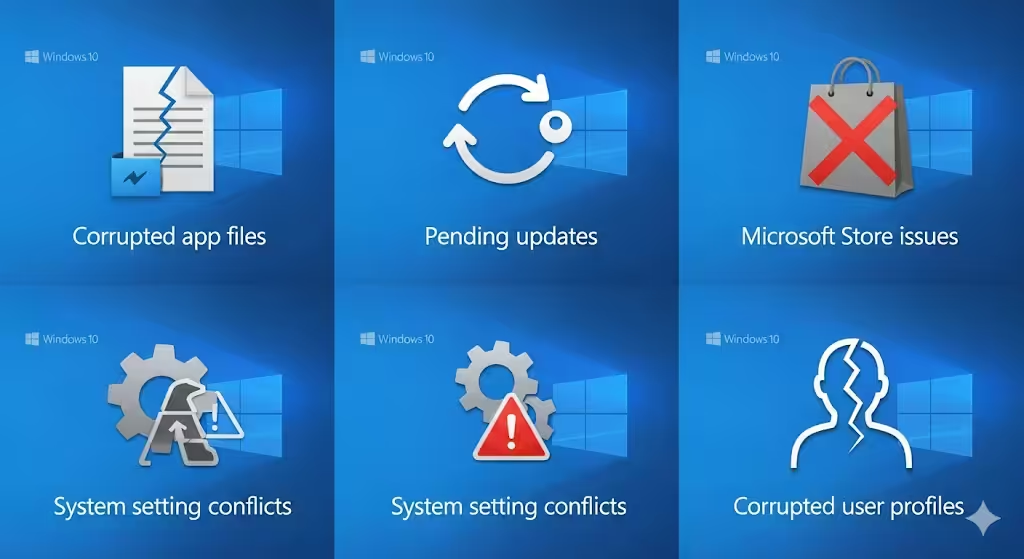
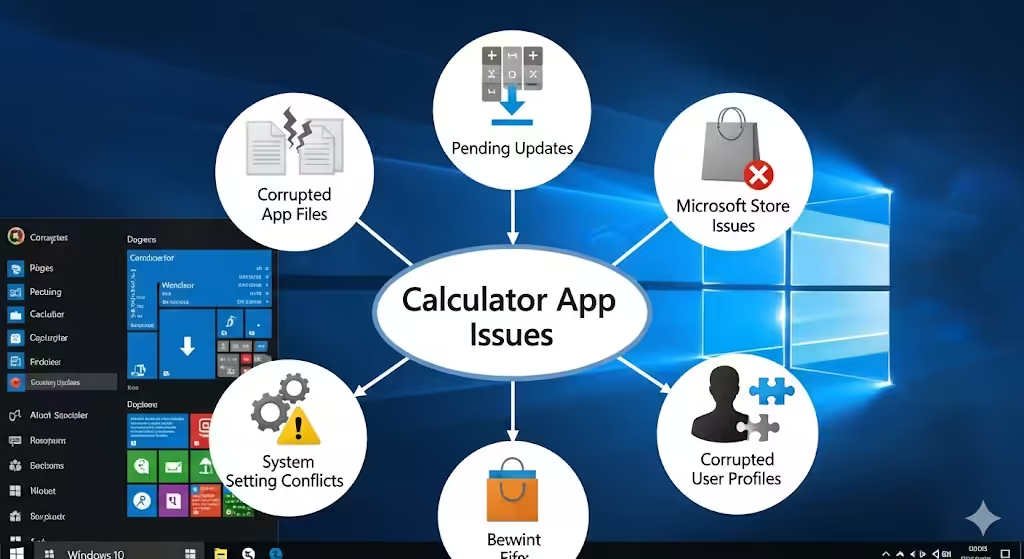
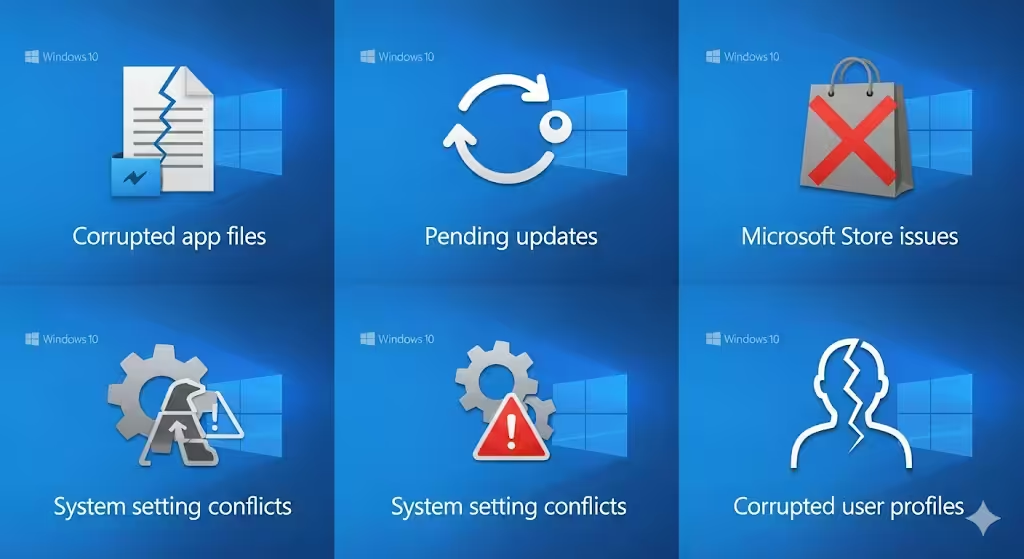
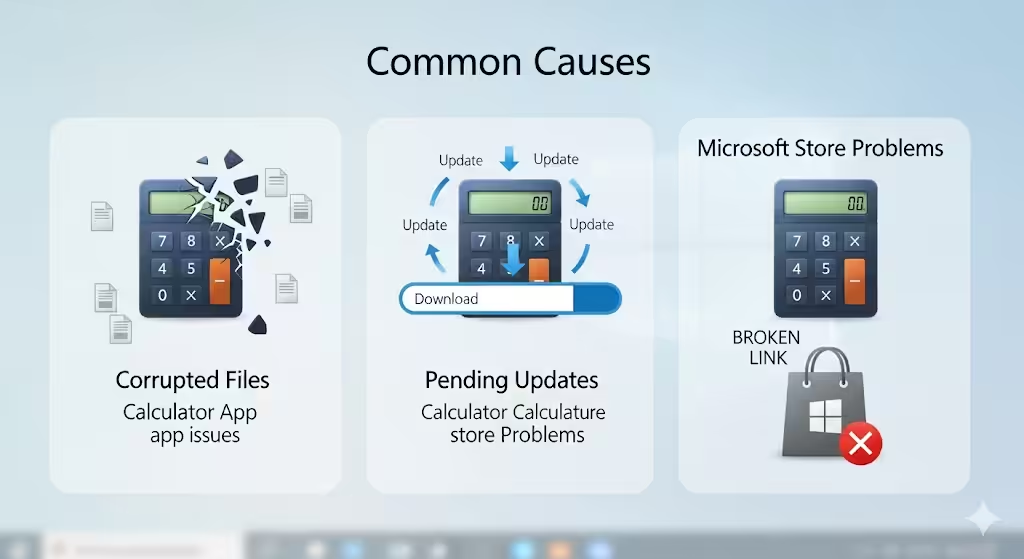
Corrupted app files due to system errors.
-
Pending Windows updates that affect app performance.
-
Issues with the Microsoft Store, where the Calculator is managed.
-
Conflicts with system settings after an update or installation.
-
Corrupted user profile in Windows 10.
Understanding these causes will help you choose the right fix for your situation.
Method 1: Restart Your Computer
Sometimes the solution is simple. A restart can refresh system processes and clear temporary glitches.
-
Click on the Start menu.
-
Select Power > Restart.
-
After the reboot, try opening the Calculator again.
If the problem persists, move on to the next method.
Method 2: Run Windows Store Apps Troubleshooter
Windows 10 includes built-in troubleshooters to detect and fix problems automatically.
-
Press Windows + I to open Settings.
-
Go to Update & Security > Troubleshoot.
-
Select Additional troubleshooters.
-
Find Windows Store Apps and click Run the troubleshooter.
-
Follow the on-screen instructions and apply any suggested fixes.
After the process, check if the Calculator works.
Method 3: Reset the Calculator App
If the Calculator app is corrupted, resetting it often resolves the issue.
-
Press Windows + I to open Settings.
-
Navigate to Apps > Apps & features.
-
Scroll down to Calculator and click on it.
-
Select Advanced options.
-
Click Reset.
This will clear app data and restore the Calculator to default settings.
Method 4: Reinstall the Calculator App
If resetting doesn’t work, reinstalling the Calculator may be necessary.
-
Open the Start menu and type PowerShell.
-
Right-click Windows PowerShell and choose Run as administrator.
-
Type the following command and press Enter:
-
Once uninstalled, open the Microsoft Store.
-
Search for Windows Calculator and reinstall it.
This ensures you have the latest and cleanest version of the app.
Method 5: Check for Windows Updates
Updates often contain bug fixes for issues like app malfunctions.
-
Press Windows + I to open Settings.
-
Go to Update & Security > Windows Update.
-
Click Check for updates.
-
Install any pending updates and restart your PC.
After updating, test if the Calculator opens normally.
Method 6: Reset the Microsoft Store Cache
Sometimes, problems with the Microsoft Store affect apps like Calculator.
-
Press Windows + R to open the Run dialog.
-
Type:
-
Press Enter.
This clears the cache and reopens the Microsoft Store. Afterward, try launching the Calculator app.
Method 7: Re-wp-signup.php Windows Apps
If multiple apps besides Calculator are malfunctioning, re-wp-signup.phping all apps can help.
-
Open PowerShell as administrator.
-
Copy and paste this command:
-
Press Enter and wait for the process to complete.
-
Restart your PC and test the Calculator.
Method 8: Create a New User Profile
If your user account is corrupted, apps may not work properly.
-
Press Windows + I and go to Accounts.
-
Select Family & other users.
-
Click Add someone else to this PC.
-
Create a new account and sign in.
-
Test the Calculator app in the new profile.
If it works, your old profile may be corrupted.
Method 9: Perform a System File Check
Corrupted system files often lead to app failures. Running the System File Checker can repair them.
-
Open Command Prompt as administrator.
-
Type:
-
Press Enter and let the scan complete.
-
Restart your computer afterward.
This will fix damaged files that may be affecting the Calculator app.
Method 10: Use DISM Tool for Advanced Repairs
If SFC doesn’t solve the issue, try the Deployment Imaging and Servicing Management (DISM) tool.
-
Open Command Prompt as administrator.
-
Type the following commands one by one, pressing Enter after each:
-
Restart your PC once the process finishes.
Now check if the Calculator works.
Method 11: Perform a System Restore
If the issue started recently, rolling back your system may solve it.
-
Press Windows + R, type
rstrui, and press Enter. -
Select a restore point before the Calculator stopped working.
-
Follow the instructions to complete the restore.
This reverts your system settings without affecting personal files.
Preventing Calculator App Problems in the Future
To keep the Calculator app working smoothly, follow these tips:
-
Always keep Windows updated.
-
Regularly clear the Microsoft Store cache.
-
Run system scans to prevent corruption.
-
Avoid unnecessary third-party system tweakers that may interfere with apps.
-
Back up your system regularly to restore easily if issues arise.
Conclusion
The Calculator app in Windows 10 is a basic but essential tool, and it can be frustrating when it doesn’t work. Fortunately, with solutions like resetting the app, reinstalling it, clearing the Microsoft Store cache, or running system scans, you can quickly restore its functionality.
By following the step-by-step methods above, you should be able to fix the Calculator app not working issue in Windows 10 and prevent it from happening again.