



Fixing the Problem of Windows 7 Not Powering Off
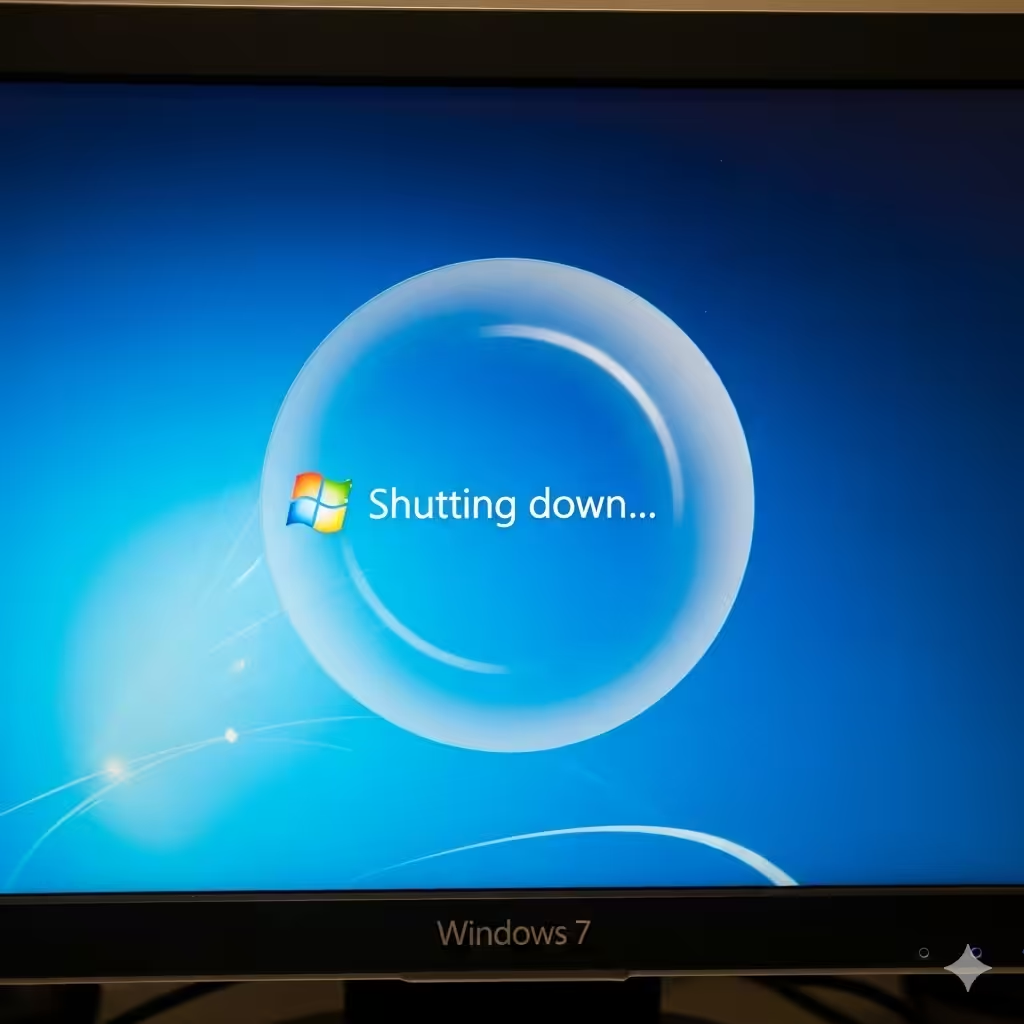
Windows 7, though older, is still used by many individuals and businesses due to its stability and familiar interface. However, one frustrating issue that some users encounter is Windows 7 not shutting down properly. Instead of powering off, the system may hang on the “Shutting down” screen or restart unexpectedly.
This problem can result from misconfigured settings, outdated drivers, system errors, or background processes that prevent Windows from completing its shutdown sequence. If you are experiencing this issue, don’t worry—there are multiple solutions you can try.
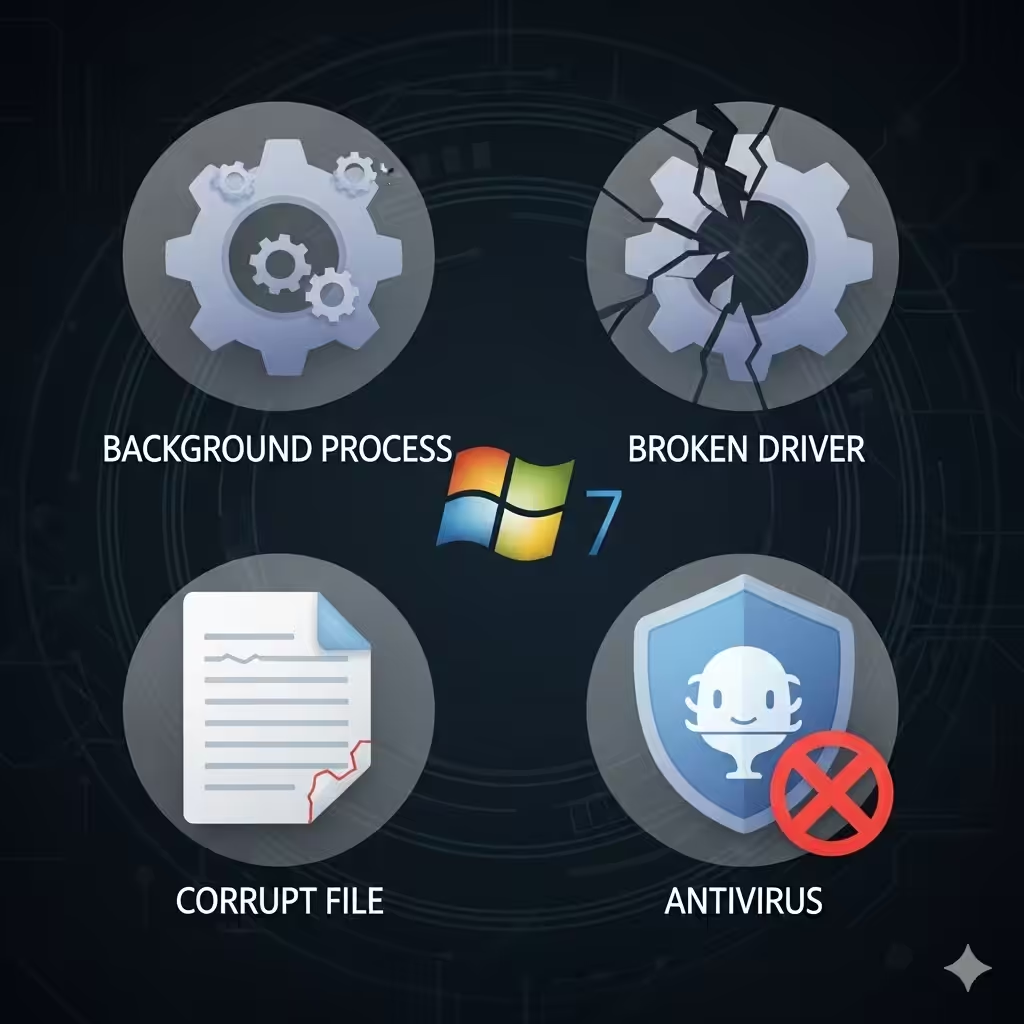
Common Causes of Windows 7 Shutdown Problems
Before jumping into fixes, it’s useful to understand what might be causing the issue:
-
Background processes or applications that refuse to close.
-
Outdated or corrupted drivers, especially graphics and chipset drivers.
-
Windows updates stuck during installation.
-
Corrupt system files interfering with shutdown.
-
Fast Boot or hybrid shutdown conflicts (though less common in Windows 7).
-
Third-party software or antivirus blocking shutdown processes.
Knowing these causes will help you apply the right fix to your system.
Method 1: Force Close Programs During Shutdown
Sometimes, Windows cannot shut down because an application is preventing it from closing.
Steps:
-
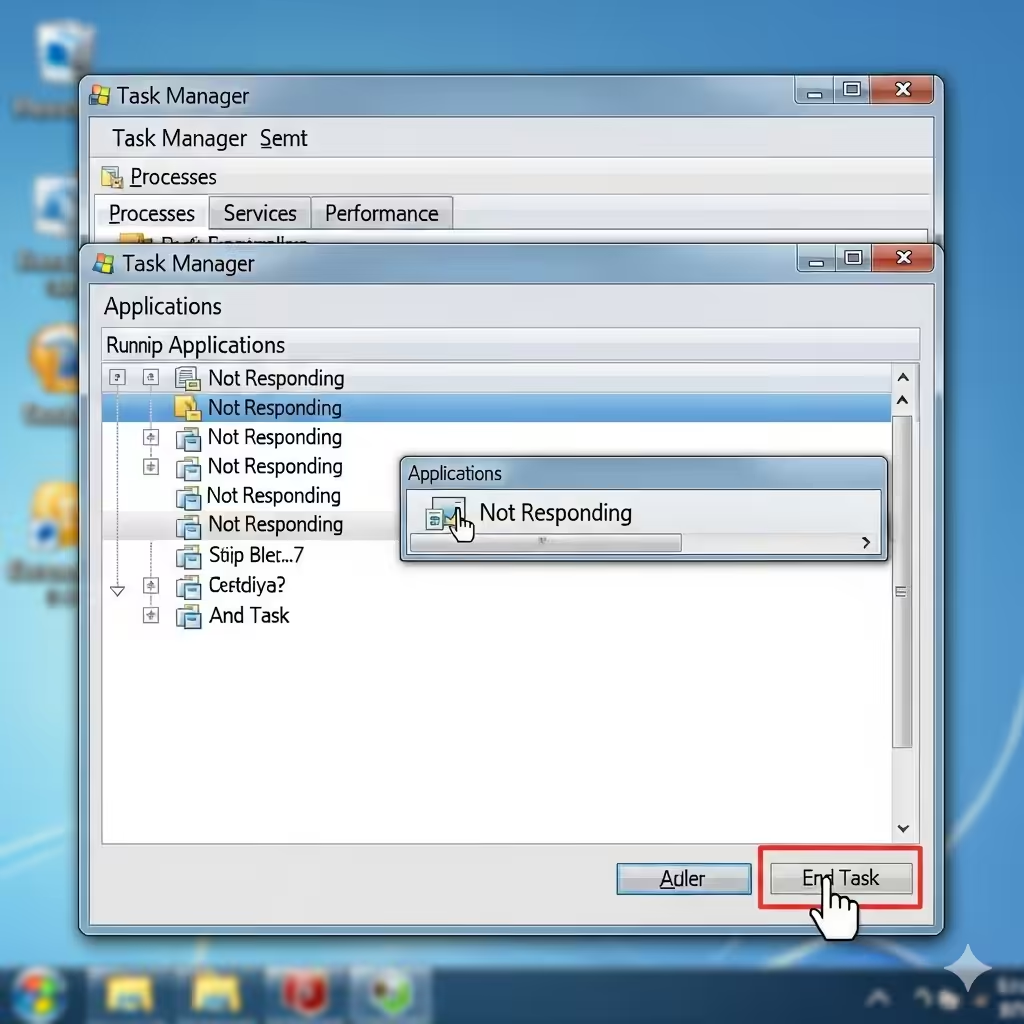
Press Ctrl + Alt + Delete and open the Task Manager.
-
Under the Applications tab, close all running programs manually.
-
Check the Processes tab for any unresponsive programs and select End Task.
-
Try shutting down again.
This ensures no application is blocking the shutdown process.
Method 2: Disable Fast User Switching
Windows 7 includes a feature called Fast User Switching, which can sometimes interfere with shutdown.
Steps:
-
Open the Control Panel.
-
Go to User Accounts > Change the way users log on or off.
-
Uncheck Use Fast User Switching.
-
Restart your PC and attempt shutdown again.

Method 3: Update Device Drivers
Outdated or faulty drivers are one of the most common reasons for shutdown problems.
Steps:
-
Press Windows + R, type
devmgmt.msc, and hit Enter. -
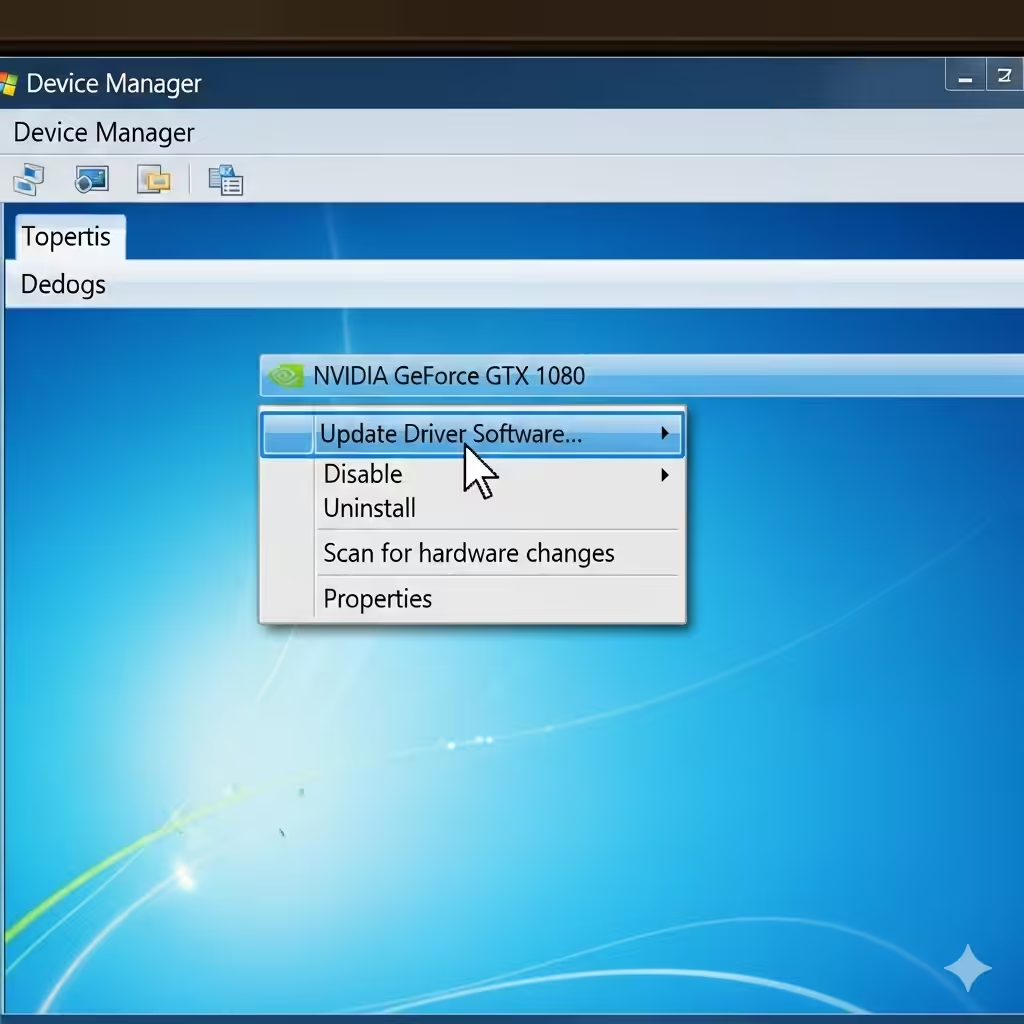
In Device Manager, right-click each critical driver (especially Display Adapter, Network Adapter, and Chipset).
-
Select Update Driver Software.
-
Restart the computer and check if shutdown works properly.
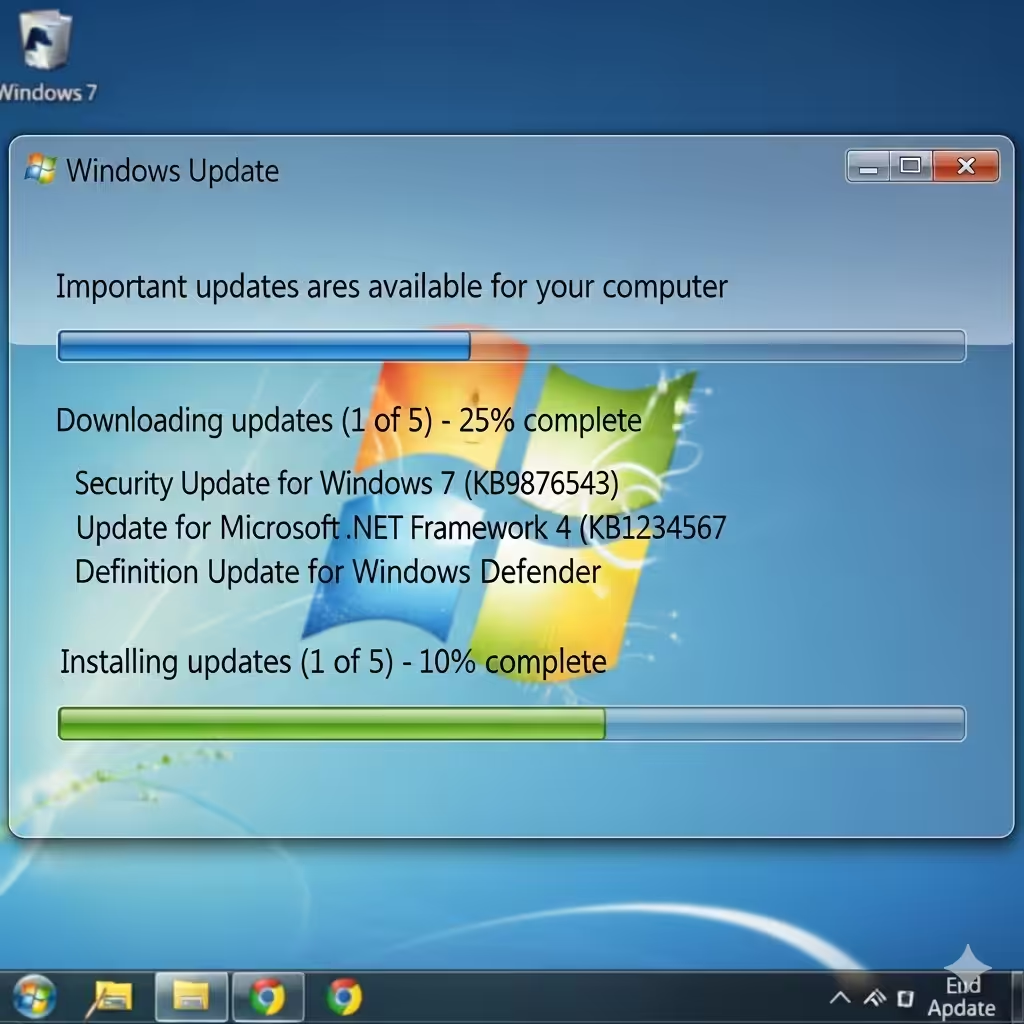
Method 4: Install Pending Windows Updates
Sometimes, shutdown issues happen because updates are stuck.
Steps:
-
Go to Control Panel > Windows Update.
-
Click Check for updates.
-
Install all important updates, including Service Pack 1 (if not already installed).
-
Restart the PC and try shutting down again.
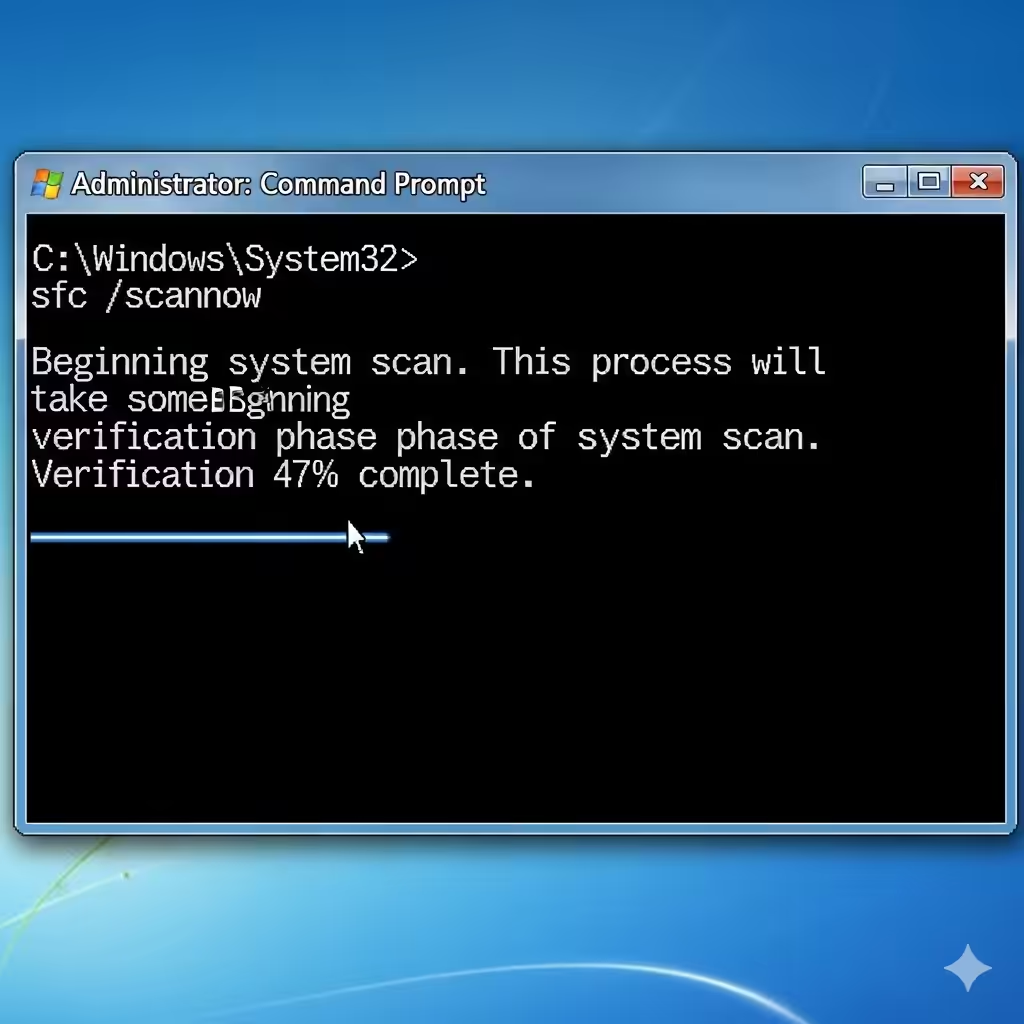
Method 5: Run System File Checker (SFC Scan)
Corrupt system files may stop Windows from shutting down properly.
Steps:
-
Click Start, type
cmd, right-click Command Prompt, and select Run as administrator. -
Type the following command and press Enter:
-
Wait for the scan to finish and repair any detected issues.
-
Restart your computer and check shutdown functionality.
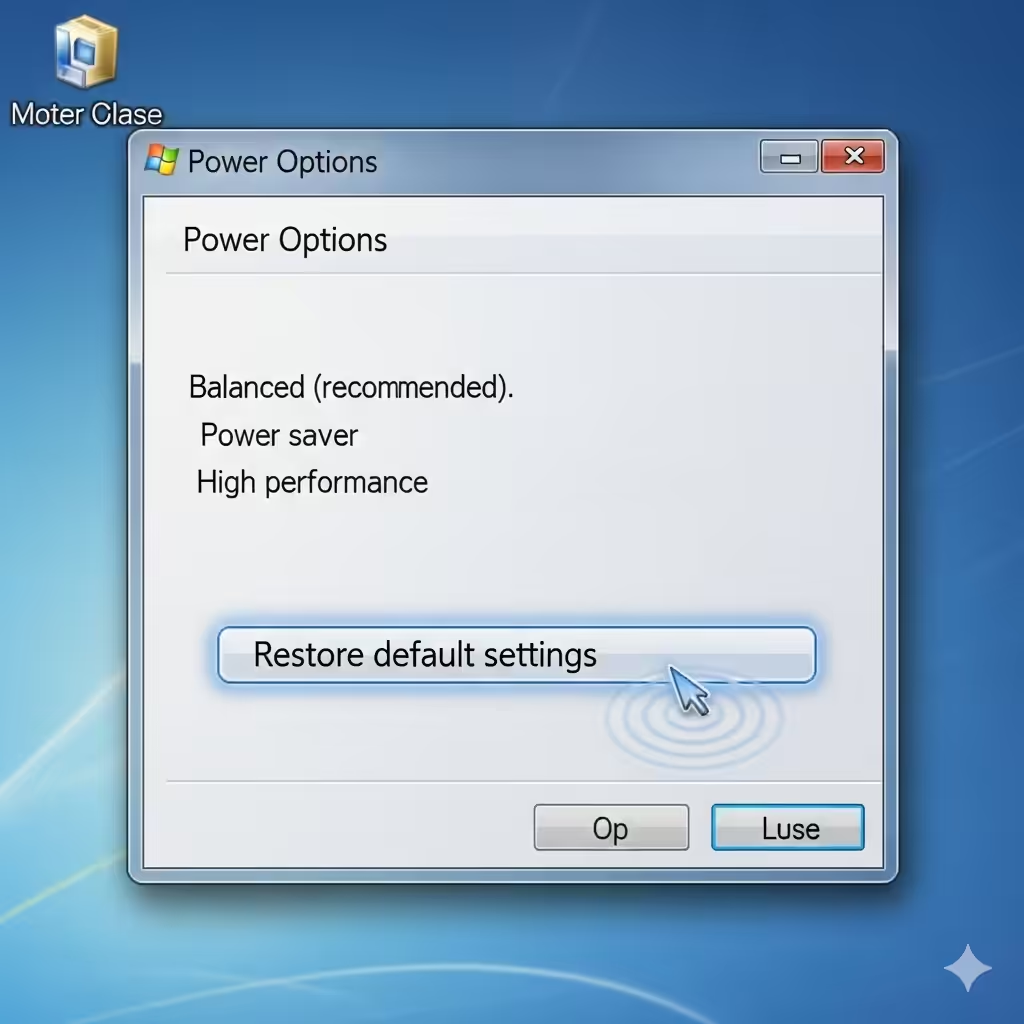
Method 6: Modify Power Settings
Misconfigured power options may prevent Windows from shutting down.
Steps:
-
Go to Control Panel > Power Options.
-
Select your active power plan and click Change plan settings.
-
Choose Restore default settings for this plan.
-
Save changes and restart your PC.
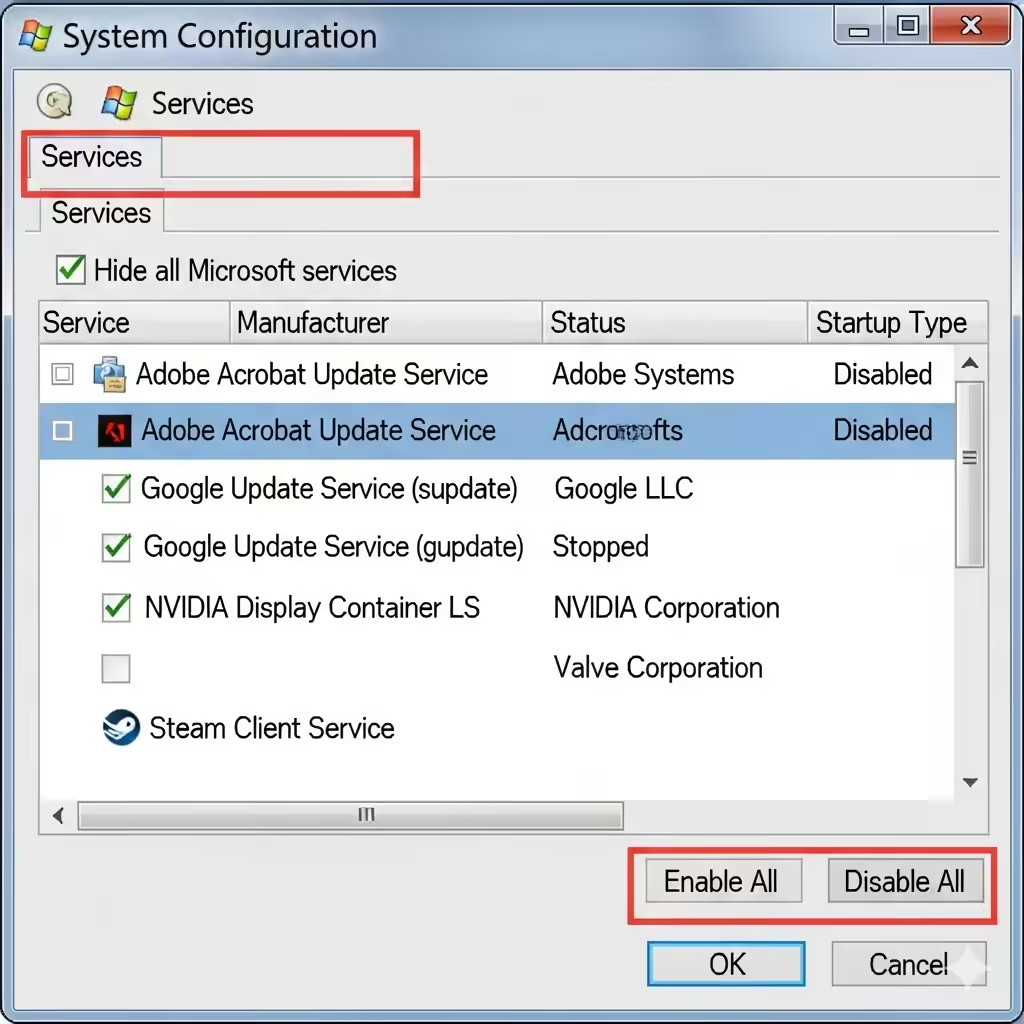
Method 7: Check for Software Conflicts
Third-party antivirus or startup applications may block shutdown.
Steps:
-
Open System Configuration by pressing Windows + R, typing
msconfig, and pressing Enter. -
Go to the Startup tab and disable unnecessary programs.
-
Switch to the Services tab, check Hide all Microsoft services, and disable non-Microsoft services.
-
Restart your PC and check if shutdown works.
If shutdown works properly, re-enable services one by one to find the culprit.
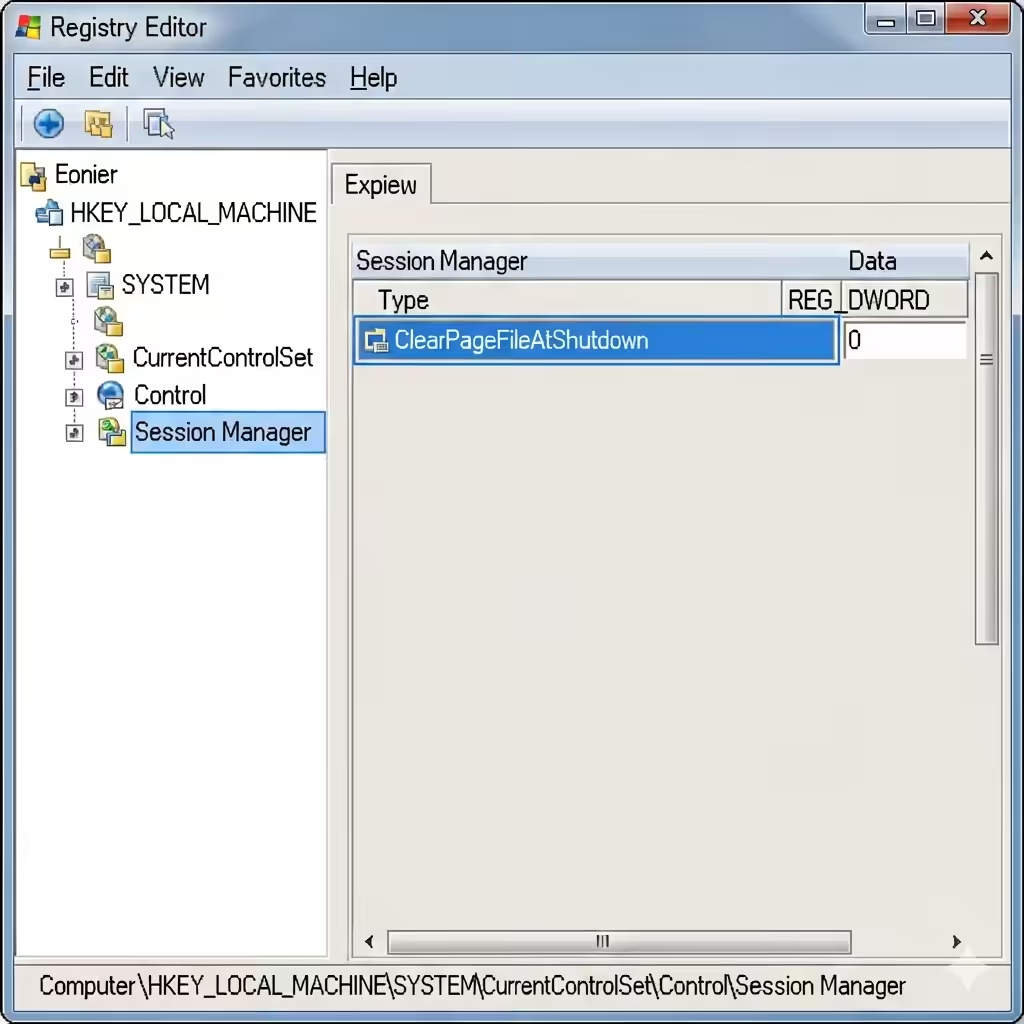
Method 8: Disable ClearPageFileAtShutdown
Windows may be taking longer to shut down if it is clearing the page file.
Steps:
-
Press Windows + R, type
regedit, and press Enter. -
Navigate to:
-
Look for the ClearPageFileAtShutdown entry.
-
Double-click it and set its value to 0.
-
Restart your PC and try shutting down again.
Method 9: Use Advanced Boot Options
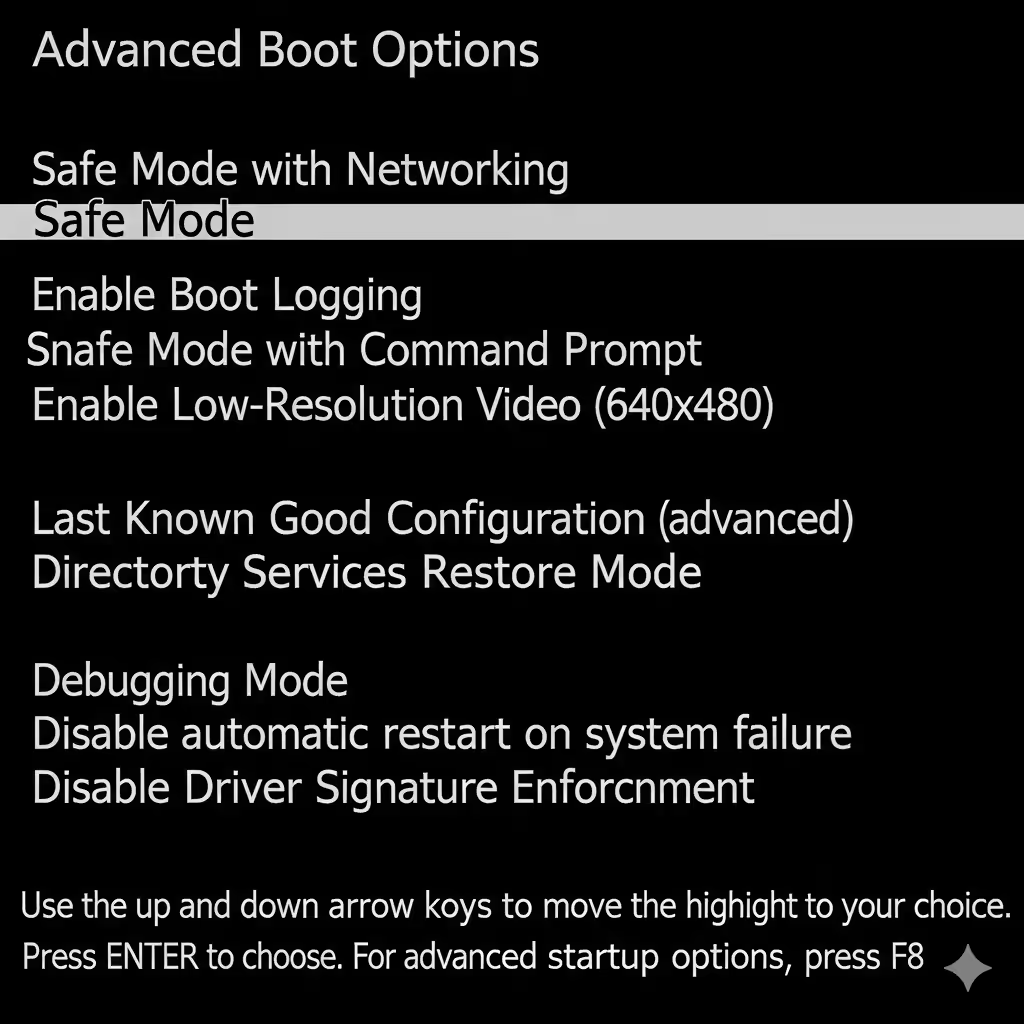
If the issue persists, boot into Safe Mode to determine whether the problem is software or driver-related.
Steps:
-
Restart your computer and press F8 before Windows loads.
-
Select Safe Mode.
-
Once in Safe Mode, try shutting down.
If shutdown works in Safe Mode, the issue is likely due to third-party drivers or software.
Method 10: Perform a System Restore
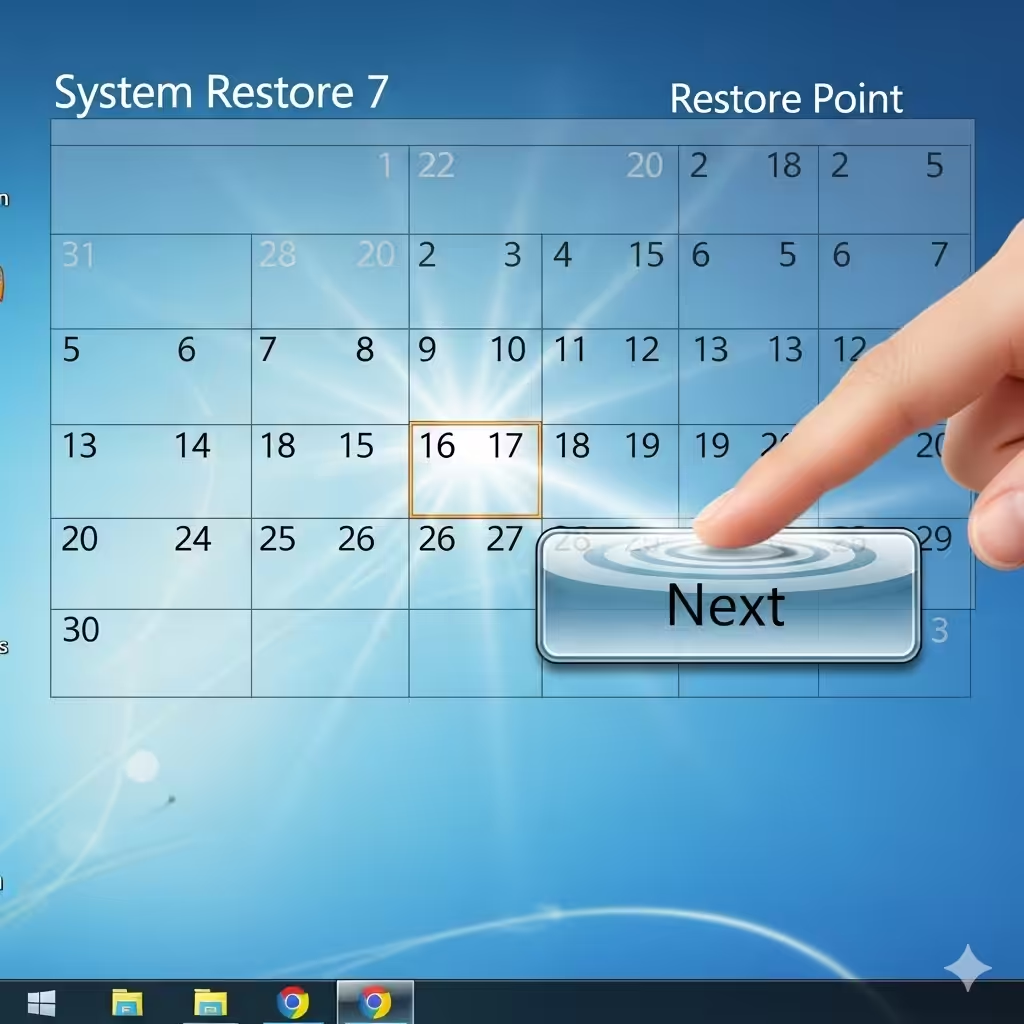
If the shutdown issue started recently, you can restore Windows to an earlier point when it worked fine.
Steps:
-
Open Start > All Programs > Accessories > System Tools > System Restore.
-
Choose a restore point before the issue began.
-
Follow the prompts to restore your system.
Method 11: Reset or Reinstall Windows 7
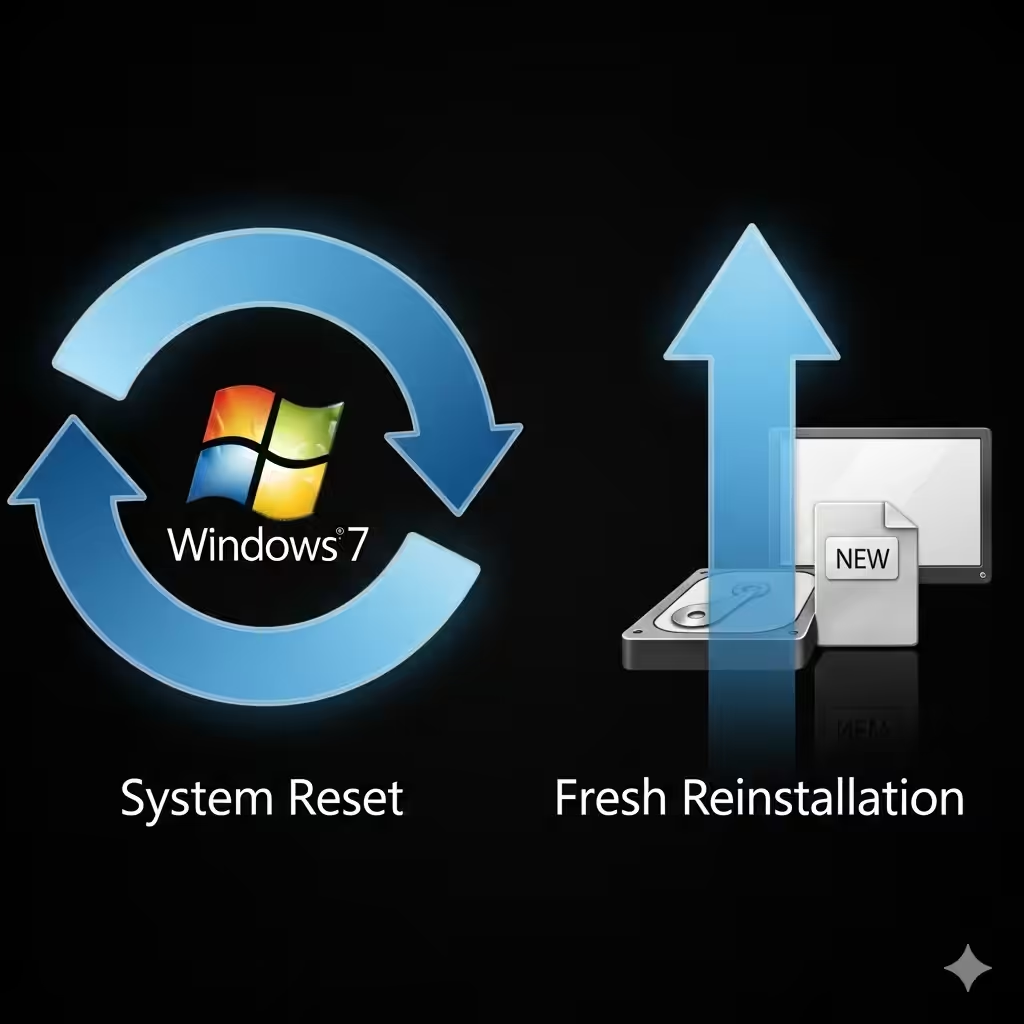
As a last resort, if none of the methods fix the issue, consider resetting or reinstalling Windows 7. While this is more drastic, it guarantees a fresh system without lingering errors.
Preventing Shutdown Problems in Windows 7
To avoid future issues with Windows 7 shutdown:
-
Keep your system and drivers updated.
-
Avoid installing unnecessary third-party programs.
-
Run regular system maintenance, such as disk cleanup and defragmentation.
-
Use reliable antivirus software without conflicts.
-
Perform periodic system restores to maintain stability.

Conclusion
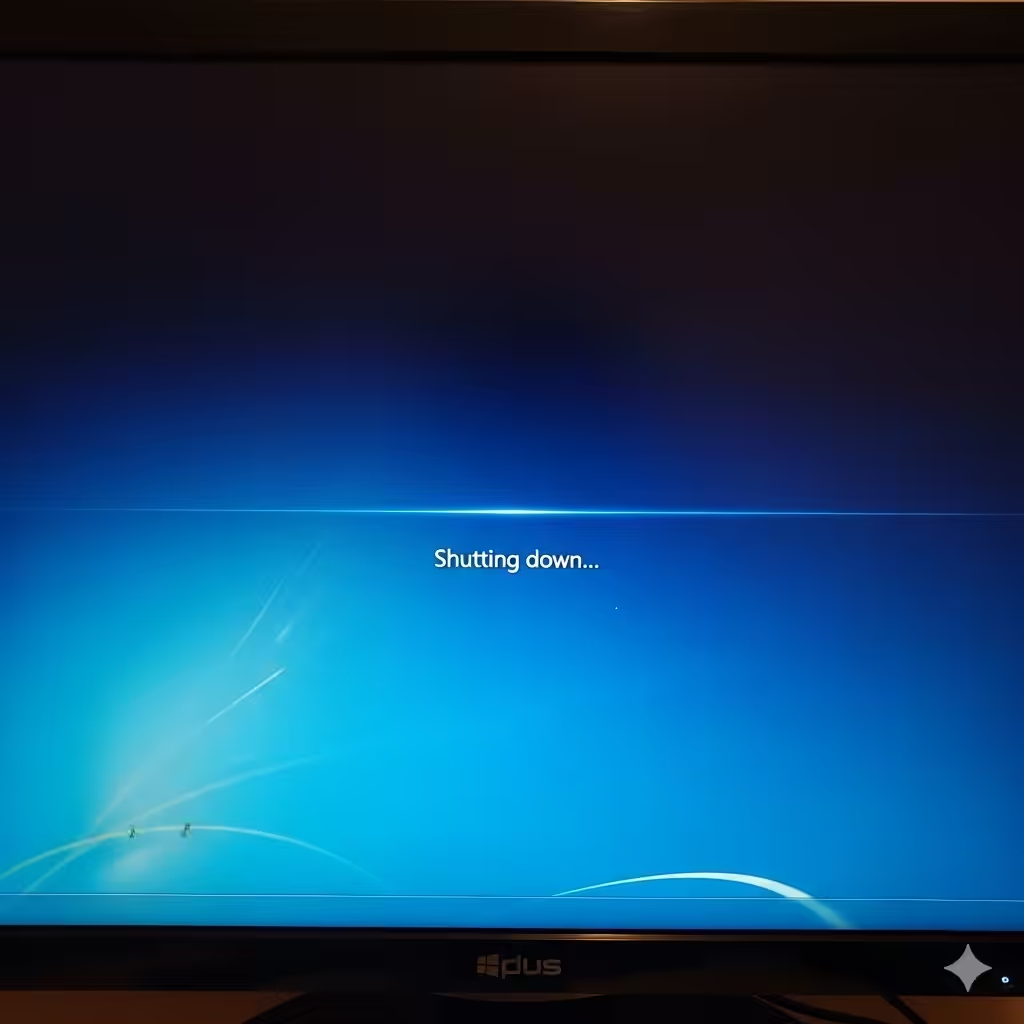
The Windows 7 won’t shut down issue is often caused by background processes, driver conflicts, or corrupted system files. Fortunately, the problem is usually fixable with straightforward troubleshooting steps like updating drivers, running an SFC scan, adjusting power settings, or disabling problematic software.
By following the methods outlined above, you can restore proper shutdown functionality to your Windows 7 computer and prevent the problem from recurring.