


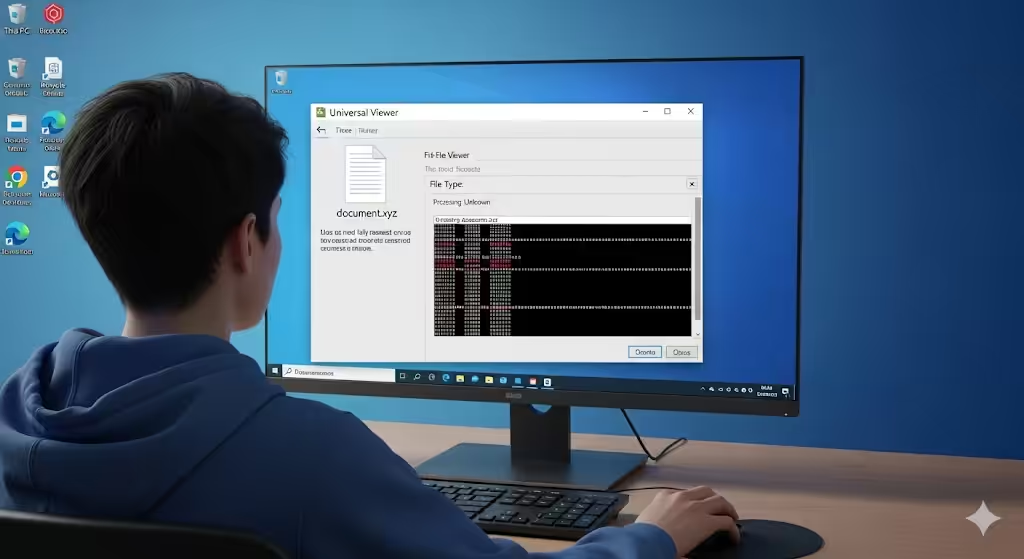
How to Access and View Files with Unrecognized Extensions in Windows
Encountering a file with an unknown extension can be frustrating. You double-click on it, only to see the dreaded “Windows can’t open this file” message. This happens when Windows does not recognize the file type or when the proper application to open it is not installed. Since there are thousands of file extensions, from common ones like .docx and .pdf to rare or specialized formats, knowing how to handle them is an essential skill.
This guide will explain what file extensions are, why Windows sometimes struggles with unknown ones, and provide practical steps to open them safely.
What Is a File Extension?
A file extension is a suffix at the end of a file name that indicates the file type. For example:
-
Document files: .docx, .pdf, .txt
-
Image files: .jpg, .png, .gif
-
Audio files: .mp3, .wav
-
Video files: .mp4, .avi, .mkv
-
Compressed archives: .zip, .rar
-
System or special files: .dll, .sys
Windows uses file extensions to determine which program should open the file. If no associated application exists, the system cannot recognize the file, and it remains “unknown.”
Reasons Why You Encounter Unknown File Extensions
There are several reasons why Windows may not recognize a file extension:
-
Obscure or uncommon formats: Specialized software may be required.
-
Corrupted files: A file may lose its extension or become unreadable.
-
Misnamed files: Sometimes an incorrect extension is added by mistake.
-
Outdated or missing programs: The software needed to open the file may not be installed.
Step 1: Identify the File Extension
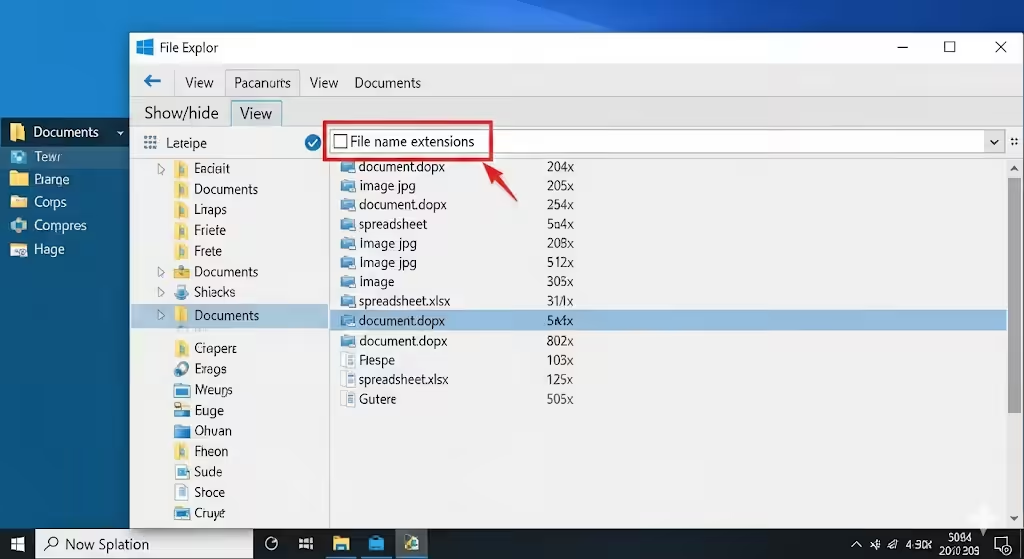
The first step in solving the problem is to identify the file extension clearly. By default, Windows may hide extensions, but you can enable them:
-
Open File Explorer.
-
Go to the View tab.
-
Check the box for File name extensions.
This will display the full file name, including its extension (e.g., “example.xyz”). Once you know the extension, you can research which program supports it.
Step 2: Use Online File Extension Databases
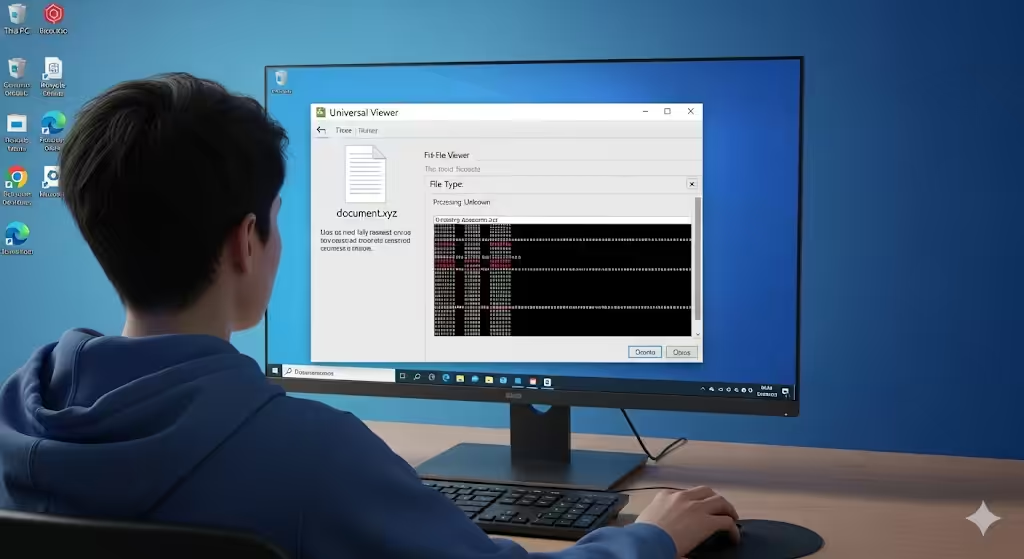
If you don’t recognize the extension, search for it in an online file extension database. Some reliable sources include:
-
FileInfo.com
-
OpenTheFile.net
-
FileTypes.org
These resources provide details about the file type, its purpose, and which applications are commonly used to open it.
For instance, if you find a file with the extension .ods, a quick search will reveal that it is an OpenDocument Spreadsheet, usually opened with LibreOffice or Microsoft Excel.
Step 3: Try Universal File Viewers

If you cannot determine the right program, a universal file viewer can often open or preview unknown files. These applications support hundreds of formats. Popular options include:
-
File Viewer Plus
-
Free File Viewer
-
Universal Viewer
While they may not support every single file type, they are especially useful for common documents, images, and archives.
Step 4: Install the Required Application
Once you know the proper program, download and install it. For example:
-
.psd files → Adobe Photoshop or GIMP
-
.mkv files → VLC Media Player
-
.rar files → WinRAR or 7-Zip
-
.sql files → MySQL Workbench or a text editor
Always ensure you download software from trusted sources to avoid malware.
Step 5: Change the Default Program to Open the File
After installing the right software, you may want Windows to always use it for that file type:
-
Right-click the file.
-
Select Open with > Choose another app.
-
Pick the program from the list.
-
Check Always use this app to open .xyz files.
-
Click OK.
This will ensure future files with that extension open with the correct program automatically.
Step 6: Rename or Correct the File Extension
Sometimes the issue is simply that the file was mislabeled. For instance, a .jpeg file may have been accidentally renamed to .jpj. If you know the correct extension, you can rename the file:
-
Right-click the file and choose Rename.
-
Replace the incorrect extension with the correct one.
-
Press Enter and confirm the change.
Be cautious, though: changing extensions blindly can make files unusable if the content doesn’t match the new type.
Step 7: Extract Compressed or Packed Files
Some unknown files are actually compressed or packed formats. For example, if you have a file like .tar.gz, you will need extraction tools such as 7-Zip or WinRAR to unpack it. After extraction, you can access the actual files inside.
Step 8: Open with a Text or Hex Editor
If all else fails, you can try opening the file with a text editor (like Notepad++) or a hex editor. This won’t always make the file usable, but it can reveal useful information. Often, the first few lines of the file contain “headers” that identify the file type. For example:
-
A PDF file may begin with
%PDF. -
An image file may show “JFIF” for JPEG.
This can help you figure out which program is needed.
Step 9: Be Careful with Suspicious Files
Unknown file extensions can sometimes be dangerous. Malware often disguises itself with unusual or fake extensions. To stay safe:
-
Do not open files from unknown senders.
-
Scan the file with antivirus software before opening.
-
Be extra cautious with executable files like .exe, .scr, or .bat.
Conclusion
Opening files with unknown extensions in Windows does not have to be a guessing game. By identifying the extension, researching it online, using universal file viewers, and installing the correct software, you can safely access most files. Sometimes, correcting the extension or extracting packed files is all that’s needed.
Always remember to be cautious, especially with files from untrusted sources. With the right approach, you can turn an unrecognized file into something usable and ensure that Windows knows how to handle it in the future.