



Steps to Add Social Media Icons to Your Email Signature
An email signature is more than just your name at the bottom of an email—it represents your personal or professional brand. Adding social media icons to your email signature is one of the most effective ways to promote your online presence, increase visibility, and make it easier for recipients to connect with you across multiple platforms.
This guide will walk you through why you should include social media icons in your email signature and provide step-by-step instructions on how to create and add them in popular email clients.
Why Add Social Media Icons to Your Email Signature?
Including social media icons in your email signature provides several benefits:
-
Professional Branding: It makes your email look polished and trustworthy.
-
Easy Access: Recipients can connect with you instantly without searching for your profiles.
-
Increased Engagement: Direct links to your social media increase the likelihood of more followers and interactions.
-
Consistency Across Platforms: It reinforces your brand identity across emails, LinkedIn, Twitter, Facebook, Instagram, and more.
Whether you are an individual, freelancer, or business, these small visual cues can have a big impact.
Step 1: Choose the Right Social Media Icons

Before adding icons, you need to decide which platforms you want to showcase. Common choices include:
-
LinkedIn (professional networking)
-
Twitter (quick updates and communication)
-
Facebook (general business presence)
-
Instagram (visual portfolio or branding)
-
YouTube (video content)
-
TikTok (creative or marketing content)
You don’t need to add every platform—just the ones most relevant to your professional or personal goals.
You can download free icon packs from websites like Flaticon, IconFinder, or Canva. Make sure to choose icons with a consistent design style so your signature looks professional.
Step 2: Design Your Email Signature
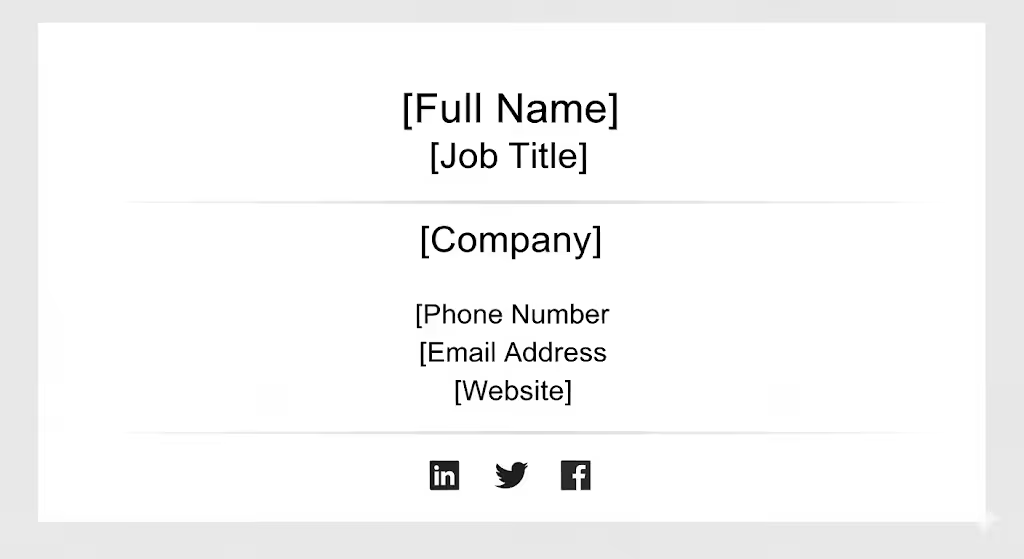
A good email signature includes more than just social media icons. It should contain:
-
Your full name
-
Job title and company (if applicable)
-
Contact details (phone number, website, or address)
-
A professional profile picture (optional)
-
Social media icons with clickable links
Keep the design simple and avoid clutter. A clean, well-structured signature ensures recipients focus on key details.
Step 3: Create Clickable Social Media Icons

To make icons functional, they need to be linked to your social media profiles. For example:
-
Right-click the icon image and copy its link location.
-
Insert it into your email client’s signature editor.
-
Highlight or select the image and add your profile URL (e.g., https://linkedin.com/in/yourname).
When recipients click the icon, it will redirect them directly to your profile.
Step 4: Add Icons in Microsoft Outlook
If you use Outlook, follow these steps:
-
Open Outlook and go to File > Options.
-
Select Mail > Signatures.
-
Click New to create a new signature or edit an existing one.
-
Use the editor to insert text (your name, job title, etc.).
-
To add icons:
-
Click the Image button and insert the downloaded social media icons.
-
Select each icon and click the Hyperlink button to add the corresponding profile URL.
-
-
Save your signature and set it as the default for new emails and replies.
Now every email you send will include clickable social media icons.
Step 5: Add Icons in Gmail
For Gmail users, here’s how to create a social media–enhanced signature:
-
Open Gmail and click the gear icon (top right).
-
Select See all settings.
-
Go to the General tab and scroll to Signature.
-
Click Create new or edit your existing signature.
-
Insert your details (name, job, contact).
-
To add icons:
-
Click the Insert image icon and upload your social media icons (from Google Drive or a hosted URL).
-
Select the icon, then click the Link button and paste your profile URL.
-
-
Scroll down and click Save Changes.
Your signature will now automatically appear in all outgoing Gmail messages.
Step 6: Add Icons in Apple Mail
For Apple Mail users:
-
Open Mail > Preferences > Signatures.
-
Choose the account where you want to add the signature.
-
Click the + button to create a new signature.
-
Paste your text details first.
-
Drag and drop the social media icons into the signature field.
-
Right-click each icon and select Add Link, then paste your profile URLs.
-
Set the new signature as the default.
Apple Mail will now include clickable icons in every email you send.
Step 7: Best Practices for Social Media Icons in Signatures
-
Keep icons small: 20×20 or 24×24 pixels is ideal for readability without being overwhelming.
-
Use consistent colors: Stick to official brand colors or a single uniform style (flat, outlined, or monochrome).
-
Don’t overload your signature: Only add 3–4 icons to avoid clutter.
-
Test the links: Send yourself a test email and click each icon to make sure they redirect correctly.
-
Stay updated: If your profile URL changes, update your email signature immediately.
Step 8: Optional Tools for Professional Signatures
If you want a more polished signature without designing it manually, you can use email signature generators such as:
-
WiseStamp
-
HubSpot Email Signature Generator
-
MySignature.io
-
Newoldstamp
These tools allow you to add text, icons, banners, and links in a visually consistent layout with minimal effort.
Conclusion
Adding social media icons to your email signature is a simple yet powerful way to strengthen your professional presence and improve accessibility. By choosing the right icons, designing a clean signature, and properly linking your profiles, you ensure that every email you send works as a subtle marketing tool.
Whether you use Outlook, Gmail, or Apple Mail, following the steps outlined in this guide will help you create a professional email signature that encourages engagement and makes it easy for contacts to connect with you on multiple platforms.