


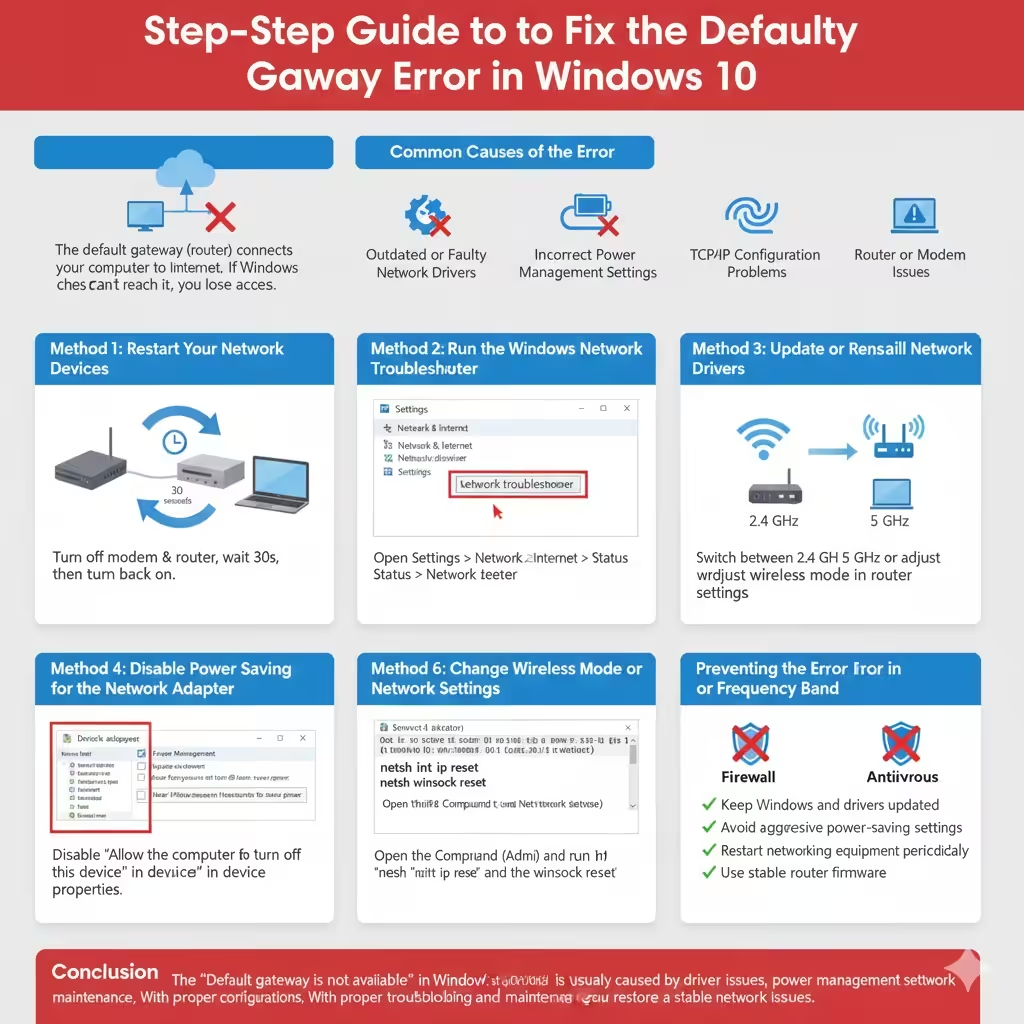
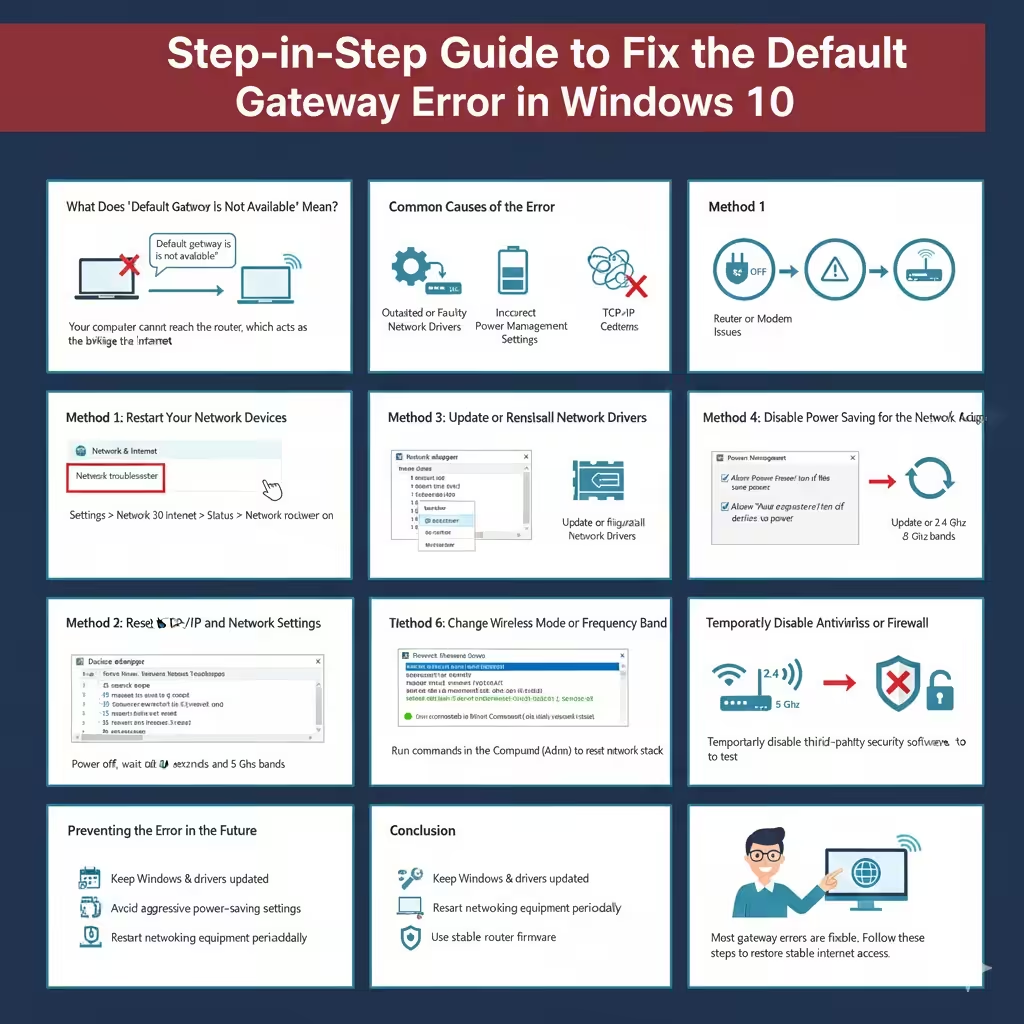
Step-by-Step Guide to Fix the Default Gateway Error in Windows 10
The “Default gateway is not available” error is a common network problem in Windows 10 that can suddenly disconnect your computer from the internet. When this error appears, your device is unable to communicate with the router or modem, even though the network may seem connected. As a result, web browsing, online apps, and updates stop working properly.
This issue can occur after Windows updates, driver changes, power interruptions, or network configuration problems. Fortunately, it is usually possible to resolve the error without reinstalling Windows or replacing hardware. This guide explains what the error means, why it happens, and how to fix it step by step.

What Does “Default Gateway Is Not Available” Mean?
The default gateway is typically your router. It acts as the bridge between your computer and the internet. When Windows sends data outside your local network, it routes that data through the default gateway.
If Windows cannot reach the default gateway, it loses access to the internet. The network may appear connected, but data cannot travel beyond your local system. This is why the error is often confusing for users.
Common Causes of the Error
Several issues can trigger this network problem in Windows 10.
Outdated or Faulty Network Drivers
Network adapter drivers that are outdated or corrupted can interrupt communication with the router.
Incorrect Power Management Settings
Windows may turn off network adapters to save power, causing random disconnections.
TCP/IP Configuration Problems
Corrupted network settings or incorrect IP configuration can prevent Windows from detecting the gateway.
Router or Modem Issues
Firmware bugs, overheating, or temporary glitches in networking equipment can also cause this error.
Method 1: Restart Your Network Devices
Before changing system settings, start with the simplest solution.
Basic Network Reset
- Turn off your modem and router
- Wait at least 30 seconds
- Turn them back on and allow them to reconnect
This clears temporary network errors and restores normal routing.
Method 2: Run the Windows Network Troubleshooter
Windows includes a built-in tool to detect and fix common network problems.
Using Network Diagnostics
- Open Settings
- Go to Network & Internet
- Select Status
- Click Network troubleshooter
The troubleshooter may automatically reset the default gateway.
Method 3: Update or Reinstall Network Drivers
Driver problems are one of the most common causes of this error.
Update Network Adapter Drivers
Open Device Manager, locate your network adapter, and update the driver. If updating does not help, uninstall the driver and restart Windows to reinstall it automatically.
Updated drivers improve stability and compatibility with Windows 10 updates.
Method 4: Disable Power Saving for the Network Adapter
Power management settings can disconnect the network adapter unexpectedly.
Adjust Power Management Settings
Disable the option that allows Windows to turn off the network adapter to save power. This change is especially important for laptops.
Method 5: Reset TCP/IP and Network Settings
Resetting network configuration can resolve persistent gateway issues.
Why a Network Reset Helps
- Restores default TCP/IP settings
- Removes corrupted network profiles
- Clears incorrect gateway information
After resetting, reconnect to your Wi-Fi or Ethernet network.
Method 6: Change Wireless Mode or Frequency Band
Wireless interference can cause unstable connections.
Improving Wireless Stability
Switching between 2.4 GHz and 5 GHz bands or adjusting wireless mode settings can improve connectivity and reduce dropouts.
Method 7: Temporarily Disable Antivirus or Firewall
Security software can sometimes block network communication.
Testing for Software Conflicts
Temporarily disable third-party antivirus or firewall software to see if the error disappears. If it does, adjust the software settings rather than leaving it disabled.
Preventing the Error in the Future
- Keep Windows and drivers updated
- Avoid aggressive power-saving settings
- Restart networking equipment periodically
- Use stable router firmware
Preventive maintenance reduces recurring network issues.
Conclusion
The “Default gateway is not available” error in Windows 10 is usually caused by driver issues, power management settings, or corrupted network configurations. While the error can disrupt internet access, it is rarely permanent. By restarting network devices, updating drivers, resetting network settings, and adjusting power options, most users can restore a stable connection. Understanding how the default gateway works also helps prevent similar issues in the future.