


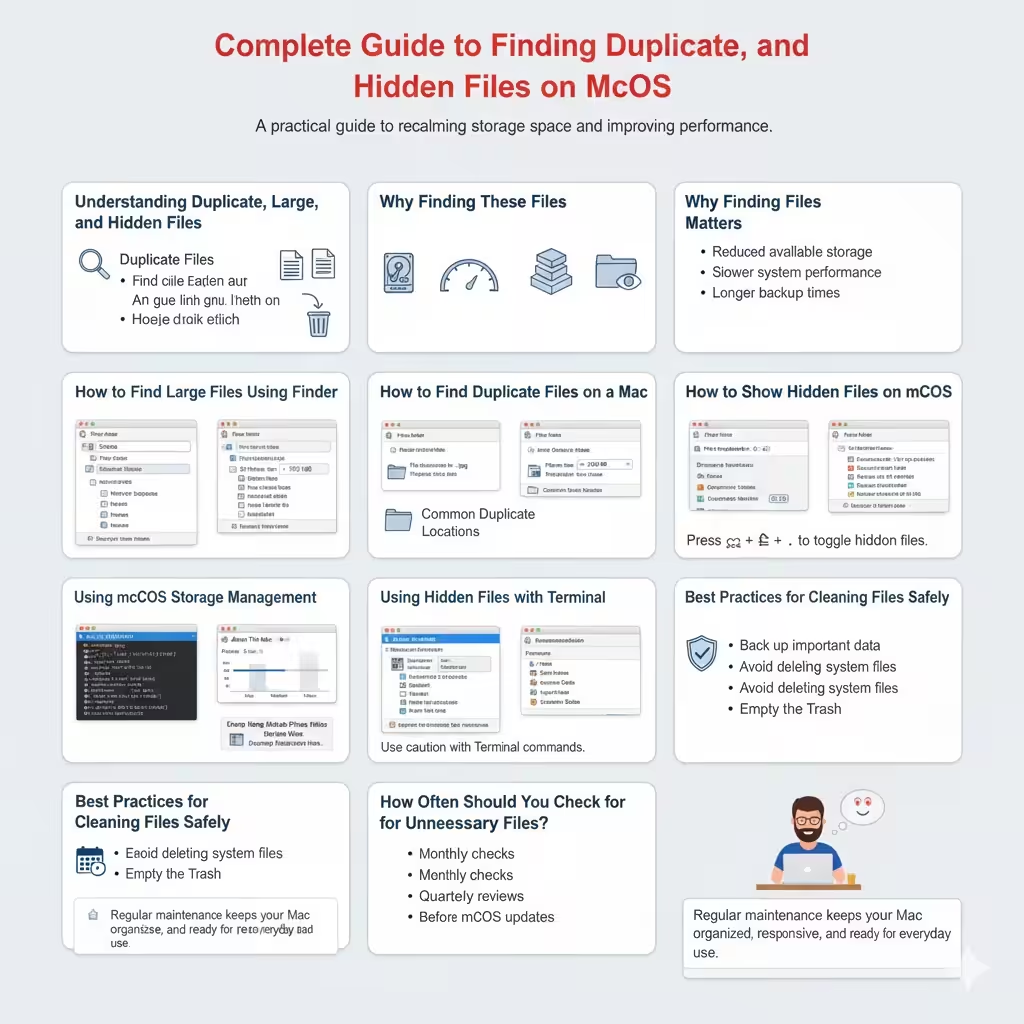
Complete Guide to Finding Duplicate – Large, and Hidden Files on macOS
Over time, every Mac accumulates unnecessary files. Duplicate documents, oversized media files, and hidden system data can quietly consume valuable storage space, slow down performance, and make file management more difficult. Many Mac users are surprised to discover that even with careful use, their storage fills up faster than expected.
Knowing how to locate duplicate, large, and hidden files on a Mac is essential for maintaining system health and keeping enough free space for updates, applications, and personal data. This guide explains what these file types are, why they appear, and how to safely find and manage them using built-in macOS tools and practical techniques.
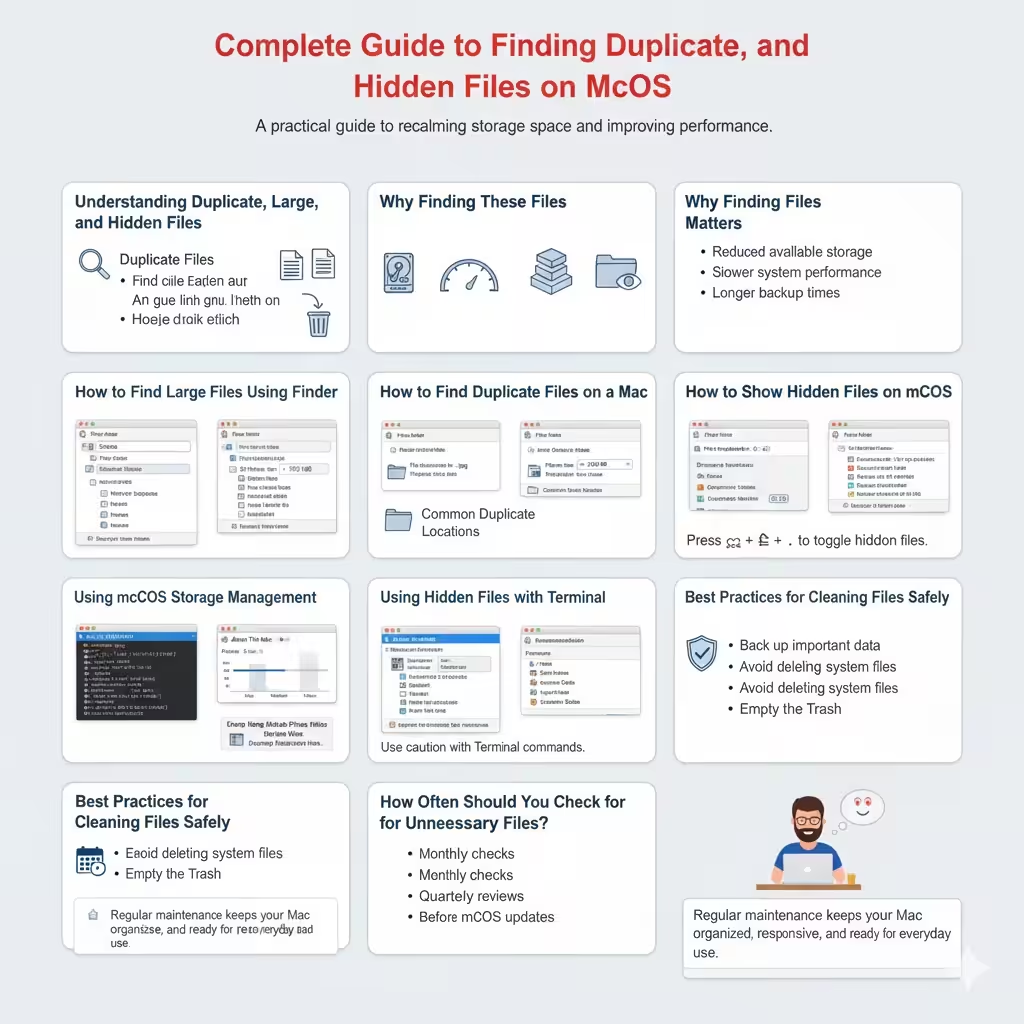
Understanding Duplicate, Large, and Hidden Files
Before cleaning up your Mac, it helps to understand what you are looking for and why these files exist.
Duplicate Files
Duplicate files are exact or nearly identical copies of documents, photos, videos, or downloads. They often appear when files are copied between folders, downloaded multiple times, or synced across devices.
Large Files
Large files include videos, disk images, backups, application installers, and project files that consume significant storage space. Even a few large files can quickly reduce available disk capacity.
Hidden Files
Hidden files are system or configuration files that macOS hides by default to prevent accidental deletion. While many are essential, some hidden files can be safely reviewed to understand storage usage.
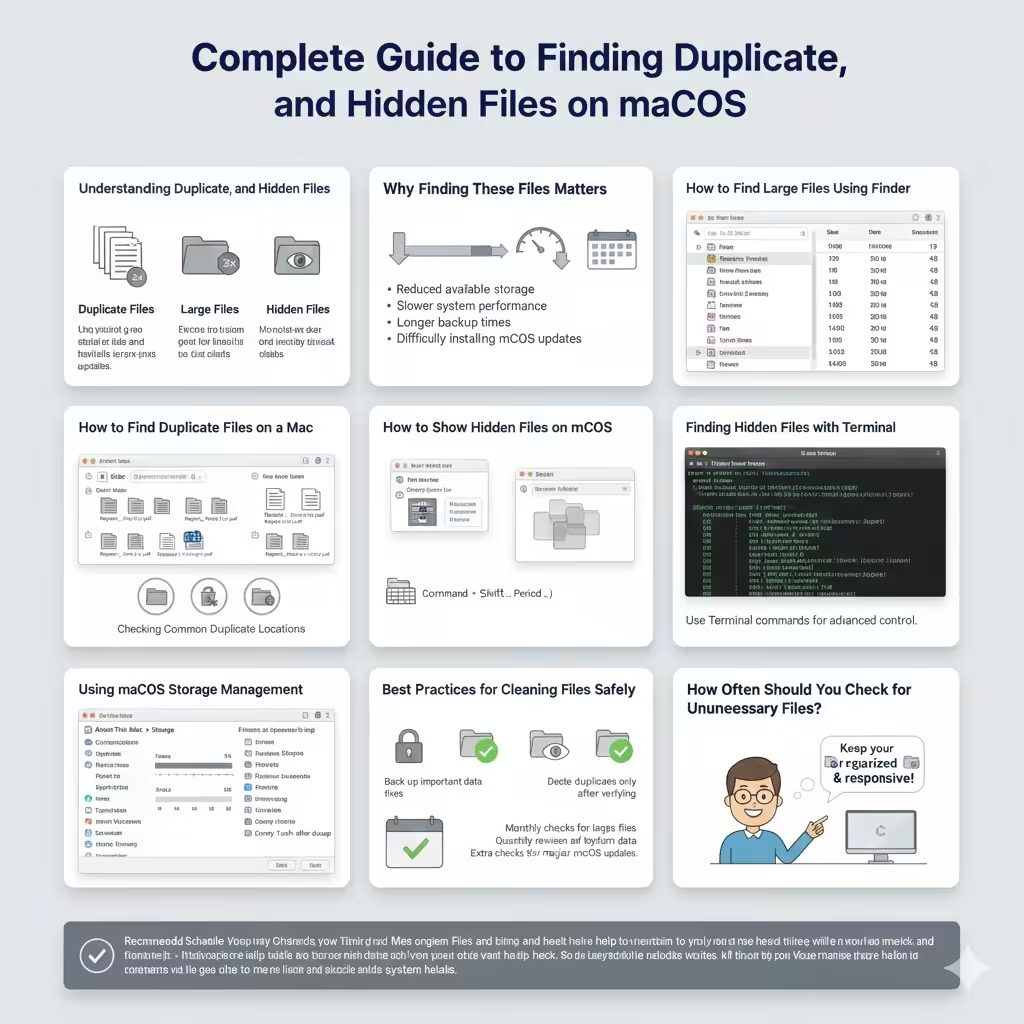
Why Finding These Files Matters
Unmanaged files can affect your Mac in several ways.
- Reduced available storage
- Slower system performance
- Longer backup times
- Difficulty installing macOS updates
Regularly checking for unnecessary files helps maintain a smooth and reliable Mac experience.
How to Find Large Files Using Finder
macOS Finder includes powerful search and sorting features that make it easy to locate large files.
Using Finder Search Filters
- Open Finder
- Select This Mac
- Click Search and choose File Size
- Set the filter to show files larger than a specific size
This method helps quickly identify files taking up the most space.
Sorting by Size
Switch to List View in Finder and click the Size column to sort files from largest to smallest. This is especially useful for reviewing folders like Downloads, Movies, and Documents.
How to Find Duplicate Files on a Mac
Duplicate files are harder to spot manually, but macOS offers basic options to help.
Smart Folders
Smart Folders allow you to create saved searches based on criteria such as file name, file type, or size. While they do not automatically detect duplicates, they help group similar files for manual comparison.
Checking Common Duplicate Locations
Duplicates often appear in:
- Downloads folder
- Desktop
- Photo libraries
- Cloud sync folders
Reviewing these locations regularly reduces clutter.
How to Show Hidden Files on macOS
macOS hides certain files by default, but you can reveal them when needed.
Viewing Hidden Files in Finder
Press Command + Shift + Period (.) in Finder to toggle hidden files on or off. Hidden files appear slightly faded compared to regular files.
This shortcut is useful for inspecting configuration files and understanding where storage is being used.
Finding Hidden Files with Terminal
Terminal provides more control for advanced users.
Using Terminal Commands
Terminal can list hidden files, locate large directories, and analyze disk usage. This method is best suited for users comfortable with command-line tools.
Use caution when interacting with hidden system files to avoid accidental damage.
Using macOS Storage Management
macOS includes a built-in storage management tool.
Accessing Storage Recommendations
- Click the Apple menu
- Select About This Mac
- Open Storage
- Review recommendations and file categories
This overview highlights large files, unused apps, and other space-consuming data.
Best Practices for Cleaning Files Safely
Removing unnecessary files should be done carefully.
- Back up important data before deleting files
- Avoid deleting system files unless you understand their purpose
- Delete duplicates only after verifying file contents
- Empty the Trash after cleanup to reclaim space
Safe practices prevent accidental data loss.
How Often Should You Check for Unnecessary Files?
Regular maintenance keeps your Mac running efficiently.
Recommended Schedule
- Monthly checks for large and duplicate files
- Quarterly reviews of hidden and system data
- Extra checks before major macOS updates
Consistency is key to long-term storage management.
Conclusion
Finding duplicate, large, and hidden files on a Mac is an essential part of maintaining system performance and storage health. By using Finder, macOS storage tools, and careful inspection of hidden files, you can regain valuable disk space without risking important data. With regular maintenance and a cautious approach, your Mac will remain organized, responsive, and ready for everyday use.