


Understanding Excel Compatibility Mode: Features and Limitations
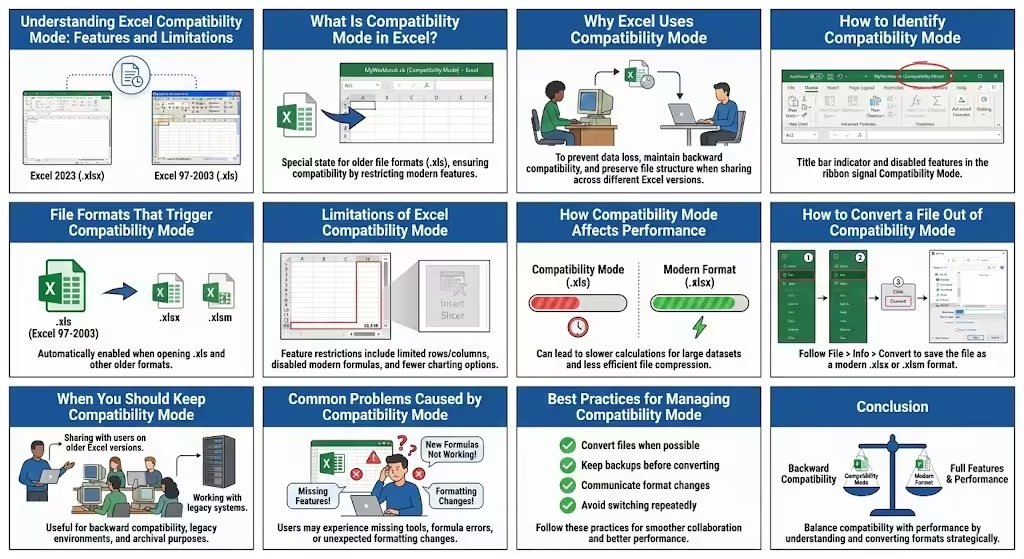
Microsoft Excel is widely used across different versions of Windows, macOS, and Office suites. Because many users still rely on older versions of Excel, Microsoft introduced Compatibility Mode to ensure files can be opened and edited across multiple versions without data loss. While this feature is helpful, it can also be confusing—especially when certain Excel functions, features, or formatting options suddenly become unavailable.
If you have ever opened an Excel file and noticed [Compatibility Mode] in the title bar, you may wonder what it means, how it affects your work, and whether you should convert the file to a newer format. This guide explains everything you need to know about Excel’s Compatibility Mode, including how it works, its limitations, and when to use or disable it.
What Is Compatibility Mode in Excel?
Compatibility Mode is a special operating state that Excel uses when opening files created in older Excel formats, such as .xls. When a file is opened in this mode, Excel restricts certain modern features so the file remains compatible with earlier versions of the program.
In practical terms, Compatibility Mode ensures that users who open the same file in older versions of Excel will see the data, formulas, and formatting correctly, without errors or missing content.
Why Excel Uses Compatibility Mode
Microsoft introduced new file formats starting with Excel 2007, such as .xlsx, .xlsm, and .xlsb. These formats support advanced features that older versions of Excel cannot read.
Compatibility Mode exists to:
- Prevent data loss when sharing files
- Maintain backward compatibility
- Warn users about unsupported features
- Preserve file structure for older Excel versions
Without Compatibility Mode, files shared between different Excel generations could become corrupted or unreadable.
How to Identify Compatibility Mode
It is easy to recognize when Excel is running in Compatibility Mode.
Visual Indicators
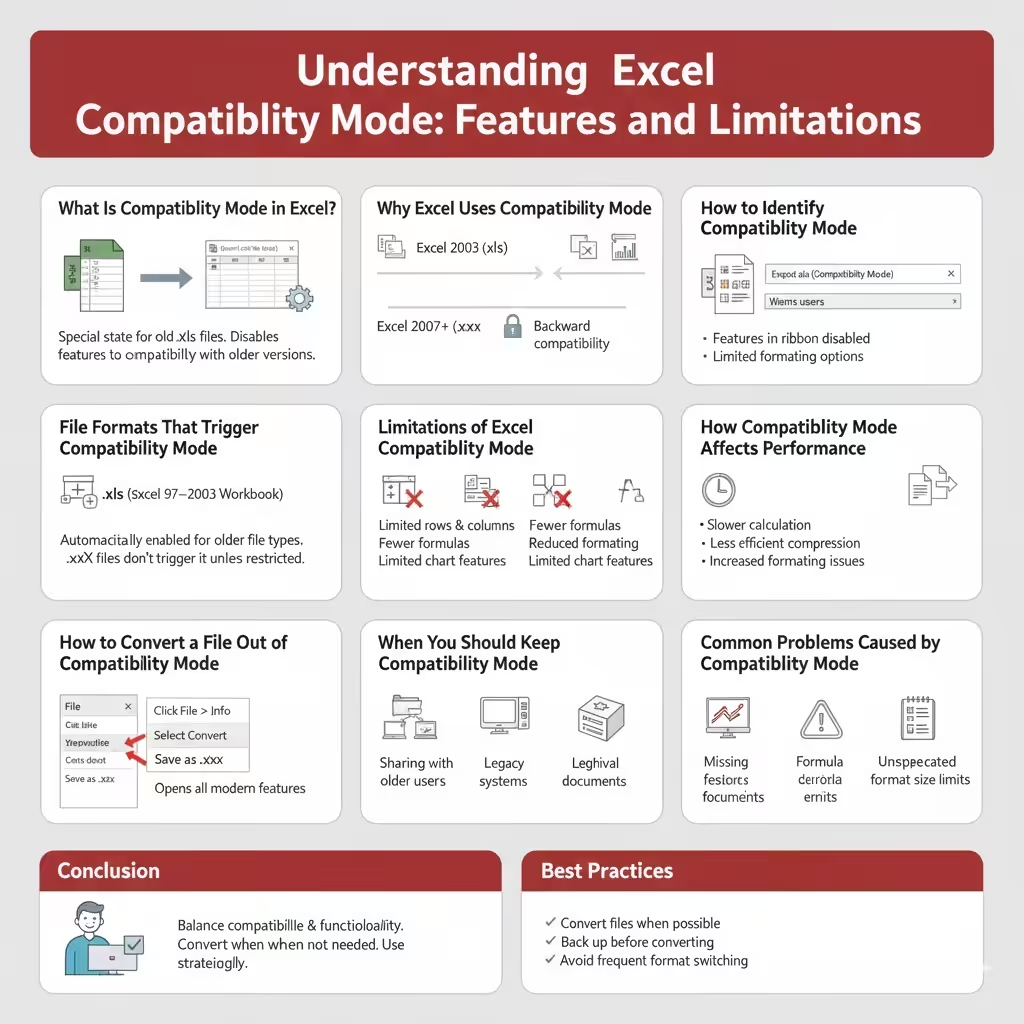
- The title bar shows [Compatibility Mode] after the file name
- Some features in the ribbon appear disabled or missing
- Certain formatting or data tools are unavailable
These indicators signal that the workbook is limited to older Excel standards.
File Formats That Trigger Compatibility Mode
Compatibility Mode is automatically enabled when you open specific file types.
Common Formats
- .xls (Excel 97–2003 Workbook)
- Files originally created in very old Excel versions
Modern formats such as .xlsx and .xlsm do not trigger Compatibility Mode unless they contain features intentionally restricted for backward compatibility.
Limitations of Excel Compatibility Mode
While Compatibility Mode allows files to remain usable, it also imposes several limitations.
Feature Restrictions
- Limited rows and columns
- No support for certain formulas and functions
- Restricted conditional formatting options
- Reduced chart and visualization features
- Limited support for tables and pivot features
These restrictions can affect productivity, especially when working with large or complex datasets.
How Compatibility Mode Affects Performance
Files opened in Compatibility Mode may perform differently compared to modern formats.
Performance Considerations
- Slower calculation for large datasets
- Less efficient file compression
- Increased risk of formatting inconsistencies
Upgrading files to newer formats often improves speed and reliability.
How to Convert a File Out of Compatibility Mode
If you no longer need backward compatibility, converting the file is recommended.
Convert to a Modern Excel Format
- Open the workbook in Excel
- Click File
- Select Info
- Choose Convert
- Save the file as .xlsx or .xlsm
Once converted, Compatibility Mode is disabled and all modern features become available.
When You Should Keep Compatibility Mode
There are situations where Compatibility Mode is still useful.
Recommended Scenarios
- Sharing files with users on older Excel versions
- Working in environments with legacy systems
- Maintaining long-term archival documents
In these cases, staying in Compatibility Mode helps avoid compatibility issues.
Common Problems Caused by Compatibility Mode
Users often encounter issues without realizing Compatibility Mode is the cause.
Typical Complaints
- Missing Excel features or tools
- Inability to use newer formulas
- Unexpected formatting changes
- Limited worksheet size
Understanding Compatibility Mode helps explain these limitations.
Best Practices for Managing Compatibility Mode
- Convert files to modern formats when possible
- Keep backups before converting
- Communicate file format changes with collaborators
- Avoid repeatedly switching between old and new formats
Following these practices ensures smoother collaboration and better performance.
Conclusion
Excel’s Compatibility Mode plays an important role in maintaining backward compatibility with older versions of the software. While it ensures files remain accessible across different environments, it also limits access to many modern Excel features. Understanding when Compatibility Mode is enabled, how it affects your work, and how to convert files when appropriate allows you to make informed decisions. By using Compatibility Mode strategically, you can balance compatibility, performance, and functionality in your Excel workflows.