


How to Resolve “Server DNS Address Could Not Be Found” in Chrome
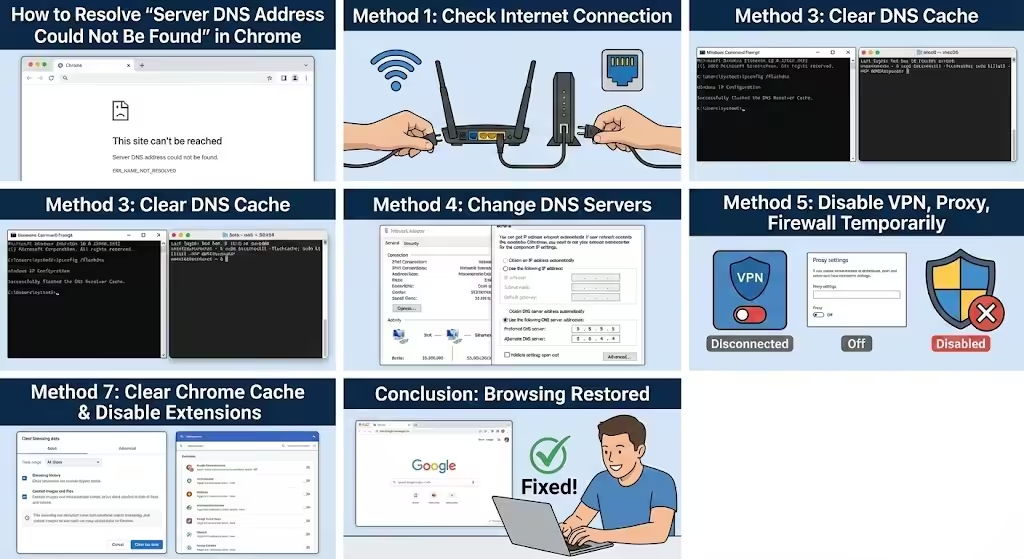
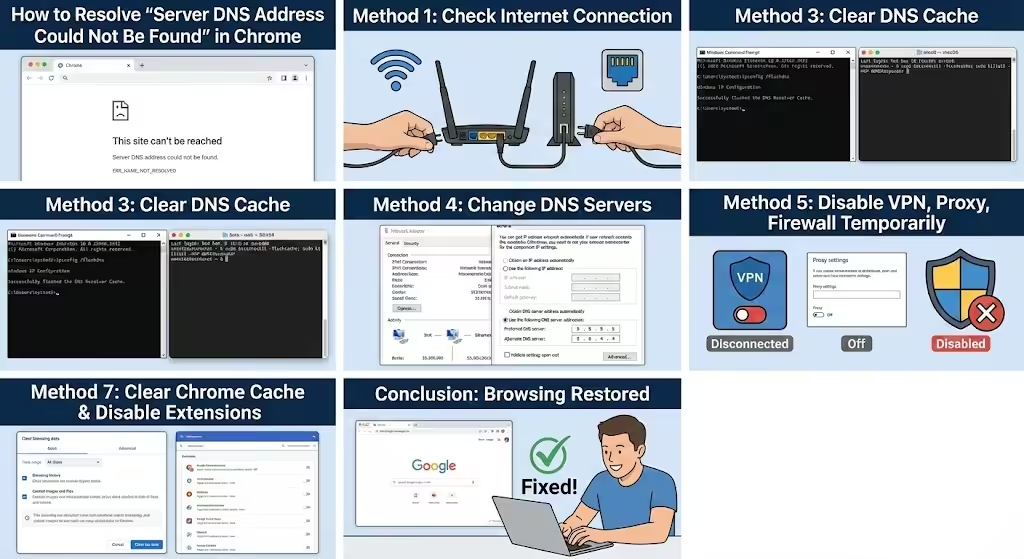
The “Server DNS address could not be found” error in Google Chrome is a common networking problem that prevents websites from loading. When this message appears, Chrome is unable to translate a website’s domain name into an IP address, which means the browser does not know where to connect. As a result, pages fail to load even though your internet connection may appear active.
This issue can occur on Windows, macOS, or other operating systems and is often related to DNS settings, network configuration, or browser-related problems. The good news is that this error is usually easy to fix by following a series of structured troubleshooting steps. This guide explains what the error means, why it happens, and how to resolve it effectively.
What Does the DNS Error Mean?
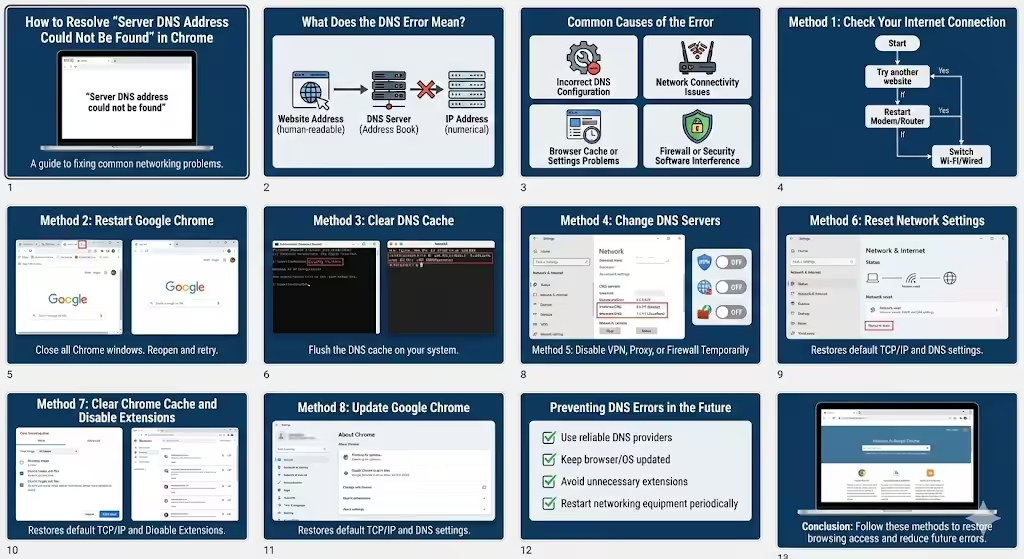
DNS stands for Domain Name System, which acts like the internet’s address book. When you type a website address into Chrome, DNS servers convert that human-readable name into a numerical IP address that computers use to communicate.
If Chrome cannot reach a DNS server or receives an invalid response, it displays the “Server DNS address could not be found” error. This indicates a breakdown in the name resolution process rather than a problem with the website itself.
Common Causes of the Error
Several factors can trigger this DNS-related issue.
Incorrect DNS Configuration
Misconfigured DNS settings on your device can prevent Chrome from resolving website addresses correctly.
Network Connectivity Issues
Unstable internet connections, router problems, or temporary ISP outages may interrupt DNS resolution.
Browser Cache or Settings Problems
Corrupted browser cache, outdated Chrome versions, or conflicting extensions can cause DNS errors.
Firewall or Security Software Interference
Firewalls, antivirus programs, or VPNs may block DNS requests unintentionally.
Method 1: Check Your Internet Connection
Before changing settings, confirm that your network connection is working properly.
Basic Connectivity Checks
- Try opening another website
- Restart your modem and router
- Switch between Wi-Fi and wired connections if possible
Temporary connection issues often resolve after a restart.
Method 2: Restart Google Chrome
Sometimes the issue is limited to the browser itself.
Simple Browser Reset
- Close all Chrome windows
- Reopen Chrome and try accessing the website again
This clears temporary browser processes that may be stuck.
Method 3: Clear DNS Cache
Flushing the DNS cache removes outdated or corrupted DNS entries.
Flush DNS Cache on Your System
On Windows, open Command Prompt as administrator and flush the DNS cache. On macOS, use Terminal to clear cached DNS records. Restart your browser afterward.
Clearing the DNS cache forces the system to request fresh DNS information.
Method 4: Change DNS Servers
Switching to a reliable public DNS provider often resolves DNS-related errors.
Recommended DNS Providers
- Google Public DNS
- Cloudflare DNS
- OpenDNS
After changing DNS settings, restart your device and test Chrome again.
Method 5: Disable VPN, Proxy, or Firewall Temporarily
Security tools can interfere with DNS requests.
What to Test
- Disable VPN connections
- Turn off proxy settings
- Temporarily disable third-party firewall or antivirus software
If the error disappears, reconfigure the software rather than leaving it disabled permanently.
Method 6: Reset Network Settings
Resetting network configuration can fix persistent DNS issues.
Network Reset Benefits
- Restores default TCP/IP settings
- Removes invalid DNS entries
- Re-establishes network communication
After resetting, reconnect to your network and test Chrome again.
Method 7: Clear Chrome Cache and Disable Extensions
Browser data and extensions can cause conflicts.
Troubleshooting Steps
- Clear browsing data (cache and cookies)
- Disable extensions one by one
- Restart Chrome after each change
This helps identify whether the issue is browser-related.
Method 8: Update Google Chrome
Using an outdated browser can lead to compatibility issues.
Why Updates Matter
Chrome updates include bug fixes, security patches, and networking improvements. Keeping Chrome updated reduces the likelihood of DNS errors.
Preventing DNS Errors in the Future
- Use reliable DNS providers
- Keep your browser and operating system updated
- Avoid installing unnecessary browser extensions
- Restart networking equipment periodically
Preventive maintenance minimizes recurring connectivity issues.
Conclusion
The “Server DNS address could not be found” error in Google Chrome is usually caused by DNS misconfiguration, network instability, or browser-related problems. While the message may look serious, it can often be fixed quickly by checking your connection, clearing DNS cache, changing DNS servers, or adjusting browser settings. By following the methods outlined in this guide, you can restore normal browsing access and reduce the chances of encountering DNS errors again in the future.