


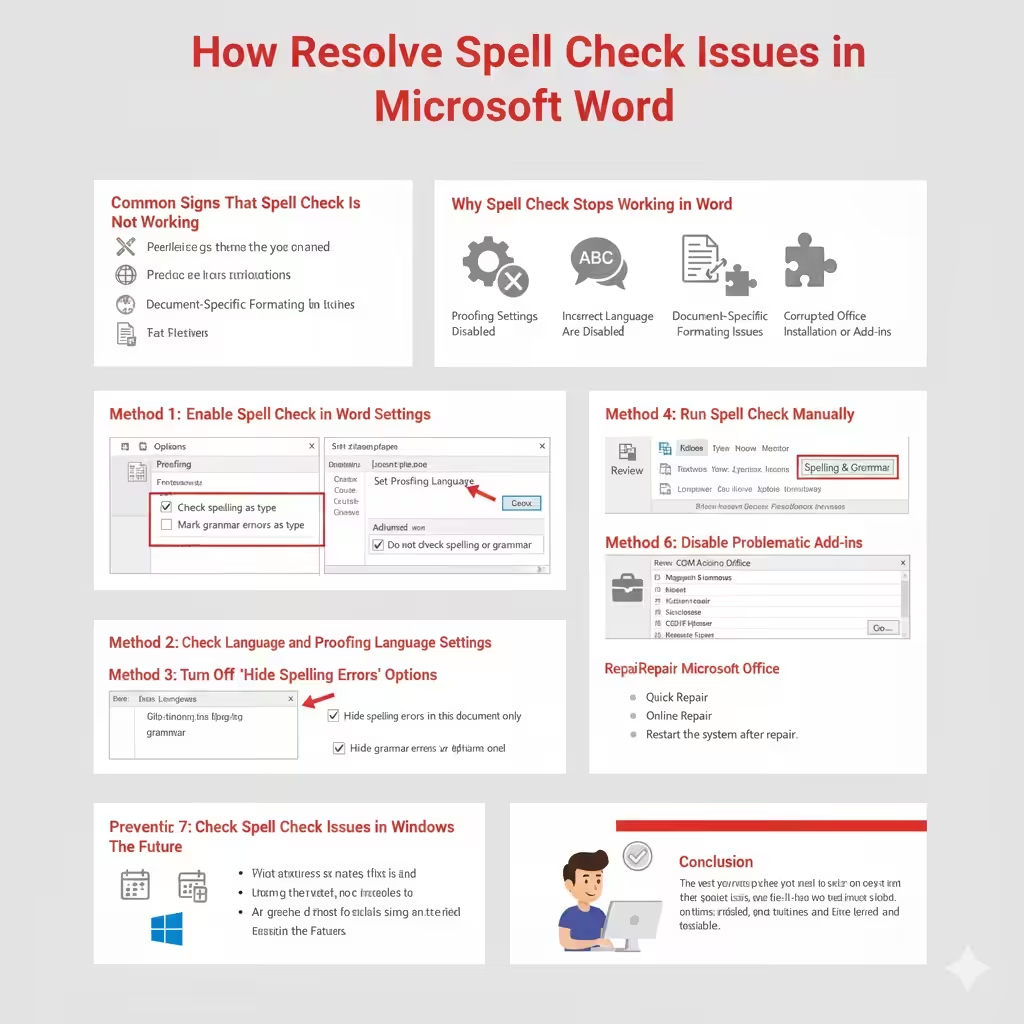
How to Resolve Spell Check Issues in Microsoft Word
Spell Check is one of the most essential features in Microsoft Word, helping users catch spelling and grammar mistakes automatically while typing. When Spell Check suddenly stops working, it can significantly slow down writing and increase the risk of errors, especially in professional or academic documents. Many users experience this issue without understanding why Word no longer highlights mistakes or provides suggestions.
Fortunately, Spell Check problems in Microsoft Word are usually caused by settings, language configuration, or minor software issues rather than serious corruption. This guide explains the most common reasons Spell Check stops working and provides clear, step-by-step solutions to restore it effectively.
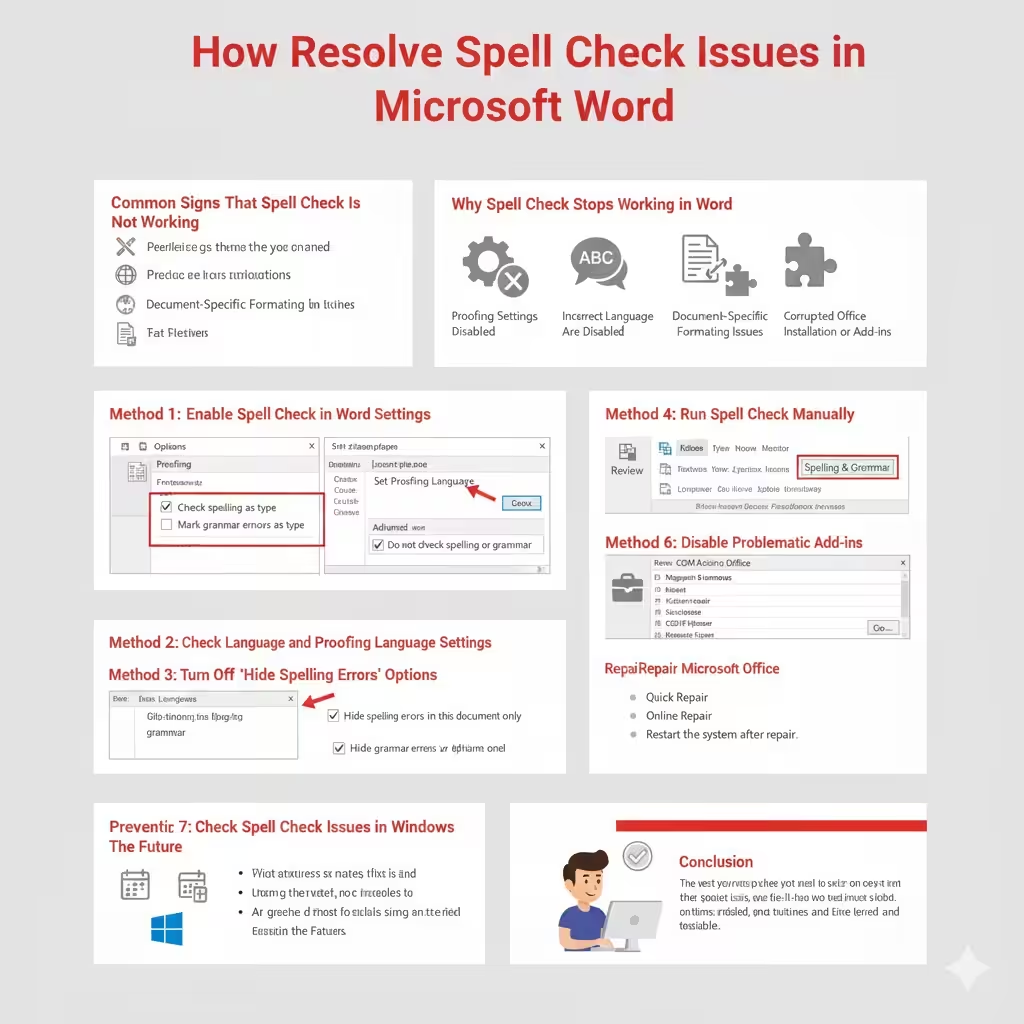
Common Signs That Spell Check Is Not Working
Before fixing the issue, it is important to confirm that Spell Check is actually disabled or malfunctioning.
- Misspelled words are not underlined in red
- Grammar errors are not flagged
- The spelling checker works in some documents but not others
- Spell Check works in other Office apps but not in Word
Identifying the symptoms helps determine which solution will work best.
Why Spell Check Stops Working in Word
Several factors can prevent Word from checking spelling and grammar.
Proofing Settings Are Disabled
Word allows users to turn off spelling and grammar checking. If these options are disabled, Spell Check will not function.
Incorrect Language Settings
If the document language is set incorrectly or marked as “Do not check spelling or grammar,” Word will ignore errors.
Document-Specific Formatting Issues
Some documents inherit settings that disable Spell Check, even if Word works normally elsewhere.
Corrupted Office Installation or Add-ins
Faulty add-ins or damaged program files can interfere with Word’s proofing tools.
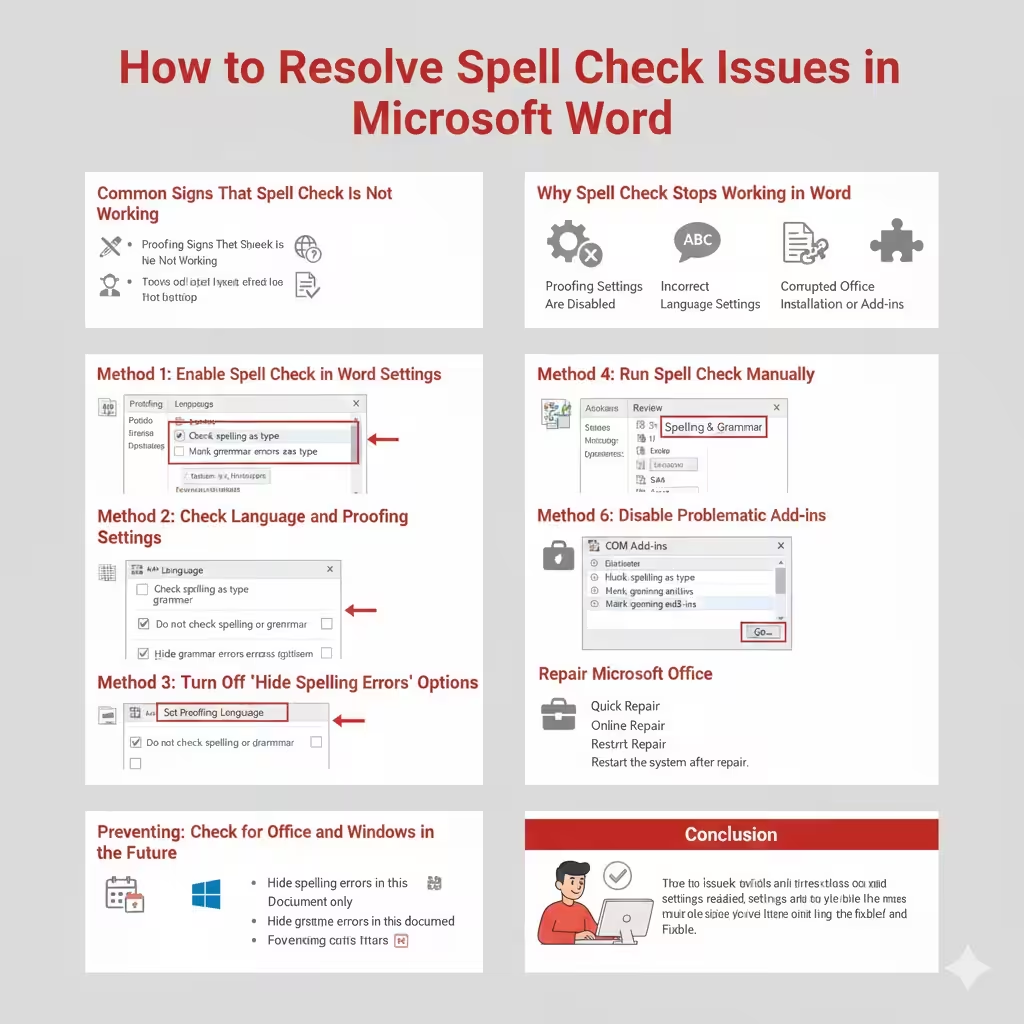
Method 1: Enable Spell Check in Word Settings
The first step is to confirm that Spell Check is enabled globally.
How to Check Proofing Settings
- Open Microsoft Word
- Click File and select Options
- Go to Proofing
- Make sure Check spelling as you type is enabled
- Enable Mark grammar errors as you type
After enabling these options, restart Word and test Spell Check.
Method 2: Check Language and Proofing Language Settings
Incorrect language configuration is one of the most common causes.
Set the Correct Language
- Select all text in the document (Ctrl + A)
- Go to Review tab
- Click Language > Set Proofing Language
- Choose the correct language
- Make sure Do not check spelling or grammar is unchecked
Apply the changes and review the document again.
Method 3: Turn Off “Hide Spelling Errors” Options
Word allows spelling and grammar errors to be hidden for individual documents.
Disable Hidden Errors
- Open File > Options
- Go to Advanced
- Scroll to Exceptions for
- Uncheck Hide spelling errors in this document only
- Uncheck Hide grammar errors in this document only
These settings can silently disable visual error indicators.
Method 4: Run Spell Check Manually
If automatic checking fails, running Spell Check manually can help.
Manual Spell Check Steps
- Go to the Review tab
- Click Spelling & Grammar
- Review and correct errors manually
This can also reset Word’s internal checking behavior.
Method 5: Disable Problematic Add-ins
Third-party add-ins can interfere with Word’s proofing tools.
How to Disable Add-ins
- Open File > Options
- Select Add-ins
- Choose COM Add-ins and click Go
- Disable add-ins one by one
- Restart Word
If Spell Check works after disabling an add-in, you have found the cause.
Method 6: Repair Microsoft Office
Corrupted Office files can prevent Spell Check from functioning.
Repair Options
- Use Quick Repair for fast fixes
- Use Online Repair for deeper issues
After repair, reopen Word and test Spell Check again.
Method 7: Check for Office and Windows Updates
Updates often fix bugs related to proofing tools.
Update Recommendations
- Update Microsoft Word and Office
- Install the latest Windows updates
- Restart the computer after updating
Keeping software current improves reliability.
Preventing Spell Check Issues in the Future
- Avoid copying text from sources that disable proofing
- Keep default language settings consistent
- Limit unnecessary add-ins
- Save Word templates with correct proofing options
Good habits reduce recurring Spell Check problems.
Conclusion
When Spell Check is not working in Microsoft Word, the issue is usually caused by disabled settings, incorrect language configuration, or add-in conflicts. By carefully reviewing Word’s proofing options, checking document-specific settings, and keeping Office updated, you can restore Spell Check functionality quickly. Following the solutions in this guide will help ensure that Word continues to catch spelling and grammar errors reliably, allowing you to write with confidence and accuracy.