


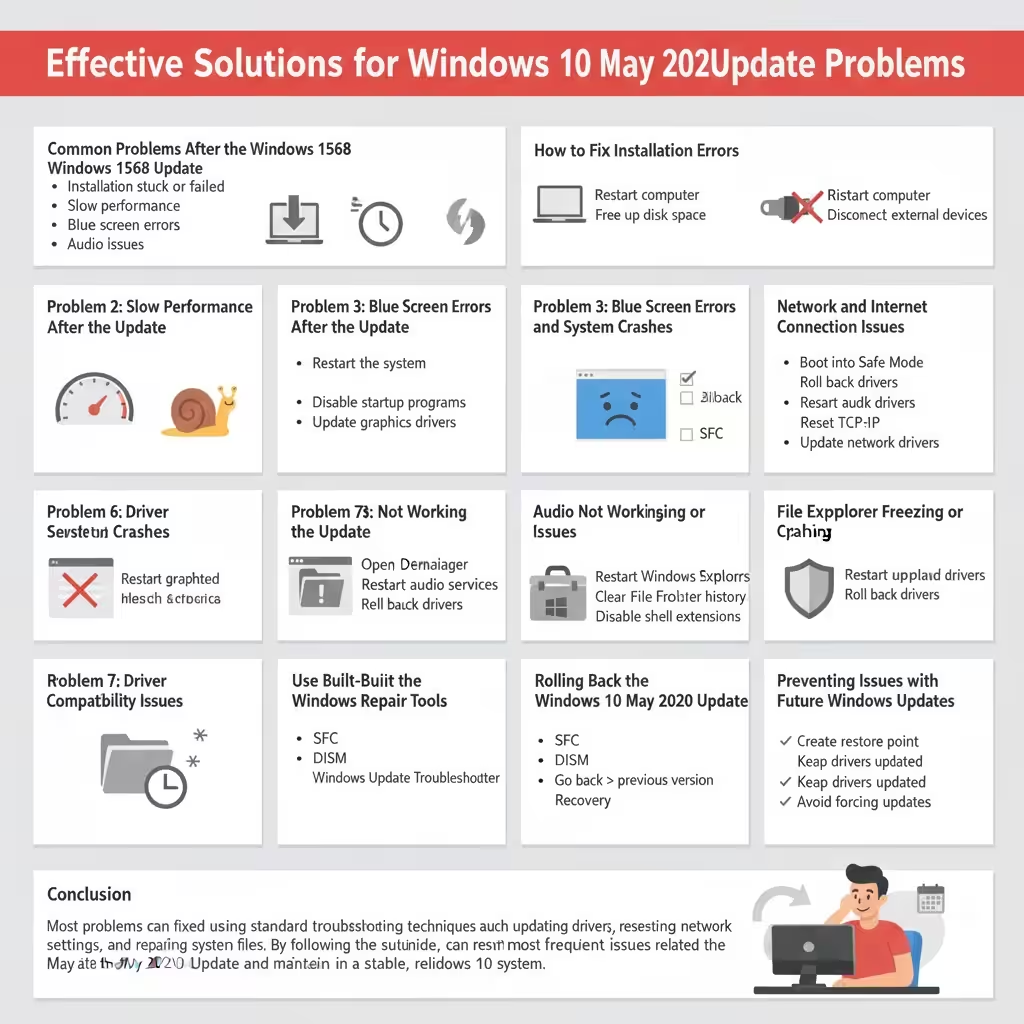
Effective Solutions for Windows 10 May 2020 Update Problems
The Windows 10 May 2020 Update, also known as version 2004, introduced several new features and performance improvements. However, like many major Windows updates, it also caused a variety of problems for some users. These issues ranged from installation failures and system slowdowns to driver conflicts and network errors.
If your computer experienced problems after installing the Windows 10 May 2020 Update, you are not alone. Most of these issues are software-related and can be fixed with the right troubleshooting steps. This guide explains the most common problems associated with the May 2020 Update and provides clear, effective solutions to restore system stability.
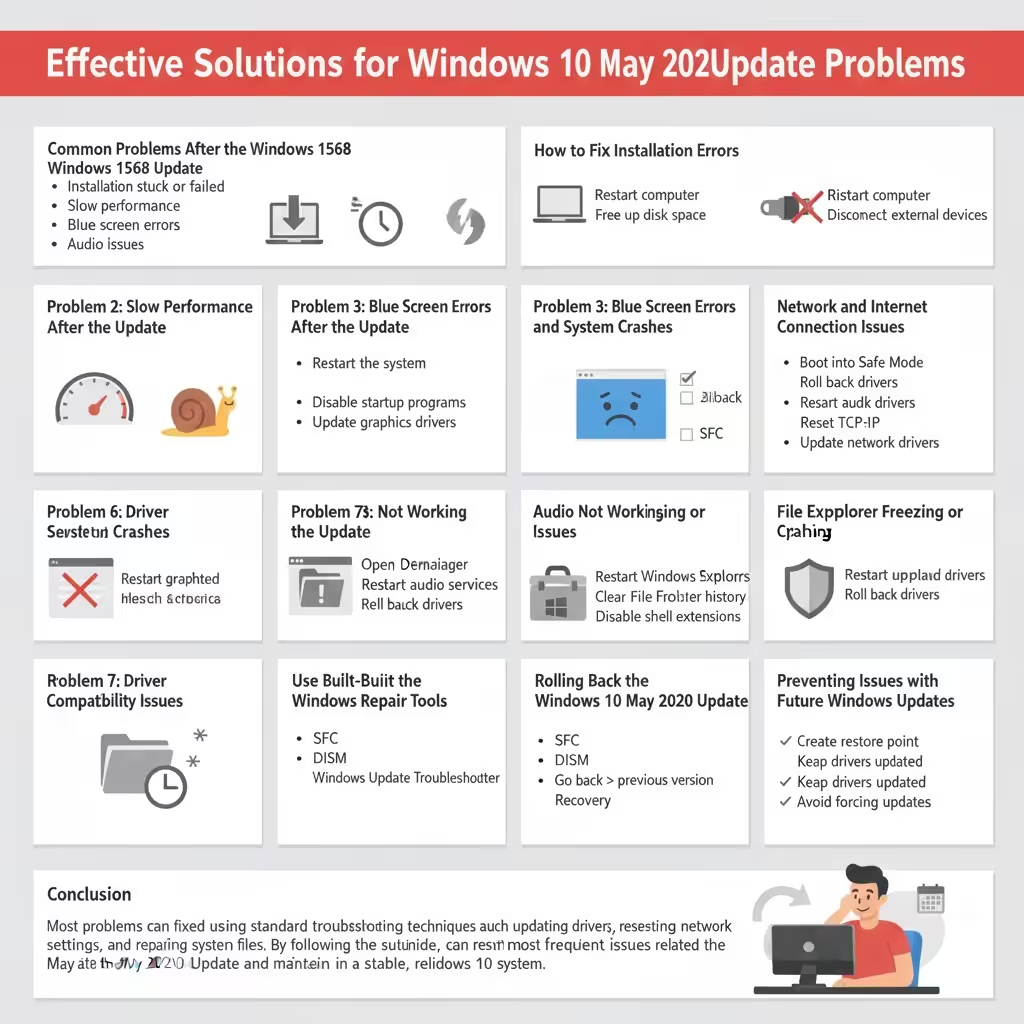
Common Problems After the Windows 10 May 2020 Update
Before applying fixes, it is helpful to understand the types of issues users frequently encountered.
- Windows update installation stuck or failed
- Slow system performance after update
- Blue screen errors and random restarts
- Network and internet connectivity problems
- Audio issues and missing sound devices
- Driver incompatibility problems
- File Explorer crashes or freezing
Each problem has a different cause, but most can be resolved using standard Windows troubleshooting tools.
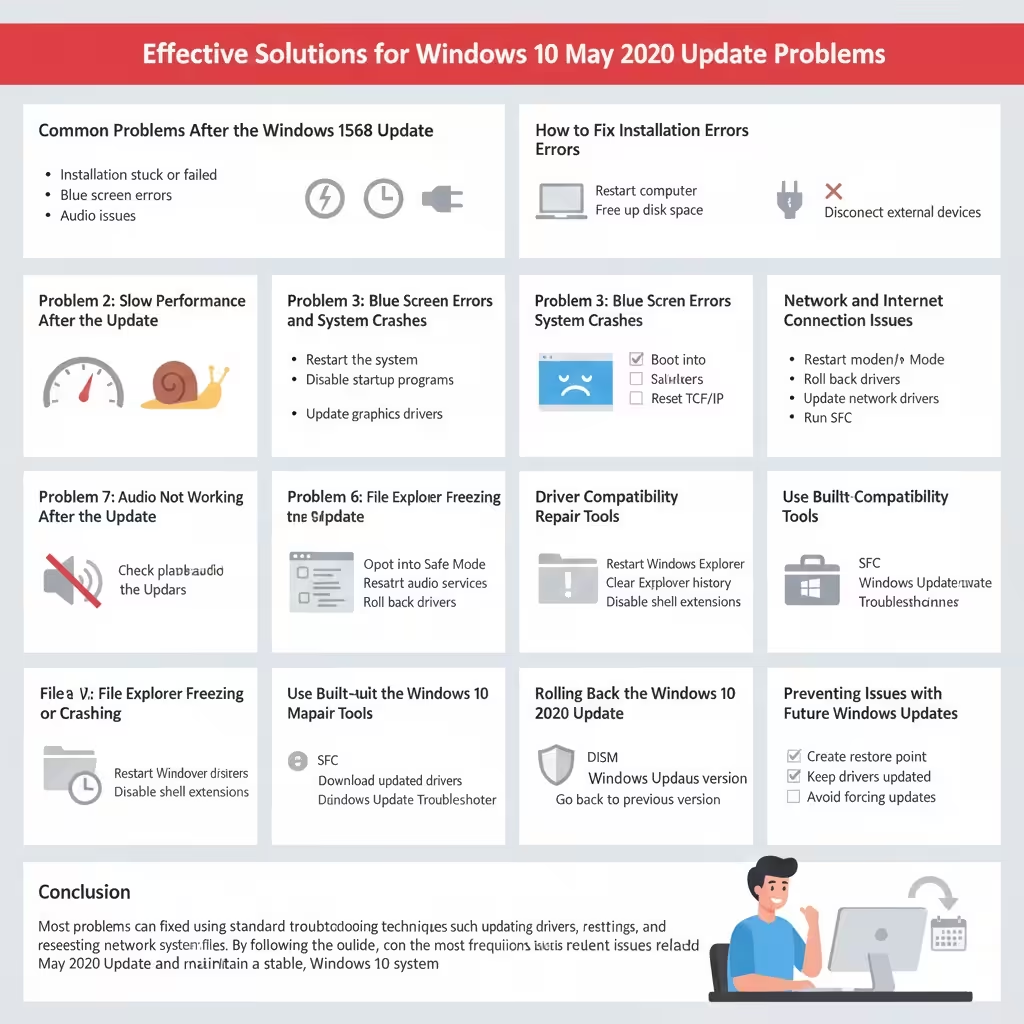
Problem 1: Windows 10 May 2020 Update Installation Failed
Many users reported that the update would not install or became stuck during the installation process.
How to Fix Installation Errors
- Restart your computer and try the update again
- Ensure at least 20 GB of free disk space
- Disconnect unnecessary external devices
- Temporarily disable third-party antivirus software
These steps remove common obstacles that prevent updates from completing.
Problem 2: Slow Performance After the Update
Some systems became noticeably slower after upgrading to version 2004.
Improve System Performance
- Restart the system to complete background update tasks
- Disable unnecessary startup programs
- Check Task Manager for high CPU or disk usage
- Update graphics and chipset drivers
Performance issues often resolve after system optimization and driver updates.
Problem 3: Blue Screen Errors and System Crashes
Blue screen errors were commonly linked to incompatible drivers.
Fix Blue Screen Problems
- Boot into Safe Mode
- Update or roll back recently installed drivers
- Run Windows Memory Diagnostic
- Use System File Checker to repair corrupted files
Identifying problematic drivers is key to stopping crashes.
Problem 4: Network and Internet Connection Issues
After the update, some users lost internet access or experienced unstable connections.
Restore Network Connectivity
- Restart modem and router
- Disable and re-enable the network adapter
- Reset TCP/IP and network settings
- Update network adapter drivers
Network issues are often caused by driver or configuration conflicts.
Problem 5: Audio Not Working After the Update
Missing or distorted sound was another common complaint.
Fix Sound Problems
- Check default playback device settings
- Restart Windows Audio services
- Reinstall or update audio drivers
- Run the built-in audio troubleshooter
Audio problems usually stem from driver changes during the update.
Problem 6: Driver Compatibility Issues
The May 2020 Update introduced changes that affected older hardware drivers.
Resolve Driver Conflicts
- Open Device Manager and look for warning icons
- Download updated drivers from the manufacturer
- Roll back drivers if newer versions cause problems
Keeping drivers up to date improves stability and compatibility.
Problem 7: File Explorer Freezing or Crashing
Some users reported File Explorer becoming slow or unresponsive.
Fix File Explorer Issues
- Restart Windows Explorer from Task Manager
- Clear File Explorer history
- Disable unnecessary shell extensions
These steps help restore normal File Explorer behavior.
Use Built-in Windows Repair Tools
Windows includes several tools designed to fix system problems.
Recommended Tools
- System File Checker (SFC)
- Deployment Image Servicing and Management (DISM)
- Windows Update Troubleshooter
Running these tools can resolve underlying system corruption.
Rolling Back the Windows 10 May 2020 Update
If problems persist, reverting to a previous Windows version may help.
How to Roll Back
- Open Settings
- Go to Update & Security
- Select Recovery
- Choose Go back to the previous version
Rollback is only available within a limited time after the update.
Preventing Issues with Future Windows Updates
- Create a system restore point before major updates
- Keep drivers updated regularly
- Avoid forcing updates on unsupported hardware
- Install updates after initial bug fixes are released
Preventive steps reduce the risk of update-related problems.
Conclusion
The Windows 10 May 2020 Update introduced valuable improvements, but it also caused common issues for many users. Fortunately, most of these problems can be fixed using standard troubleshooting techniques such as updating drivers, resetting network settings, and repairing system files. By following the solutions outlined in this guide, you can resolve the most frequent issues related to the May 2020 Update and maintain a stable, reliable Windows 10 system.