


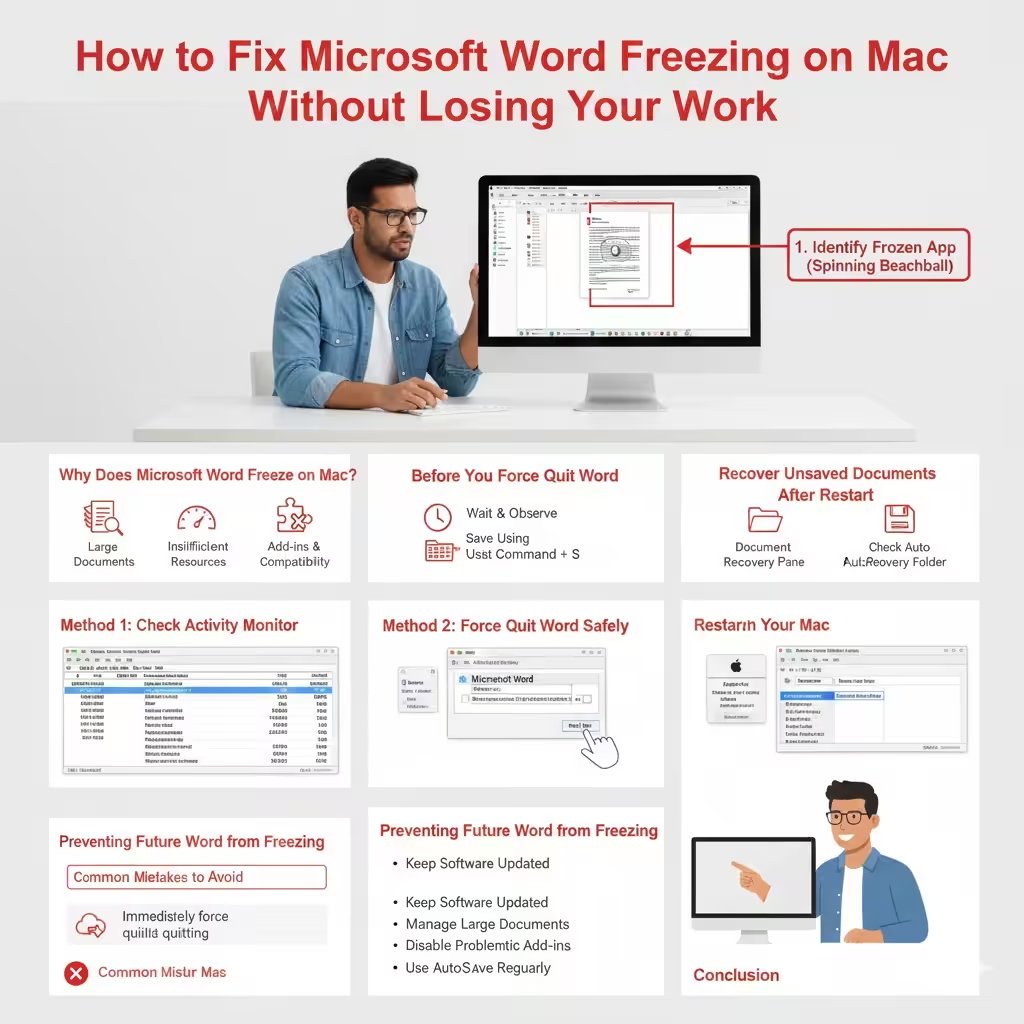
How to Fix Microsoft Word Freezing on Mac Without Losing Your Work
Microsoft Word freezing on a Mac can be stressful, especially when you are working on an important document and worry about losing your progress. The application may stop responding, display the spinning beach ball, or refuse to accept any input. In many cases, users panic and force quit Word immediately, which can sometimes lead to lost or unsaved work.
The good news is that Word on macOS includes several built-in recovery and auto-save mechanisms designed to protect your documents. By following the correct steps, you can often unfreeze Word safely and recover your work. This guide explains why Word freezes on Mac and provides detailed, practical methods to resolve the issue without losing your data.
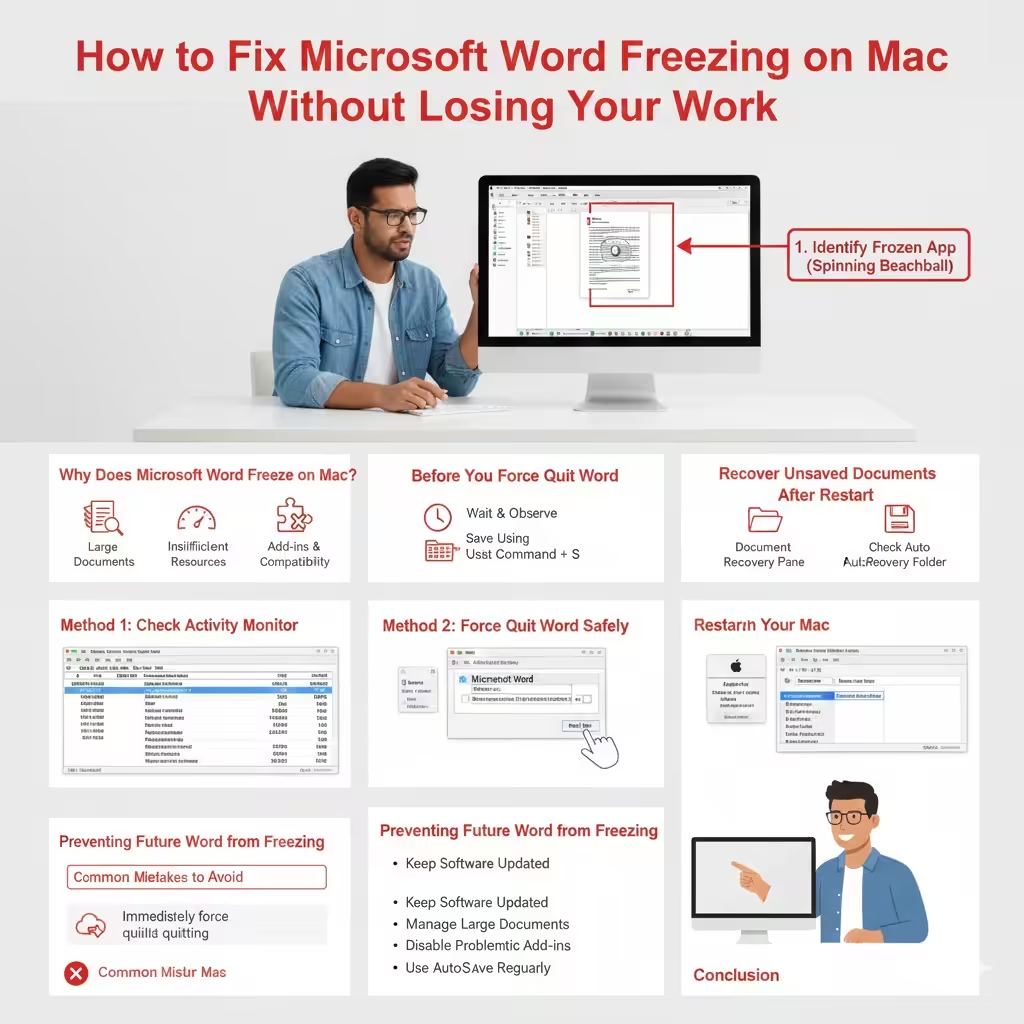
Why Does Microsoft Word Freeze on Mac?
Understanding the root cause of the problem helps you choose the safest solution.
Large or Complex Documents
Documents with many images, tables, tracked changes, or embedded objects can consume significant system resources, causing Word to become unresponsive.
Insufficient System Resources
Low available memory or high CPU usage from other applications may prevent Word from responding properly.
Add-ins and Compatibility Issues
Third-party add-ins or older document formats can conflict with the current version of Word for Mac.
Outdated Software
An outdated version of Microsoft Word or macOS may contain bugs that lead to freezing or crashes.
Before You Force Quit Word
Before taking drastic action, it is important to try safe methods that may restore Word without closing the application.
Wait and Observe
Sometimes Word appears frozen while processing a complex task. Wait a few minutes and see if the application recovers on its own.
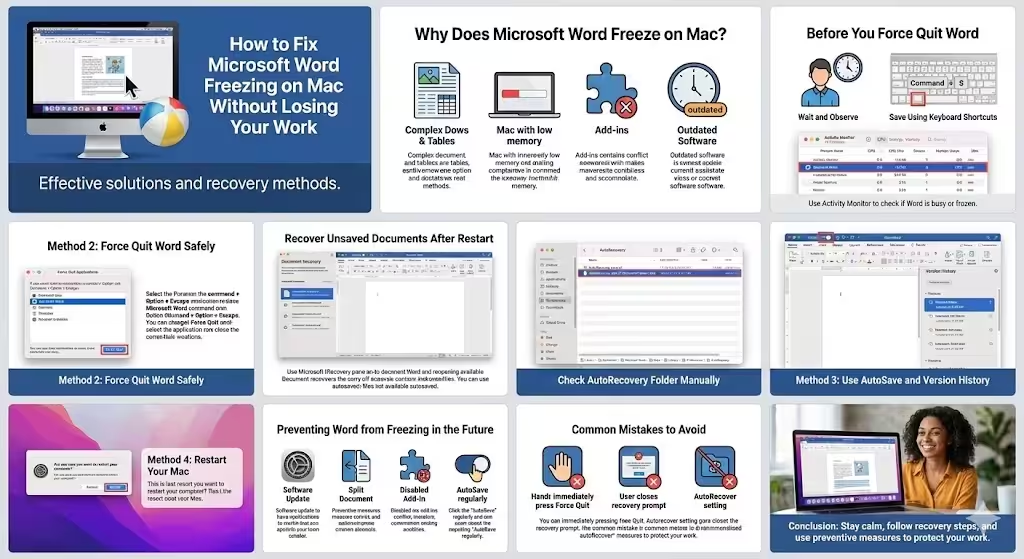
Save Using Keyboard Shortcuts
If Word responds briefly, try pressing Command + S to save your document immediately.
Method 1: Check Activity Monitor
Activity Monitor helps determine whether Word is completely frozen or just busy.
How to Use Activity Monitor
- Open Applications > Utilities > Activity Monitor
- Locate Microsoft Word in the list
- Check CPU and memory usage
If Word shows activity, it may recover if given time. Avoid force quitting immediately.
Method 2: Force Quit Word Safely
If Word does not respond at all, force quitting may be necessary.
How to Force Quit
- Press Command + Option + Escape
- Select Microsoft Word
- Click Force Quit
When you reopen Word, it will usually attempt to recover unsaved documents automatically.
Recover Unsaved Documents After Restart
Microsoft Word includes AutoRecover and document recovery features.
Using Document Recovery Pane
After reopening Word, a Document Recovery pane often appears showing the latest autosaved versions. Select the most recent file and save it immediately.
Check AutoRecovery Folder Manually
You can manually locate recovered files by navigating to Word’s AutoRecovery folder using Finder.
Method 3: Use AutoSave and Version History
If your document is stored in OneDrive or SharePoint, Word’s AutoSave feature can protect your work.
Restore Previous Versions
Open the document, go to File > Browse Version History, and restore a previous version if necessary.
Method 4: Restart Your Mac
If Word and other apps become unresponsive, restarting your Mac may be required.
Safe Restart Tips
- Close other applications if possible
- Restart the Mac normally
- Reopen Word and check for recovered files
macOS often helps applications recover state after a restart.
Preventing Word from Freezing in the Future
Prevention reduces the risk of data loss and interruptions.
Keep Software Updated
Install the latest updates for macOS and Microsoft Word to benefit from bug fixes and performance improvements.
Manage Large Documents
Split very large documents into smaller sections and remove unnecessary formatting.
Disable Problematic Add-ins
Turn off add-ins you do not need, as they may cause conflicts.
Use AutoSave Regularly
Enable AutoSave and save documents frequently to minimize data loss.
Common Mistakes to Avoid
- Immediately force quitting without waiting
- Ignoring recovery prompts after reopening Word
- Disabling AutoRecover features
Avoiding these mistakes improves recovery success.
Conclusion
When Microsoft Word freezes on a Mac, it does not automatically mean your work is lost. By staying calm and following the correct steps, you can often unfreeze Word or recover your document using built-in recovery tools. From checking Activity Monitor to using AutoRecover and version history, macOS and Word provide multiple safety nets to protect your work. Applying preventive measures such as regular updates and AutoSave will help ensure a smoother writing experience in the future.