


How to Use Custom Fonts in Microsoft Word on macOS
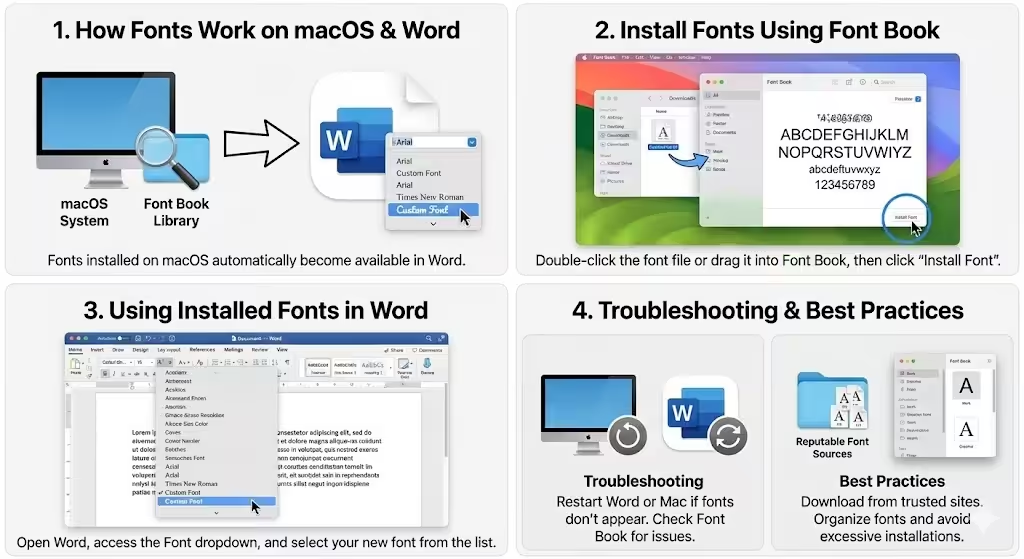
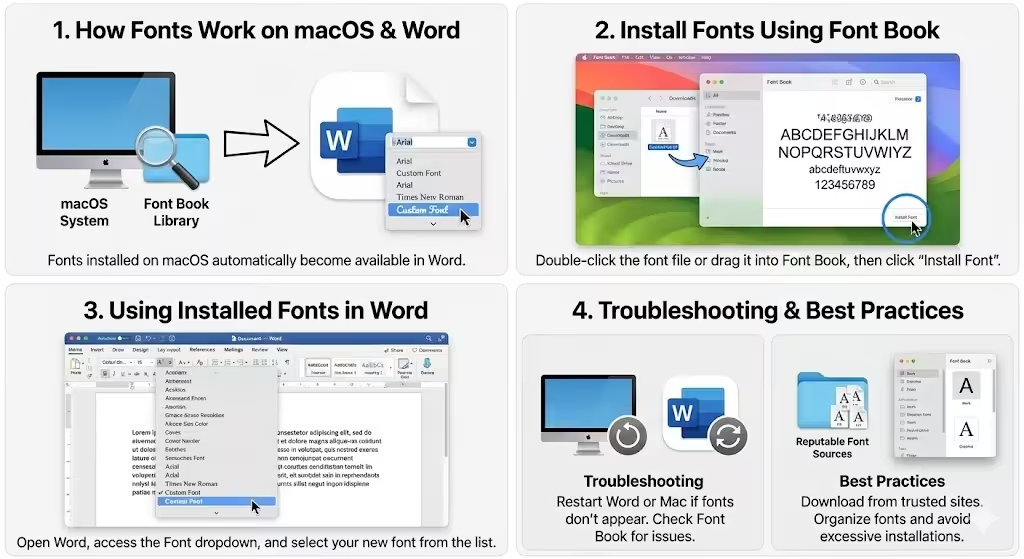
Custom fonts can dramatically improve the appearance of documents, presentations, and creative projects. If you use Microsoft Word on a Mac, installing new fonts allows you to personalize your documents, match branding requirements, or simply make your text more visually appealing. Many Mac users assume fonts must be installed directly into Word, but in reality, fonts are added to macOS first and then automatically become available in Word.
This comprehensive guide explains how to install fonts to Word on Mac step by step. It covers different installation methods, supported font formats, common problems, and best practices to ensure your fonts work correctly in Microsoft Word.
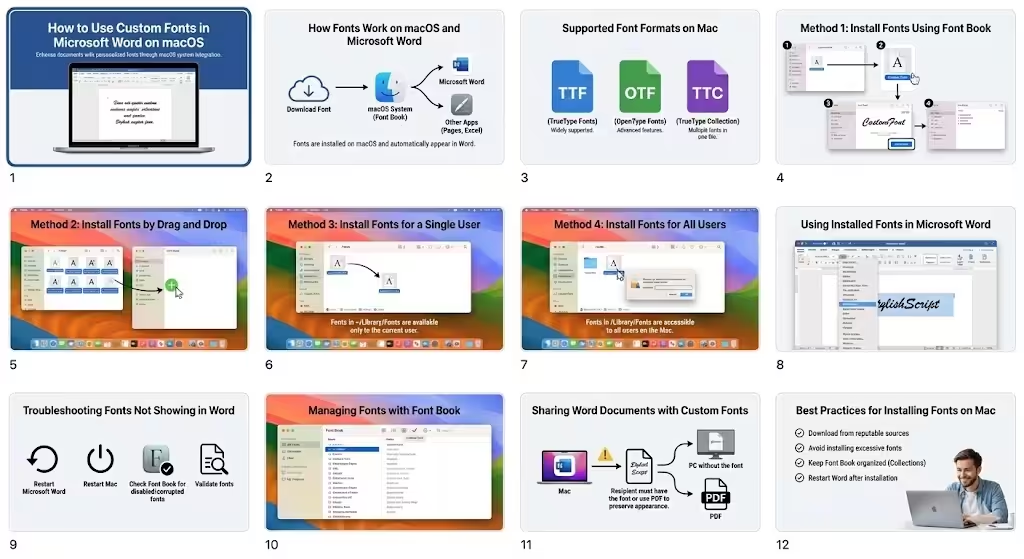
How Fonts Work on macOS and Microsoft Word
On macOS, fonts are managed at the system level. When you install a font on your Mac, it becomes available to all compatible applications, including Microsoft Word, Pages, Excel, PowerPoint, and many design tools.
Microsoft Word does not require a separate font installation process. As long as the font is properly installed and enabled in macOS, Word will automatically detect and display it in the font list.
Supported Font Formats on Mac
Before installing fonts, it is important to understand which font formats macOS supports.
Common Font Types
- TrueType Fonts (TTF)
- OpenType Fonts (OTF)
- TrueType Collection (TTC)
These formats are widely supported and work well in Microsoft Word on Mac. Older or uncommon font formats may not function correctly.
Method 1: Install Fonts Using Font Book
Font Book is the built-in font management application on macOS and is the most reliable way to install fonts.
Step-by-Step Instructions
- Download the font file and unzip it if necessary
- Double-click the font file
- Font Book will open automatically
- Click Install Font
Once installed, the font is added to the system library and becomes available in Microsoft Word.
Method 2: Install Fonts by Drag and Drop
You can also install fonts manually by dragging them into Font Book.
How to Use Drag and Drop
- Open Font Book from the Applications folder
- Locate your downloaded font files
- Drag the font files into the Font Book window
- Wait for the installation to complete
This method is useful when installing multiple fonts at once.
Method 3: Install Fonts for a Single User
macOS allows fonts to be installed for a specific user account.
User-Specific Installation
- Open Finder
- Press Command + Shift + G
- Enter
~/Library/Fonts - Drag font files into this folder
Fonts installed here are only available to the current user but still appear in Word.
Method 4: Install Fonts for All Users
For shared Macs, you may want fonts accessible to all users.
System-Wide Installation
- Open Finder
- Press Command + Shift + G
- Enter
/Library/Fonts - Drag the font files into this folder
Administrator permission may be required.
Using Installed Fonts in Microsoft Word
After installation, fonts should appear automatically in Word.
How to Access Fonts in Word
- Open Microsoft Word
- Create or open a document
- Click the Font dropdown menu
- Scroll or search for the installed font
If Word was open during installation, restart it to refresh the font list.
Troubleshooting Fonts Not Showing in Word
Sometimes fonts do not appear as expected.
Common Fixes
- Restart Microsoft Word
- Restart your Mac
- Check Font Book for disabled fonts
- Validate fonts using Font Book
- Ensure the font format is supported
Duplicate or corrupted fonts can prevent Word from displaying them correctly.
Managing Fonts with Font Book
Font Book provides tools to organize and manage fonts.
Helpful Management Tips
- Create font collections
- Disable unused fonts to improve performance
- Remove duplicate fonts
- Validate fonts to check for errors
Proper font management helps keep Word running smoothly.
Sharing Word Documents with Custom Fonts
When sharing Word files, custom fonts may not appear correctly on other devices.
Important Considerations
- The recipient must have the same font installed
- Substitute fonts may be used automatically
- Converting documents to PDF preserves font appearance
Understanding font compatibility avoids formatting issues.
Best Practices for Installing Fonts on Mac
- Download fonts from reputable sources
- Avoid installing too many fonts at once
- Keep Font Book organized
- Restart apps after installing fonts
Following these practices ensures stability and performance.
Conclusion
Installing fonts to Word on Mac is a simple process that relies on macOS font management rather than Word-specific settings. By using Font Book or manually installing fonts into the correct folders, you can quickly expand your font library and enhance your documents. Once installed correctly, fonts become instantly available in Microsoft Word, allowing you to create more professional and visually appealing content with ease.