


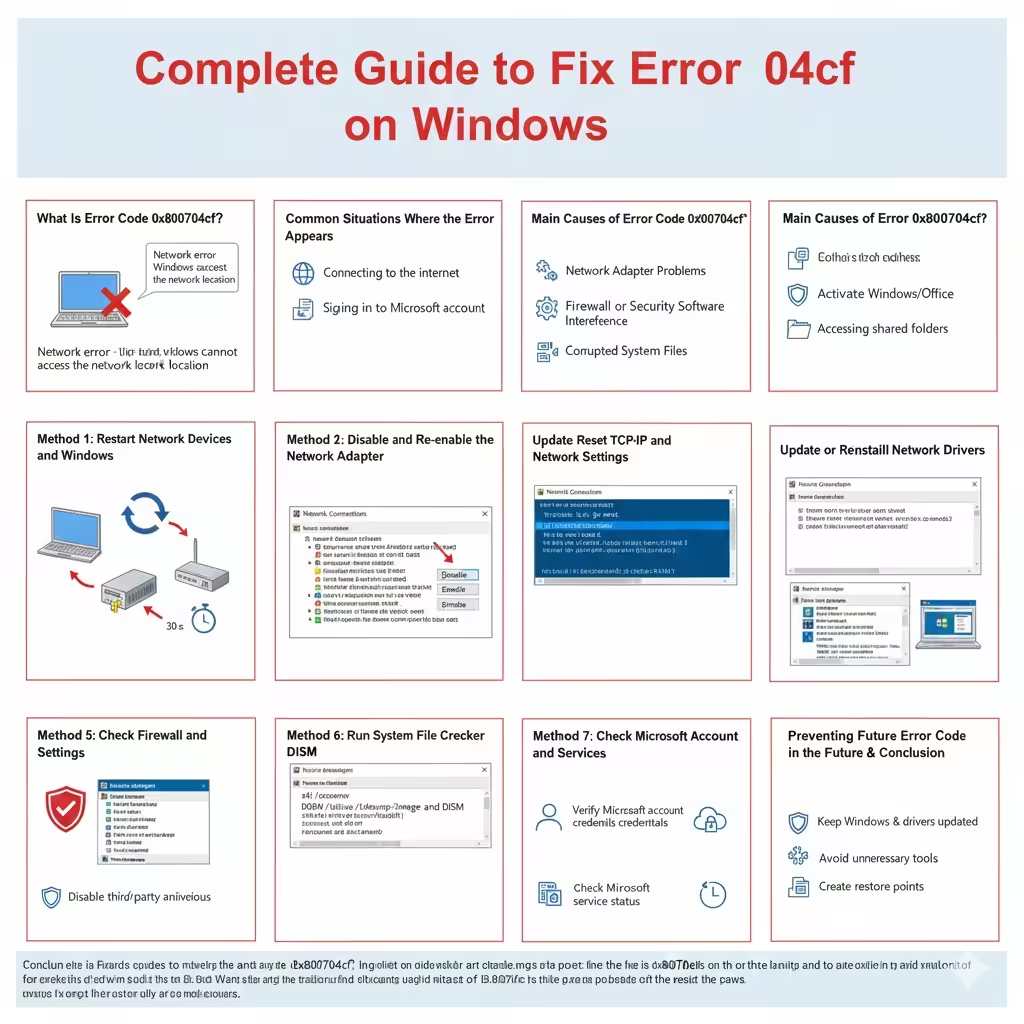
Complete Guide to Fix Error 0x800704cf on Windows
Error code 0x800704cf is a common Windows problem that typically indicates a network-related issue. Users often encounter this error when trying to connect to the internet, access a network resource, sign in to a Microsoft account, or activate Windows features. The error message may appear suddenly and prevent normal online activities, making it both confusing and frustrating.
The good news is that error code 0x800704cf is usually caused by software misconfigurations rather than permanent hardware damage. This guide explains what the error means, why it occurs, and how to fix it step by step on Windows systems using proven and safe solutions.
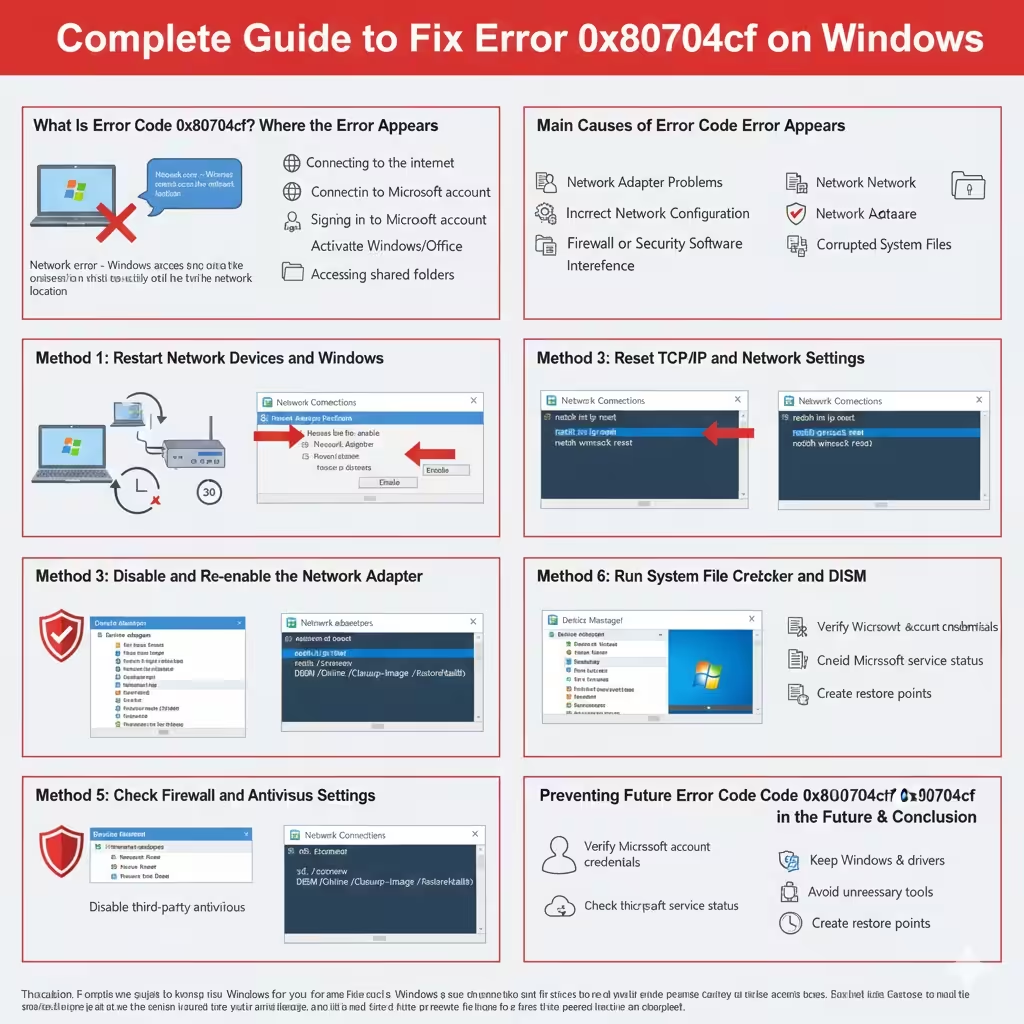
What Is Error Code 0x800704cf?
Error code 0x800704cf is a Windows system error commonly associated with network connectivity failures. It often appears with messages such as “Network error – Windows cannot access the network location” or during attempts to sign in to Microsoft services.
This error indicates that Windows is unable to establish a proper connection between the system and the network or required services. It can affect both wired and wireless connections and may occur on different Windows versions, including Windows 10 and Windows 11.
Common Situations Where the Error Appears
Understanding when the error occurs can help narrow down the cause.
- Connecting to the internet or a local network
- Signing in to a Microsoft account
- Activating Windows or Microsoft Office
- Accessing shared folders or network drives
- Using Windows Store or cloud-based services
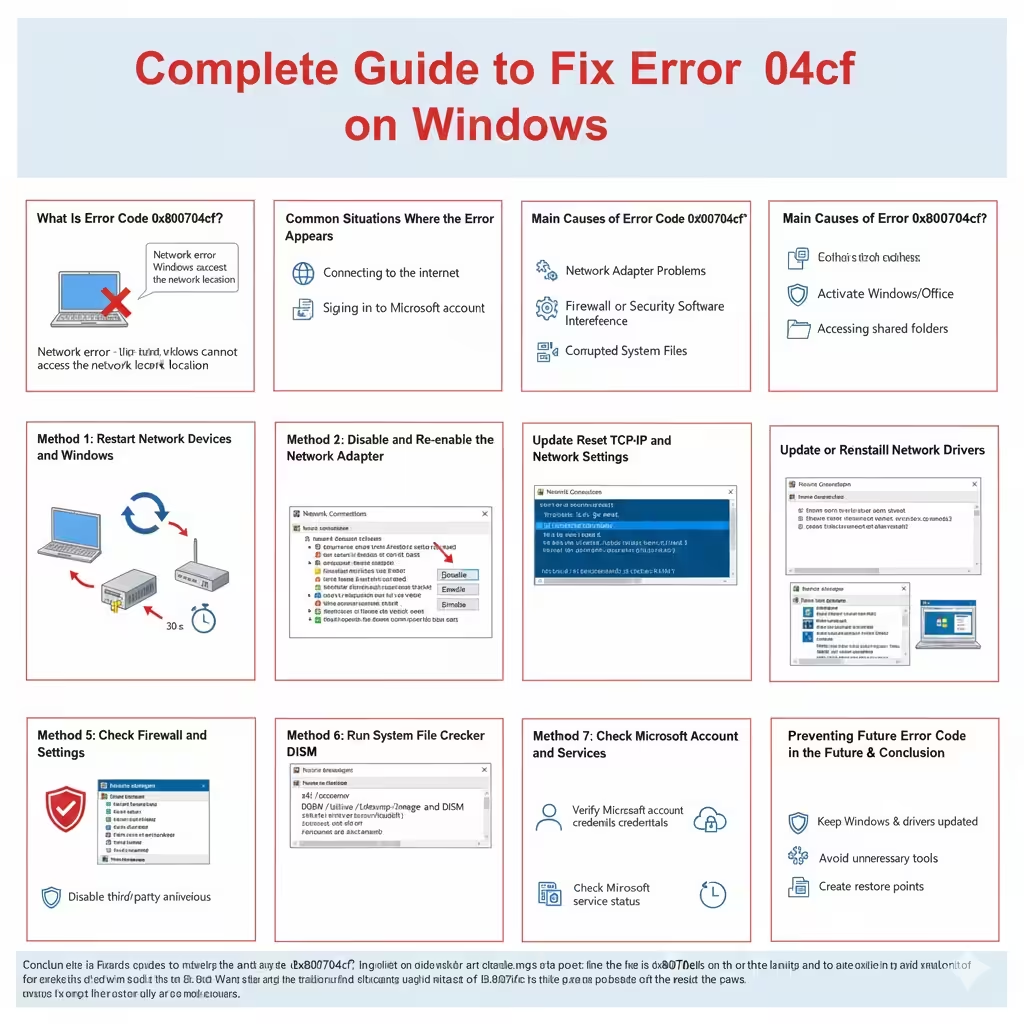
Main Causes of Error Code 0x800704cf
Several underlying issues can trigger this error.
Network Adapter Problems
Corrupted, outdated, or disabled network drivers can prevent Windows from communicating with network hardware properly.
Incorrect Network Configuration
Misconfigured TCP/IP settings, DNS issues, or proxy conflicts may interrupt network communication.
Firewall or Security Software Interference
Overly restrictive firewall rules or third-party security programs can block essential network traffic.
Corrupted System Files
Damaged Windows system files may affect networking services and authentication processes.
Method 1: Restart Network Devices and Windows
Before applying advanced fixes, try basic troubleshooting.
Simple Steps
- Restart your computer
- Power off your modem and router
- Wait for 30 seconds and turn them back on
This process refreshes network connections and often resolves temporary issues.
Method 2: Disable and Re-enable the Network Adapter
Resetting the network adapter can restore proper communication.
How to Do It
- Press Windows + X and select Network Connections
- Click Change adapter options
- Right-click your active network adapter
- Select Disable and wait a few seconds
- Right-click again and select Enable
Check whether the error is resolved after reconnecting.
Method 3: Reset TCP/IP and Network Settings
Resetting network configurations can fix persistent connectivity errors.
Steps to Reset Network Stack
- Press Windows + S, type cmd
- Right-click Command Prompt and choose Run as administrator
- Enter the following commands one by one:
netsh int ip resetnetsh winsock reset
- Restart your computer
These commands rebuild core networking components.
Method 4: Update or Reinstall Network Drivers
Outdated or corrupted drivers are a common cause of this error.
Driver Update Options
- Use Device Manager to update drivers automatically
- Download the latest drivers from the manufacturer’s website
- Uninstall and reinstall the network adapter if necessary
Restart the system after making driver changes.
Method 5: Check Firewall and Antivirus Settings
Security software may block network access unintentionally.
What to Check
- Temporarily disable third-party antivirus software
- Ensure Windows Firewall allows network connections
- Restore default firewall settings if customized
Re-enable security software after testing.
Method 6: Run System File Checker and DISM
Repairing system files can resolve deeper issues.
Repair Commands
- Open Command Prompt as administrator
- Run
sfc /scannow - After completion, run:
DISM /Online /Cleanup-Image /RestoreHealth - Restart your computer
These tools repair corrupted Windows components.
Method 7: Check Microsoft Account and Services
If the error appears during Microsoft account sign-in, account-related issues may be involved.
Recommended Actions
- Verify Microsoft account credentials
- Sign out and sign back in
- Check Microsoft service status
Account synchronization issues can sometimes trigger this error.
Preventing Error Code 0x800704cf in the Future
- Keep Windows and drivers updated
- Avoid unnecessary network tweaking tools
- Use trusted security software only
- Create restore points before major changes
Proactive maintenance reduces the risk of recurring errors.
Conclusion
Error code 0x800704cf on Windows is primarily a network-related issue that can interrupt internet access and Microsoft services. While the error may seem serious, it is usually fixable through systematic troubleshooting. By resetting network settings, updating drivers, checking security software, and repairing system files, most users can restore normal connectivity. Following the methods outlined in this guide will help you resolve the error effectively and maintain a stable Windows networking environment.