



How to Add Multiple Lines in One Excel Cell
Microsoft Excel is one of the most powerful tools for organizing, analyzing, and presenting data. While many users are familiar with basic formulas and formatting, fewer know how to insert multiple lines of text within a single cell. This simple technique can make spreadsheets easier to read, improve data presentation, and eliminate the need for unnecessarily wide columns.
Whether you’re creating address lists, product descriptions, meeting notes, or formatted reports, adding a new line inside an Excel cell helps display information in a clean and organized way. In this guide, you’ll learn several methods to insert line breaks in Excel, along with formatting tips, troubleshooting advice, and productivity hacks.
Why Add a New Line in an Excel Cell?
Instead of placing all text on one long line, you can separate related information into multiple lines within the same cell.
This is useful for:
- Mailing addresses
- Product specifications
- Employee information
- Task descriptions
- Meeting notes
- Customer comments
- Inventory details
- Multi-item lists
For example, instead of displaying:
John Smith 123 Main Street New York NY 10001You can format it as:
John Smith
123 Main Street
New York, NY 10001
The information becomes much easier to read without increasing the number of columns.
Method 1: Use the Keyboard Shortcut
The quickest way to add a new line inside a cell is by using a keyboard shortcut.
For Windows
- Double-click the cell or press F2 to edit it.
- Place the cursor where you want the new line.
- Press:
Alt + EnterExcel inserts a line break inside the same cell.
Image: Using Alt + Enter inside a cell.
For Mac
If you’re using Excel for macOS, place the cursor in the desired location and press:
Control + Option + ReturnDepending on your Excel version and macOS release, Control + Command + Return may also work.
Image: Keyboard shortcut on Mac.
Method 2: Use the Formula with CHAR(10)
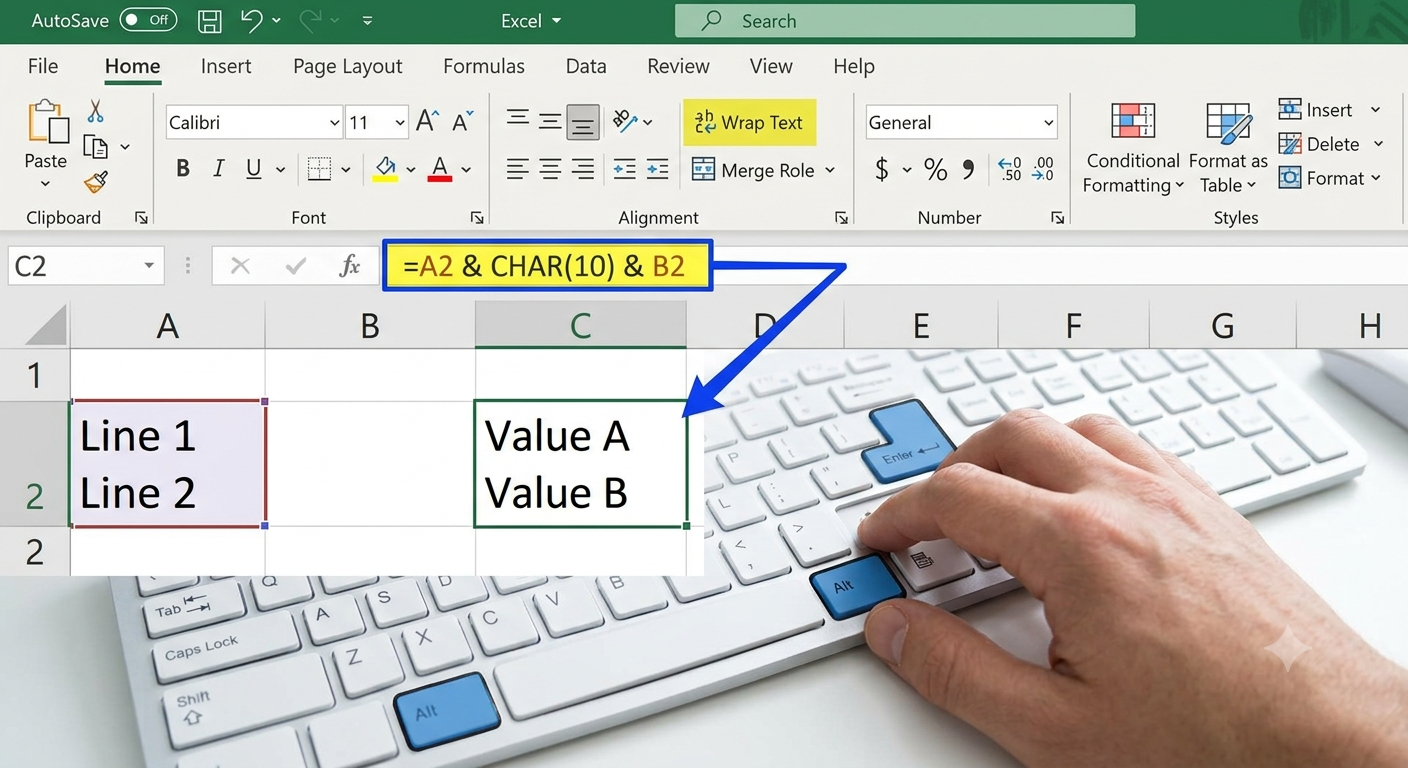
If you’re combining data from multiple cells, you can insert line breaks using the CHAR(10) function.
Example:
=A2 & CHAR(10) & B2Or:
=CONCAT(A2,CHAR(10),B2)Or with TEXTJOIN:
=TEXTJOIN(CHAR(10),TRUE,A2:C2)After entering the formula, enable Wrap Text so the line breaks become visible.
Image: Formula using CHAR(10).
Method 3: Use Find and Replace
If your data already contains separators, you can replace them with line breaks.
Suppose your cell contains:
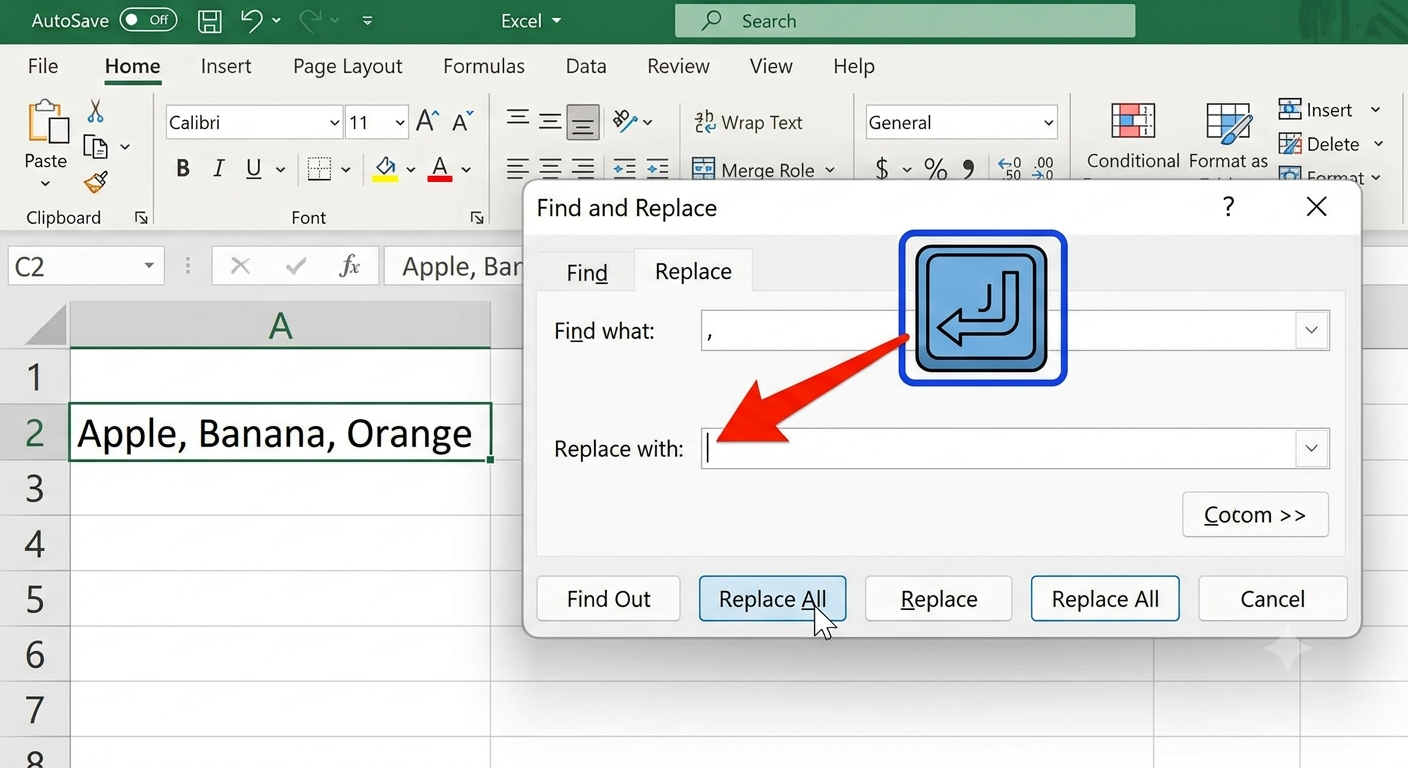
Apple, Banana, OrangeYou can replace the commas with line breaks.
Step 1
Press:
Ctrl + Hto open Find and Replace.
Step 2
In Find what, enter:
,Step 3
In Replace with, press:
Ctrl + JNothing visible appears in the field, but Excel inserts a line break character.
Step 4
Click:
Replace All
Now each item appears on a separate line.
Image: Find and Replace dialog.
Method 4: Use Text Wrap
If line breaks aren’t displaying correctly, enable text wrapping.
Step 1
Select the cell.
Step 2
Go to:
Home > Alignment
Step 3
Click:
Wrap Text
Excel automatically adjusts the display so multiple lines become visible.
Image: Wrap Text button.
Method 5: Use Power Query
Power Query can also insert line breaks while transforming data.
For example, you can replace delimiters with:
#line(feed)during data transformation.
This method is especially useful when processing large datasets automatically.
Method 6: Insert Line Breaks Using VBA
If you frequently need to insert line breaks, a simple VBA macro can automate the process.
Example:
Sub AddLineBreak()
    ActiveCell.Value = "Line 1" & vbLf & "Line 2"
End Sub
The constant vbLf represents a line feed, which Excel interprets as a new line within the same cell.
This approach is useful for repetitive tasks and custom automation.
Common Uses for Line Breaks in Excel
Adding new lines inside cells can improve readability in many situations.
Examples include:
Addresses
Instead of using multiple columns:
John Smith
123 Main Street
Chicago, IL 60601
Product Information
Laptop
16 GB RAM
512 GB SSD
Intel Core i7
Meeting Notes
Completed budget review
Assigned new tasks
Scheduled next meeting
Employee Records
Sarah Johnson
Sales Manager
Extension 204
These layouts make spreadsheets more organized and easier to scan.
Adjust Row Height Automatically
After inserting multiple lines, Excel may not automatically display all text.
To fix this:
- Select the row.
- Go to Home.
- Choose Format.
- Click AutoFit Row Height.
Alternatively, double-click the bottom border of the row number.
Excel adjusts the height to fit the content.
Image: AutoFit Row Height.
Combine Multiple Cells with Line Breaks
You can merge information from several cells into one.
Example:
=A2 & CHAR(10) & B2 & CHAR(10) & C2Result:
John Smith
Sales Department
Chicago
Remember to enable Wrap Text afterward.
Using TEXTJOIN with Line Breaks
TEXTJOIN is one of the easiest ways to combine multiple values.
Example:
=TEXTJOIN(CHAR(10),TRUE,A2:A5)This combines all selected cells into one while placing each value on a separate line.
It’s especially useful for creating summaries or consolidated reports.
Troubleshooting Line Break Issues
Line Break Doesn’t Appear
Usually, Wrap Text is disabled.
Enable it from:
Home > Wrap Text
Formula Shows CHAR(10) Instead of a New Line
Ensure the formula is entered correctly and that the cell is not formatted as plain text.
Also, verify that Wrap Text is enabled.
Copied Text Loses Formatting
Some applications do not preserve Excel line breaks when pasting.
If needed, paste using Paste Special or verify the destination application supports multi-line text.
Rows Don’t Expand
Use AutoFit Row Height or manually increase the row height.
Tips for Working with Multi-Line Cells
To make the most of line breaks:
- Keep related information together.
- Use Wrap Text for proper display.
- AutoFit rows after adding line breaks.
- Avoid excessive line breaks in small cells.
- Use formulas instead of manual editing when combining data.
- Test formatting before printing.
These practices improve readability without making worksheets overly complex.
Advantages of Using Line Breaks
Using multiple lines within a single cell offers several benefits.
These include:
- Cleaner spreadsheet layouts
- Better readability
- Reduced need for extra columns
- Improved printing results
- Easier report formatting
- More professional-looking worksheets
Line breaks are especially valuable in dashboards, invoices, forms, and reports where space is limited.
Frequently Asked Questions
What is the shortcut to add a new line in an Excel cell on Windows?
Press Alt + Enter while editing a cell. Excel inserts a line break at the cursor’s current position.
Why can’t I see the new line after pressing Alt + Enter?
Most likely, Wrap Text is turned off. Enable it from the Home tab so Excel displays multiple lines within the cell.
Can I add line breaks using formulas?
Yes. Use the CHAR(10) function along with formulas such as CONCAT, TEXTJOIN, or the & operator. Don’t forget to enable Wrap Text for the result cell.
Will line breaks print correctly?
Yes. Excel preserves line breaks when printing, provided the row height is large enough to display all lines.
Can I remove line breaks later?
Yes. You can manually edit the cell, use Find and Replace, or use formulas such as SUBSTITUTE to replace CHAR(10) with another character or a space.
Example:
=SUBSTITUTE(A2,CHAR(10)," ")Conclusion
Knowing how to add a new line in a single Excel cell is a simple but valuable skill that can greatly improve the readability and organization of your spreadsheets. Whether you use the Alt + Enter keyboard shortcut, the CHAR(10) function, TEXTJOIN, Find and Replace, or VBA, each method offers a practical solution for different scenarios.