


How to Enable Split Screen on Windows 10 and 11
Multitasking has become an essential part of modern computing. Whether you’re comparing documents, attending an online meeting while taking notes, coding alongside documentation, or browsing the web while working in Microsoft Excel, using multiple windows at the same time can significantly improve your productivity.
Fortunately, Windows 10 and Windows 11 include powerful built-in features that allow you to split your screen into multiple sections without installing additional software. With tools such as Snap Assist and Snap Layouts, organizing your workspace is quick and intuitive.
In this guide, you’ll learn how to split your screen on Windows 10 and Windows 11 using different methods, keyboard shortcuts, and productivity tips to make multitasking more efficient.
What Is Split Screen in Windows?
Split screen is a Windows feature that allows you to display two or more application windows side by side on a single monitor.
Instead of constantly switching between programs, you can view multiple applications simultaneously.
Common uses include:
- Comparing documents
- Copying information between applications
- Watching a tutorial while following along
- Editing spreadsheets while viewing reports
- Writing emails while referencing notes
- Monitoring chats while working
- Coding alongside documentation
- Managing multiple browser windows
Split screen helps reduce unnecessary window switching and improves workflow efficiency.
Benefits of Using Split Screen
Using split screen offers several advantages.
These include:
- Better multitasking
- Faster workflow
- Easier document comparison
- Improved organization
- Reduced time spent switching windows
- More efficient use of large monitors
Windows makes arranging applications simple with both mouse controls and keyboard shortcuts.
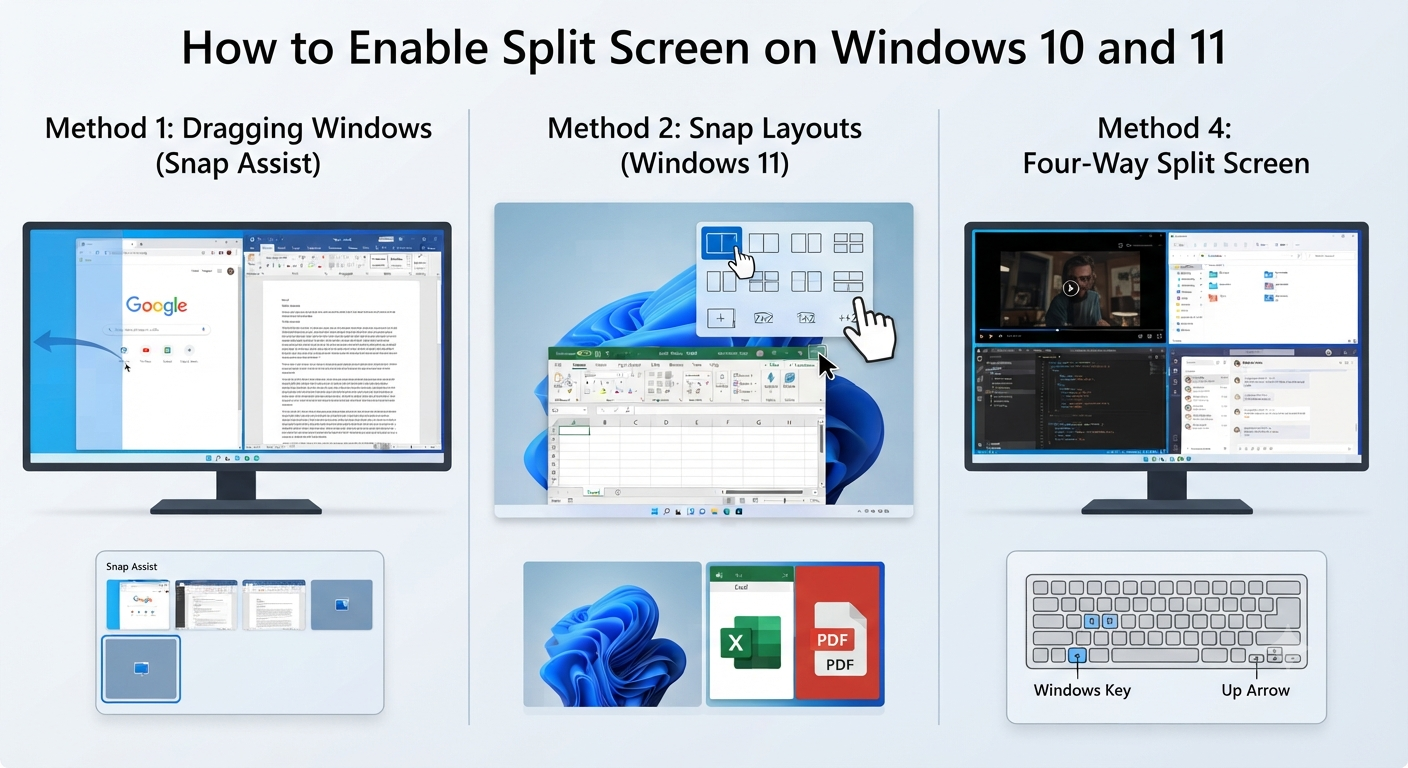
Method 1: Split Screen by Dragging Windows
The easiest method is using your mouse.
Step 1: Open the Applications
Launch the applications you want to display.
For example:
- Microsoft Word
- Microsoft Excel
- Google Chrome
- File Explorer
Step 2: Drag the First Window
Click and hold the window’s title bar.
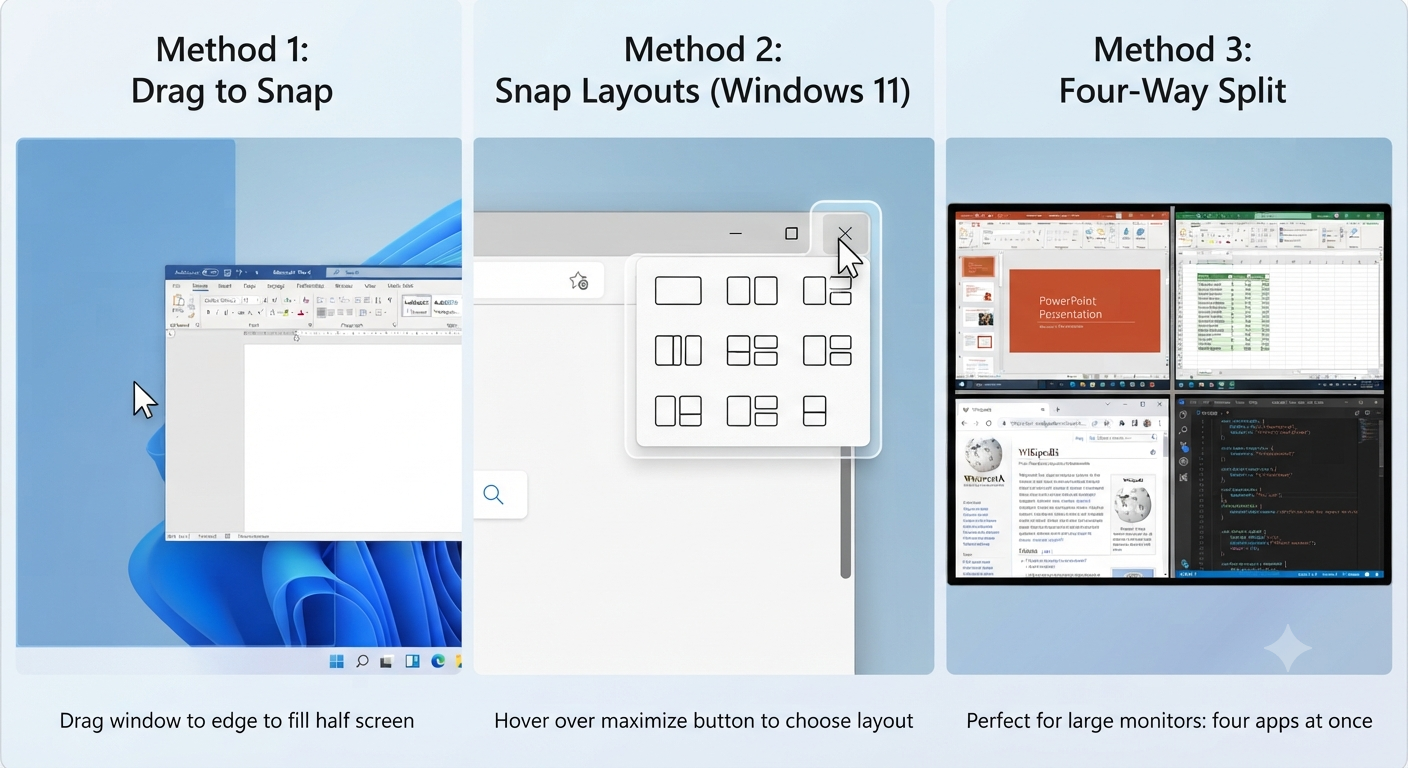
Drag it to the left edge of the screen.
A transparent outline appears, showing where the window will snap.
Release the mouse button.
The window fills the left half of the screen.
Image: Dragging a window to the left edge.
Step 3: Choose the Second Window
Windows displays thumbnails of your remaining open applications.
Click one.
The selected application automatically fills the right half of the screen.
Image: Snap Assist window selection.
Your screen is now divided into two equal sections.
Method 2: Use Keyboard Shortcuts
Keyboard shortcuts provide an even faster way to arrange windows.
Snap Left
Press:
Windows + Left ArrowThe active window moves to the left half of the screen.
Snap Right
Press:
Windows + Right ArrowThe active window moves to the right half.
Move Between Monitors
If using multiple monitors:
Windows + Shift + Left Arrowor
Windows + Shift + Right Arrowmoves the current window to another display.
These shortcuts are especially useful for power users.
Method 3: Use Snap Layouts (Windows 11)
Windows 11 introduces Snap Layouts, offering more flexible window arrangements.
Step 1: Hover Over the Maximize Button
Move your cursor over the maximize button in the upper-right corner of a window.
Several layout options appear.
Image: Snap Layouts menu.
Step 2: Select a Layout
Available layouts may include:
- Two columns
- Three columns
- Four equal sections
- Main window with smaller side panels
Choose the layout that best fits your workflow.
Step 3: Fill the Remaining Spaces
After placing the first window, Windows displays your remaining open applications.
Select an application for each available space.
Your desktop is automatically organized.
Method 4: Split the Screen into Four Sections
If your monitor has sufficient resolution, Windows allows four applications to be displayed simultaneously.
Using the Mouse
Drag each window into one corner:
- Top left
- Top right
- Bottom left
- Bottom right
Each application occupies one-quarter of the display.
Image: Four-way split screen.
Using Keyboard Shortcuts
Move a window:
Windows + Left ArrowThen:
Windows + Up Arrowto place it in the upper-left corner.
Similarly:
- Left + Down
- Right + Up
- Right + Down
allow placement in the remaining corners.
Method 5: Enable Snap Features
If split screen isn’t working, Snap may be disabled.
Step 1: Open Settings
Press:
Windows + IStep 2: Go to Multitasking Settings
Navigate to:
System > Multitasking
Step 3: Enable Snap Windows
Turn on:
Snap windows
You can also enable additional options, such as:
- Automatically resize adjacent windows
- Show snap layouts when hovering over the maximize button (Windows 11)
- Display available snap positions
Image: Snap Windows settings.
Using Split Screen with Multiple Monitors
Split screen works independently on each connected monitor.
For example:
Monitor 1:
- Outlook
- Microsoft Teams
Monitor 2:
- Excel
- Word
Each display supports its own snapping layout.
This setup is particularly useful for professionals who work with multiple applications simultaneously.
Resize Split Windows
After snapping two windows together, you can adjust the divider.
Move your cursor to the border between the windows.
Drag left or right.
Windows automatically resizes both applications.
This allows one window to occupy more space than the other.
Best Applications for Split Screen
Split screen is useful with almost any application.
Popular combinations include:
- Word + Excel
- Chrome + Notepad
- Teams + OneNote
- Outlook + Calendar
- File Explorer + Photoshop
- Visual Studio Code + Browser
- PowerPoint + PDF Viewer
Experiment with different layouts to find the setup that best suits your workflow.
Use Virtual Desktops Alongside Split Screen
Windows 10 and Windows 11 also support Virtual Desktops.
This allows you to create separate workspaces.
For example:
Desktop 1:
- Work applications
Desktop 2:
- Personal browsing
Desktop 3:
- Entertainment
Open Task View by pressing:
Windows + TabThen click:
New Desktop
Each virtual desktop can have its own split-screen arrangement.
Common Problems and Solutions
Windows Won’t Snap
Check whether Snap Windows is enabled.
Also ensure the application supports resizing.
Some older programs have fixed window sizes and cannot snap properly.
Snap Layouts Don’t Appear
Windows 11 Snap Layouts require:
- Windows 11
- Snap Windows enabled
- Hovering over the maximize button
Install the latest Windows updates if the feature is missing.
Applications Resize Incorrectly
Close and reopen the application.
Then snap it again.
Some programs remember previous window sizes.
Split Screen Stops Working
Restart Windows Explorer or reboot your computer.
Also verify that no third-party window management software is interfering with Windows’ built-in snapping features.
Tips for Better Multitasking
To maximize productivity:
- Use keyboard shortcuts whenever possible.
- Keep only necessary applications open.
- Use larger monitors for multiple windows.
- Combine split screen with Virtual Desktops.
- Pin frequently used applications to the taskbar.
- Close unused tabs to reduce distractions.
Developing efficient multitasking habits can save considerable time during daily work.
Advantages of Snap Layouts in Windows 11
Compared to Windows 10, Windows 11 offers several improvements.
These include:
- More layout choices
- Better support for ultrawide monitors
- Easier window organization
- Snap Groups for quickly restoring app layouts
- Improved multitasking experience
These enhancements make Windows 11 especially well suited for users who frequently work with multiple applications.
Frequently Asked Questions
Can I split my screen into more than two windows?
Yes. Windows allows you to arrange up to four windows on a single screen using Snap features. Windows 11 also offers additional layouts through Snap Layouts, especially on larger or high-resolution displays.
Does split screen work on Windows 10?
Yes. Windows 10 includes Snap Assist, which lets you quickly arrange windows side by side or into four corners using either your mouse or keyboard shortcuts.
What’s the difference between Snap Assist and Snap Layouts?
Snap Assist, available in both Windows 10 and Windows 11, helps you arrange windows by dragging them to screen edges or using keyboard shortcuts. Snap Layouts, introduced in Windows 11, provides predefined layout templates for faster and more flexible window organization.
Can I use split screen with multiple monitors?
Yes. Each connected monitor supports its own split-screen arrangement, allowing you to organize different sets of applications on each display.
How do I exit split-screen mode?
Simply drag a snapped window away from the screen edge, maximize it, or click its maximize button. The window will return to its normal size.
Conclusion
Splitting your screen on Windows 10 or Windows 11 is one of the easiest ways to improve productivity and make multitasking more efficient. Whether you’re using Snap Assist, Snap Layouts, keyboard shortcuts, or multiple monitors, Windows provides flexible tools for arranging your applications exactly the way you need.