


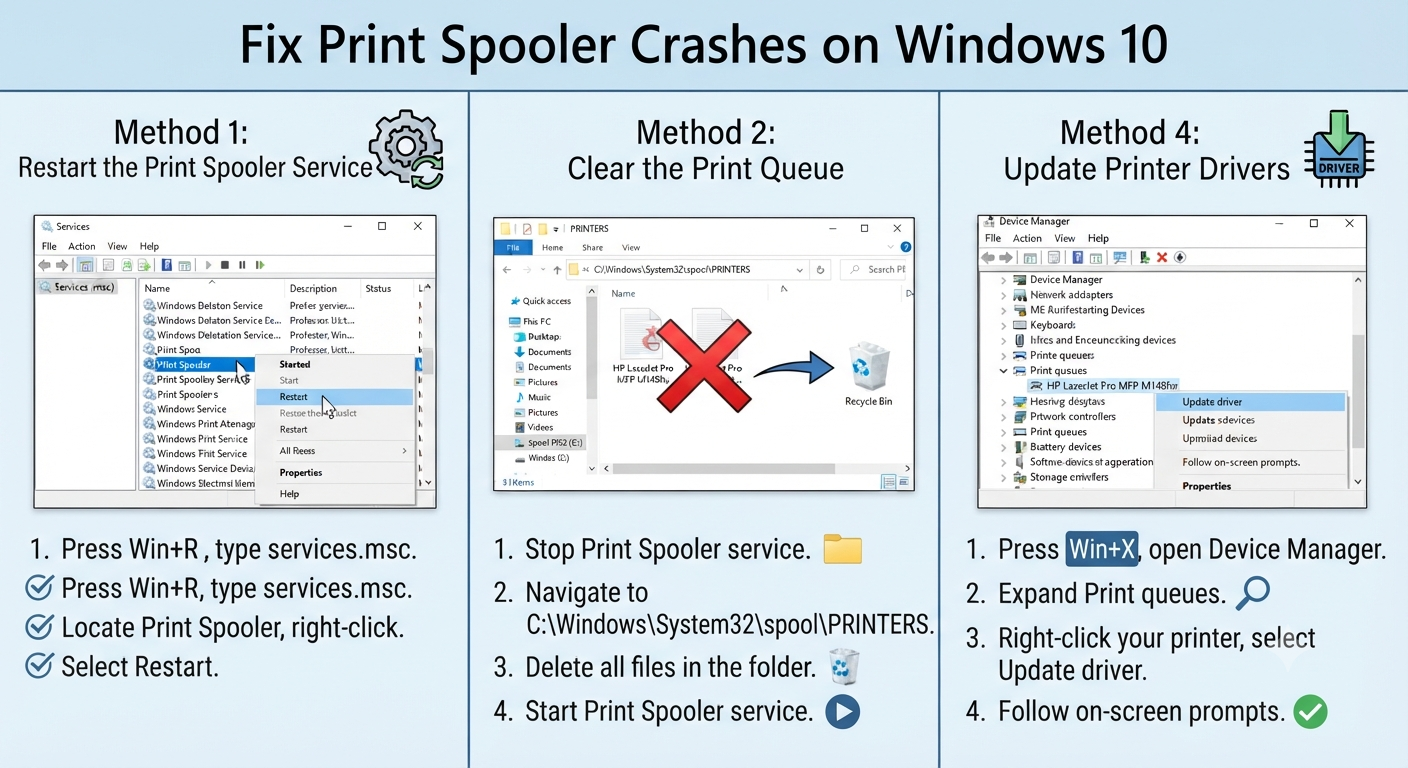
Fix Print Spooler Crashes on Windows 10
The Print Spooler service is an essential part of Windows 10 that manages all print jobs sent to your printer. When it works correctly, documents are queued and processed seamlessly. However, if the Print Spooler repeatedly stops or crashes, you may encounter printing errors, missing printers, or jobs that remain stuck in the print queue.
This issue can be frustrating, especially if you rely on your printer for work, school, or personal tasks. Fortunately, the problem is usually caused by corrupted print jobs, faulty printer drivers, damaged system files, or service configuration issues, all of which can often be resolved with a few troubleshooting steps.
In this guide, you’ll learn why the Print Spooler keeps stopping on Windows 10 and how to fix it using several proven methods.
What Is the Print Spooler Service?
The Print Spooler is a Windows service responsible for managing communication between your computer and connected printers.
Its primary functions include:
- Receiving print jobs
- Organizing print queues
- Sending documents to printers
- Managing multiple print requests
- Handling printer driver communication
If the service stops unexpectedly, Windows cannot process print jobs until it is restarted.
Common Symptoms of a Print Spooler Problem
When the Print Spooler fails, you may notice symptoms such as:
- The printer disappears from Windows.
- Print jobs remain stuck in the queue.
- Printing fails immediately.
- Error messages appear when printing.
- The Print Spooler service stops automatically.
- Printers appear offline even when connected.
- Windows cannot detect installed printers.
These symptoms usually indicate a problem with the Print Spooler service or one of its dependencies.
Common Causes of Print Spooler Crashes
Several issues can cause the Print Spooler to stop repeatedly.
Common causes include:
- Corrupted print jobs
- Damaged printer drivers
- Faulty printer software
- Windows system file corruption
- Malware
- Third-party printing utilities
- Incorrect service configuration
- Outdated Windows updates
Understanding the possible causes helps narrow down the appropriate solution.
Method 1: Restart the Print Spooler Service
Restarting the service is often the quickest fix.
Step 1
Press:
Windows + RType:
services.mscThen press Enter.
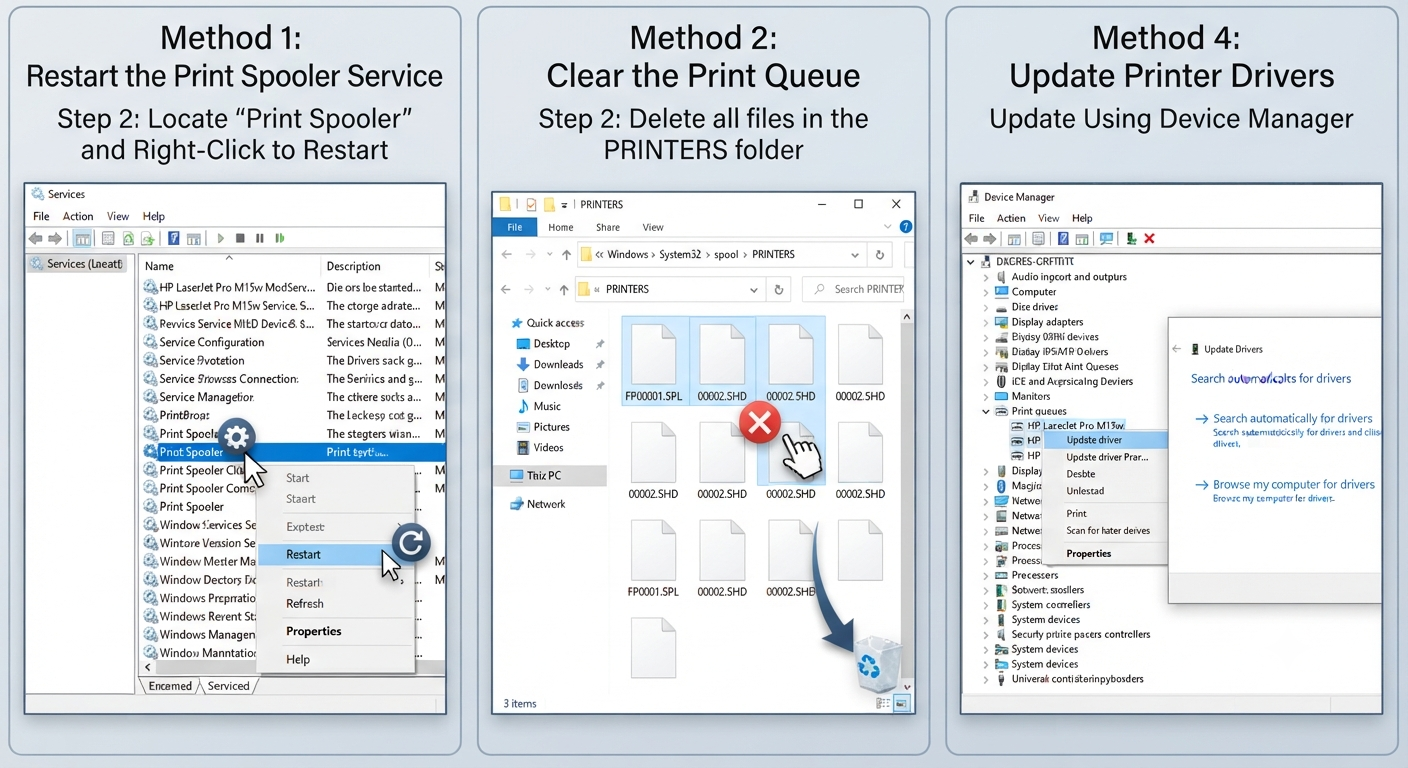
Step 2
Locate:
Print Spooler
Right-click it.
Select:
Restart
Image: Restarting the Print Spooler service.
Step 3
Try printing a document again.
If the service stops immediately after restarting, continue with the next methods.
Method 2: Clear the Print Queue
A corrupted print job frequently causes the Print Spooler to crash.
Step 1
Open Services.
Stop the Print Spooler service.
Step 2
Open File Explorer and navigate to:
C:\Windows\System32\spool\PRINTERSDelete all files inside the PRINTERS folder.
Do not delete the folder itself.
Step 3
Return to Services.
Start the Print Spooler again.
This clears all pending print jobs and often resolves spooler crashes.
Image: Clearing the print queue folder.
Method 3: Set the Print Spooler Startup Type
Ensure the service starts automatically.
Step 1
Open Services.
Double-click:
Print Spooler
Step 2
Set:
Startup type
to:
Automatic
Step 3
Click:
- Apply
- OK
Restart your computer.
The Print Spooler should now launch automatically when Windows starts.
Method 4: Update Printer Drivers
Outdated or corrupted printer drivers are among the most common causes of spooler problems.
Update Using Device Manager
- Press:
Windows + X- Select:
Device Manager
- Expand:
Print queues
or
Printers
- Right-click your printer.
- Select:
Update driver
Alternatively, download the latest driver directly from your printer manufacturer’s official website.
Image: Updating printer drivers.
Method 5: Reinstall the Printer
If updating the driver doesn’t help, reinstall the printer.
Remove the Printer
- Open:
Settings
- Navigate to:
Devices > Printers & scanners
- Select your printer.
- Click:
Remove device
Add the Printer Again
Click:
Add a printer or scanner
Windows will search for available printers.
Install the printer again using the latest driver.
Method 6: Run the Printer Troubleshooter
Windows includes a built-in printer troubleshooter.
To access it:
- Open:
Settings
- Go to:
Update & Security > Troubleshoot
- Select:
Additional troubleshooters
- Choose:
Printer
- Click:
Run the troubleshooter
Follow the on-screen instructions.
The troubleshooter can automatically detect and fix many common printing issues.
Method 7: Check Print Spooler Dependencies
The Print Spooler depends on other Windows services.
To verify:
- Open Services.
- Double-click:
Print Spooler
- Open the:
Dependencies
tab.
Ensure required services are running.
If a dependency is disabled, the Print Spooler may stop unexpectedly.
Method 8: Scan and Repair System Files
Corrupted Windows system files can interfere with printing services.
Open Command Prompt as Administrator.
Run:
sfc /scannowWait for Windows to complete the scan.
If problems remain, run:
DISM /Online /Cleanup-Image /RestoreHealthRestart your computer after both commands finish.
Method 9: Remove Third-Party Print Software
Some printer management utilities may conflict with Windows.
Examples include:
- Old printer monitoring software
- Legacy scanning utilities
- Third-party print managers
Uninstall unused printing software through:
Settings > Apps
Restart your PC afterward.
Method 10: Check Windows Updates
Microsoft occasionally releases fixes for printing-related issues.
To update Windows:
- Open:
Settings
- Go to:
Update & Security
- Click:
Check for updates
Install available updates.
Restart your computer.
Method 11: Perform a Clean Boot
Third-party software may interfere with the Print Spooler.
To perform a Clean Boot:
- Press:
Windows + R- Type:
msconfig- Open the:
Services
tab.
- Check:
Hide all Microsoft services
- Click:
Disable all
- Restart Windows.
If the Print Spooler works normally, gradually re-enable services until you identify the conflicting application.
Method 12: Scan for Malware
Malware can interfere with Windows services.
Run a full system scan using:
- Windows Security
- Microsoft Defender Antivirus
- Your preferred trusted antivirus solution
Remove any detected threats before testing your printer again.
Method 13: Delete Old Printer Drivers
Unused drivers may cause conflicts.
To remove them:
- Press:
Windows + R- Type:
printmanagement.mscIf available on your edition of Windows:
- Expand Print Servers
- Select Drivers
- Remove outdated printer drivers you no longer use
Be careful not to remove drivers for printers that are still in use.
Method 14: Restore Windows
If the problem started recently after installing software or updates, consider using System Restore.
To restore Windows:
- Search for:
Create a restore point
- Click:
System Restore
- Choose a restore point created before the issue began.
- Follow the prompts to complete the restoration.
This process does not affect your personal files but may remove recently installed applications or drivers.
How to Prevent Print Spooler Problems
To reduce the chances of future issues:
- Keep printer drivers updated.
- Install Windows updates regularly.
- Remove unused printers.
- Clear stuck print jobs promptly.
- Avoid installing multiple printer management utilities unless necessary.
- Restart your computer periodically.
- Use drivers recommended by your printer manufacturer.
These practices help maintain a stable printing environment.
Frequently Asked Questions
Why does the Print Spooler keep stopping?
The most common causes include corrupted print jobs, damaged printer drivers, faulty printer software, or corrupted Windows system files. Clearing the print queue and updating the printer driver often resolve the issue.
Will clearing the print queue delete my documents?
No. It only removes pending print jobs waiting to be processed. Your original files remain unchanged on your computer.
Can antivirus software cause Print Spooler problems?
In some cases, overly aggressive security software may interfere with printer communication or Windows services. Temporarily disabling the software for testing can help determine whether it is contributing to the problem.
Do I need to reinstall Windows to fix the Print Spooler?
Usually not. Most Print Spooler issues can be resolved by restarting the service, clearing the print queue, updating drivers, or repairing system files.
How do I know if my printer driver is causing the issue?
If the Print Spooler crashes immediately after installing or using a specific printer, the driver may be the cause. Reinstalling the latest driver from the printer manufacturer’s official website is often an effective solution.
Conclusion
A Print Spooler that repeatedly stops on Windows 10 can prevent you from printing important documents, but the issue is usually fixable without advanced troubleshooting. By restarting the Print Spooler service, clearing the print queue, updating printer drivers, repairing system files, and checking Windows updates, you can resolve the most common causes of spooler crashes.