


How to Make Windows 10 Run Faster: Tips to Boost PC Performance
Over time, even a fast Windows 10 computer can begin to feel sluggish. Programs may take longer to open, startup times increase, web browsing becomes less responsive, and multitasking may no longer feel smooth. These performance issues are often caused by accumulated temporary files, unnecessary startup programs, outdated software, insufficient storage, or background processes consuming system resources.
The good news is that you don’t always need to upgrade your hardware to make your PC faster. Windows 10 includes several built-in tools and settings that can help improve speed and overall performance. Combined with a few maintenance practices, these tips can make your computer feel significantly more responsive.
In this guide, you’ll learn practical and effective ways to speed up Windows 10 and keep your PC running efficiently.
Why Does Windows 10 Slow Down Over Time?
Several factors can contribute to reduced performance as your computer ages.
Common causes include:
- Too many startup applications
- Low available disk space
- Fragmented hard drives (HDDs)
- Background applications
- Malware or unwanted software
- Outdated drivers
- Windows updates waiting to be installed
- Insufficient RAM
- Aging hardware
- Corrupted system files
Identifying the source of the slowdown makes it easier to choose the most effective solution.
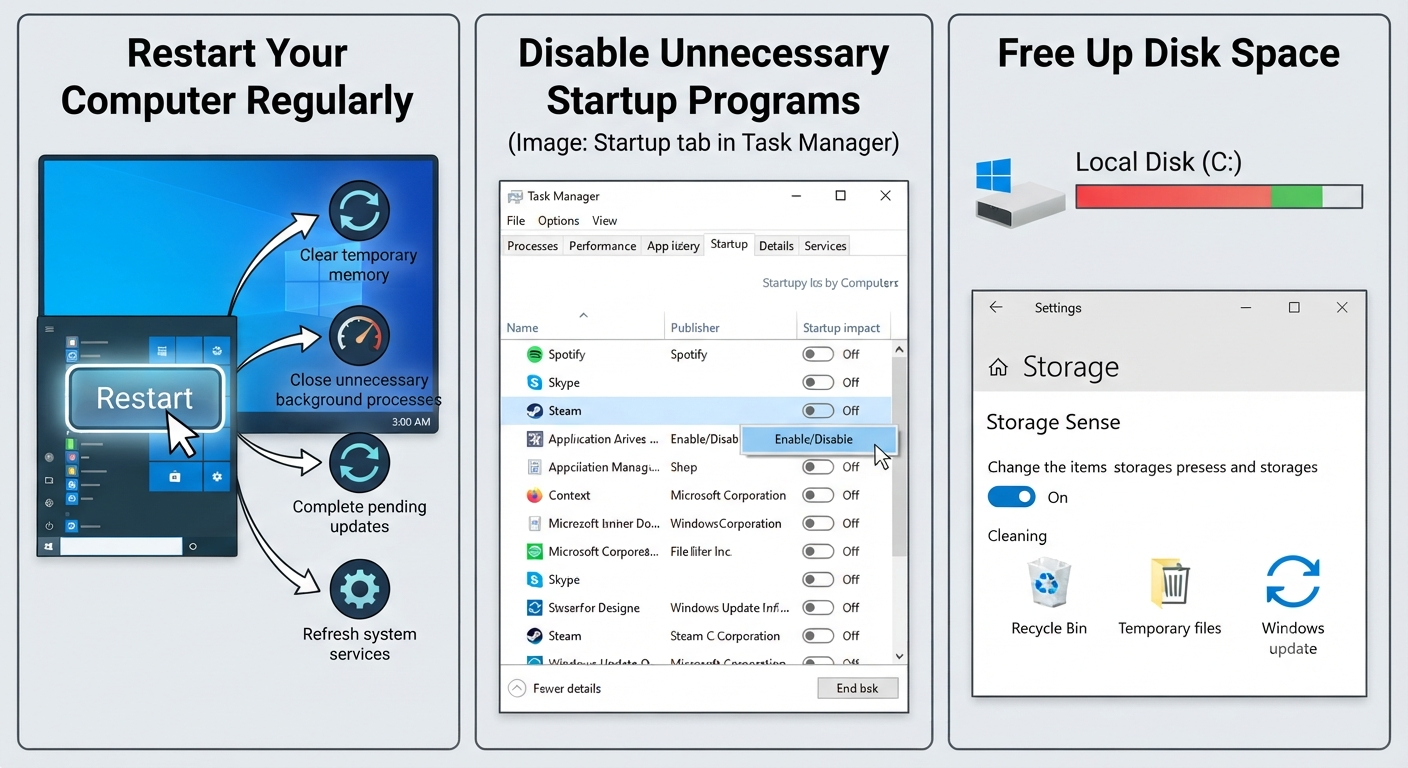
Restart Your Computer Regularly
Many users leave their computers running for days or even weeks without restarting them.
A restart helps:
- Clear temporary memory
- Close unnecessary background processes
- Complete pending updates
- Refresh system services
If your PC has become noticeably slower, restarting it should be one of the first troubleshooting steps.
Disable Unnecessary Startup Programs
Many applications automatically launch when Windows starts, increasing boot time and consuming system resources.
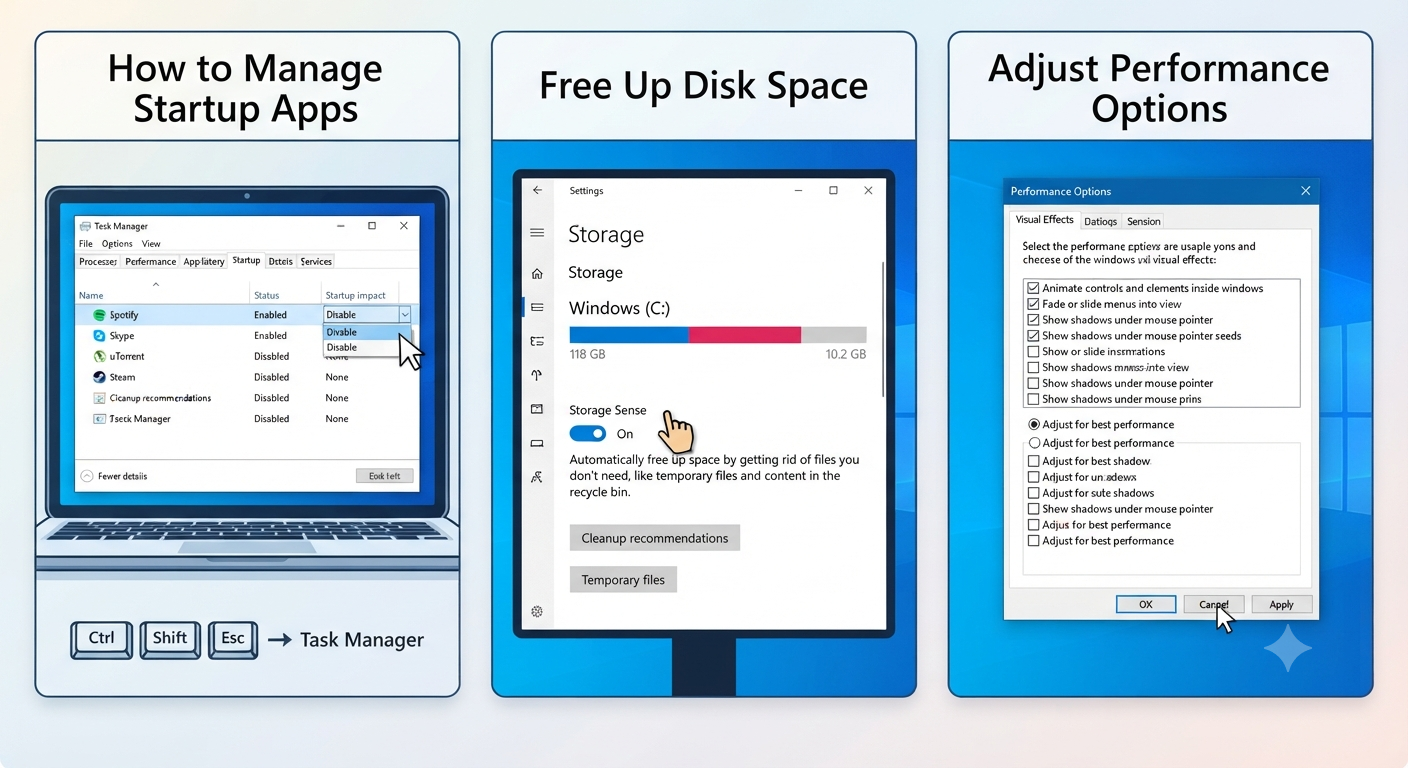
How to Manage Startup Apps
- Press:
Ctrl + Shift + Esc- Open Task Manager.
- Click the Startup tab.
- Review the list of applications.
- Disable programs you don’t need immediately after startup.
Examples of applications that commonly appear include:
- Chat applications
- Music players
- Game launchers
- Cloud storage tools
- Update utilities
Only disable programs you recognize and don’t require during startup.
Image: Startup tab in Task Manager.
Free Up Disk Space
A nearly full storage drive can reduce system performance.
Windows provides several ways to reclaim space.
Use Storage Sense
- Open Settings.
- Go to:
System > Storage
- Enable Storage Sense.
Storage Sense can automatically remove:
- Temporary files
- Recycle Bin contents
- Previous Windows installation files (when appropriate)
- Downloaded update files
This helps maintain available storage without requiring manual cleanup.
Run Disk Cleanup
Disk Cleanup removes unnecessary system files.
To use it:
- Press:
Windows + S- Search for:
Disk Cleanup- Select your system drive.
- Check the categories you want to remove.
Common options include:
- Temporary Internet Files
- Temporary files
- Recycle Bin
- Delivery Optimization files
- Thumbnails
Deleting these files can recover several gigabytes of storage on some systems.
Uninstall Programs You No Longer Use
Unused applications occupy storage space and may continue running background services.
To remove them:
- Open Settings.
- Navigate to:
Apps > Apps & Features
- Sort applications by size or installation date.
- Uninstall software you no longer need.
Removing unnecessary applications can improve both storage availability and system responsiveness.
Reduce Visual Effects
Windows includes visual animations that enhance appearance but may affect performance on older hardware.
Adjust Performance Options
- Press:
Windows + R- Type:
sysdm.cpl- Open the Advanced tab.
- Select Performance Settings.
- Choose:
Adjust for best performance
Or manually disable specific animations while keeping features you prefer.
This change is especially noticeable on older PCs with limited hardware resources.
Keep Windows Updated
Microsoft regularly releases updates that improve:
- Performance
- Stability
- Security
- Driver compatibility
To check for updates:
- Open Settings.
- Select:
Update & Security
- Click:
Check for updates
Install available updates and restart your computer if prompted.
Update Device Drivers
Outdated drivers can affect system performance.
Pay particular attention to:
- Graphics drivers
- Chipset drivers
- Storage controller drivers
- Network adapters
Whenever possible, obtain drivers from your computer or hardware manufacturer’s official website.
Scan for Malware
Malicious software often runs in the background, consuming CPU, memory, and disk resources.
Windows Security provides built-in protection.
To perform a scan:
- Open Windows Security.
- Select:
Virus & Threat Protection
- Run a Full Scan.
Removing malware can restore normal system performance.
Manage Background Apps
Some applications continue running even when you’re not actively using them.
To review background permissions:
- Open Settings.
- Navigate to:
Privacy
- Review background app permissions.
Disabling unnecessary background activity can reduce memory and CPU usage.
Optimize Your Hard Drive
If your computer uses a traditional hard disk drive (HDD), optimizing it can improve performance.
To optimize drives:
- Search for:
Defragment and Optimize Drives- Select your HDD.
- Click:
Optimize
Windows automatically performs optimization on SSDs using appropriate maintenance methods, so you don’t need to manually defragment solid-state drives.
Adjust Power Settings
Windows may prioritize energy savings over performance.
To change this:
- Open Control Panel.
- Navigate to:
Power Options
- Select:
High Performance
Or choose the best performance option available on your device.
Laptop users should note that higher-performance power plans may reduce battery life.
Close Resource-Intensive Applications
Some programs consume large amounts of system resources.
Use Task Manager to identify them.
Open:
Ctrl + Shift + EscReview:
- CPU usage
- Memory usage
- Disk activity
Close applications you no longer need.
Avoid ending unfamiliar Windows system processes.
Disable Search Indexing (If Appropriate)
Windows Search indexing improves search speed but can occasionally use system resources.
If you rarely search for files:
- Open Services.
- Locate:
Windows Search
- Modify its startup settings if appropriate.
Most users should leave indexing enabled unless troubleshooting specific performance issues.
Repair Corrupted System Files
Corrupted Windows files can affect stability and speed.
Open Command Prompt as Administrator.
Run:
sfc /scannowWindows checks and repairs protected system files automatically.
If additional repairs are required, you can also use the Deployment Image Servicing and Management (DISM) tool.
Disable Unnecessary Browser Extensions
Slow web browsing isn’t always caused by Windows itself.
Review your browser extensions.
Remove:
- Unused extensions
- Toolbars
- Shopping assistants
- Unknown add-ons
Keeping only essential extensions can improve browser performance and reduce memory usage.
Upgrade to an SSD
If your computer still uses a mechanical hard drive, replacing it with a solid-state drive (SSD) can dramatically improve performance.
Benefits include:
- Faster boot times
- Quicker application launches
- Improved file transfers
- Better overall responsiveness
For many older PCs, upgrading to an SSD provides the most noticeable performance improvement.
Add More RAM
If your computer frequently runs out of memory while multitasking, installing additional RAM may help.
More memory allows Windows to:
- Keep more applications open simultaneously
- Reduce reliance on virtual memory
- Improve responsiveness during multitasking
Before upgrading, verify your computer’s maximum supported memory and compatible RAM type.
Reset Windows 10
If your system remains slow despite troubleshooting, resetting Windows may help.
To reset:
- Open Settings.
- Go to:
Update & Security > Recovery
- Select:
Reset this PC
You can choose to keep your personal files or perform a complete reset.
Be sure to back up important data before proceeding.
Best Practices for Maintaining Performance
To keep Windows 10 running smoothly:
- Restart your PC regularly.
- Keep Windows updated.
- Enable Storage Sense.
- Uninstall unused software.
- Scan for malware periodically.
- Avoid installing unnecessary startup applications.
- Maintain adequate free storage space.
- Keep drivers current.
- Back up important files regularly.
Routine maintenance helps prevent many common performance issues.
Frequently Asked Questions
Why is my Windows 10 computer so slow?
Slow performance can result from several factors, including too many startup applications, insufficient storage space, outdated drivers, malware, limited RAM, or aging hardware. Identifying the primary cause is the first step toward improving performance.
Does disabling startup programs make Windows boot faster?
Yes. Reducing the number of applications that launch automatically during startup can shorten boot times and free up system resources for other tasks.
Should I defragment my SSD?
No. Traditional defragmentation is not recommended for SSDs. Windows automatically performs the appropriate optimization for solid-state drives through the Optimize Drives tool.
How much free disk space should I keep available?
While the exact amount depends on your system, maintaining at least 10–20% free space on your primary drive helps Windows perform updates, manage virtual memory, and operate more efficiently.
Is upgrading to an SSD worth it?
For computers that still use mechanical hard drives, upgrading to an SSD is often one of the most effective ways to improve overall performance. Boot times, application loading, and file access speeds can all improve significantly.
Conclusion
A slow Windows 10 computer doesn’t necessarily mean it’s time to replace your PC. By disabling unnecessary startup programs, freeing up disk space, updating Windows and drivers, scanning for malware, optimizing storage, and adjusting performance settings, you can often restore much of your computer’s original speed.