


The Ultimate Microsoft PowerPoint Cheat Sheet
Microsoft PowerPoint is one of the most popular presentation tools in the world, used by students, educators, business professionals, and organizations to create engaging slide presentations. While most users know the basics of adding text and images, PowerPoint includes hundreds of features that can help you design professional presentations faster and present with greater confidence.
This Microsoft Office PowerPoint Cheat Sheet brings together essential shortcuts, productivity tips, formatting techniques, presentation tools, and best practices in one convenient guide. Whether you’re preparing a business proposal, a classroom lecture, or a conference presentation, these tips will help you work more efficiently and create polished slides.
Getting Started with Microsoft PowerPoint
PowerPoint is available as part of Microsoft 365 and as a standalone application for both Windows and macOS.
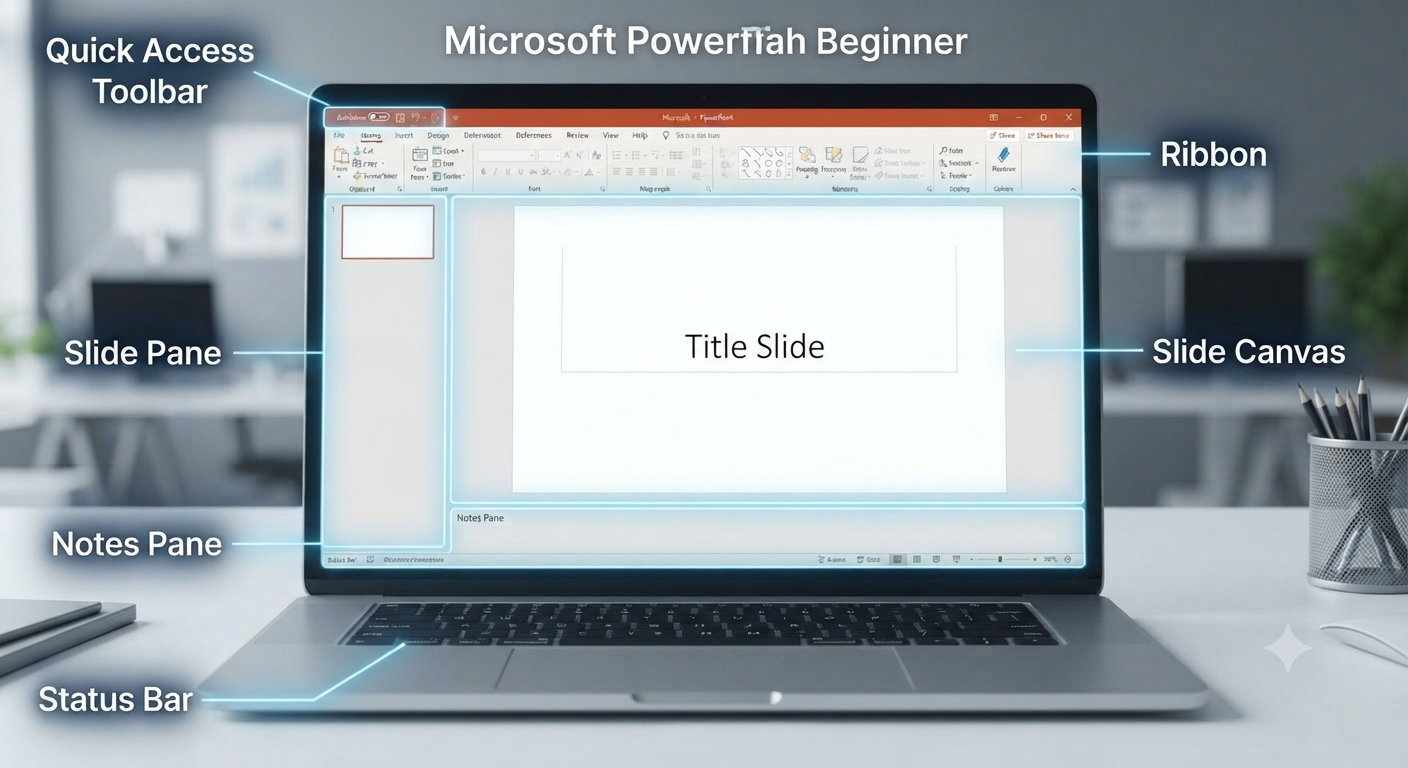
The main interface consists of several key areas:
- Ribbon
- Slide Pane
- Slide Canvas
- Notes Pane
- Status Bar
- Quick Access Toolbar
Understanding the layout makes it easier to locate the tools you need while creating presentations.
PowerPoint Ribbon Tabs Explained
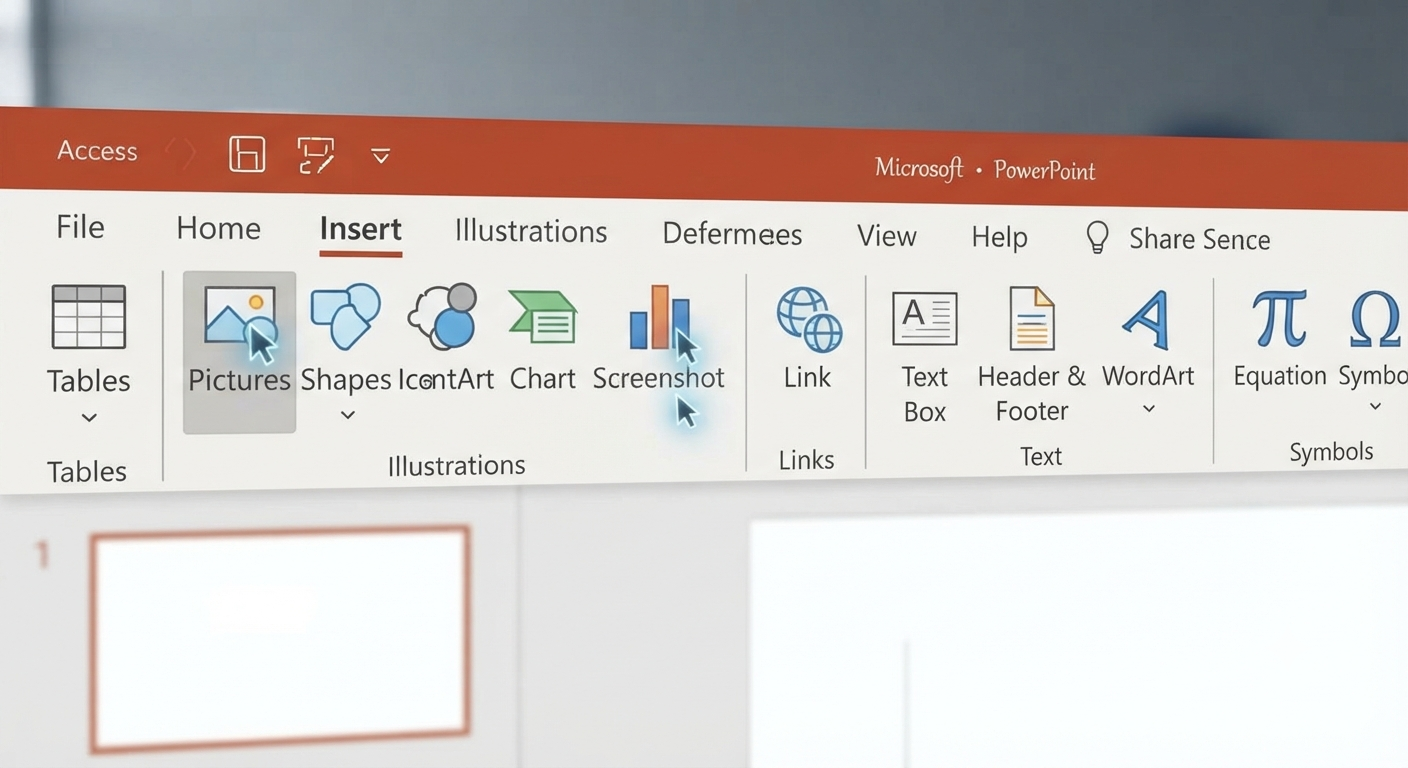
The Ribbon organizes commands into logical categories.
Home
Contains commonly used tools such as:
- Copy
- Paste
- Font formatting
- Paragraph alignment
- New Slide
- Layout
- Drawing tools
Insert
Use this tab to add:
- Pictures
- Icons
- Shapes
- Charts
- Tables
- Videos
- Audio
- SmartArt
- Text Boxes
Design
Customize the appearance of your presentation with:
- Themes
- Variants
- Background formatting
- Slide size
Transitions
Apply animations that control how slides change during a presentation.
Animations
Animate objects within a slide, including:
- Text
- Images
- Charts
- Shapes
Slide Show
Manage presentation settings such as:
- Presenter View
- Rehearse Timings
- Record Slide Show
- Set Up Slide Show
Review
Useful collaboration features include:
- Spell Check
- Comments
- Translate
- Accessibility Checker
View
Switch between different workspace layouts, including:
- Normal
- Slide Sorter
- Reading View
- Notes Page
- Master Views
Essential PowerPoint Keyboard Shortcuts
Learning keyboard shortcuts can greatly improve your productivity.
| Shortcut | Function |
|---|---|
| Ctrl + N | New presentation |
| Ctrl + O | Open presentation |
| Ctrl + S | Save |
| Ctrl + P | |
| Ctrl + M | New slide |
| Ctrl + D | Duplicate selected object or slide |
| Ctrl + Z | Undo |
| Ctrl + Y | Redo |
| Ctrl + X | Cut |
| Ctrl + C | Copy |
| Ctrl + V | Paste |
| Ctrl + A | Select all |
| Ctrl + K | Insert hyperlink |
| F5 | Start slide show from beginning |
| Shift + F5 | Start slide show from current slide |
| Esc | Exit slide show |
| B | Display a black screen during presentation |
| W | Display a white screen during presentation |
These shortcuts can significantly speed up slide creation and delivery.
Choose the Right Theme
PowerPoint includes professionally designed themes that provide consistent formatting.
To apply one:
- Open the Design tab.
- Browse available themes.
- Select the one that best matches your presentation.
Using a theme ensures consistency in:
- Fonts
- Colors
- Backgrounds
- Layouts
Avoid switching themes midway through a presentation unless absolutely necessary.
Use Slide Layouts Instead of Manual Formatting
Each new slide can use a predefined layout.
Examples include:
- Title Slide
- Title and Content
- Two Content
- Comparison
- Blank
- Section Header
Using layouts helps maintain visual consistency throughout the presentation.
Master Slide for Consistent Design
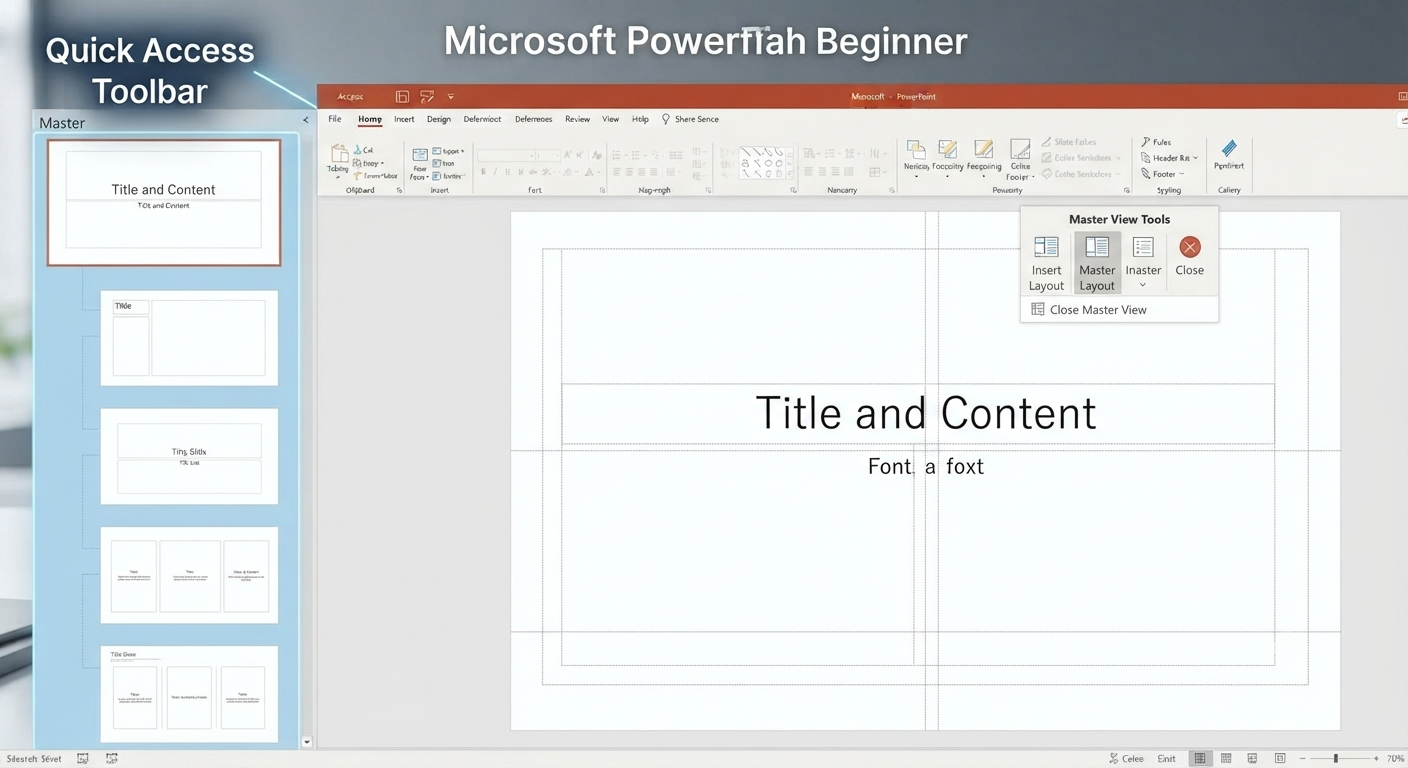
The Slide Master allows you to apply global formatting changes.
Open it by selecting:
View > Slide Master
From there you can modify:
- Fonts
- Logos
- Headers
- Footers
- Colors
- Background graphics
Changes made in the Slide Master automatically apply to related slides.
Image: PowerPoint Slide Master.
Insert High-Quality Images
Images make presentations more engaging.
To insert an image:
- Open the Insert tab.
- Click Pictures.
- Choose an image from your computer or online source.
Use high-resolution images to maintain a professional appearance, especially when presenting on large displays.
Use Icons and Illustrations
PowerPoint includes a large collection of built-in icons.
They are useful for:
- Business presentations
- Infographics
- Process diagrams
- Timelines
Icons are scalable without losing quality.
Create Smart Diagrams with SmartArt
Instead of drawing diagrams manually, use SmartArt.
Popular SmartArt layouts include:
- Process
- Cycle
- Hierarchy
- Relationship
- Pyramid
- Matrix
These diagrams automatically adjust as you add content.
Use Charts for Data Visualization
Charts help present complex information clearly.
PowerPoint supports:
- Column charts
- Bar charts
- Pie charts
- Line charts
- Area charts
- Scatter plots
Charts can be linked to Excel for easier updates.
Apply Animations Sparingly
Animations can improve engagement when used thoughtfully.
Common animation effects include:
- Appear
- Fade
- Fly In
- Zoom
- Wipe
Avoid excessive animations, as they can distract your audience from the main message.
Use Slide Transitions Wisely
Transitions control how slides change during a presentation.
Popular options include:
- Fade
- Push
- Wipe
- Morph
- Split
A consistent transition style generally creates a smoother viewing experience.
Take Advantage of Presenter View
Presenter View displays useful information visible only to the presenter.
It includes:
- Current slide
- Next slide
- Speaker notes
- Presentation timer
- Navigation controls
This feature is especially valuable when presenting with multiple displays.
Use Speaker Notes
Speaker Notes allow you to include reminders without displaying them to your audience.
To add notes:
- Open the Notes pane beneath the slide.
- Enter your speaking points.
- Use Presenter View during your presentation.
Notes help keep your delivery organized without overcrowding your slides.
Record Your Presentation
PowerPoint allows you to record:
- Narration
- Laser pointer movements
- Timings
- Ink annotations
To record:
- Open the Record tab or Slide Show tab (depending on your version).
- Select Record.
- Present your slides as usual.
- Save the recording.
This feature is useful for online courses, webinars, and remote presentations.
Collaborate with Team Members
PowerPoint supports real-time collaboration through Microsoft 365.
Features include:
- Simultaneous editing
- Comments
- Version history
- Cloud synchronization
Save presentations to OneDrive or SharePoint before sharing them.
Compress Images
Large images can significantly increase file size.
To reduce file size:
- Select an image.
- Open Picture Format.
- Click Compress Pictures.
- Choose the desired resolution.
Smaller files are easier to share and load faster during presentations.
Use Accessibility Checker
PowerPoint includes an Accessibility Checker that helps make presentations more inclusive.
It identifies issues such as:
- Missing alt text
- Poor reading order
- Low color contrast
Run the checker before sharing presentations publicly.
Export Your Presentation
PowerPoint supports multiple export formats.
Common options include:
- Video (MP4)
- PowerPoint Show (PPSX)
- Images
- Outline
Exporting to PDF is useful when recipients only need to view the presentation.
Common Presentation Mistakes
Avoid these common issues:
- Overcrowded slides
- Tiny fonts
- Too many colors
- Excessive animations
- Poor image quality
- Reading slides word-for-word
- Inconsistent formatting
A clean and simple presentation is generally more effective than one filled with unnecessary visual effects.
Best Practices for Professional Presentations
Follow these guidelines to create engaging presentations:
- Keep text concise.
- Use high-quality visuals.
- Maintain consistent fonts and colors.
- Limit each slide to one main idea.
- Use bullet points instead of long paragraphs.
- Practice your presentation before delivering it.
- Use Presenter View when available.
- Back up your presentation to OneDrive or another cloud storage service.
These practices improve both the visual quality and clarity of your presentation.
Frequently Asked Questions
What is the best font size for PowerPoint presentations?
For most presentations, use at least 24-point font for body text and 32-point or larger for slide titles. Larger fonts improve readability, especially for audiences seated farther away.
How can I make my presentation more engaging?
Use a combination of clear visuals, concise text, relevant charts, and simple animations. Focus on supporting your spoken presentation rather than placing all information on the slides.
Can multiple people edit a PowerPoint presentation at the same time?
Yes. If the presentation is stored in OneDrive or SharePoint, multiple users can collaborate in real time using Microsoft 365.
How do I reduce the size of a PowerPoint file?
Compress images, remove unused media, embed only necessary fonts, and delete hidden or duplicate slides. Saving the presentation in the latest PowerPoint format can also help reduce file size.
What is Presenter View used for?
Presenter View allows the speaker to see notes, upcoming slides, a timer, and navigation controls on one screen while the audience sees only the presentation. It is especially useful when using two monitors or a projector.
Conclusion
Microsoft PowerPoint is much more than a simple slide creation tool. With features such as Slide Master, SmartArt, Presenter View, real-time collaboration, and a wide range of keyboard shortcuts, it provides everything needed to create professional and engaging presentations.