


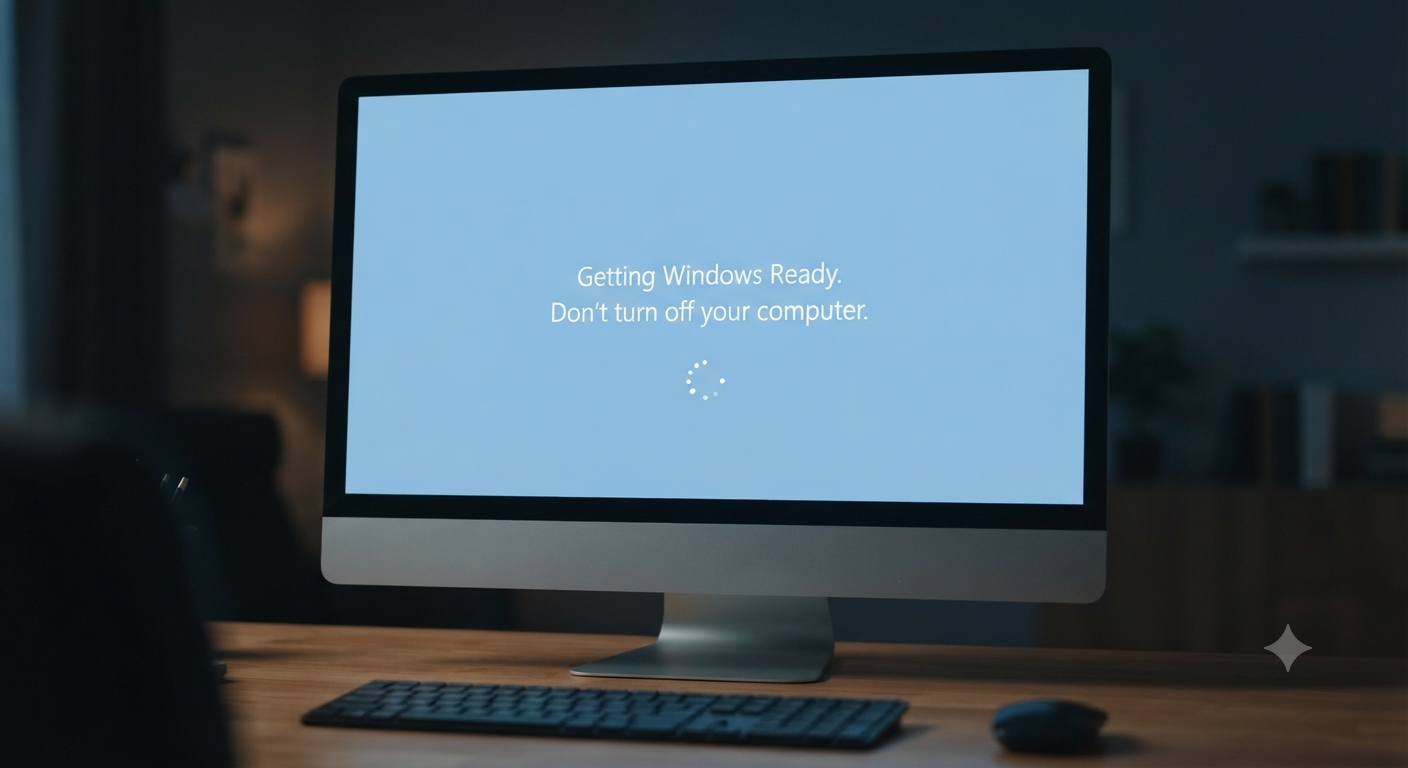
How to Resolve the “Getting Windows Ready” Stuck Screen
Seeing the message “Getting Windows Ready. Don’t turn off your computer” for an extended period can be alarming. This screen typically appears after installing Windows updates or making significant system changes. While it often disappears on its own, the process can sometimes become stuck, preventing you from accessing your desktop.
Fortunately, in most cases, the issue can be resolved without reinstalling Windows. This guide explains the common causes of a “Getting Windows Ready” freeze and provides step-by-step solutions for Windows 10 and Windows 11.
Why Does Windows Get Stuck on “Getting Windows Ready”?
This message appears while Windows configures updates and finalizes system changes. The process may hang because of:
- Corrupted update files
- Interrupted updates
- Insufficient disk space
- Damaged system files
- Driver conflicts
- Disk errors or hardware issues
Identifying the cause helps you choose the most effective fix.
Wait a Reasonable Amount of Time
Before attempting any repairs, allow Windows sufficient time to complete the update. Large feature updates can take an hour or more, especially on older computers with traditional hard drives.
If there is no disk activity or progress after several hours, proceed with troubleshooting.
Disconnect External Devices
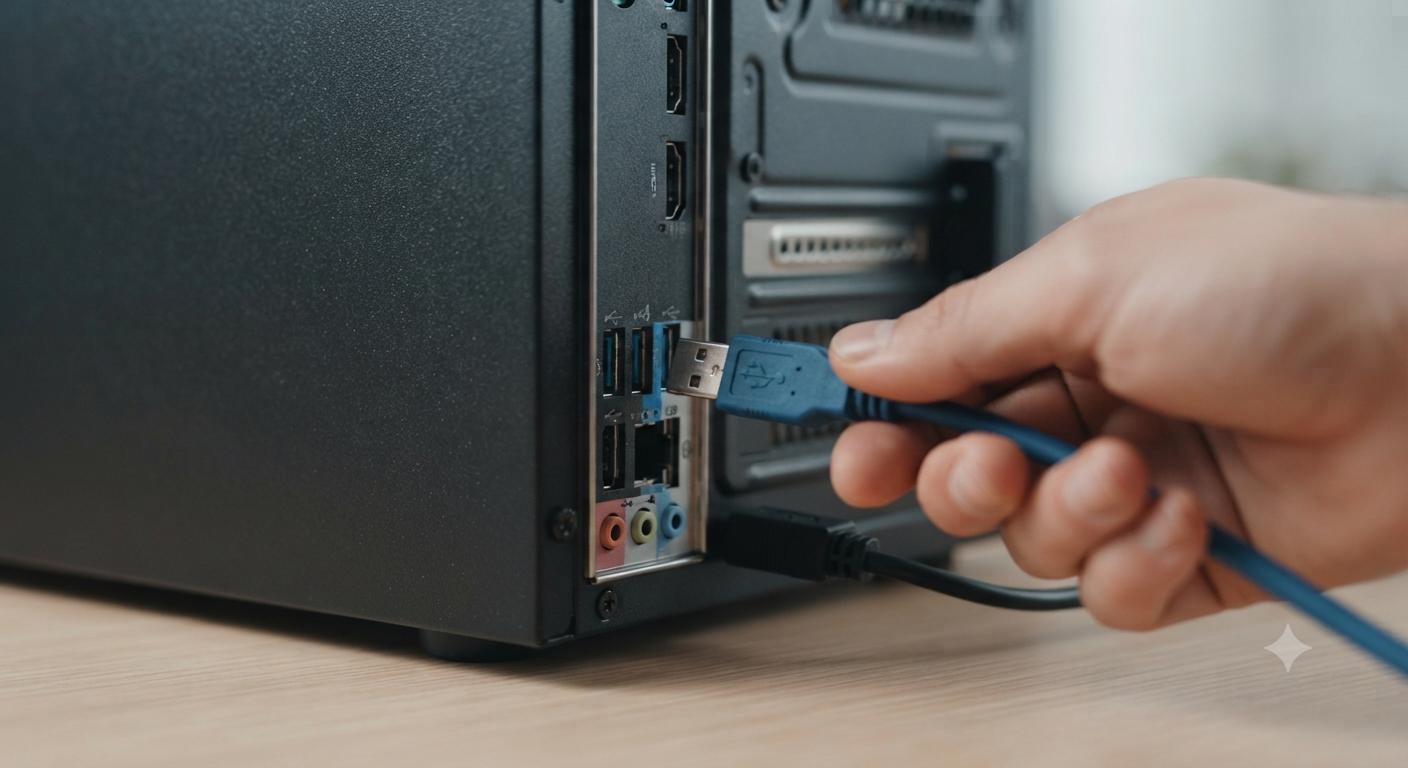
Unplug unnecessary peripherals such as:
- USB drives
- Printers
- External hard disks
- Card readers
Restart the computer afterward. Faulty devices can occasionally interfere with the startup process.
Perform a Hard Restart
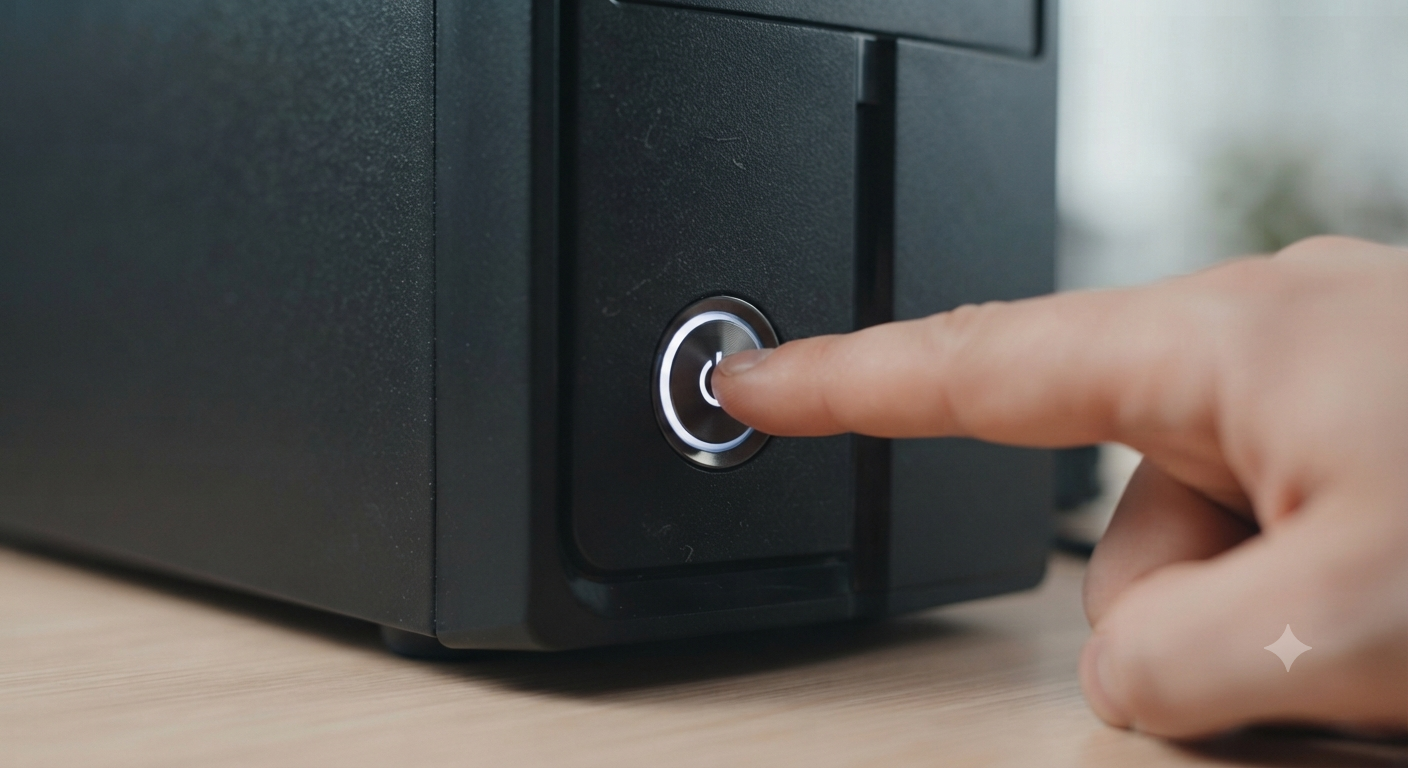
If the system remains unresponsive:
- Hold the power button until the computer shuts down.
- Wait a few seconds.
- Turn the PC back on.
Windows may automatically attempt to repair startup issues.
Boot into Safe Mode
Safe Mode starts Windows with only essential drivers and services.
To access it:
- Interrupt the boot process several times to enter the Windows Recovery Environment.
- Navigate to Troubleshoot > Advanced Options > Startup Settings.
- Restart and select Safe Mode.
If Windows starts successfully, uninstall recently added drivers or software that may be causing the issue.
Run Startup Repair
From the Windows Recovery Environment:
- Select Troubleshoot.
- Choose Advanced Options.
- Click Startup Repair.
Windows will scan for and attempt to fix startup-related problems automatically.
Image: Windows Startup Repair screen.
Uninstall Recent Updates
A problematic update may be responsible.
In the Recovery Environment:
- Open Advanced Options.
- Select Uninstall Updates.
- Remove the most recent quality or feature update.
Restart the computer and check whether the issue is resolved.
Run System File Checker
If you can access Safe Mode or Command Prompt, run:
sfc /scannowThis tool repairs corrupted system files that may prevent Windows from finishing the update process.
You can also run:
DISM /Online /Cleanup-Image /RestoreHealthto repair the Windows image.
Check the Hard Drive for Errors
Disk corruption can interrupt updates.
Run the following command:
chkdsk C: /f /rAllow the scan to complete and repair any detected issues.
Free Up Disk Space
Windows updates require free storage space. If your system drive is nearly full, delete unnecessary files or use Disk Cleanup once you regain access to Windows.
Maintaining adequate free space helps prevent future update failures.
Use System Restore
If you previously created a restore point:
- Open the Recovery Environment.
- Select System Restore.
- Choose a restore point created before the problem began.
This can revert system changes without affecting personal files.
Reset Windows as a Last Resort
If none of the above solutions work, use Reset this PC from the Recovery Environment. Choose the option to keep your personal files whenever possible.
A reset reinstalls Windows and often resolves persistent startup problems.
Prevent Future Update Issues
To reduce the likelihood of seeing the “Getting Windows Ready” screen indefinitely:
- Keep device drivers updated.
- Maintain sufficient free disk space.
- Avoid forcing shutdowns during updates.
- Run regular malware scans.
- Back up important data frequently.
These habits contribute to a more stable Windows experience.
Frequently Asked Questions
How long should “Getting Windows Ready” take?
The process usually finishes within a few minutes, but major updates may require an hour or more on slower systems.
Can I turn off my computer during this screen?
It is best to wait. Forcefully shutting down the PC during updates can cause file corruption or incomplete installations.
Will I lose my files if I reset Windows?
Using the Keep my files option preserves personal data, though installed applications may need to be reinstalled.
Is a stuck update a sign of hardware failure?
Not necessarily. While hardware issues can contribute, software corruption and update problems are much more common causes.
Conclusion
A computer stuck on the “Getting Windows Ready” screen can be frustrating, but it is often fixable with patience and the right troubleshooting steps. By waiting for updates to complete, disconnecting peripherals, using Windows recovery tools, and repairing system files, you can usually restore normal operation without losing your data.