


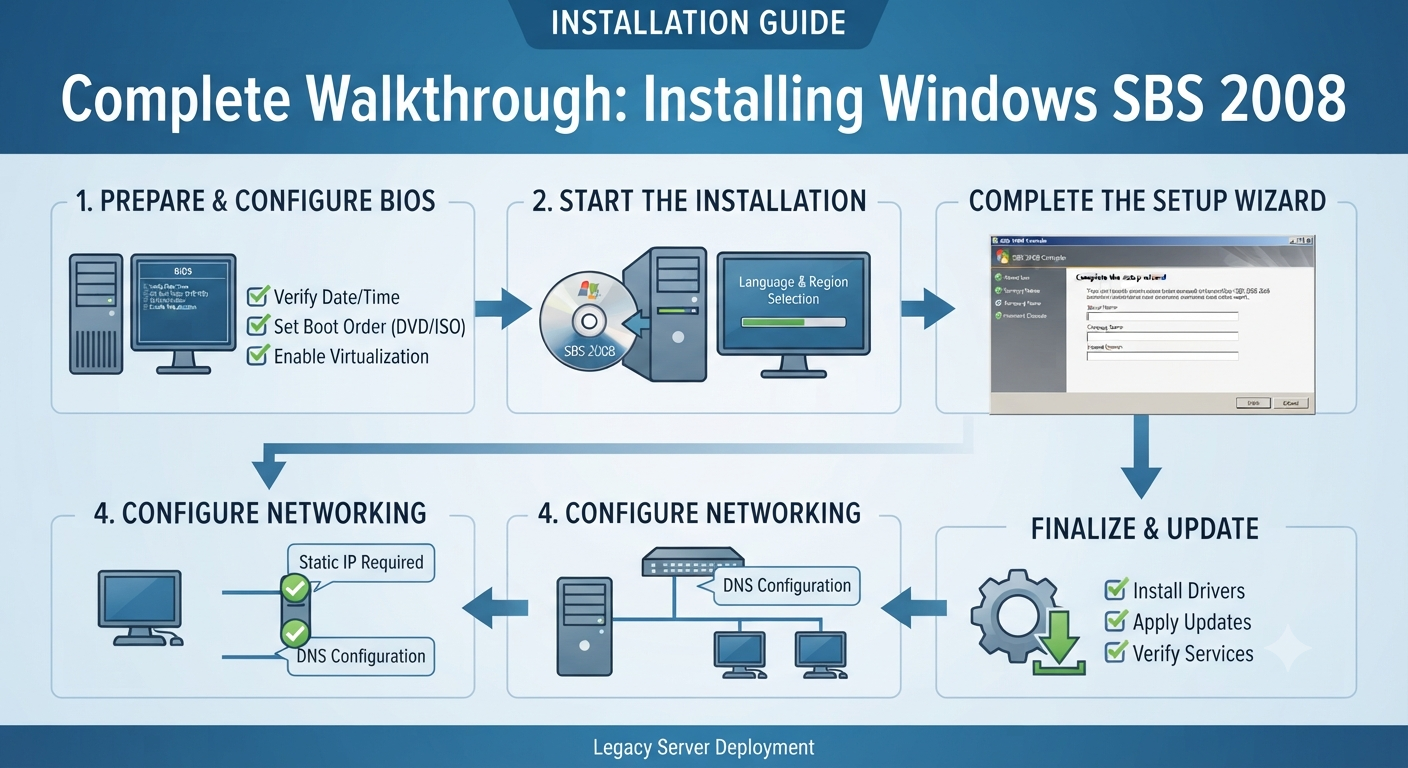
Installing Windows SBS 2008: A Complete Walkthrough
Windows Small Business Server (SBS) 2008 was designed to provide small organizations with an all-in-one server solution that combined Active Directory, file sharing, email, and security features in a single package. Although the product has reached the end of its support lifecycle, many businesses still maintain SBS 2008 systems in isolated or legacy environments. Understanding the installation process remains valuable for administrators tasked with supporting these older deployments.
This guide walks you through the key steps for installing Windows Small Business Server 2008 and highlights important considerations for maintaining a stable and secure setup.
Understanding SBS 2008
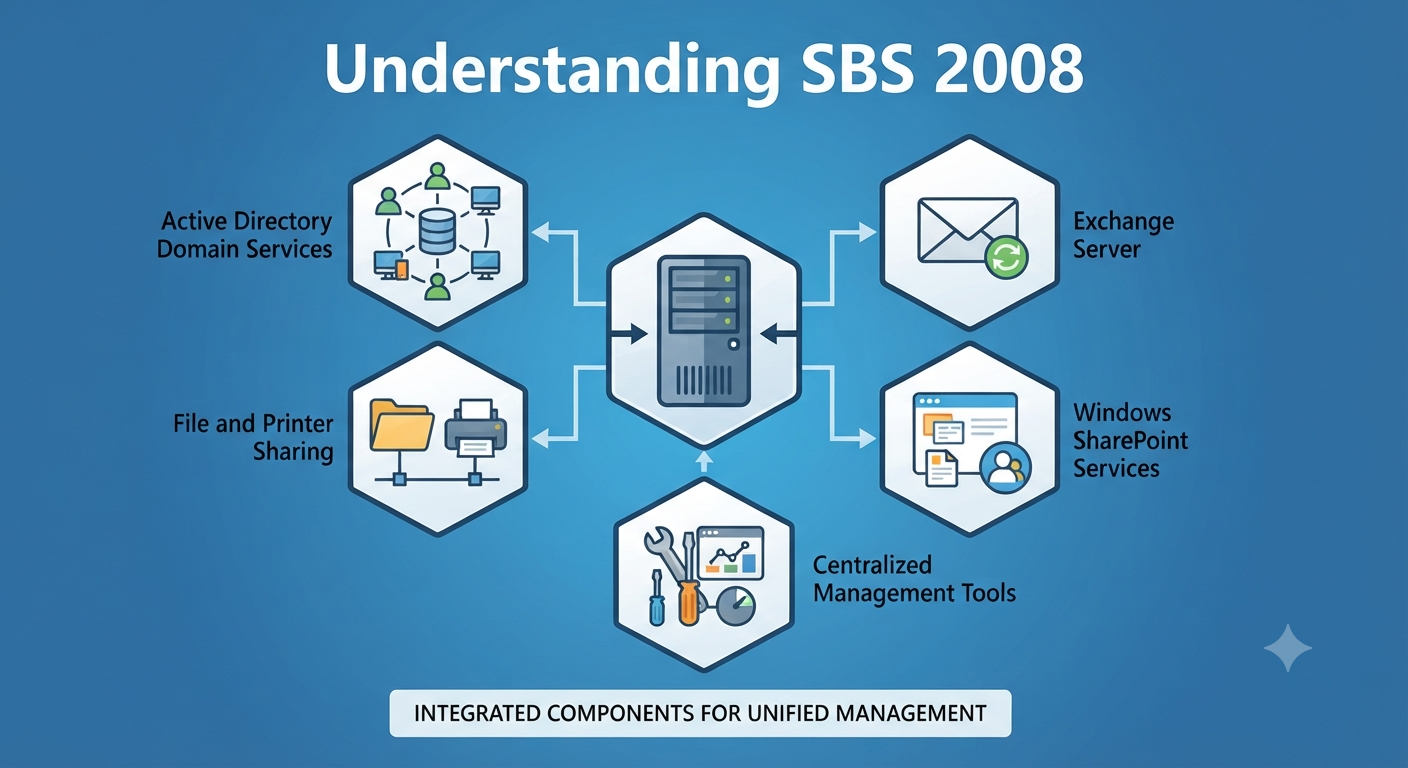
SBS 2008 is built on Windows Server 2008 and integrates several Microsoft technologies into a unified management experience. Depending on the edition, it may include components such as:
- Active Directory Domain Services
- Exchange Server
- Windows SharePoint Services
- File and printer sharing
- Centralized backup and management tools
Because these services are tightly integrated, careful planning is essential before installation.
Review System Requirements
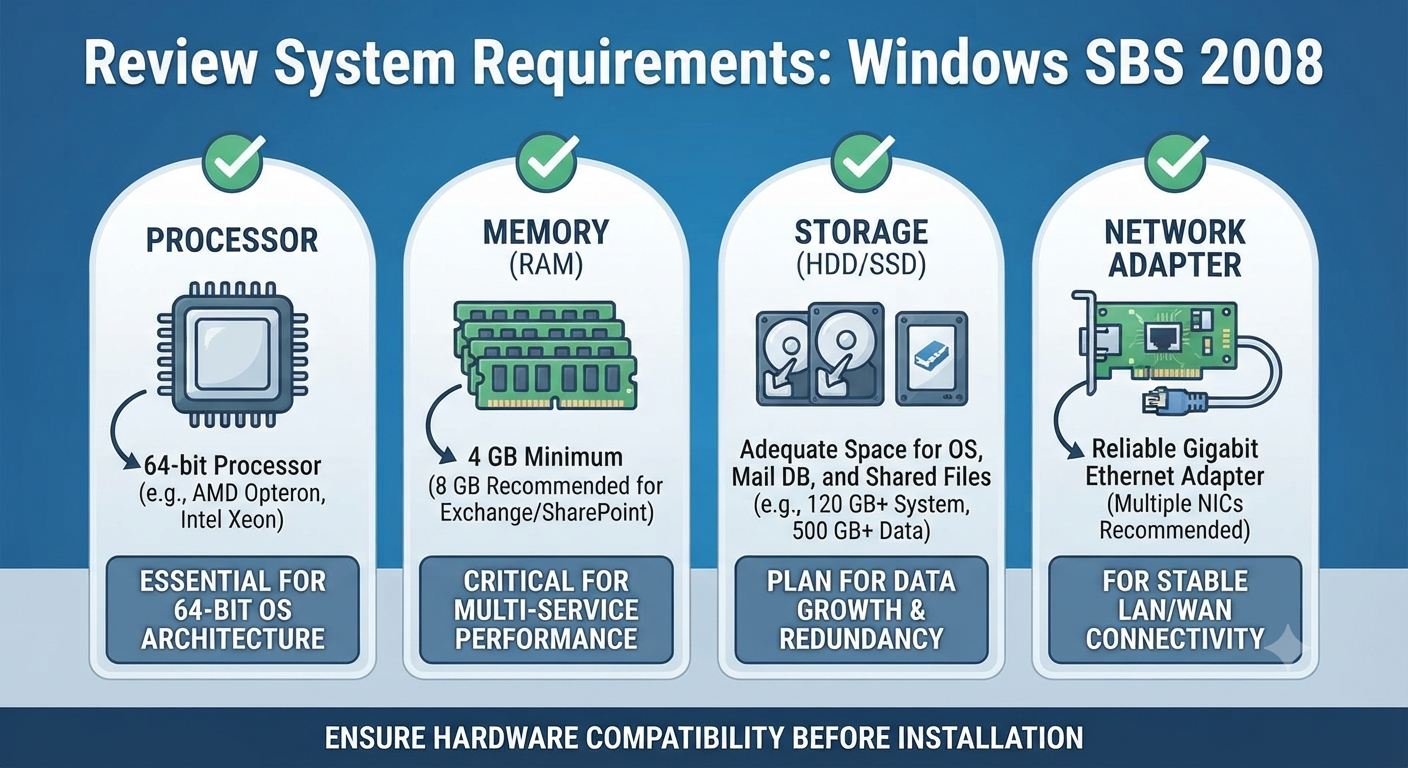
Before you begin, verify that your hardware meets or exceeds the recommended specifications. Typical requirements include:
- A 64-bit processor
- At least 4 GB of RAM, with more recommended
- Adequate storage for the operating system, mail databases, and shared files
- One or more reliable network adapters
Using modern storage devices and ample memory can significantly improve performance in legacy environments.
Prepare for Installation
Prior to installing SBS 2008:
- Back up any important data from existing systems.
- Gather installation media and product keys.
- Download storage and network drivers if needed.
- Decide on a server name and internal domain name.
Planning these details in advance helps ensure a smooth deployment.
Configure the Server BIOS
Enter the server’s BIOS or firmware settings and:
- Verify the date and time.
- Configure the boot order to prioritize the installation media.
- Enable hardware virtualization if required.
Save the changes and restart the server.
Start the Installation
Insert the SBS 2008 DVD or mount the ISO image and boot from it.
You will be prompted to:
- Choose your language and regional settings.
- Begin the installation process.
- Accept the license agreement.
- Select the target disk or partition.
The setup program will copy files and reboot the system automatically.
Image: Windows SBS 2008 setup screen.
Complete the Setup Wizard
After the initial installation, the SBS Setup Wizard will guide you through:
- Creating the administrator account
- Naming the server
- Configuring the internal domain
- Setting time zone information
Take care when choosing the domain name, as changing it later is difficult.
Configure Networking
Assign a static IP address to the server and ensure that DNS points to the SBS server itself. Proper network configuration is critical because Active Directory and Exchange depend on accurate DNS settings.
Install Drivers and Updates
Once the server is operational:
- Install any missing hardware drivers.
- Apply the latest available updates.
- Verify that all devices are functioning correctly.
Even though SBS 2008 is no longer supported, applying the final available updates can improve stability.
Set Up Users and Shared Resources
Use the SBS Console to create user accounts, define permissions, and establish shared folders. Implementing a logical folder structure from the outset simplifies future administration.
Configure Backups
Backups are essential for any server environment, especially for unsupported systems. Set up regular automated backups and periodically test your recovery process.
Security Best Practices
Because SBS 2008 is out of support:
- Limit its exposure to the internet.
- Use strong passwords and a firewall.
- Isolate the server when possible.
- Develop a migration plan to a supported platform.
These measures help reduce the risks associated with legacy software.
Common Installation Issues
You may encounter:
- Missing storage drivers
- DNS misconfiguration
- Insufficient disk space
- Faulty installation media
Careful preparation and compatibility checks can prevent most of these problems.
Maintaining a Legacy SBS 2008 Environment
To keep the system reliable:
- Document all configuration changes.
- Monitor server health regularly.
- Maintain spare hardware where feasible.
- Practice disaster recovery procedures.
A proactive approach can extend the useful life of a legacy deployment.
Frequently Asked Questions
Is SBS 2008 still supported?
No. Microsoft has ended support for SBS 2008, and it no longer receives security updates.
Can I use SBS 2008 for a new deployment?
It is not recommended. Modern, supported server platforms provide significantly better security and functionality.
Do I need a static IP address?
Yes. A static IP address is strongly recommended for proper operation of Active Directory and related services.
Can I upgrade directly from SBS 2008 to a current Windows Server version?
No direct in-place upgrade path exists. A migration to a new environment is typically required.
Conclusion
Installing Windows Small Business Server 2008 requires careful planning, appropriate hardware, and attention to network configuration. Although the platform is now a legacy product, understanding its installation and maintenance remains important for administrators responsible for older environments. By following best practices and planning for future migration, you can maintain a stable SBS 2008 deployment while preparing for a transition to a supported server solution.