


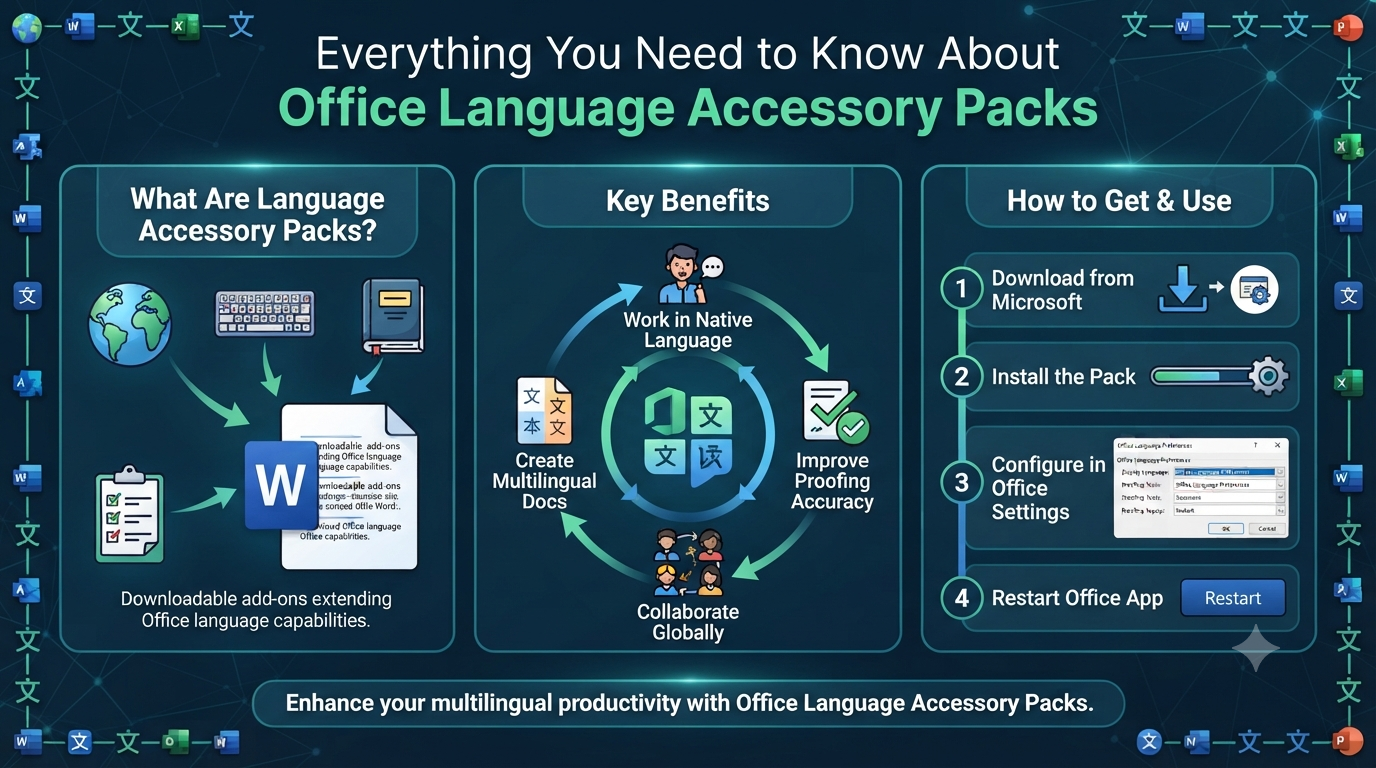
Everything You Need to Know About Office Language Accessory Packs
Microsoft Office is used by millions of people around the world, making multilingual support an essential feature of the productivity suite. To help users work comfortably in their preferred languages, Microsoft offers Language Accessory Packs. These packs allow you to change the display language of Office applications, add proofing tools, and improve the overall user experience in multilingual environments.
Whether you are a student, professional, or business owner, understanding how Microsoft Office Language Accessory Packs work can help you customize Office to suit your linguistic needs and collaborate more effectively with others.
What Are Language Accessory Packs?
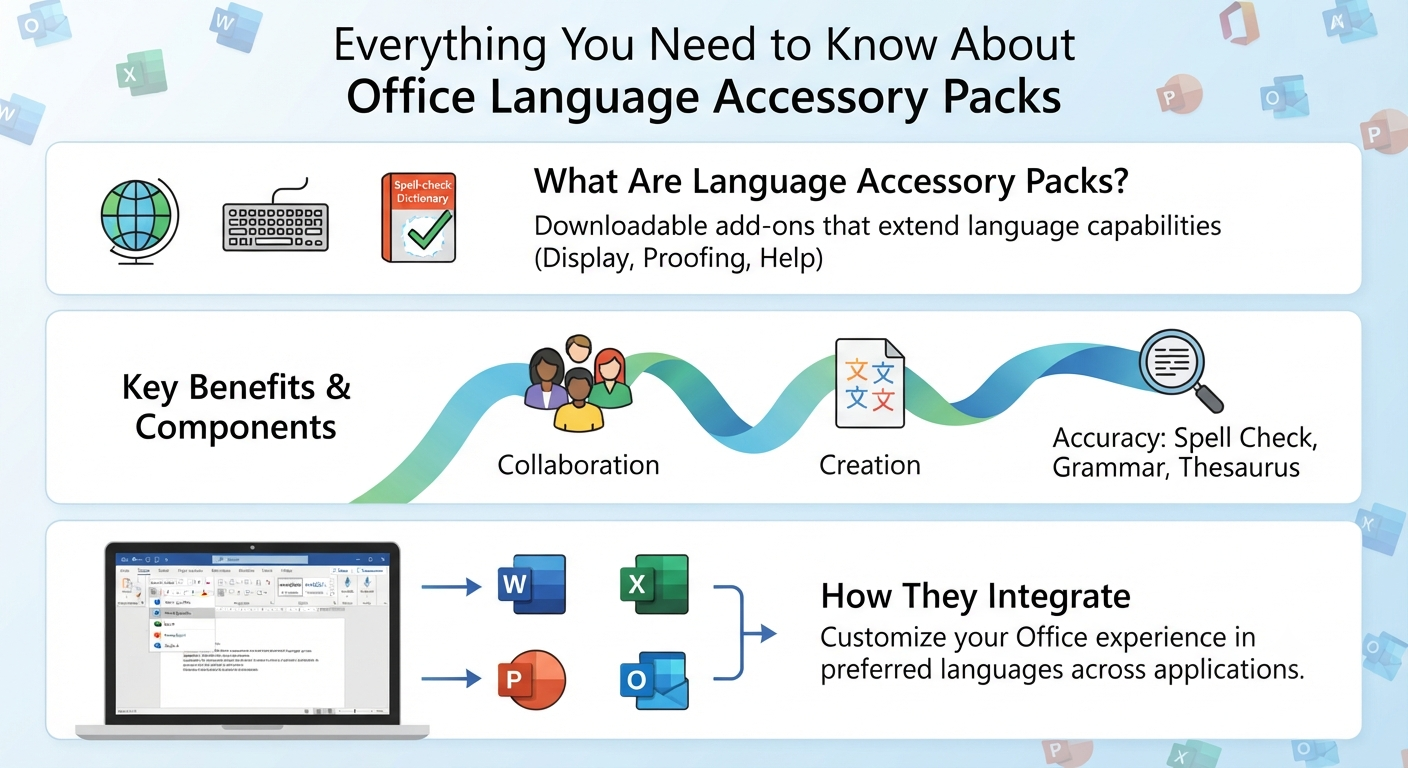
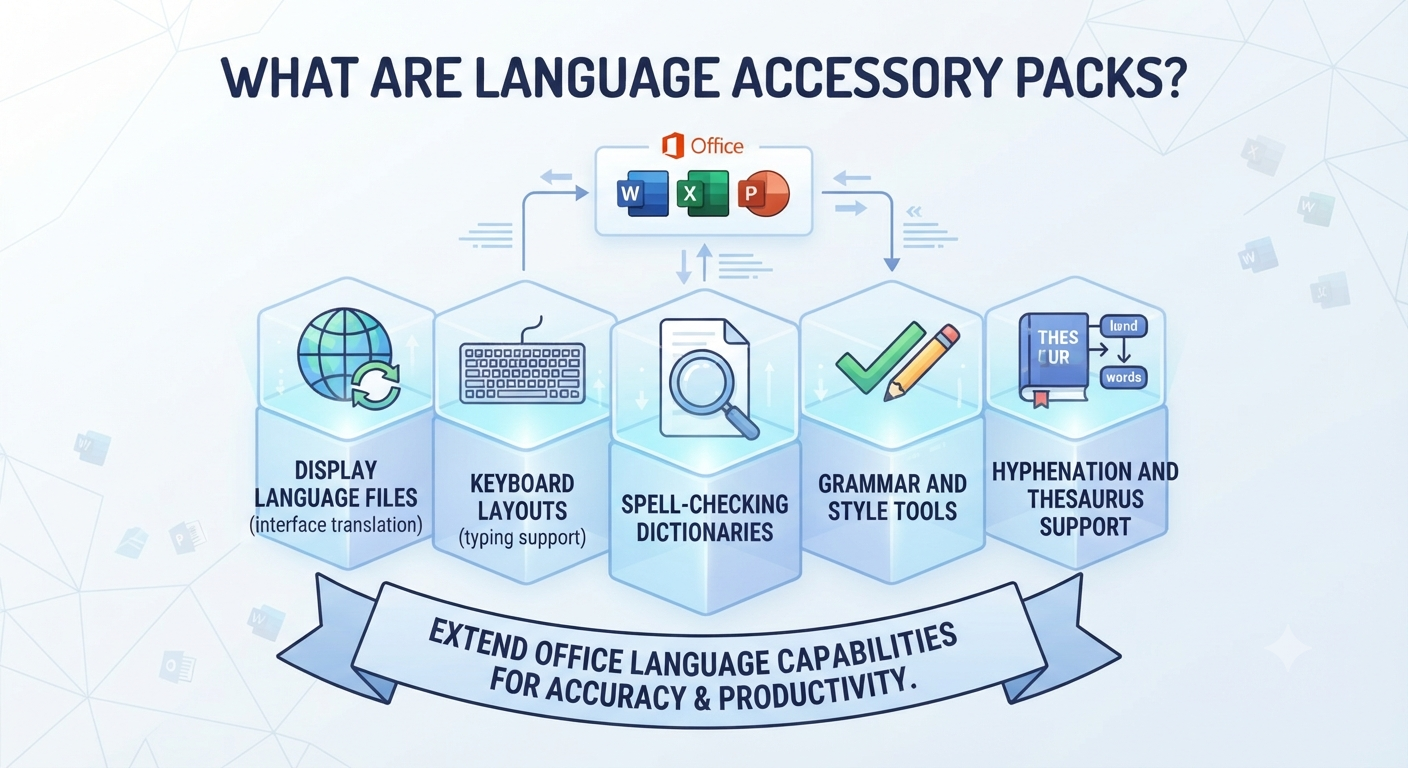
Language Accessory Packs are downloadable add-ons that extend the language capabilities of Microsoft Office. Depending on the language and Office version, a pack may include:
- Display language files
- Keyboard layouts
- Spell-checking dictionaries
- Grammar and style tools
- Hyphenation and thesaurus support
These components allow users to create and edit documents in multiple languages with greater accuracy.
Why Use a Language Accessory Pack?
Installing a language pack offers several advantages:
- Work in your native language
- Improve spelling and grammar accuracy
- Collaborate with international teams
- Create multilingual documents more efficiently
- Enhance accessibility for non-native English speakers
For organizations with a diverse workforce, language support can significantly improve productivity.
Supported Office Applications
Language Accessory Packs integrate with many Office applications, including:
- Microsoft Word
- Excel
- PowerPoint
- Outlook
- OneNote
The exact features available may vary depending on the language and the Office version you use.
How to Install a Language Accessory Pack
The installation process is straightforward:
- Visit Microsoft’s official Office language download page.
- Select the language you want to add.
- Download the appropriate package for your version of Office.
- Run the installer and restart Office applications if prompted.
After installation, the new language options become available within Office settings.
Image: Office language preferences window.
Change the Display Language
To switch the Office interface to another language:
- Open any Office application.
- Go to File > Options > Language.
- Choose the desired display language.
- Set it as the default and restart the application.
The menus, ribbons, and dialog boxes will appear in the selected language.
Use Proofing Tools
Proofing tools help ensure that documents are accurate and professional.
They provide:
- Spell checking
- Grammar suggestions
- AutoCorrect entries
- Thesaurus support
These features are particularly valuable when writing in a second language.
Benefits for Businesses and Schools
Educational institutions and businesses often rely on Language Accessory Packs to support multilingual users. Employees and students can work in the language they understand best, reducing errors and improving communication.
Troubleshooting Common Issues
If a language does not appear after installation:
- Verify that the pack matches your Office version.
- Restart your computer.
- Ensure that the installation completed successfully.
- Check for Office updates.
Most language-related issues can be resolved through these basic steps.
Limitations to Consider
Not all languages include the same features. Some may offer only proofing tools, while others provide a complete translated interface.
Review the available features before downloading a pack to ensure it meets your needs.
Keeping Language Packs Updated
Language packs receive updates alongside Microsoft Office. Enabling automatic updates ensures that you have the latest corrections, security patches, and compatibility improvements.
Frequently Asked Questions
Are Language Accessory Packs free?
Yes. Microsoft generally provides them at no additional cost for supported versions of Office.
Can I install multiple language packs?
Absolutely. Office supports multiple installed languages, allowing you to switch between them as needed.
Will installing a language pack affect my documents?
No. Existing documents remain unchanged. The language pack only adds interface and proofing capabilities.
Do I need to reinstall Office?
In most cases, no. Language Accessory Packs can be installed separately.
Conclusion
Microsoft Office Language Accessory Packs make the Office suite more accessible and versatile for users around the world. By adding display languages and proofing tools, they enable seamless multilingual communication and improve the overall user experience.