


How to Connect Cloud Storage with File Explorer in Windows 10/11
Cloud storage has become an essential tool for both personal and professional use. It allows you to store files securely online, access them from any device, and easily share them with others. On Windows 10 and Windows 11, you can integrate popular cloud storage services directly into File Explorer for quick and seamless access—just like working with local folders.
In this guide, you’ll learn the step-by-step process to add cloud storage to File Explorer, covering popular services such as OneDrive, Google Drive, Dropbox, and more.
Why Add Cloud Storage to File Explorer?
When cloud storage is linked to File Explorer, you don’t need to constantly open your browser or a separate app to access your files. Instead, you can:
-
Access cloud files like local folders
-
Drag and drop files for quick uploads
-
Work offline and automatically sync changes when you reconnect to the internet
-
Organize files easily with the same shortcuts and tools you use on your PC
Add Microsoft OneDrive to File Explorer
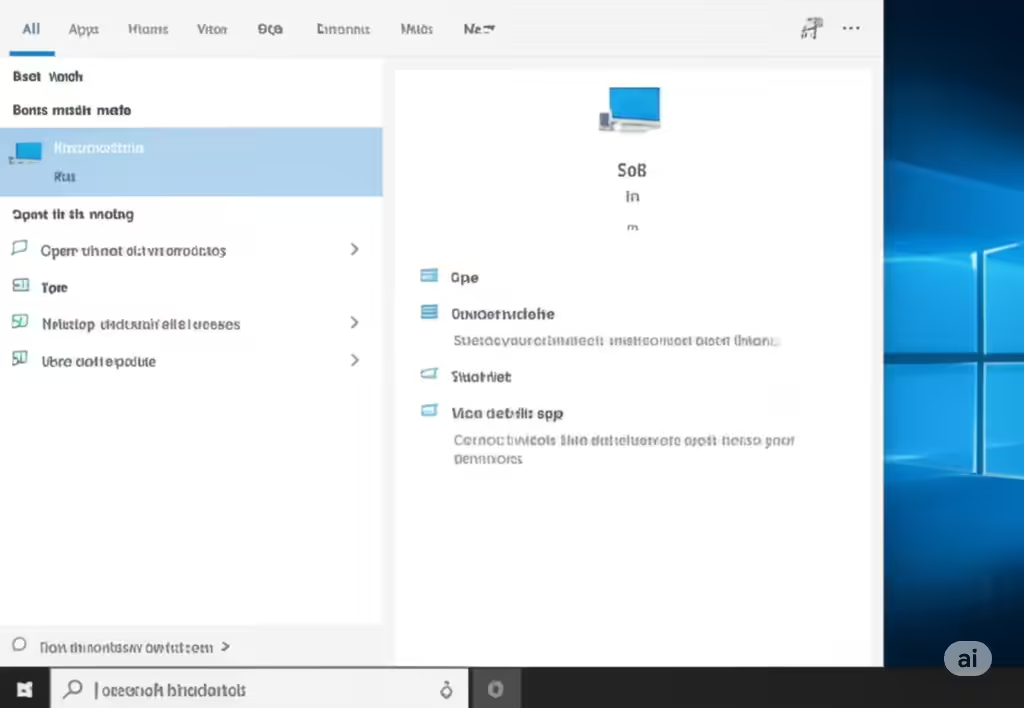
Windows 10 and Windows 11 come with OneDrive built in, so you can set it up in just a few steps.
Step 1: Open OneDrive Setup
-
Click the Start menu and search for OneDrive.
-
Open the app and sign in with your Microsoft account.
Step 2: Choose Your Sync Folder
-
During setup, you’ll be asked which folders to sync.
-
Select the folders you want to appear in File Explorer.
-
Click Next to complete the process.
Once finished, you’ll see OneDrive in the File Explorer left-hand menu. Any files you save there will be automatically uploaded to your Microsoft cloud storage.
Add Google Drive to File Explorer
Google Drive doesn’t come pre-installed, but Google provides a desktop app called Google Drive for Desktop that integrates directly with File Explorer.
Step 1: Download and Install Google Drive for Desktop
-
Go to Google Drive Download Page.
-
Download the Google Drive for Desktop app.
-
Install it and open the application.
Step 2: Sign In and Choose Sync Settings
-
Sign in with your Google account.
-
Choose Stream Files (files stored online, downloaded when opened) or Mirror Files (all files stored locally and online).
-
Click Done.
After setup, you’ll find Google Drive in File Explorer under “This PC” or the quick access section.
Add Dropbox to File Explorer
Dropbox is another popular option with a dedicated desktop app.
Step 1: Download and Install Dropbox
-
Visit the Dropbox Download Page.
-
Download the installer and run it.
-
Sign in with your Dropbox account or create a new one.
Step 2: Sync and Access Files
By default, Dropbox will sync your files to a folder inside your User directory. This folder will appear automatically in File Explorer.
You can drag and drop files directly into the Dropbox folder to upload them.
Add Other Cloud Services (Box, pCloud, Mega, etc.)
Many other cloud storage services—like Box, pCloud, Mega, or iCloud—offer desktop apps for Windows that work similarly:
-
Download the official desktop app from the provider’s website.
-
Install and sign in to your account.
-
Choose your sync preferences.
-
The cloud storage folder will appear in File Explorer for easy access.
Map Cloud Storage as a Network Drive
If your cloud service doesn’t offer a Windows desktop app, you can still add it to File Explorer by mapping it as a network drive.
Step 1: Get the WebDAV or Network Address
Some cloud services (like Nextcloud or certain business storage providers) provide a WebDAV link or network path. You can find this in your account’s settings.
Step 2: Map the Network Drive in Windows
-
Open File Explorer and click This PC.
-
Click the Computer tab at the top.
-
Select Map network drive.
-
Choose a drive letter and enter the WebDAV or network address.
-
Enter your credentials and click Finish.
Now your cloud storage will appear as a network drive inside File Explorer.
Tips for Using Cloud Storage in File Explorer
-
Enable Selective Sync
To save space, choose only the folders you need offline. -
Right-Click for Quick Actions
Most cloud services add context menu options for sharing links or checking file status. -
Check Sync Status Icons
Green checkmarks mean files are synced; blue icons usually mean they’re still uploading. -
Keep Your App Updated
Updates often improve sync speed and fix bugs.
Troubleshooting Common Problems
Missing Cloud Storage Icon in File Explorer
-
Make sure the desktop app is running.
-
Restart your PC after installation.
-
Check the sync settings in the app.
Files Not Syncing
-
Ensure you have a stable internet connection.
-
Verify that your account is signed in and linked.
-
Check for storage limits—if you’re out of space, uploads will fail.
Final Thoughts
Integrating cloud storage into File Explorer on Windows 10 or 11 is one of the best ways to speed up your workflow. Whether you use OneDrive, Google Drive, Dropbox, or another service, having your cloud files available alongside your local ones makes managing documents, photos, and other data effortless.
With the steps above, you can connect your preferred service in minutes and enjoy seamless file access from your PC.