


Understanding dwm.exe Safety and Fixing Desktop Window Manager CPU Issues
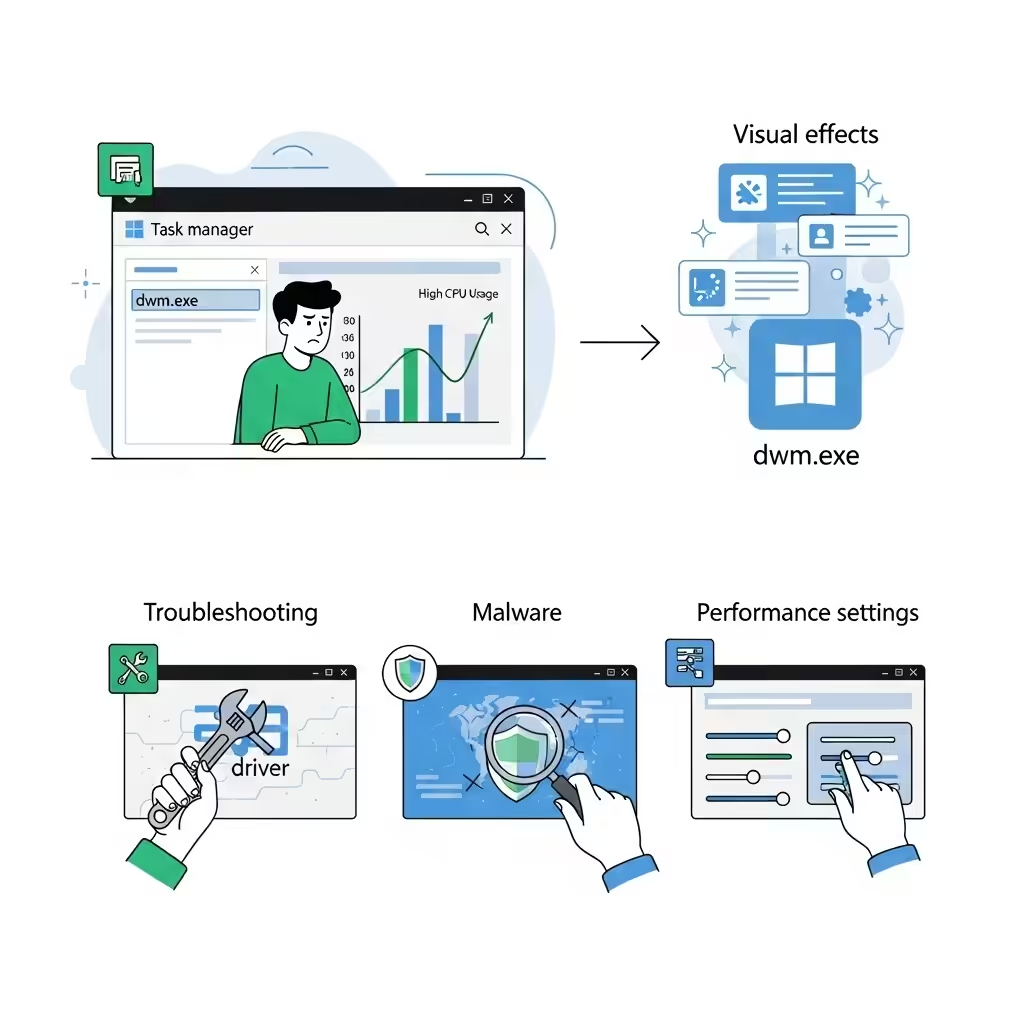
If you are a Windows user, you might have come across the process named dwm.exe in Task Manager and wondered what it is and whether it’s safe. Sometimes, users also experience high CPU usage or errors related to this process, which can be frustrating. This article will explain what dwm.exe is, why it’s essential for your system, how to identify if it’s safe, and provide practical steps to fix common Desktop Window Manager errors and high CPU usage issues.
What Is dwm.exe? Understanding Desktop Window Manager
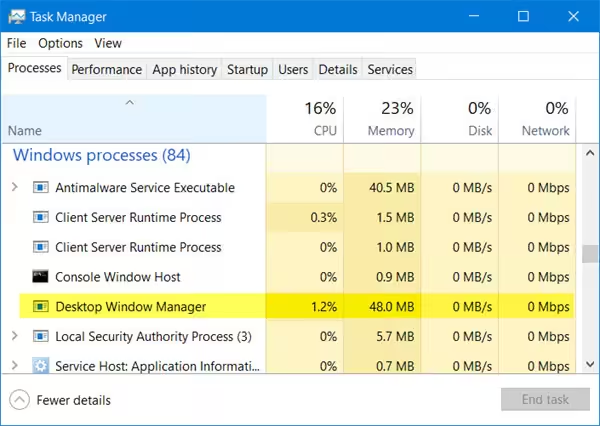
dwm.exe stands for Desktop Window Manager, a core Windows process responsible for managing the graphical effects and user interface of your desktop environment. Introduced in Windows Vista and available in later versions including Windows 10 and 11, Desktop Window Manager handles:
-
Rendering transparent windows and visual effects such as Aero Glass
-
Managing live taskbar thumbnails and Flip3D
-
Compositing the display of windows, which means drawing the windows and animations smoothly
This process runs in the background and is crucial for the modern Windows graphical experience. Without it, your system’s interface would revert to a basic, less visually appealing mode.
Is dwm.exe Safe or a Virus?
Generally, dwm.exe is a legitimate and safe Windows system process. It is located in the folder:
However, malware or viruses sometimes disguise themselves by using the same or similar names to dwm.exe. To ensure your dwm.exe is safe:
-
Open Task Manager (Ctrl + Shift + Esc), find dwm.exe, right-click and select Open file location.
-
Confirm the file is located in
C:\Windows\System32. -
If it is elsewhere, it might be suspicious, and you should run a full system antivirus scan immediately.
Regular Windows updates and reputable antivirus software can help protect your system from malicious versions of dwm.exe.
Common Desktop Window Manager Errors and Symptoms
Some typical issues related to dwm.exe include:
-
High CPU or GPU usage by dwm.exe causing slow performance
-
Desktop or window flickering
-
Crashes or unexpected closing of the graphical interface
-
Error messages such as “Desktop Window Manager has stopped working”
These problems can degrade your user experience and cause frustration.
Why Does dwm.exe Cause High CPU Usage?
High CPU or GPU usage by dwm.exe is often due to:
-
Conflicts with third-party software or graphics drivers
-
Outdated or corrupted graphics card drivers
-
Hardware acceleration issues
-
Running many resource-heavy applications or multiple monitors
-
Malware infection impersonating dwm.exe
Identifying the cause is essential to apply the correct fix.
How to Fix Desktop Window Manager Errors and High CPU Usage
Follow these practical troubleshooting steps to resolve dwm.exe-related issues.
1. Restart Your Computer
Sometimes a simple restart can resolve temporary glitches affecting dwm.exe and graphics rendering.
2. Update Windows and Graphics Drivers
-
Press Windows + I to open Settings.
-
Go to Update & Security and click Check for updates.
-
Install all available updates.
-
Visit your graphics card manufacturer’s website (NVIDIA, AMD, Intel) and download the latest driver for your GPU.
-
Install the updated driver and restart your PC.
3. Disable Hardware Acceleration
Hardware acceleration sometimes causes conflicts with dwm.exe.
-
Right-click the desktop and select Display settings.
-
Scroll down and click Graphics settings.
-
Toggle off Hardware-accelerated GPU scheduling if it is enabled.
-
Restart your computer.
4. Scan for Malware
Run a full system scan with Windows Defender or another trusted antivirus to detect and remove any malware disguised as dwm.exe.
5. Adjust Visual Effects for Better Performance
Reducing visual effects can ease the load on Desktop Window Manager.
-
Press Windows + R, type
sysdm.cpl, and press Enter. -
Go to the Advanced tab, then click Settings under Performance.
-
Select Adjust for best performance or customize which effects to disable.
-
Click Apply and OK.
6. Disable Unnecessary Startup Programs
Conflicting programs starting with Windows might affect dwm.exe performance.
-
Open Task Manager and navigate to the Startup tab.
-
Disable non-essential programs.
-
Restart your PC.
7. Run System File Checker (SFC)
System File Checker scans and repairs corrupted Windows files.
-
Open Command Prompt as administrator.
-
Type
sfc /scannowand press Enter. -
Wait for the scan to complete and follow any on-screen instructions.
8. Perform a Clean Boot
A clean boot starts Windows with minimal drivers and startup programs, helping identify software conflicts.
-
Press Windows + R, type
msconfig, and press Enter. -
In the Services tab, check Hide all Microsoft services then click Disable all.
-
Go to the Startup tab and click Open Task Manager.
-
Disable all startup items.
-
Restart your computer.
If dwm.exe issues resolve after a clean boot, re-enable services and startup programs one by one to find the culprit.
When to Seek Professional Help
If none of these solutions resolve your dwm.exe problems or if you are unsure about performing some steps, consider reaching out to a professional technician. Persistent issues could indicate deeper system corruption or hardware faults.
Conclusion
dwm.exe or Desktop Window Manager is a vital Windows process responsible for managing the graphical user interface. While it is safe and necessary, problems such as high CPU usage or errors can arise due to software conflicts, driver issues, or malware. By following the steps outlined in this article—updating drivers, scanning for malware, adjusting performance settings—you can resolve most common dwm.exe issues and improve your system’s performance.
Always keep your Windows system and drivers updated, use reliable antivirus software, and monitor your system’s resource usage regularly for a smooth computing experience.