


Steps to Remove and Disable Microsoft Store Apps in Windows
Microsoft Store apps, also known as Universal Windows Platform (UWP) apps, come preinstalled with Windows and provide built-in functionality such as mail, photos, weather, news, and productivity tools. While many users find these apps useful, others prefer to disable or uninstall them to reduce clutter, improve system performance, or customize their Windows experience.
This comprehensive guide explains how to disable and uninstall Microsoft Store apps, the differences between disabling and removing them, and what to consider before making changes.
Understanding Microsoft Store Apps in Windows
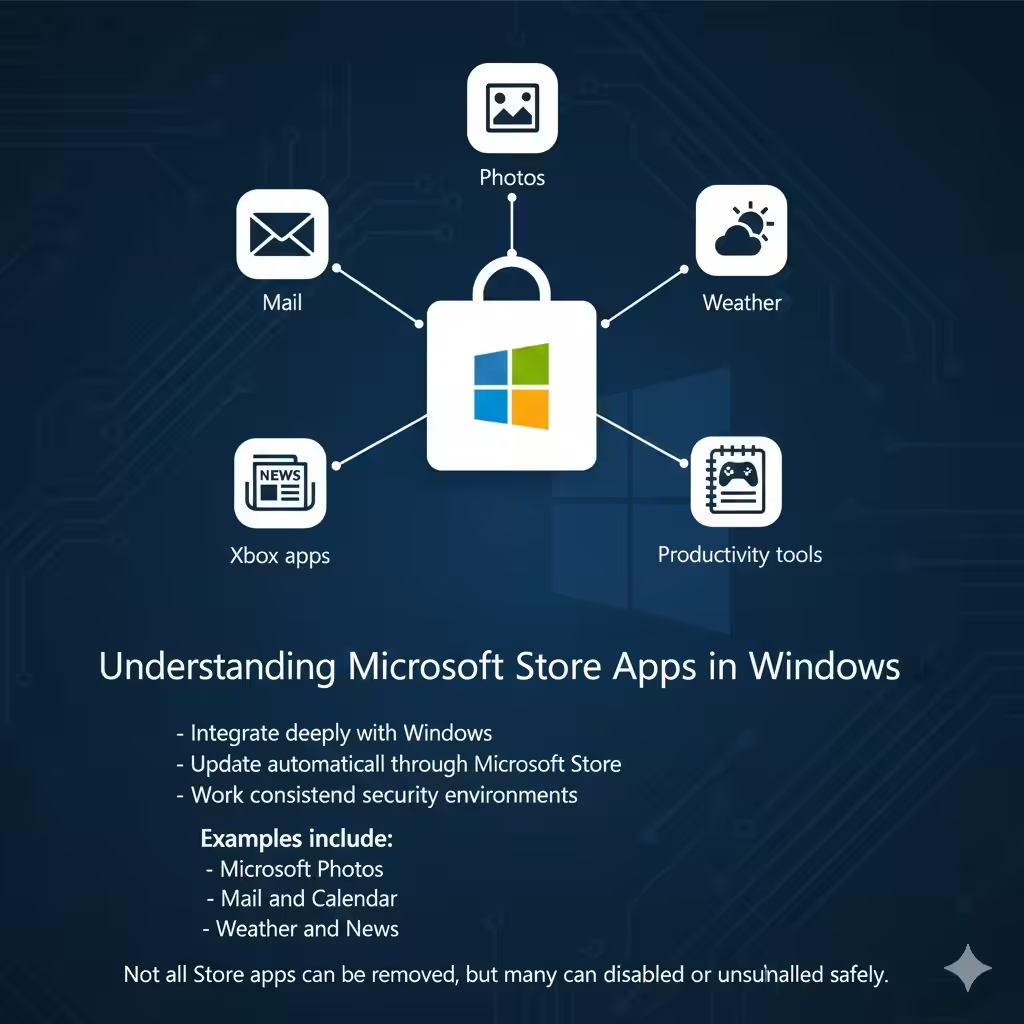
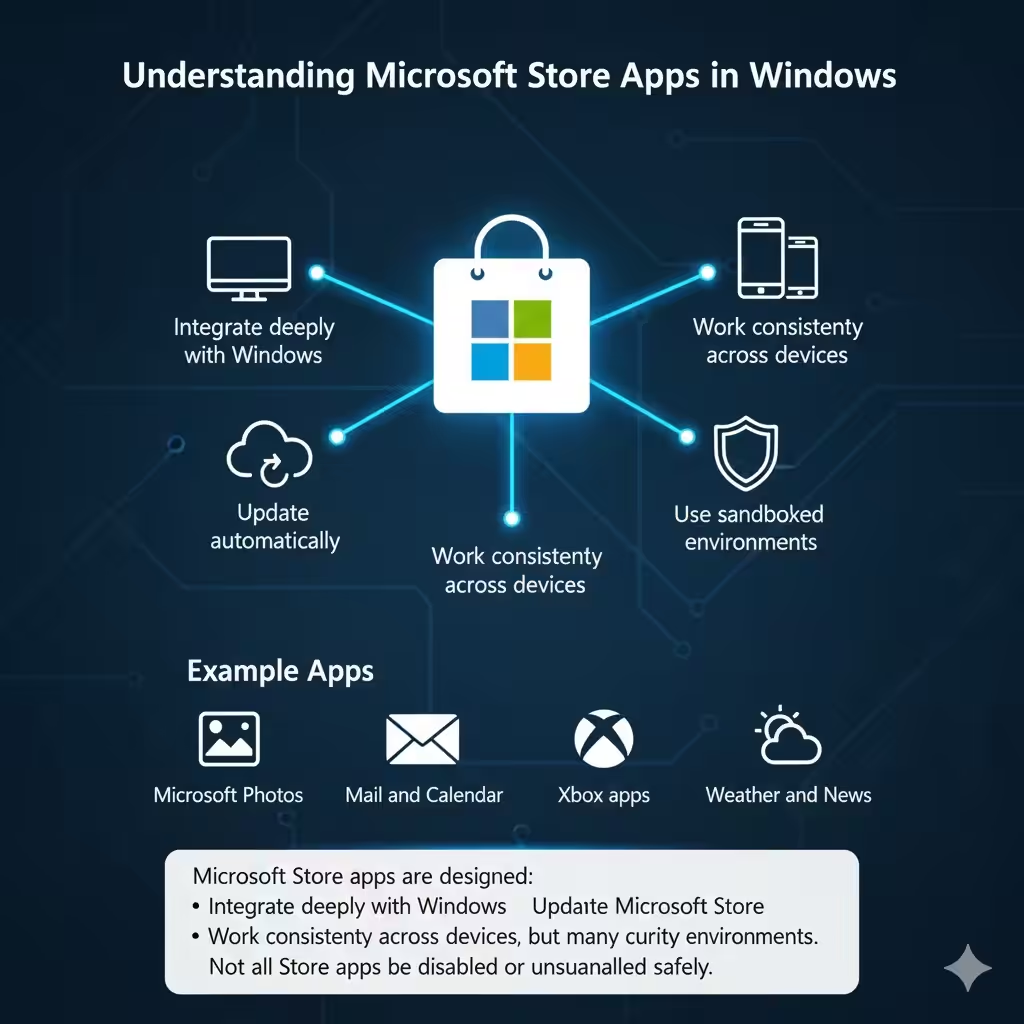
Microsoft Store apps are designed to:
-
Integrate deeply with Windows
-
Update automatically through Microsoft Store
-
Work consistently across devices
-
Use sandboxed security environments
Examples include:
-
Microsoft Photos
-
Mail and Calendar
-
Xbox apps
-
Weather and News
Not all Store apps can be removed, but many can be disabled or uninstalled safely.
Difference Between Disabling and Uninstalling Apps
Before proceeding, it is important to understand the difference.
Disabling Apps
Disabling an app means:
-
The app remains installed
-
It does not run in the background
-
It does not launch automatically
This is useful for system apps that cannot be fully removed.
Uninstalling Apps
Uninstalling an app means:
-
The app is removed from your system
-
Storage space is freed
-
The app can be reinstalled later from Microsoft Store
Choosing the right option depends on your goals.
Why You Might Want to Remove Microsoft Store Apps
Users disable or uninstall Store apps for several reasons:
-
Reducing background processes
-
Improving system responsiveness
-
Decluttering the Start menu
-
Removing unused or unwanted apps
-
Managing system resources more efficiently
These changes can help streamline your Windows environment.
Important Warnings Before Removing Store Apps
Before making changes, keep these points in mind:
-
Some apps are required for Windows features
-
Removing critical apps may affect system stability
-
Major Windows updates may restore removed apps
-
Enterprise or work devices may restrict app removal
Always proceed carefully.
Method 1: Uninstall Microsoft Store Apps Using Settings
The easiest method uses Windows Settings.
How This Method Works
Windows Settings allows you to remove apps that support standard uninstallation.
Steps Overview
From Settings, you can:
-
View installed apps
-
Select individual Store apps
-
Uninstall them with a few clicks
This method is safe and recommended for beginners.
Method 2: Disable Microsoft Store Apps Using Background App Settings
Some apps cannot be uninstalled but can be prevented from running in the background.
Why This Is Useful
Disabling background activity:
-
Saves system resources
-
Reduces battery usage on laptops
-
Prevents unnecessary notifications
This method is ideal for essential apps you do not actively use.
Method 3: Uninstall Store Apps Using PowerShell
PowerShell offers advanced control over app removal.
Why Use PowerShell
PowerShell allows you to:
-
Remove apps not removable via Settings
-
Uninstall apps for all users
-
Perform bulk removals
This method should be used carefully, especially on system apps.
When PowerShell Is Recommended
-
Removing preinstalled apps
-
Managing multiple user accounts
-
Advanced system customization
PowerShell provides flexibility but requires caution.
Method 4: Remove Microsoft Store Apps for All Users
On shared computers, you may want to remove apps for every user.
What This Achieves
-
Prevents apps from appearing on new user accounts
-
Ensures consistent system configuration
-
Reduces clutter across profiles
This approach is common in work or family PCs.
Method 5: Disable Microsoft Store Entirely (Optional)
Some users prefer to block access to Microsoft Store.
Why Disable Microsoft Store
-
Prevent app installations
-
Restrict system changes
-
Improve focus and security
This method is often used on work or school devices.
Important Consideration
Disabling the Store may affect app updates and system components.
Common Microsoft Store Apps and Removal Notes
Not all apps behave the same.
Apps Usually Safe to Remove
-
Weather
-
News
-
Get Help
-
Tips
-
Xbox apps (if unused)
Apps That Should Be Kept
-
Microsoft Store
-
Windows Security
-
App Installer
-
System-related frameworks
Removing critical apps can cause issues.
What Happens After Windows Updates
Major Windows updates may:
-
Reinstall default Store apps
-
Reset app permissions
-
Restore disabled services
This behavior is normal and part of Windows maintenance.
How to Reinstall Removed Microsoft Store Apps
If you remove an app and later need it:
-
Open Microsoft Store
-
Search for the app
-
Install it again
This makes experimentation relatively safe.
Troubleshooting Common Issues
App Won’t Uninstall
Possible reasons:
-
App is required by the system
-
Insufficient permissions
Solution:
-
Use PowerShell
-
Run commands with administrative rights
System Becomes Unstable
If issues appear:
-
Reinstall essential apps
-
Run system repair tools
-
Restart your device
System stability should always be the priority.
Best Practices for Managing Store Apps
To maintain a healthy system:
-
Remove only apps you do not use
-
Avoid removing core system components
-
Keep Windows updated
-
Monitor performance after changes
A balanced approach ensures long-term reliability.
Frequently Asked Questions
Can I Remove All Microsoft Store Apps
No. Some apps are essential to Windows and cannot be removed safely.
Will Uninstalling Apps Improve Performance
It can reduce background activity, but the impact varies.
Is It Safe to Use PowerShell
Yes, if you understand the commands and their effects.
Conclusion
Disabling and uninstalling Microsoft Store apps is a practical way to customize your Windows experience, reduce clutter, and improve system efficiency. Whether you choose the simplicity of Windows Settings or the advanced control of PowerShell, understanding what each app does before removing it is essential.