


How to Create and Format Text in Microsoft Word
Microsoft Word is one of the most popular tools for creating, designing, and editing text-based documents. Whether you’re working on a simple memo, a professional report, or a creative project, Word provides powerful tools to format, design, and polish your text. In this guide, we’ll explore how to use Microsoft Word’s text design and editing features effectively.

1. Getting Started with Text in Microsoft Word
Before diving into advanced text design, it’s essential to understand the basics of working with text in Word:
Inserting Text
- Open a Document: Start by opening a blank document or an existing one.
- Place the Cursor: Click anywhere in the document where you want to insert text.
- Type Your Text: Simply begin typing, and the text will appear where the cursor is placed.
Selecting Text
- Using the Mouse: Click and drag over the text you want to select.
- Using the Keyboard: Hold down the Shift key while using arrow keys to select text.
- Select All: Press Ctrl + A (Windows) or Command + A (Mac) to select the entire document.
Deleting Text
- Highlight the text and press Delete or Backspace to remove it.
- To undo changes, press Ctrl + Z (Windows) or Command + Z (Mac).
2. Formatting Text
Formatting allows you to change the appearance of your text to make it more readable and visually appealing.
Basic Text Formatting
- Font Style:
- Select the text and go to the Home tab.
- Use the Font drop-down menu to choose a style (e.g., Times New Roman, Arial, Calibri).
- Font Size:
- Highlight the text, then adjust the size using the number drop-down menu next to the font style.
- Alternatively, use the shortcut Ctrl + Shift + > to increase the size or Ctrl + Shift + < to decrease it.
- Bold, Italic, and Underline:
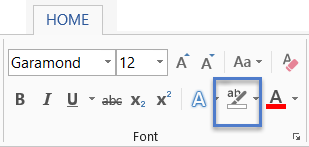
- Use the buttons in the Font group under the Home tab:
- B for Bold: Shortcut Ctrl + B
- I for Italic: Shortcut Ctrl + I
- U for Underline: Shortcut Ctrl + U
- Use the buttons in the Font group under the Home tab:
Changing Text Color
- Select the text you want to modify.
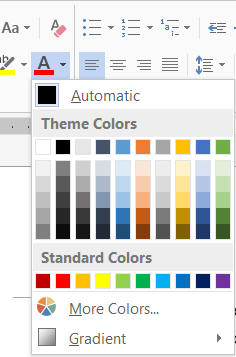
- Click on the Font Color icon (an “A” with a color bar) in the Home tab.
- Choose a color from the palette or create a custom color.
Highlighting Text
- Select the text.
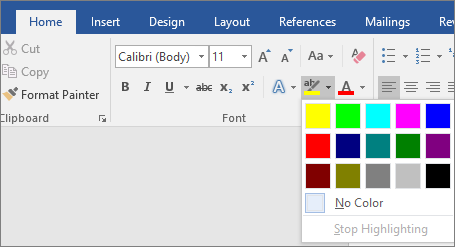
- Use the Text Highlight Color tool in the Home tab.
- Pick a color to emphasize key sections.
3. Using Paragraph and Alignment Tools
Microsoft Word includes tools to enhance the layout of your text through paragraph formatting.
Adjusting Alignment
- Select the paragraph or text.
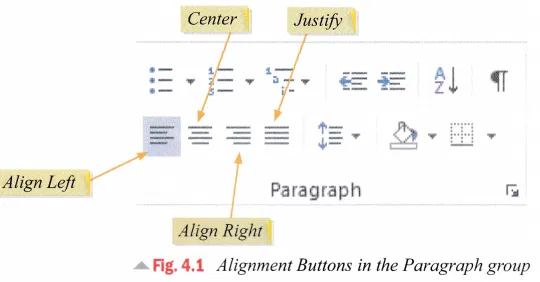
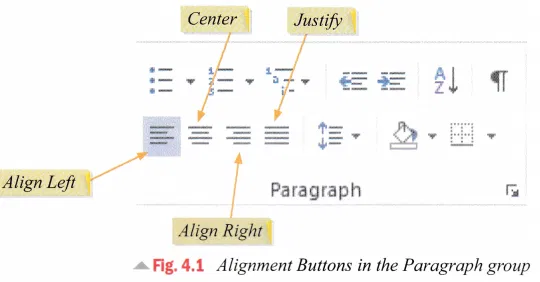
- Use the alignment buttons in the Paragraph group under the Home tab:
- Left Align: Shortcut Ctrl + L
- Center Align: Shortcut Ctrl + E
- Right Align: Shortcut Ctrl + R
- Justify: Shortcut Ctrl + J
Line Spacing
- Highlight the text.
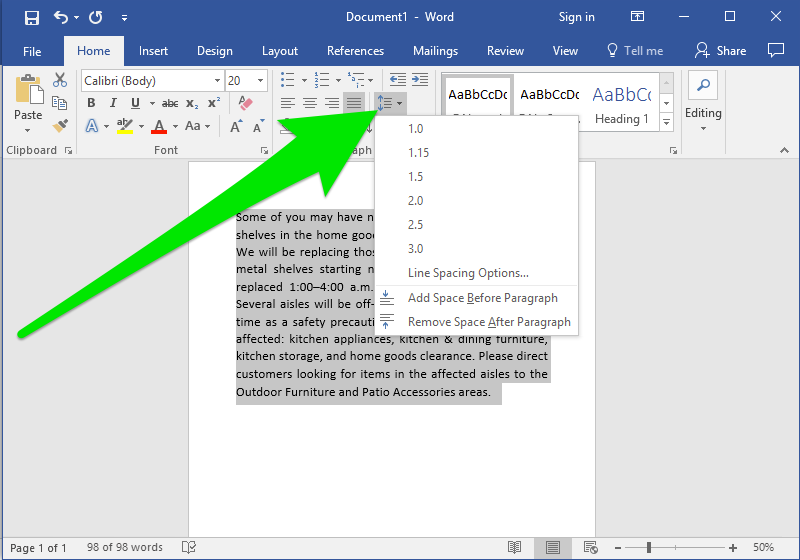
- Click on the Line and Paragraph Spacing button in the Paragraph group.
- Choose the spacing you prefer (e.g., single, 1.5, or double spacing).
Indentation
- Place the cursor in the paragraph.
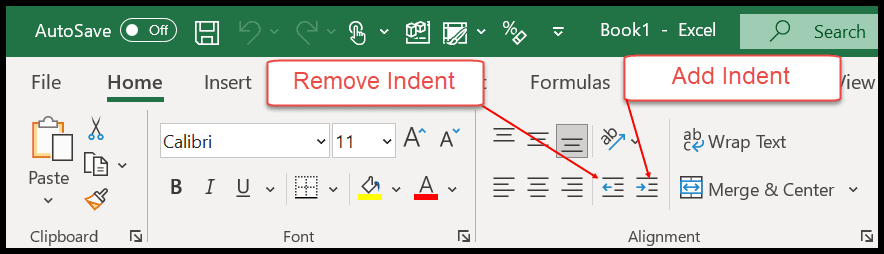
- Use the Increase Indent or Decrease Indent buttons in the Paragraph group to adjust indentation.
4. Applying Text Styles
Text styles in Word let you apply consistent formatting to headings, subheadings, and body text.
Using Predefined Styles
- Highlight the text.
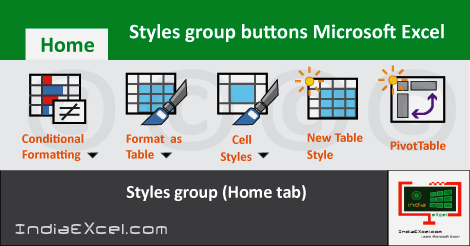
- Go to the Styles group in the Home tab.
- Choose a predefined style (e.g., Heading 1, Heading 2, Title, Subtitle).
Customizing Styles
- Right-click on a style in the Styles gallery.
- Select Modify and adjust the font, size, color, alignment, and other settings.
5. Adding Text Effects
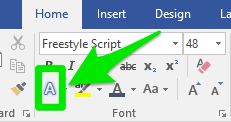
Text effects allow you to add creative flair to your text, such as shadows, outlines, or glow.
- Select the text.
- Click on Text Effects and Typography (an “A” icon with a glowing outline) in the Home tab.
- Choose from effects like shadow, reflection, glow, or 3D formatting.
6. Working with Bullets and Numbering
To organize your text into lists, you can use bullets or numbers.
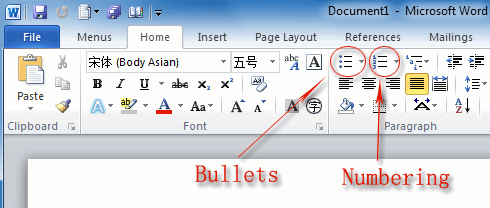
Creating a Bulleted List
- Highlight the text.
- Click on the Bullets icon in the Paragraph group under the Home tab.
- Select a bullet style or define your own.
Creating a Numbered List
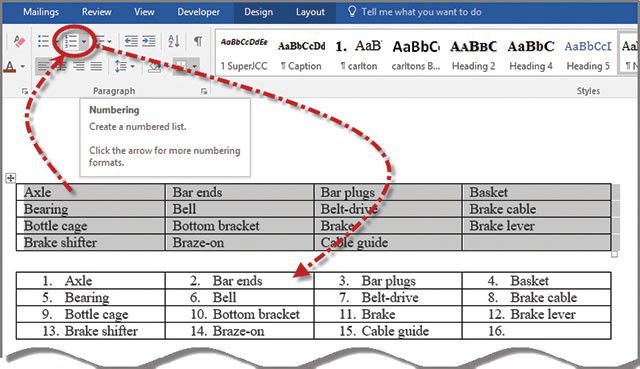
- Highlight the text.
- Click on the Numbering icon in the Paragraph group.
- Choose a numbering format.
7. Using Advanced Editing Tools
Microsoft Word includes advanced features for professional editing.
Find and Replace
- Press Ctrl + F (Windows) or Command + F (Mac) to open the Find tool.
- To replace text, go to Replace under the Editing group in the Home tab.
- Enter the text to find and the replacement text, then click Replace All.
Spell Check and Grammar
- Go to the Review tab.
- Click on Spelling & Grammar.
- Word will suggest corrections for errors in your text.

Track Changes
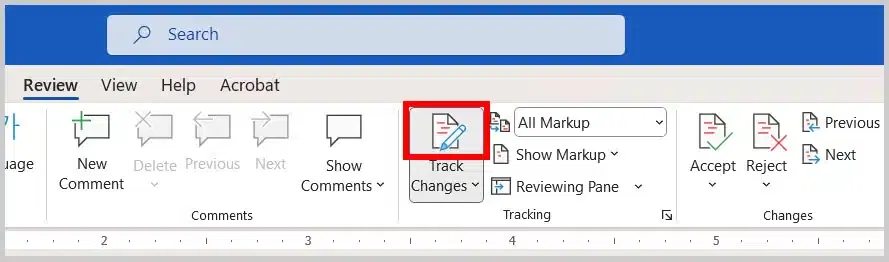
- Turn on Track Changes from the Review tab.
- Any edits you or others make will be highlighted for review.
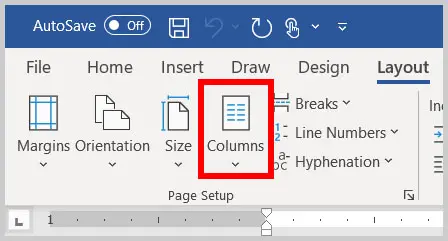
8. Designing Text Layout with Columns
For documents like newsletters or brochures, you can divide your text into columns:
- Go to the Layout tab.
- Click on Columns and select the number of columns you want.
- Adjust spacing and column width using the Columns dialog box.
9. Saving and Exporting Your Document
Once your text is designed and edited, it’s time to save your work.
- Click File and select Save As.
- Choose the format (e.g., Word Document, PDF).
- Save your document to the desired location.
Conclusion
Microsoft Word offers an array of tools to design and edit text, making it easy to create professional and visually appealing documents. Whether you’re formatting a report, designing a flyer, or drafting a simple letter, mastering Word’s features will help you produce polished results. With consistent practice, you’ll become proficient in designing and editing text in Word to meet all your personal and professional needs.