


Troubleshooting Windows 10 Notifications Not Showing Up
Notifications are an essential feature in Windows 10, helping you stay updated with app alerts, system messages, reminders, and emails. When notifications stop working, you might miss important updates, calendar events, or even security warnings. Fortunately, this issue can be fixed with several troubleshooting methods.
This guide will walk you through the common causes of Windows 10 notifications not working and provide step-by-step solutions to get them back on track.
Common Reasons Why Notifications Stop Working
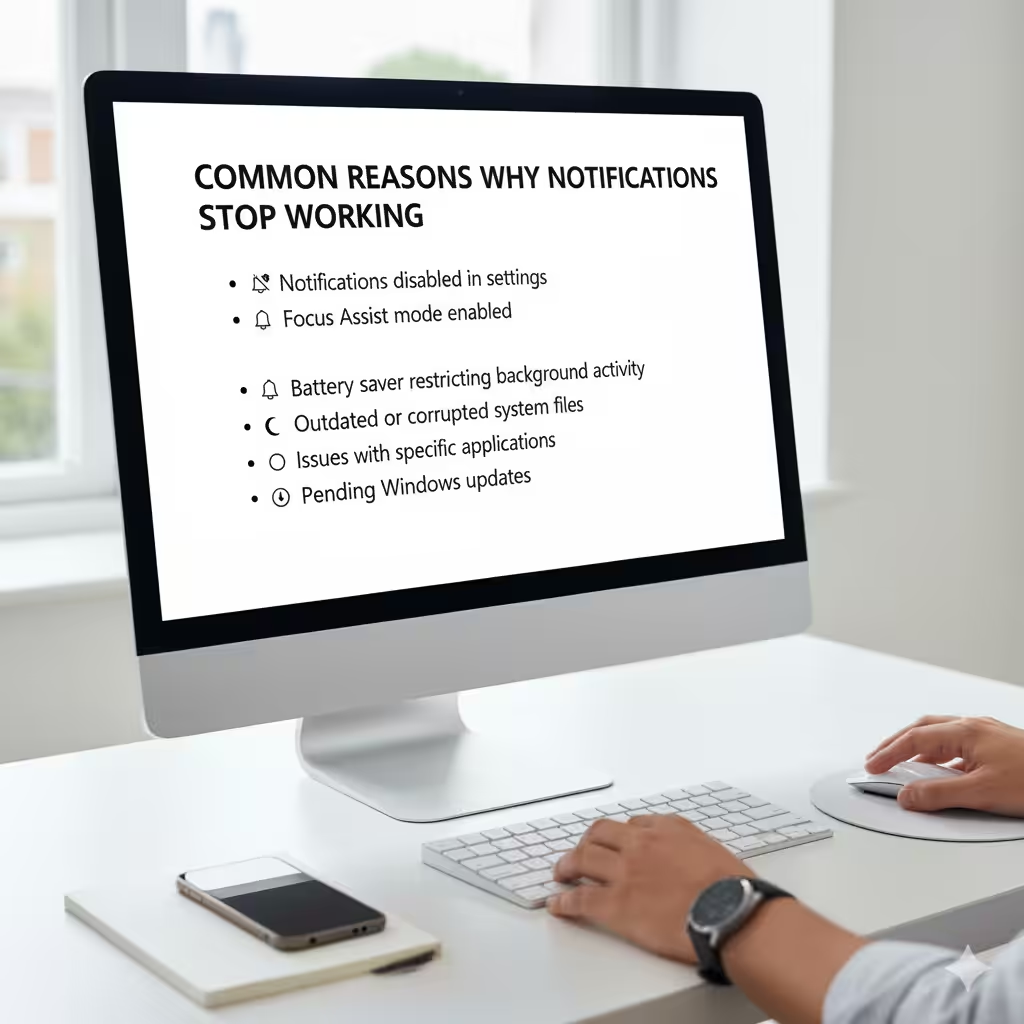
Before diving into solutions, it’s important to understand what might be causing the problem. Common reasons include:
-
Notifications disabled in settings
-
Focus Assist mode enabled
-
Battery saver restricting background activity
-
Outdated or corrupted system files
-
Issues with specific applications
-
Pending Windows updates
By identifying the cause, you can apply the right fix quickly.
Check Windows 10 Notification Settings
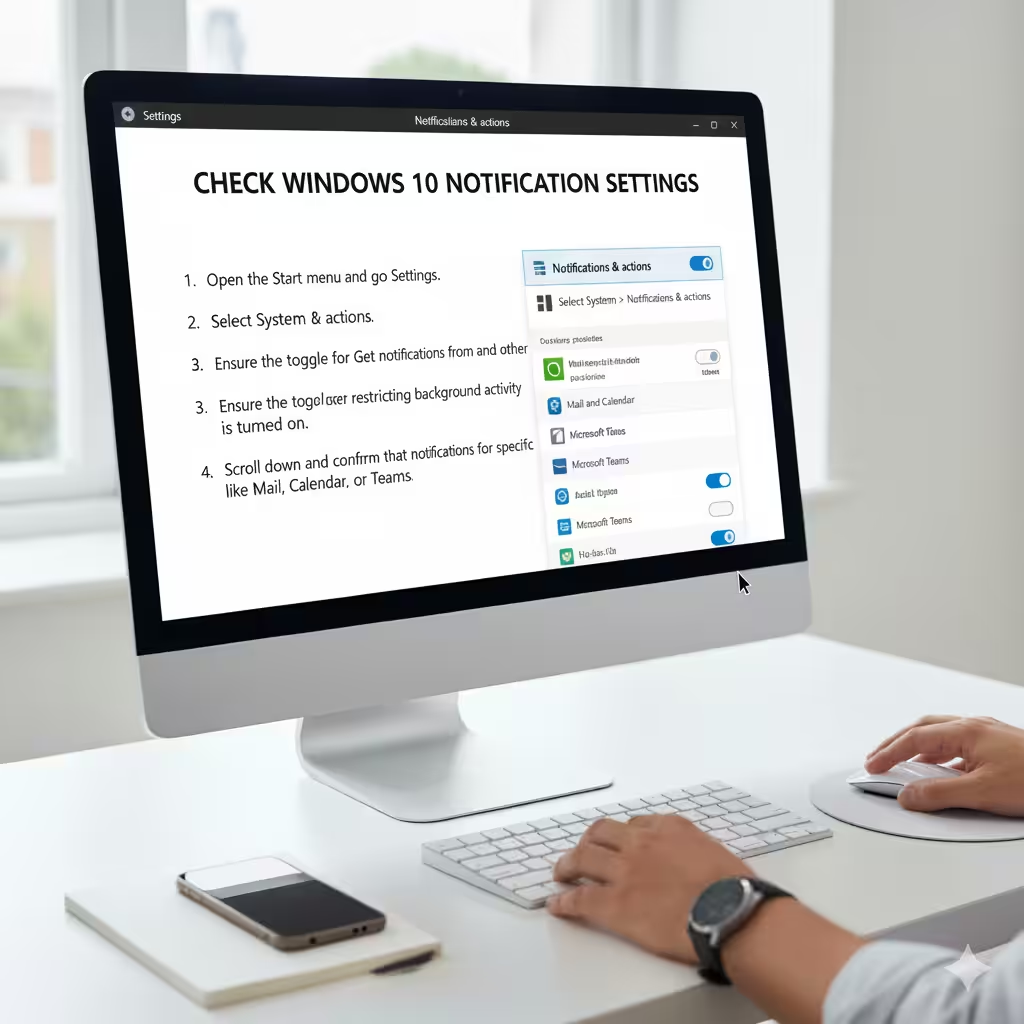
The first step is to verify that notifications are enabled in your system settings.
-
Open the Start menu and go to Settings.
-
Select System > Notifications & actions.
-
Ensure the toggle for Get notifications from apps and other senders is turned on.
-
Scroll down and confirm that notifications are enabled for specific apps like Mail, Calendar, or Teams.
If notifications are disabled for certain apps, turn them on.
Disable Focus Assist
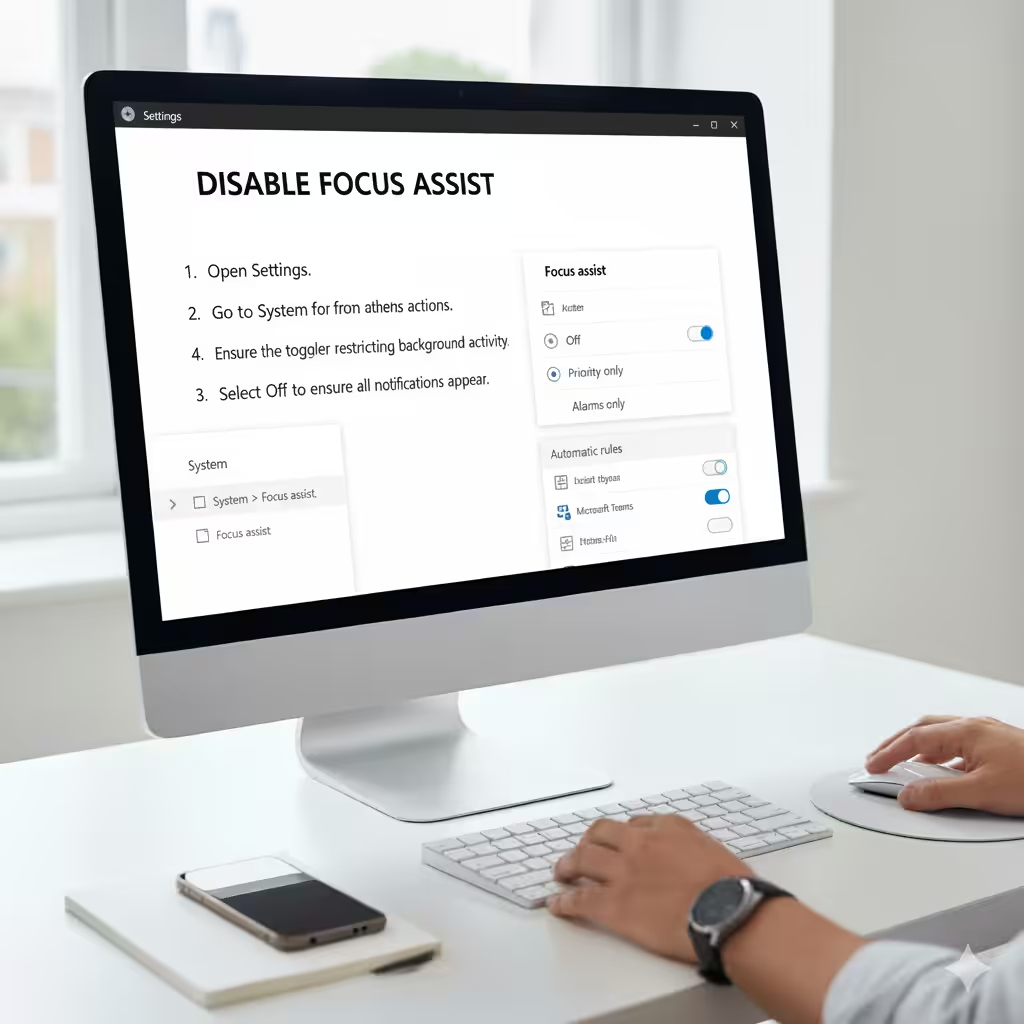
Windows 10 includes a feature called Focus Assist, designed to minimize distractions by hiding notifications during work, presentations, or gaming. If it’s turned on, you won’t see notifications.
-
Open Settings.
-
Go to System > Focus assist.
-
Select Off to ensure all notifications appear.
You can also disable automatic rules that activate Focus Assist during certain hours or while playing games.
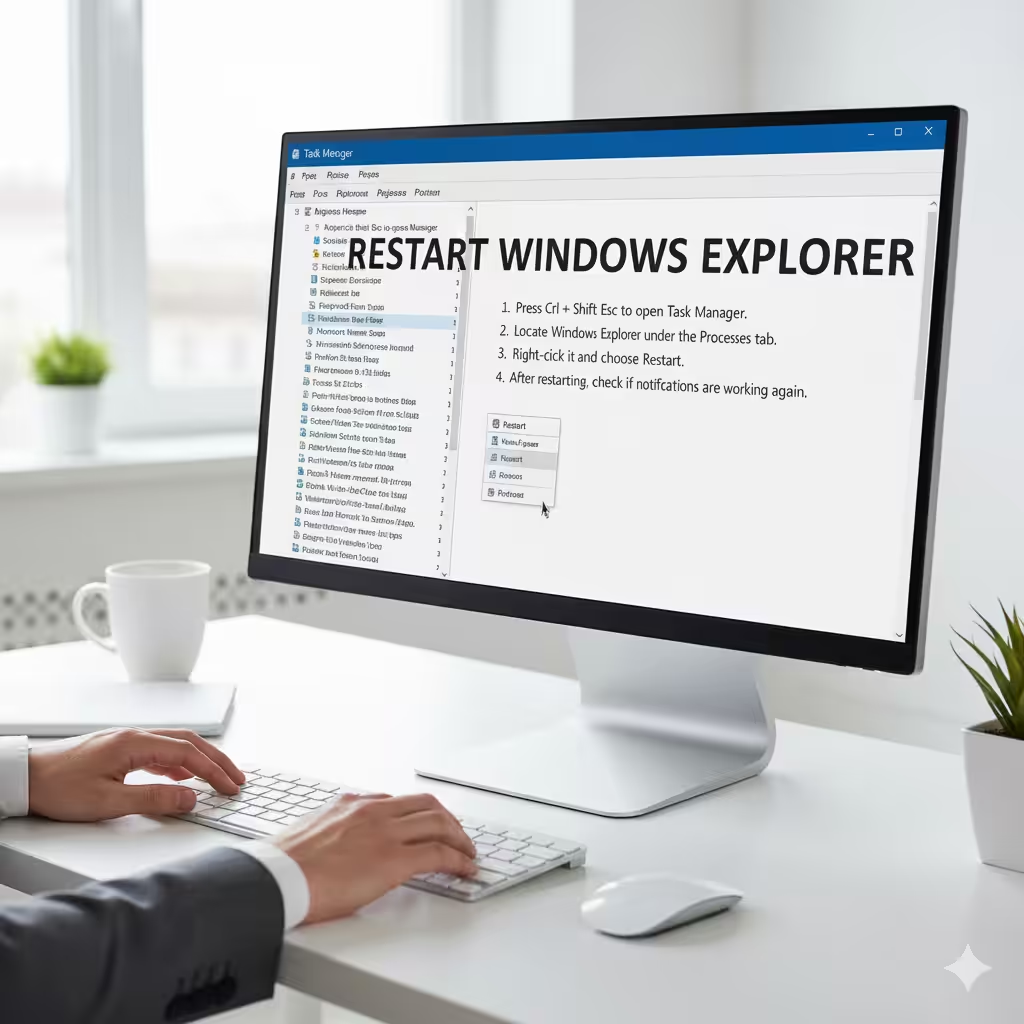
Restart Windows Explorer
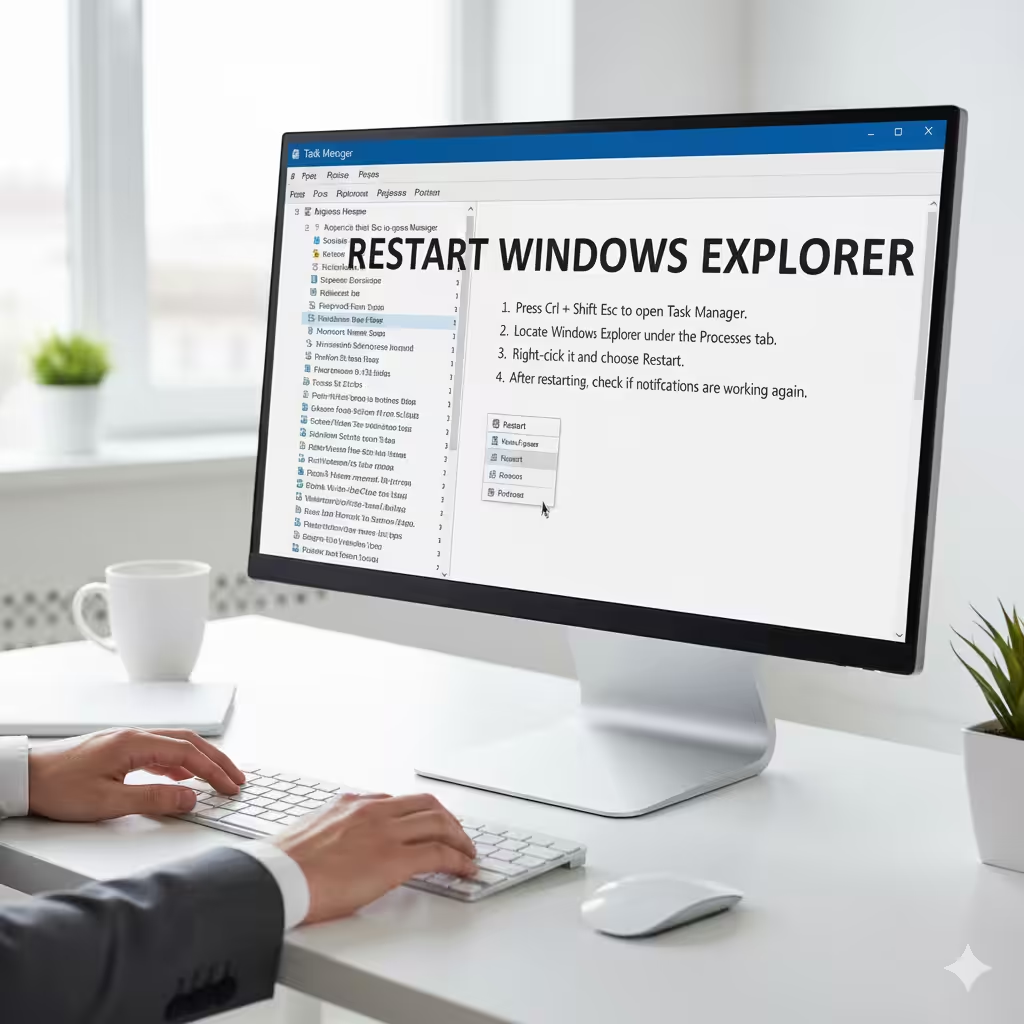
Sometimes, the Windows notification system (Action Center) may stop responding. Restarting Windows Explorer can refresh it.
-
Press Ctrl + Shift + Esc to open Task Manager.
-
Locate Windows Explorer under the Processes tab.
-
Right-click it and choose Restart.
After restarting, check if notifications are working again.
Check Battery Saver Settings
Battery Saver mode reduces background activity to conserve power. This can stop apps from sending notifications.
-
Open Settings.
-
Go to System > Battery.
-
If Battery saver is on, disable it or adjust the threshold so it doesn’t interfere with notifications.
Update Windows 10
Outdated versions of Windows can cause notification issues. Installing the latest updates often resolves such problems.
-
Open Settings.
-
Go to Update & Security > Windows Update.
-
Click Check for updates.
Download and install any available updates, then restart your computer.
Check Background App Permissions
Some apps need permission to run in the background in order to send notifications.
-
Open Settings.
-
Select Privacy > Background apps.
-
Make sure Let apps run in the background is enabled.
-
Verify that the specific app with missing notifications is allowed to run in the background.
Re-wp-signup.php the Action Center
If notifications still aren’t working, re-wp-signup.phping the Action Center can fix corrupted system components.
-
Press Windows + X and choose Windows PowerShell (Admin).
-
Copy and paste the following command:
-
Press Enter and restart your PC.
This refreshes the Action Center and restores notification functionality.
Check App-Specific Notification Settings
Sometimes the issue lies within the app itself rather than Windows. For example, Outlook, Slack, or Mail may have their own notification settings.
-
Open the app in question.
-
Go to its Settings or Preferences menu.
-
Ensure notifications are enabled inside the app.
Reset the Notifications Database
If the notifications database becomes corrupted, it can prevent alerts from appearing. Resetting it often fixes the issue.
-
Press Windows + R, type %localappdata%, and press Enter.
-
Navigate to the Microsoft\Windows\Notifications folder.
-
Delete all the files inside this folder.
-
Restart your computer.
Windows will recreate the database automatically.
Run System File Checker
Corrupted system files can disrupt notifications. Running the System File Checker (SFC) tool can repair them.
-
Press Windows + X and select Command Prompt (Admin) or Windows PowerShell (Admin).
-
Type the following command and press Enter:
-
Wait for the scan to complete and follow any repair instructions.
Create a New User Profile
In some cases, a corrupted user profile may prevent notifications from working. Creating a new profile can help.
-
Open Settings.
-
Go to Accounts > Family & other users.
-
Select Add someone else to this PC.
-
Create a new user account and log in with it.
Check if notifications work in the new profile. If they do, your old account may be corrupted.
Reset Windows 10 as a Last Resort
If none of the solutions work, resetting Windows 10 can restore default settings and fix the issue.
-
Open Settings.
-
Go to Update & Security > Recovery.
-
Under Reset this PC, click Get started.
-
Choose whether to keep your files or remove everything.
This should fix any deep system issues affecting notifications.
Conclusion
Windows 10 notifications are essential for staying informed and productive. When they stop working, it can be frustrating, but most issues are caused by simple settings or minor glitches.
Start by checking your system notification settings, disabling Focus Assist, and ensuring apps are allowed to run in the background. If the issue persists, try restarting Windows Explorer, re-wp-signup.phping the Action Center, or repairing system files.
In most cases, these steps will restore normal notification functionality without requiring a full system reset. With the right troubleshooting, you can ensure you never miss an important alert again.