


Troubleshooting Automatic Scrolling Issues in Windows 10
Have you ever been working on your computer only to find that a window, document, or webpage starts scrolling up or down by itself? This issue can be annoying and disruptive, especially when you are trying to read, type, or complete an important task. Fortunately, if you are using Windows 10 and experiencing this problem, there are several solutions that can help.
This guide explains why Windows 10 sometimes scrolls automatically and provides step-by-step methods to fix it.
Common Causes of Automatic Scrolling
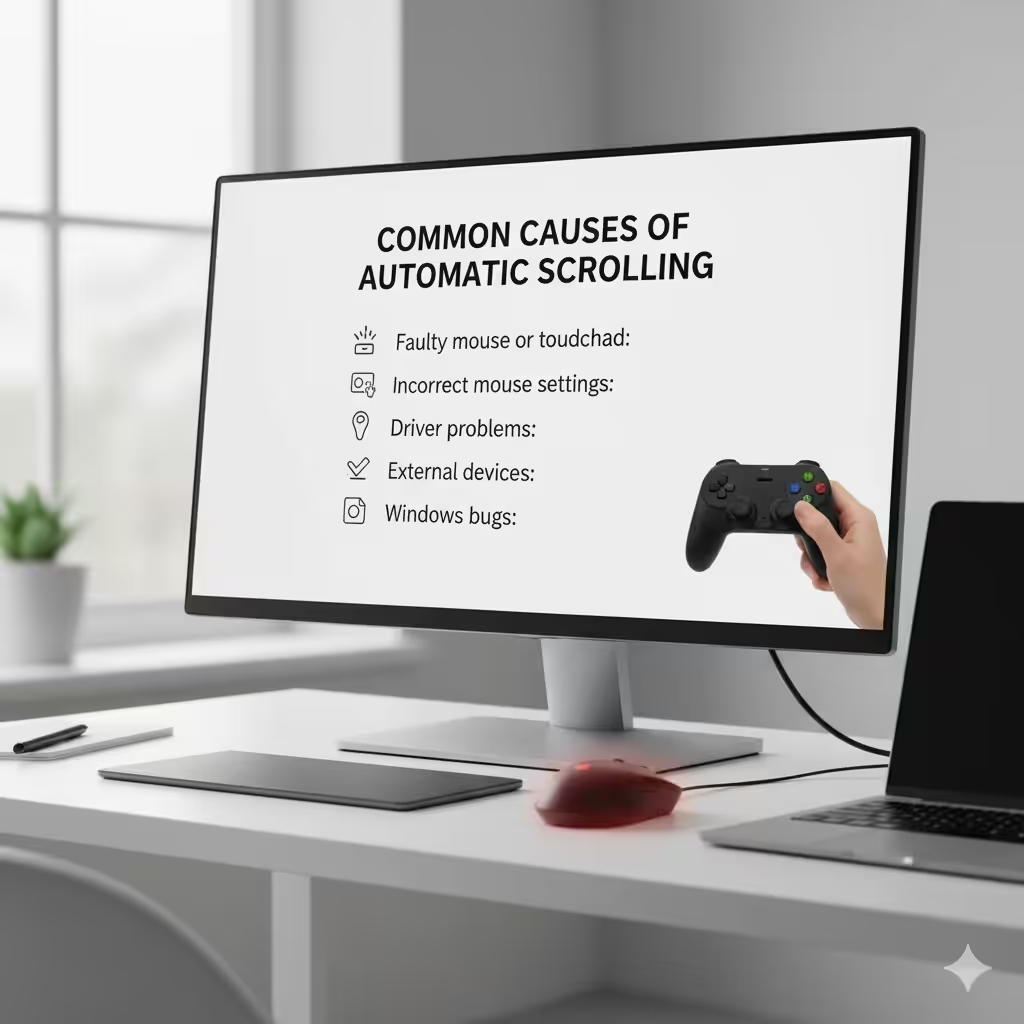
Before applying solutions, it’s important to understand what might be causing the issue. Here are some common reasons why scrolling happens without your input:
-
Faulty mouse or touchpad: Dirt, dust, or a hardware fault may send false signals.
-
Incorrect mouse settings: Certain options in Windows can cause unintended scrolling.
-
Driver problems: Outdated or corrupt mouse or touchpad drivers can trigger the issue.
-
External devices: A connected joystick, keyboard, or touchscreen may interfere with scrolling.
-
Windows bugs: Occasionally, glitches in Windows 10 can cause auto-scrolling.
Once you identify the source, fixing the issue becomes easier.
Check Your Mouse and Touchpad Hardware
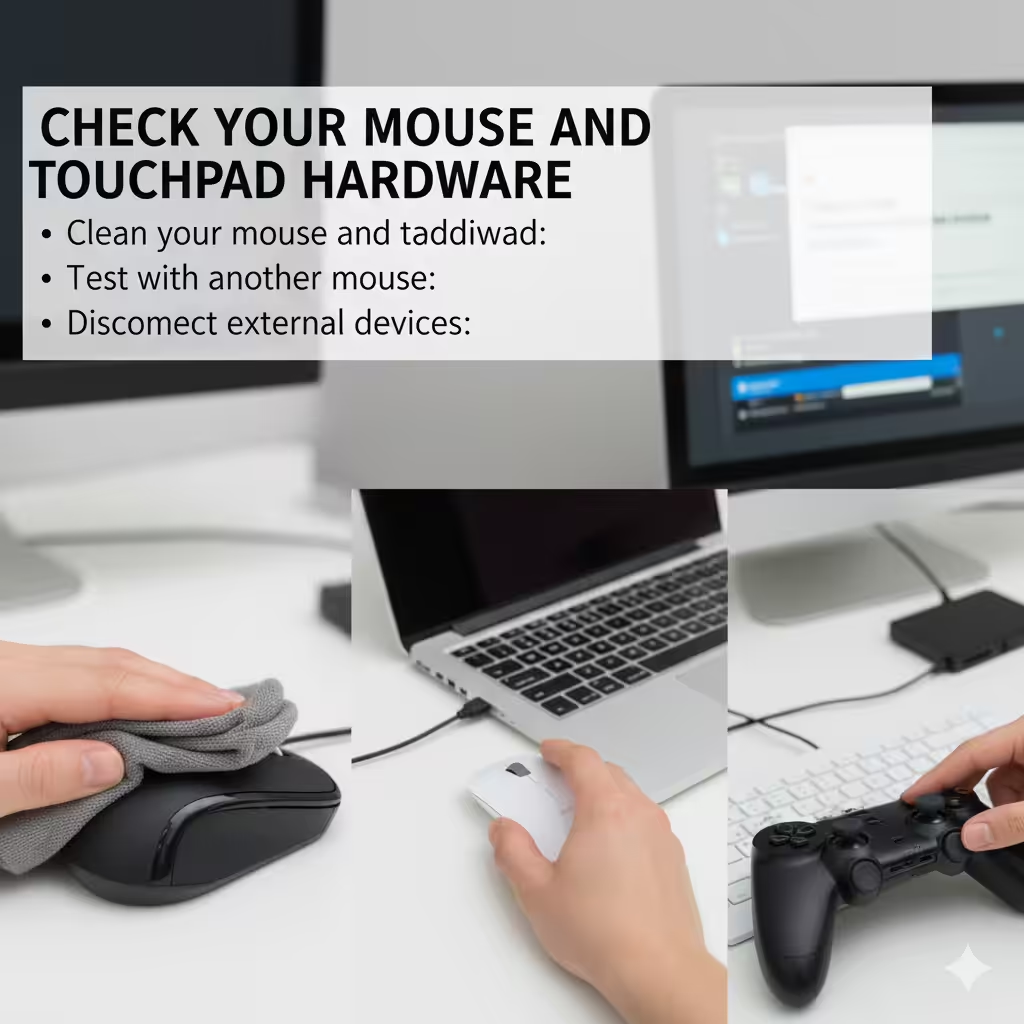
The first step is to rule out hardware problems.
-
Clean your mouse and touchpad: Dirt or debris on the scroll wheel or touchpad can cause it to behave incorrectly. Use a soft cloth to gently clean the devices.
-
Test with another mouse: Plug in a different mouse to see if the problem persists. If scrolling stops, the original mouse is likely faulty.
-
Disconnect external devices: Game controllers, keyboards, or other peripherals may interfere with input. Disconnect them one by one to identify the culprit.
If the hardware is fine, move on to software and system settings.
Disable “Scroll Inactive Windows”
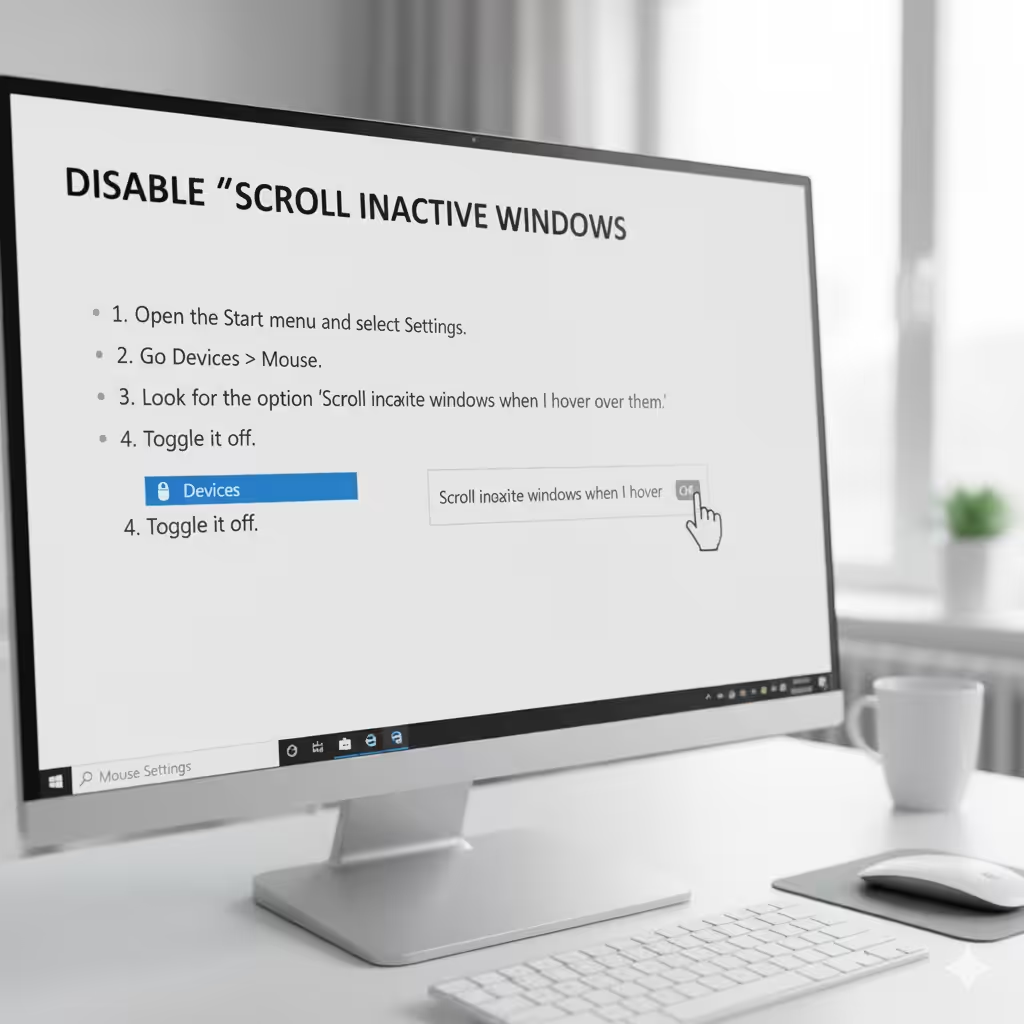
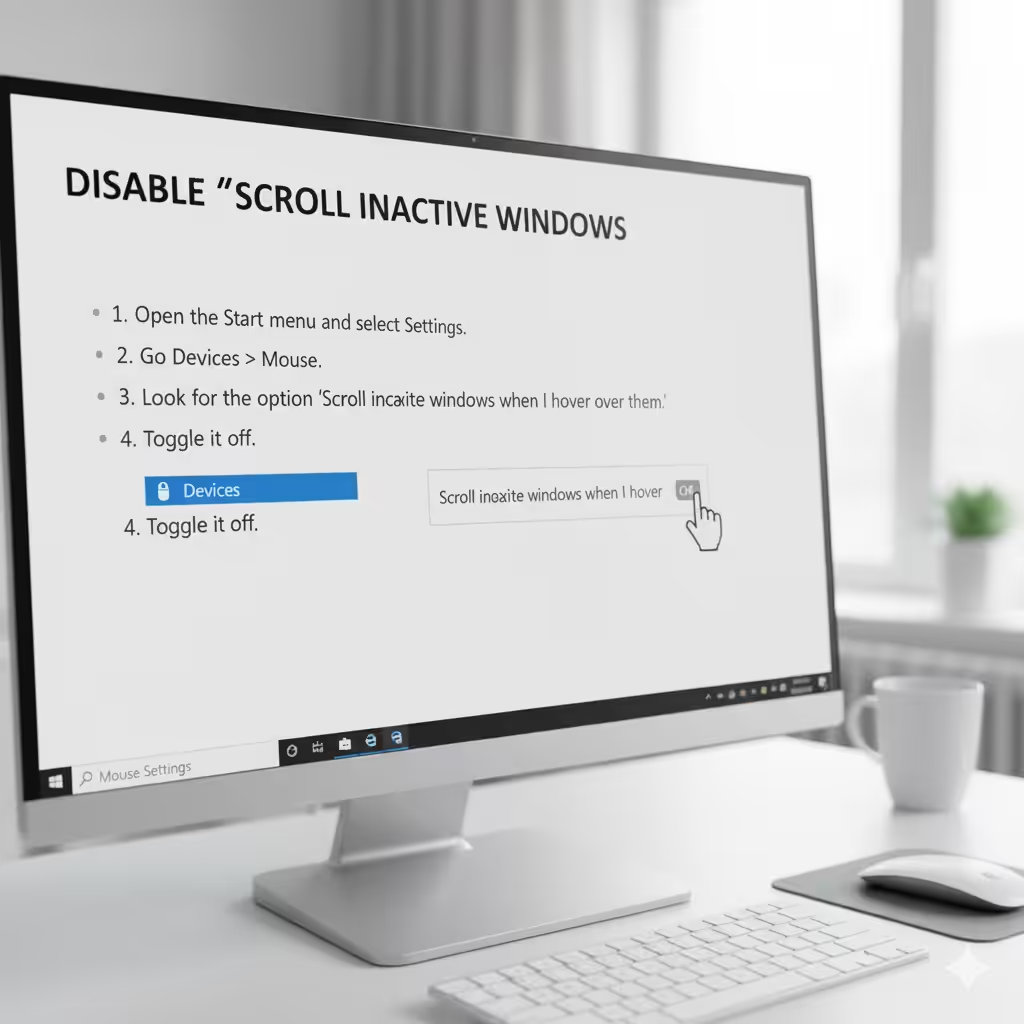
Windows 10 includes a feature called Scroll inactive windows when I hover over them. While useful, it can sometimes cause erratic scrolling.
-
Open the Start menu and select Settings.
-
Go to Devices > Mouse.
-
Look for the option Scroll inactive windows when I hover over them.
-
Toggle it off.
Check if this resolves the scrolling issue.
Update or Reinstall Mouse and Touchpad Drivers
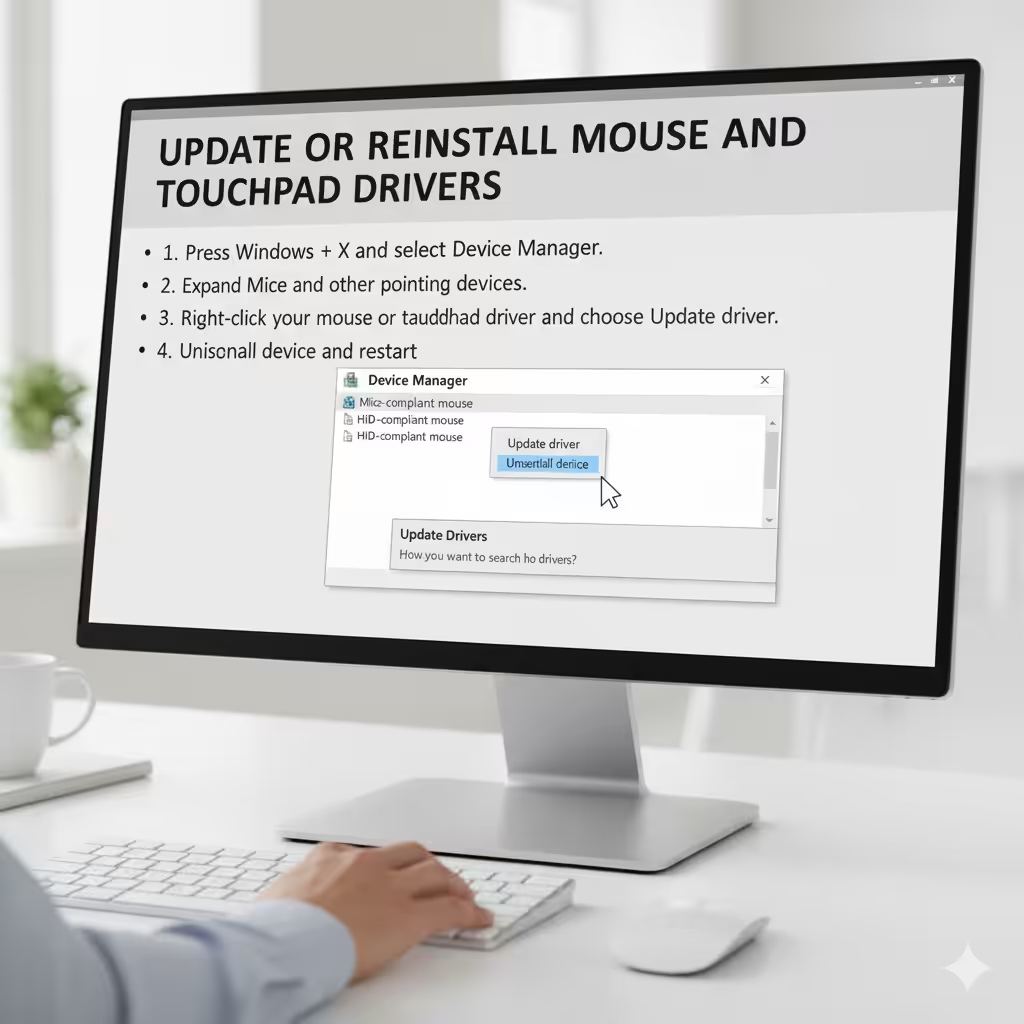
Outdated or corrupted drivers can cause input errors that lead to auto-scrolling. Updating or reinstalling them often fixes the problem.
-
Press Windows + X and select Device Manager.
-
Expand Mice and other pointing devices.
-
Right-click your mouse or touchpad driver and choose Update driver.
-
If updating doesn’t help, right-click again and select Uninstall device. Restart your computer, and Windows will reinstall the driver automatically.
If your laptop has a touchpad, make sure to install the manufacturer’s official drivers (such as Synaptics or ELAN).
Adjust Touchpad Settings
On laptops, the touchpad is a common source of scrolling issues. You can adjust its sensitivity and disable gestures that may cause unwanted movement.
-
Open Settings from the Start menu.
-
Go to Devices > Touchpad.
-
Reduce the sensitivity or disable advanced gestures like two-finger scrolling.
This can help if your touchpad is too sensitive or misinterpreting your actions.
Run Windows Troubleshooter
Windows 10 includes built-in troubleshooters that can automatically detect and fix hardware issues.
-
Open Settings.
-
Go to Update & Security > Troubleshoot.
-
Select Additional troubleshooters.
-
Choose Hardware and Devices, then run the troubleshooter.
Follow the on-screen instructions to apply fixes.
Check for Stuck Keys on Your Keyboard
Sometimes the problem isn’t the mouse or touchpad but the keyboard. A stuck arrow key or Page Up/Page Down key can cause continuous scrolling.
-
Gently press each arrow key to ensure none are stuck.
-
If necessary, clean your keyboard to remove dust or debris.
-
Try an external keyboard to test if the problem disappears.
Disable Background Applications
Third-party applications, especially those that modify input behavior, may cause auto-scrolling.
-
Open Task Manager with Ctrl + Shift + Esc.
-
Go to the Startup tab.
-
Disable unnecessary apps that launch when Windows starts.
Restart your computer and see if the scrolling problem is resolved.
Update Windows 10
Sometimes the issue is caused by a Windows bug that has been fixed in a later update. Keeping your system up to date can resolve it.
-
Open Settings.
-
Go to Update & Security > Windows Update.
-
Click Check for updates.
Install any available updates and restart your PC.
Use Safe Mode to Diagnose Issues
If you still cannot identify the cause, boot into Safe Mode.
-
Press Windows + R, type msconfig, and press Enter.
-
Go to the Boot tab and select Safe boot.
-
Restart your computer.
In Safe Mode, only essential drivers and services run. If the problem does not occur, a third-party app or driver is responsible.
Reset Windows Settings
If none of the above solutions work, you can reset Windows settings to their default state.
-
Open Settings.
-
Go to Update & Security > Recovery.
-
Under Reset this PC, click Get started.
You can choose to keep your files or remove everything. This step should only be used as a last resort.
Conclusion
Windows 10 scrolling by itself can be a frustrating problem, but it usually has simple solutions. Whether it’s caused by a faulty mouse, sensitive touchpad, outdated drivers, or incorrect system settings, following the steps above can help you identify and fix the issue.
Start with the basics, such as checking hardware and disabling “Scroll inactive windows,” then move on to driver updates, touchpad settings, and system troubleshooting. In most cases, you won’t need to reset Windows or replace hardware, but knowing these options are available ensures you can resolve the problem if it persists.
With these methods, you can regain control of your computer and prevent automatic scrolling from interrupting your work.