


Guide to Reducing High CPU Usage in Windows 10
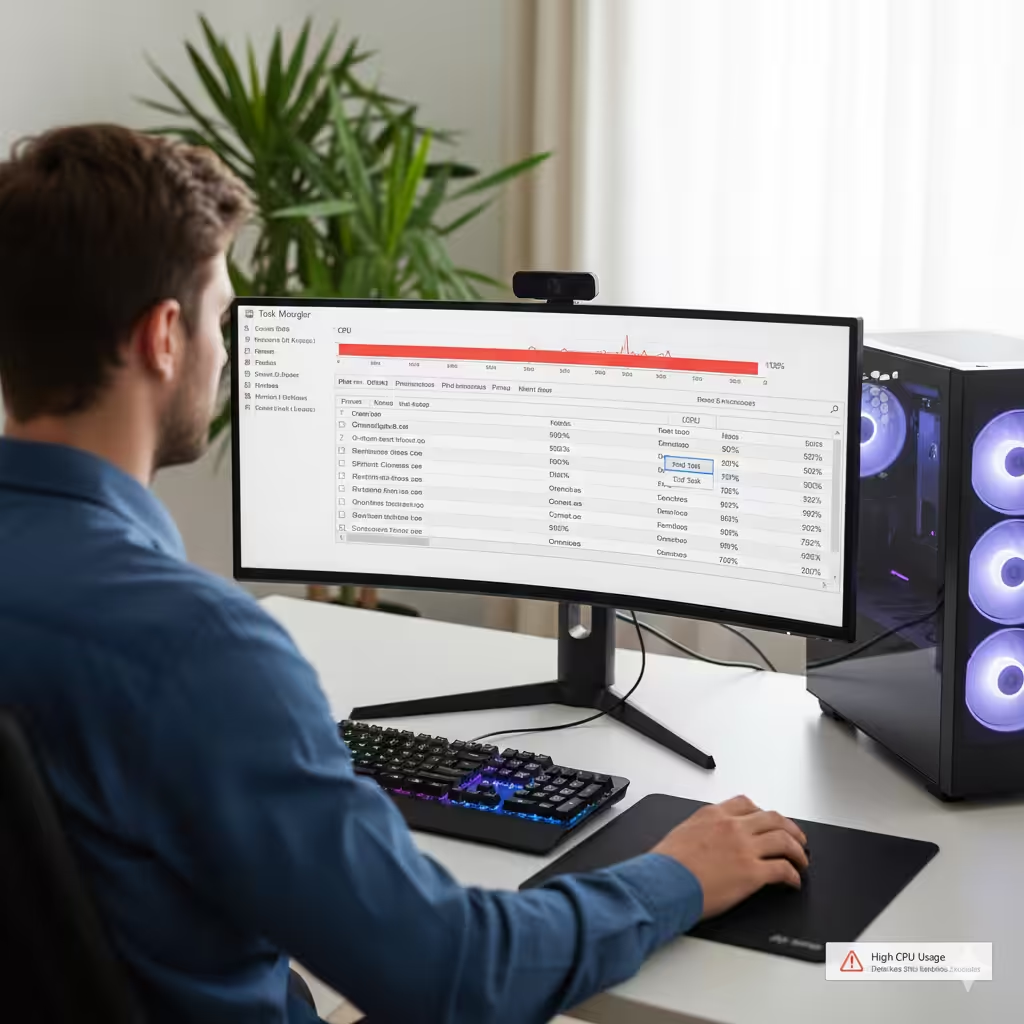
A slow computer can be incredibly frustrating, especially when you discover that the culprit is high CPU usage. The CPU (Central Processing Unit) is the brain of your computer, and when it is constantly running at near 100%, everything slows down. Applications may freeze, the fan may run loudly, and tasks that should take seconds can feel endless.
If you are a Windows 10 user and you are struggling with high CPU usage, don’t worry. This guide will explain the common causes and provide step-by-step solutions to help you get your PC back to running smoothly.
What Causes High CPU Usage in Windows 10?

Before jumping into solutions, it is important to understand what might be causing the issue. Some common reasons include:
-
Background processes: Too many apps or services running at once.
-
Malware or viruses: Harmful software that consumes system resources.
-
Outdated drivers: Drivers that don’t work well with the operating system.
-
Windows processes: System tasks such as Windows Update or Cortana sometimes use too much CPU.
-
Heavy applications: Games, video editing tools, or browsers with many tabs can push the CPU to its limits.
Once you know the source of the problem, it becomes much easier to fix.
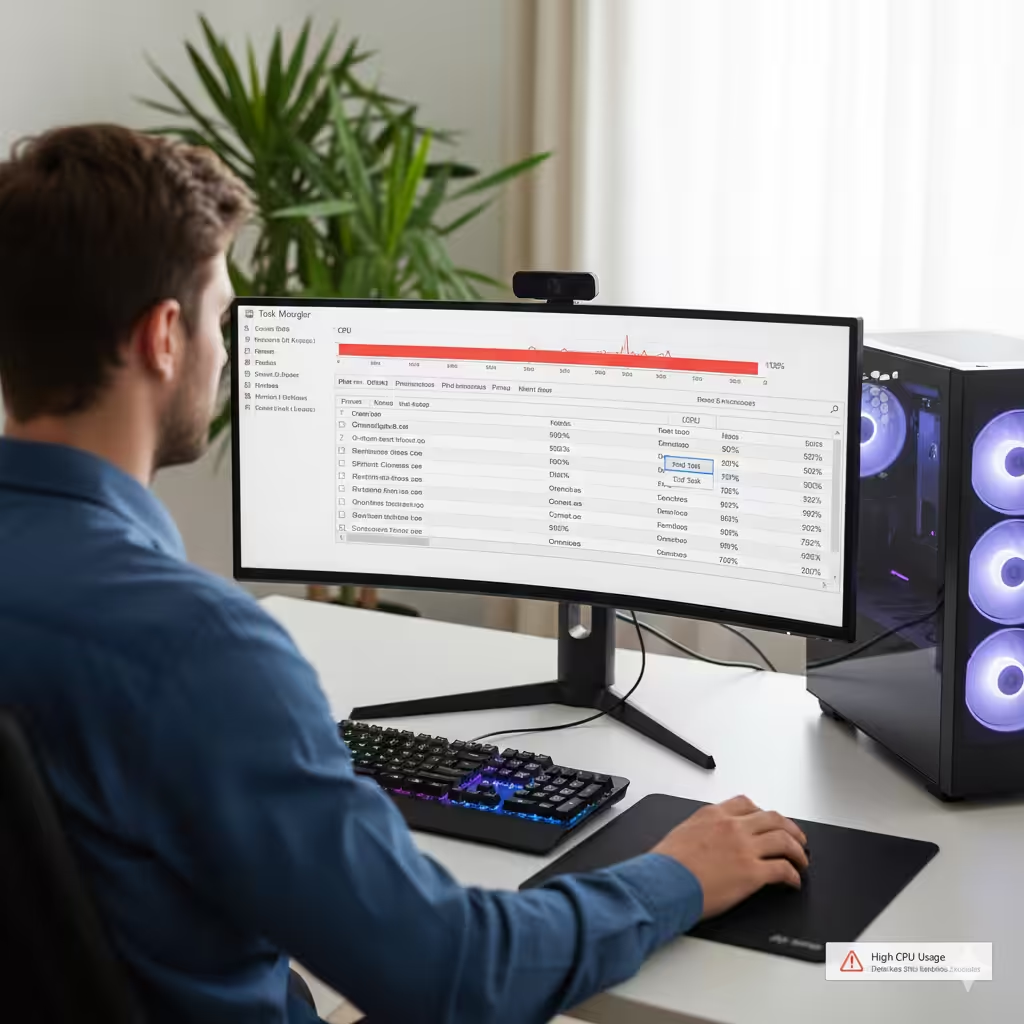
Check CPU Usage with Task Manager

The first step to solving high CPU usage is to confirm which process is responsible.
-
Press Ctrl + Shift + Esc to open Task Manager.
-
Click the Processes tab.
-
Look for processes that are using a high percentage of the CPU.
-
If you find unnecessary apps consuming resources, right-click and select End Task.
This gives you an overview of what is running on your computer and whether the high CPU usage is caused by specific apps or background processes.
Disable Startup Programs
Too many applications starting with Windows can put unnecessary strain on your CPU.
-
Open Task Manager and go to the Startup tab.
-
Review the list of programs.
-
Right-click and disable apps you don’t need to launch automatically.
Disabling startup programs can significantly reduce CPU load after booting.
Scan for Malware and Viruses
Malware is a common cause of high CPU usage because malicious software often runs processes in the background.
-
Open Windows Security from the Start menu.
-
Go to Virus & threat protection.
-
Run a Full Scan to check for malware.
-
Remove any threats found.
You can also use trusted third-party antivirus programs if you prefer.
Update Windows and Drivers
Outdated or incompatible drivers and system files can cause CPU spikes. Updating ensures your computer is running the latest optimizations.
-
Update Windows:
-
Open Settings.
-
Go to Update & Security.
-
Click Check for updates.
-
-
Update drivers:
-
Press Windows + X and select Device Manager.
-
Expand categories such as Display adapters and Network adapters.
-
Right-click and choose Update driver.
-
Keeping both Windows and drivers up to date helps prevent unnecessary CPU strain.
Adjust Windows Settings for Performance
Windows 10 includes many visual effects that look nice but consume resources. You can adjust these settings for better performance:
-
Right-click This PC and select Properties.
-
Click Advanced system settings.
-
Under Performance, click Settings.
-
Choose Adjust for best performance or manually disable effects you don’t need.
This step is especially useful for older PCs.
Restart Windows Update Service
Sometimes Windows Update gets stuck and consumes excessive CPU resources. Restarting the service can fix this issue.
-
Press Windows + R, type services.msc, and press Enter.
-
Scroll down and find Windows Update.
-
Right-click and select Restart.
This can often resolve problems where the Windows Update process is hogging your CPU.
Disable Background Apps
Windows 10 allows many apps to run in the background, even when you are not using them. This can increase CPU usage.
-
Open Settings.
-
Go to Privacy > Background apps.
-
Toggle off the apps you don’t need running in the background.
This frees up system resources for tasks that matter.
Check for Corrupt System Files
Corrupt system files can also lead to abnormal CPU usage. Running a scan with System File Checker can fix them.
-
Press Windows + S, type cmd, right-click Command Prompt, and select Run as administrator.
-
Type the following command:
-
Press Enter and let Windows scan for and repair corrupt files.
This process can take some time but often solves hidden issues.
Upgrade Hardware If Necessary
If your computer is still struggling after applying software fixes, the issue may be hardware limitations. Consider:
-
Adding more RAM to help reduce reliance on the CPU.
-
Upgrading your processor if it is too old for modern tasks.
-
Switching to an SSD for faster performance.
These upgrades can dramatically improve speed and efficiency.
Conclusion
High CPU usage on Windows 10 can make your computer slow, noisy, and frustrating to use. Fortunately, there are many solutions—from disabling startup programs and updating drivers to scanning for malware and adjusting system settings. In most cases, you can fix the problem without needing new hardware. However, if your computer is still sluggish after trying these solutions, upgrading components like RAM or the CPU may be the best option.
By following the steps in this guide, you should be able to identify the cause of high CPU usage and restore your Windows 10 system to smooth, efficient performance.