


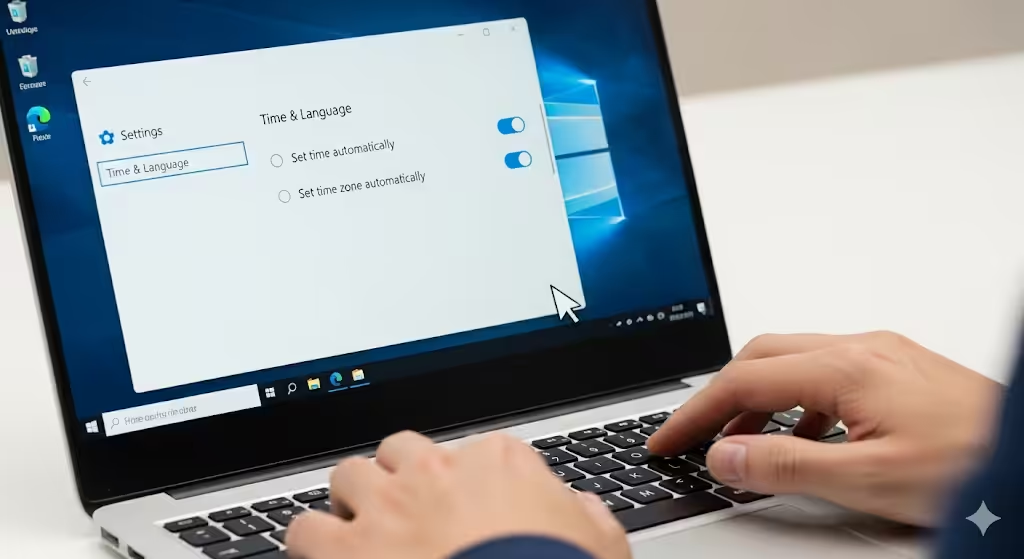
How to Resolve Microsoft Store Keeps Closing on Windows 10
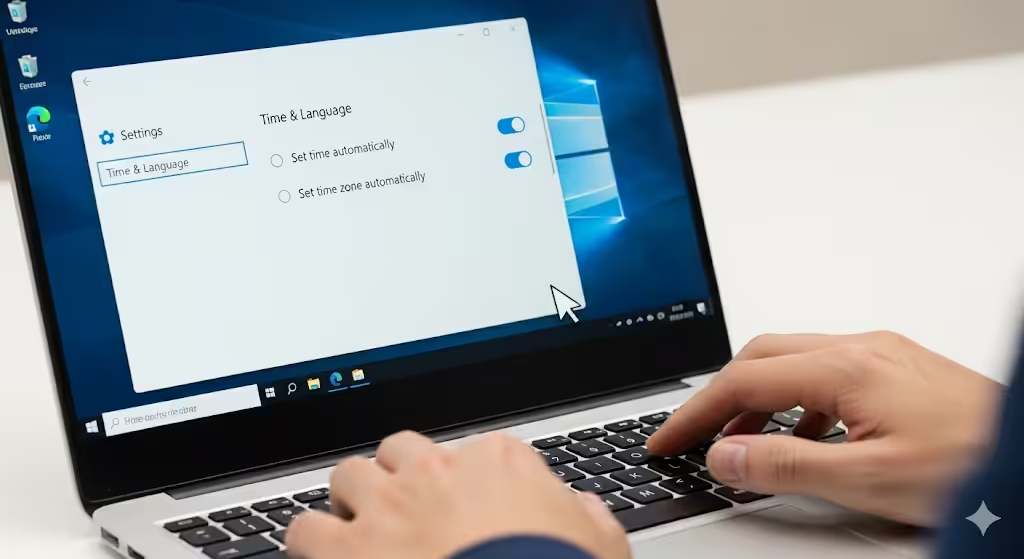
The Microsoft Store is an essential app in Windows 10 that allows users to download apps, games, and updates directly from Microsoft. However, many users encounter a frustrating issue: the Microsoft Store crashes unexpectedly or refuses to open at all. This problem can disrupt your workflow, prevent you from installing important updates, and limit your access to new applications.
If you are struggling with this issue, don’t worry. This guide will walk you through several reliable solutions to fix the Microsoft Store crashing on Windows 10.
Common Causes of Microsoft Store Crashing
Before diving into fixes, it helps to understand what might be causing the Microsoft Store to crash:
-
Corrupt cache files in the Microsoft Store
-
Outdated or damaged Windows system files
-
Incorrect date and time settings
-
Issues with your Microsoft account sign-in
-
Pending Windows updates that need installation
-
Damaged app data or configuration files
Knowing the root cause will help you apply the right solution more effectively.
Step 1: Check Your Date and Time Settings
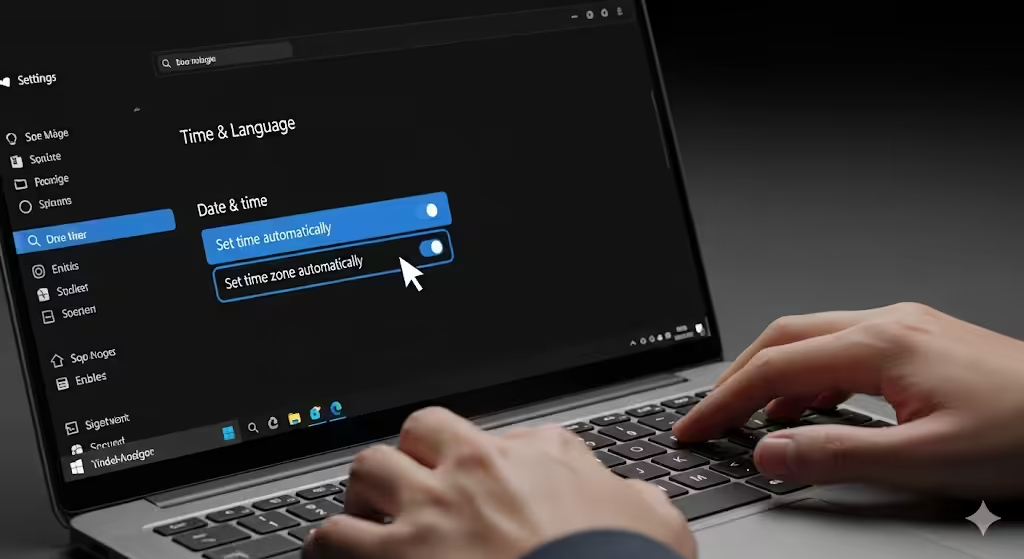
Incorrect date and time settings can cause the Microsoft Store to malfunction.
-
Press Windows + I to open Settings.
-
Navigate to Time & Language > Date & Time.
-
Enable Set time automatically and Set time zone automatically.
-
Restart your computer and try opening the Store again.
A simple correction of your system clock may resolve the crashing problem instantly.
Step 2: Run the Windows Store Apps Troubleshooter
Windows 10 comes with built-in troubleshooters designed to fix common issues.
-
Open Settings using Windows + I.
-
Go to Update & Security > Troubleshoot.
-
Click on Additional troubleshooters.
-
Select Windows Store Apps and run the troubleshooter.
This tool will automatically detect and repair issues with the Microsoft Store.
Step 3: Clear the Microsoft Store Cache
A corrupted cache is one of the most frequent reasons the Store crashes. Clearing it may restore functionality.
-
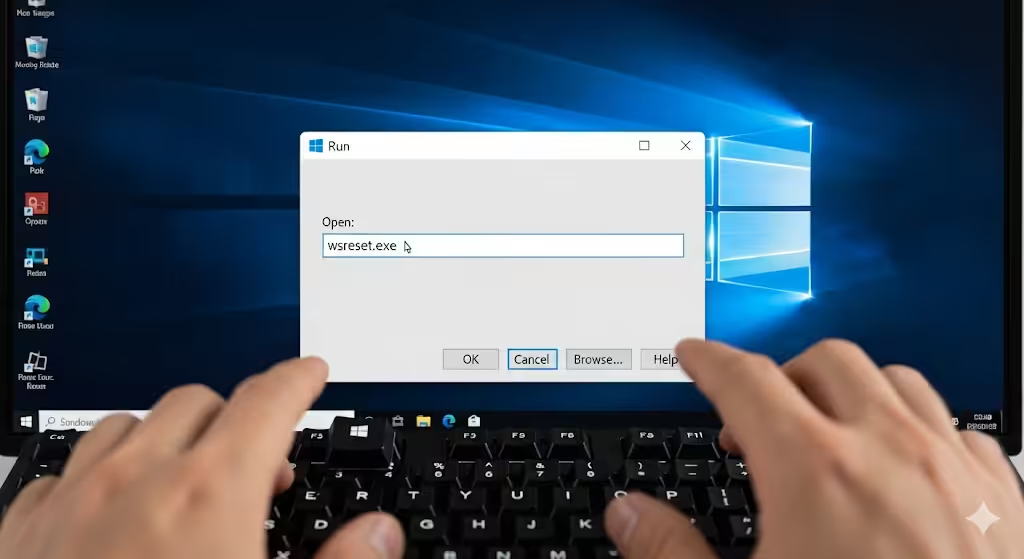
Press Windows + R to open the Run dialog box.
-
Type wsreset.exe and press Enter.
-
A blank Command Prompt window will appear for a few seconds, then the Store will reopen automatically.
This process deletes the Store cache without affecting your installed apps.
Step 4: Reset or Repair the Microsoft Store
If clearing the cache does not work, you may need to reset or repair the app.
-
Open Settings and go to Apps > Apps & features.
-
Scroll down and find Microsoft Store.
-
Click Advanced options.
-
Select Repair first. If that doesn’t work, choose Reset.
Repairing keeps your data intact, while resetting reinstalls the app with default settings.
Step 5: Re-wp-signup.php the Microsoft Store via PowerShell
Sometimes, the Microsoft Store app becomes unwp-signup.phped from Windows, causing frequent crashes. Re-wp-signup.phping it can help.
-
Right-click the Start menu and select Windows PowerShell (Admin).
-
Copy and paste the following command, then press Enter:
-
Restart your computer and test the Microsoft Store again.
Step 6: Check for Windows Updates
Outdated system files can conflict with the Store. Keeping Windows up to date can resolve compatibility problems.
-
Open Settings > Update & Security > Windows Update.
-
Click Check for updates.
-
Install all available updates and restart your computer.
After the update, launch the Store to see if the crashing issue persists.
Step 7: Reset the Microsoft Store Using Command Prompt
If none of the above worked, a deeper reset might help.
-
Search for Command Prompt, right-click it, and select Run as administrator.
-
Type the following command and press Enter:
-
Once the process completes, open the Store again.
This is similar to Step 3 but ensures a more thorough reset.
Step 8: Create a New User Account
Corrupted user profiles can also cause the Store to malfunction. Creating a new account can confirm if that is the issue.
-
Go to Settings > Accounts > Family & other users.
-
Click Add someone else to this PC.
-
Follow the prompts to create a new user account.
-
Sign in with the new account and open the Microsoft Store.
If it works under the new account, your original profile may be corrupted.
Step 9: Reinstall the Microsoft Store
As a last resort, you can completely reinstall the Microsoft Store using PowerShell.
-
Open Windows PowerShell (Admin).
-
Enter the following command:
-
Then reinstall it using this command:
-
Restart your system and launch the Microsoft Store.
Additional Tips to Prevent Future Crashes
-
Regularly update your apps through the Store.
-
Keep your Windows 10 system up to date.
-
Run regular scans with Windows Security or antivirus software.
-
Avoid using third-party tools that interfere with Store files.
Conclusion
The Microsoft Store crashing on Windows 10 can be frustrating, but with the right steps, you can restore its stability. From adjusting your system time to clearing the cache, resetting the app, or reinstalling it entirely, these solutions cover both basic and advanced troubleshooting methods.
By following this guide, you should be able to fix the crashing problem and enjoy seamless access to apps, games, and updates once again.