


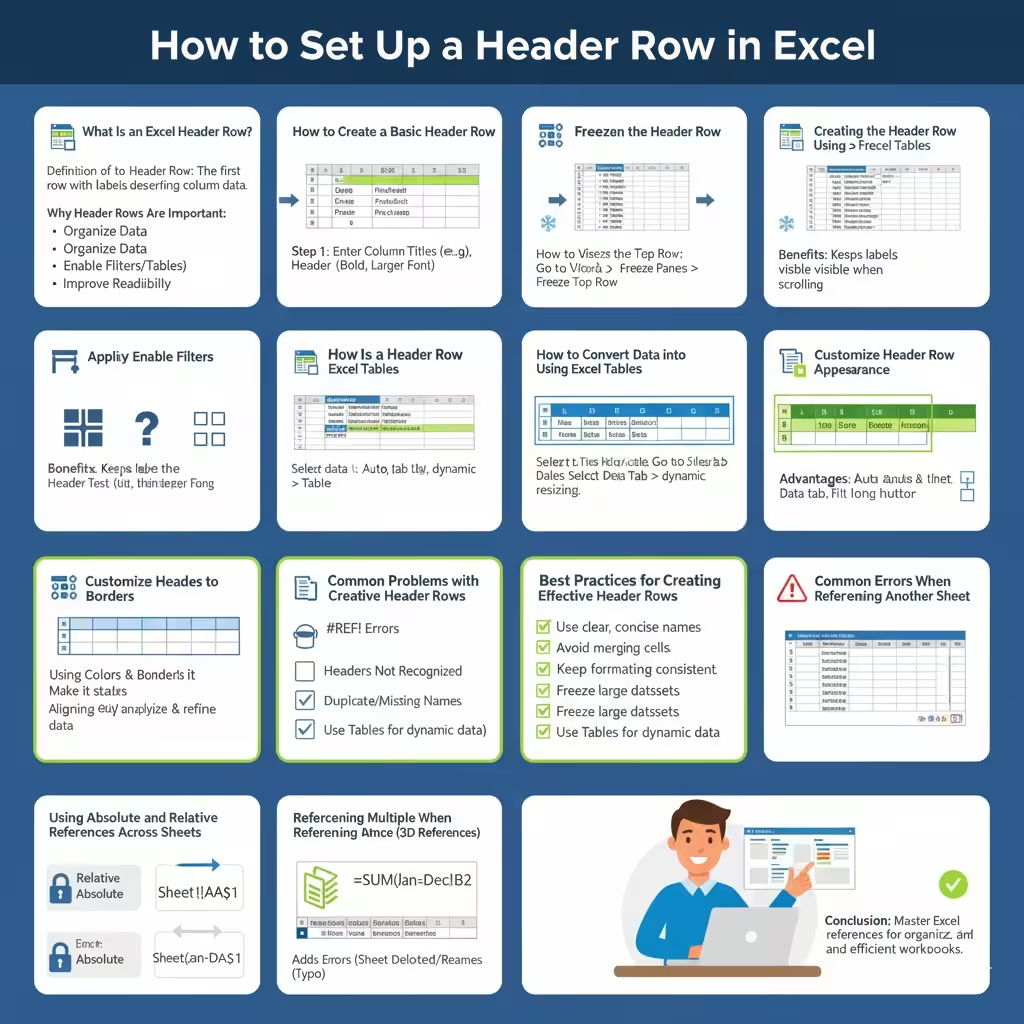
How to Set Up a Header Row in Excel
An Excel header row plays a critical role in organizing data, improving readability, and making spreadsheets easier to analyze. Whether you are working with small lists or large datasets, a properly created header row helps you understand what each column represents and allows Excel features such as sorting, filtering, and tables to work correctly.
In this guide, you will learn how to create an Excel header row step by step. We will cover simple formatting methods, advanced techniques, and best practices to ensure your header rows remain clear, functional, and professional.
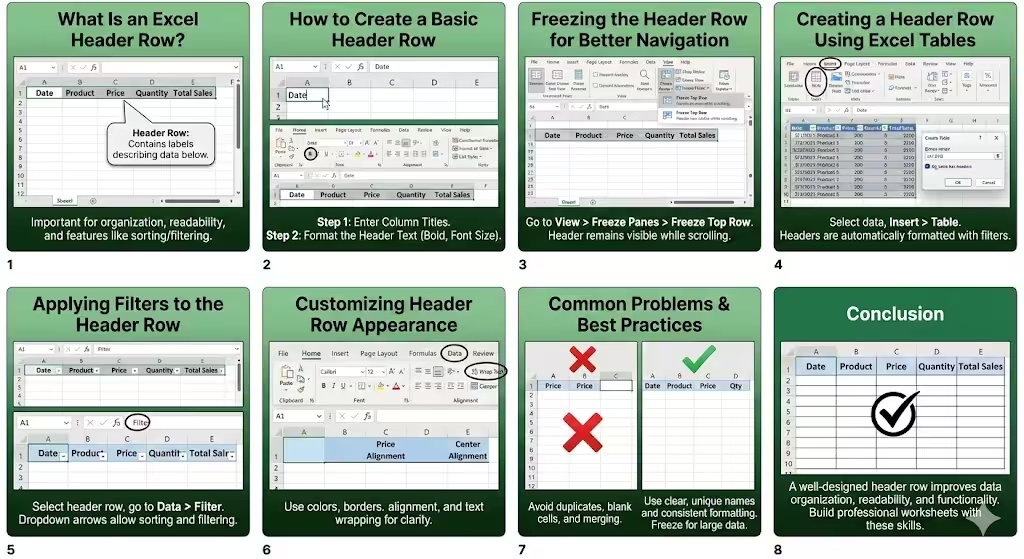
What Is an Excel Header Row?
Before creating one, it is important to understand what a header row is and why it matters.
Definition of a Header Row
A header row is the first row in a worksheet that contains labels describing the data in each column. These labels might include names such as “Date,” “Product,” “Price,” or “Total Sales.” Header rows do not usually contain data values themselves but instead describe the data below them.
Why Header Rows Are Important
Header rows make spreadsheets easier to read and manage. They help users quickly understand data, enable Excel’s built-in tools like filters and tables, and reduce confusion when sharing files with others.
How to Create a Basic Header Row in Excel
Creating a basic header row is simple and requires only a few steps.
Step 1: Enter Column Titles
Click on the first row of your worksheet and type descriptive titles into each column. Make sure each header clearly represents the data underneath it.
Step 2: Format the Header Text
Select the header row and apply basic formatting such as bold text or a larger font size. This helps visually separate the header from the rest of the data.
Freezing the Header Row for Better Navigation
When working with large datasets, it is helpful to keep the header row visible while scrolling.
How to Freeze the Top Row
Go to the View tab, select Freeze Panes, and choose Freeze Top Row. This ensures the header remains visible as you scroll down the worksheet.
Benefits of Freezing Header Rows
Freezing the header row improves usability, especially when analyzing long lists of data. It helps prevent mistakes by keeping column labels in view at all times.
Creating a Header Row Using Excel Tables
Excel tables provide an advanced and highly functional way to create header rows.
How to Convert Data into a Table
Select your data range, go to the Insert tab, and choose Table. Excel will automatically detect and format the header row.
Advantages of Table Header Rows
Table headers automatically include sorting and filtering options. They also adjust dynamically when new data is added, making them ideal for growing datasets.
Applying Filters to the Header Row
Filters allow you to quickly analyze and refine data.
How to Enable Filters
Select the header row and click the Filter button in the Data tab. Dropdown arrows will appear in each header cell, allowing you to sort and filter data easily.
Using Filters Effectively
Filters help you focus on specific values, hide irrelevant data, and perform quick analysis without altering the original dataset.
Customizing Header Row Appearance
Visual customization improves clarity and professionalism.
Using Colors and Borders
Apply background colors or borders to the header row to make it stand out. Choose subtle colors to maintain readability.
Aligning and Wrapping Text
Use text alignment and wrap text options to ensure long headers fit neatly within cells without overlapping.
Common Problems with Excel Header Rows
Even simple header rows can cause issues if not set up correctly.
Headers Not Recognized by Excel
If Excel does not recognize your headers, ensure there are no blank rows above them and that each column has a unique label.
Duplicate or Missing Header Names
Avoid duplicate headers or empty header cells, as these can interfere with sorting, filtering, and formulas.
Best Practices for Creating Effective Header Rows
- Use clear, concise column names
- Avoid merging header cells
- Keep formatting consistent
- Freeze the header row for large datasets
- Use tables when working with dynamic data
Following these best practices ensures your spreadsheets remain easy to use and maintain.
Conclusion
Creating an Excel header row is a fundamental skill that improves data organization, readability, and functionality. Whether you choose a simple formatted row, a frozen header, or an Excel table, a well-designed header row makes your spreadsheet more effective and user-friendly. By applying the techniques and best practices outlined in this guide, you can build professional Excel worksheets that are easy to understand, analyze, and share.