


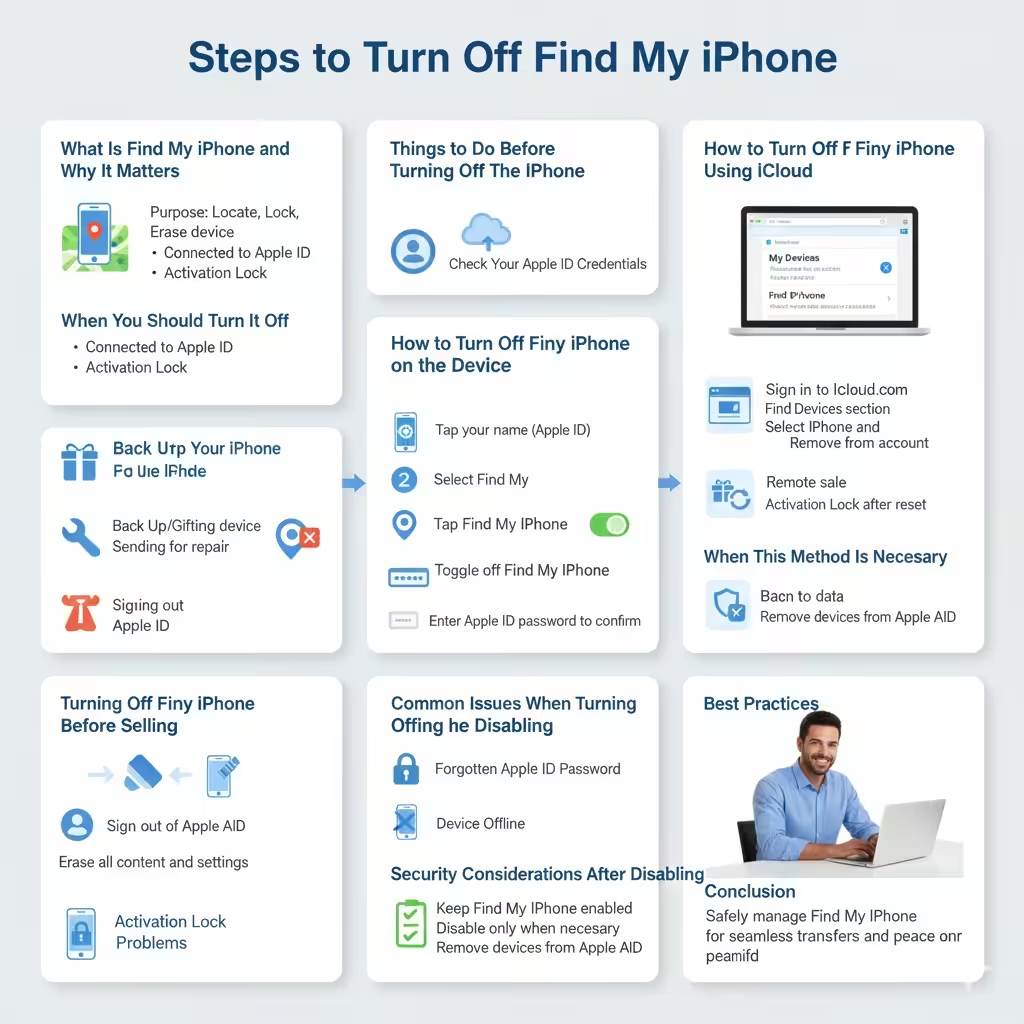
Steps to Turn Off Find My iPhone
The Find My iPhone feature is designed to help Apple users locate lost or stolen devices, protect personal data, and improve overall security. While this feature is extremely useful, there are situations where you may need to turn it off. Common reasons include selling or giving away an iPhone, sending it for repair, troubleshooting Apple ID issues, or preparing the device for a factory reset.
In this comprehensive guide, you will learn how to turn off the Find My iPhone feature safely and correctly. We will cover different methods, explain why Apple requires this feature to be disabled in certain cases, and provide best practices to avoid common problems.
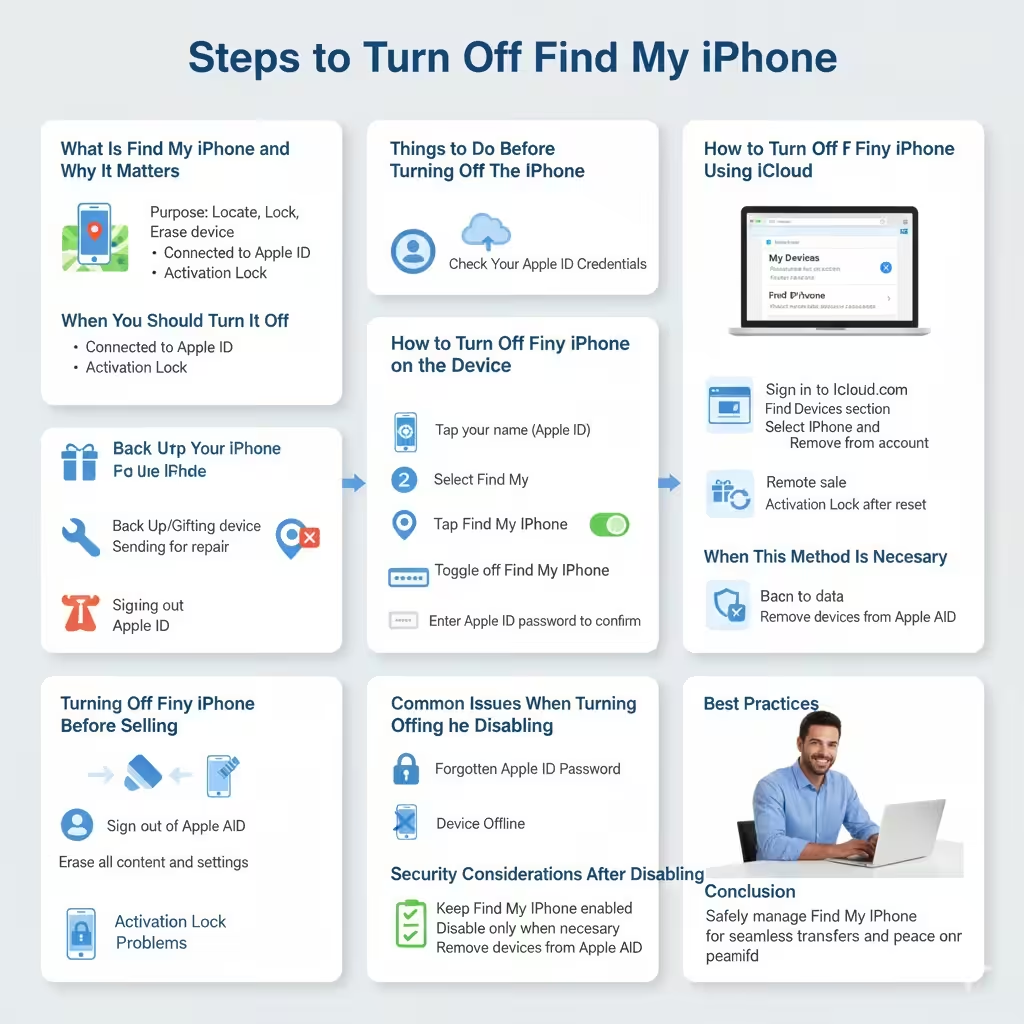
What Is Find My iPhone and Why It Matters
Before disabling the feature, it is important to understand what Find My iPhone does.
Purpose of Find My iPhone
Find My iPhone allows you to locate your device on a map, play a sound, lock it remotely, or erase its data if it is lost or stolen. It is tightly connected to your Apple ID and works as part of Apple’s Activation Lock system.
When You Should Turn It Off
You may need to disable Find My iPhone when selling or gifting your device, trading it in, repairing hardware components, or signing out of your Apple ID. Apple requires the feature to be turned off to prevent unauthorized access.
Things to Do Before Turning Off Find My iPhone
Preparation helps prevent data loss and account issues.
Back Up Your iPhone
Before making any changes, back up your data using iCloud or a computer. This ensures that photos, contacts, and important information are not lost.
Check Your Apple ID Credentials
You will need your Apple ID password to disable Find My iPhone. Make sure you know your login details before proceeding.
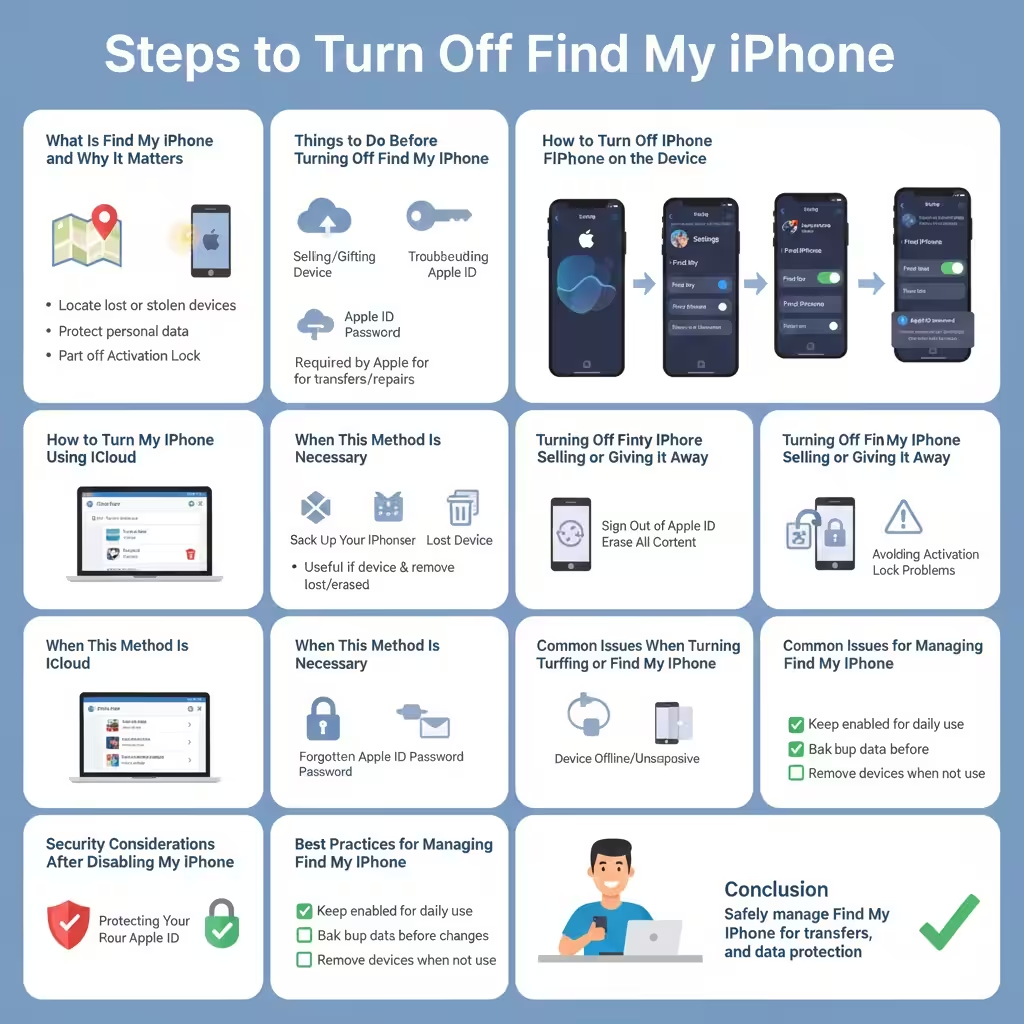
How to Turn Off Find My iPhone on the Device
This is the most common and recommended method.
Step-by-Step Instructions
- Open the Settings app on your iPhone
- Tap your name at the top to open Apple ID settings
- Select Find My
- Tap Find My iPhone
- Toggle off Find My iPhone
- Enter your Apple ID password to confirm
Once completed, the feature will be disabled for that device.
How to Turn Off Find My iPhone Using iCloud
If you no longer have access to your iPhone, iCloud provides an alternative.
Using iCloud on a Web Browser
Sign in to your iCloud account, open the Find Devices section, select the iPhone, and remove it from your account. This method is useful if the device is lost or already erased.
When This Method Is Necessary
This approach is often used when selling a device remotely or resolving Activation Lock issues after a reset.
Turning Off Find My iPhone Before Selling or Giving It Away
Disabling Find My iPhone is essential when transferring ownership.
Sign Out of Apple ID
After turning off Find My iPhone, sign out of your Apple ID and erase all content and settings. This removes personal data and ensures the new owner can activate the device.
Avoiding Activation Lock Problems
Failure to disable Find My iPhone may leave the device locked to your Apple ID, preventing others from using it.
Common Issues When Turning Off Find My iPhone
Some users encounter difficulties during the process.
Forgotten Apple ID Password
If you cannot remember your password, you must reset it before turning off Find My iPhone. Apple does not allow bypassing this security step.
Device Offline or Unresponsive
When the iPhone is offline, changes may not take effect immediately. Connecting to the internet usually resolves this issue.
Security Considerations After Disabling Find My iPhone
Turning off this feature reduces device protection.
When to Re-Enable Find My iPhone
If you disabled it temporarily for troubleshooting, consider turning it back on once the task is complete.
Protecting Your Apple ID
Always keep your Apple ID secure and avoid sharing your credentials. This ensures your account and devices remain protected.
Best Practices for Managing Find My iPhone
- Keep Find My iPhone enabled for daily use
- Disable it only when necessary
- Back up data before making changes
- Remove devices from your Apple ID when no longer in use
Following these practices helps balance convenience and security.
Conclusion
Knowing how to turn off the Find My iPhone feature is essential when selling, repairing, or managing your Apple devices. While the feature provides strong protection against loss and theft, disabling it at the right time ensures smooth ownership transfers and prevents activation issues. By following the steps and best practices outlined in this guide, you can safely manage Find My iPhone without risking your data or security.