


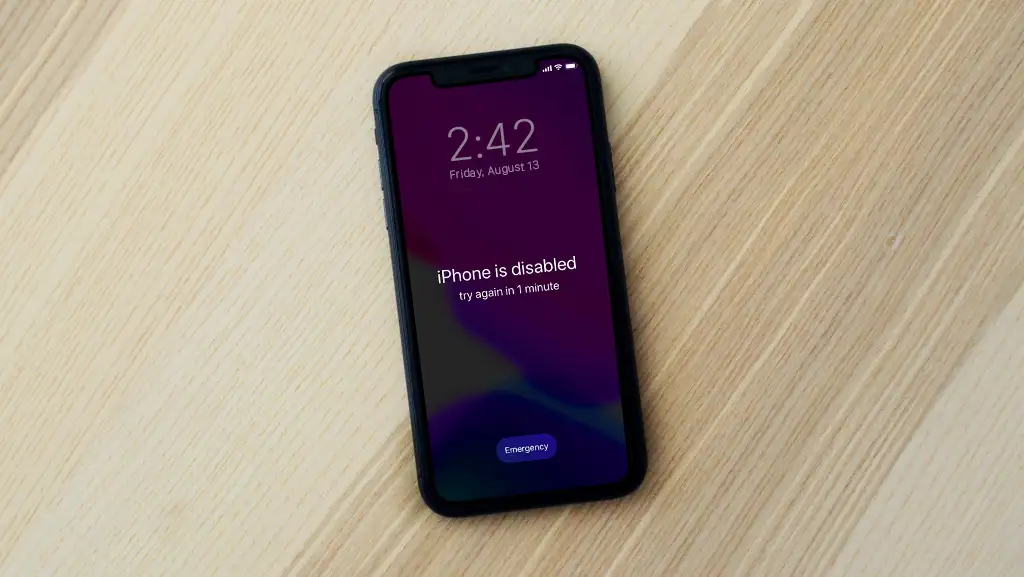
Fixing the “iPhone Is Disabled, Connect to iTunes” Error
Seeing the message “iPhone is Disabled. Connect to iTunes” can be alarming, especially if you rely on your device for daily communication, work, or personal data. This error usually appears after too many incorrect passcode attempts, triggering Apple’s security system to protect your information from unauthorized access.
Although the message may seem serious, it does not necessarily mean your iPhone is permanently unusable. In most cases, the device can be restored and returned to normal working condition. In this guide, you will learn why this error happens, what it means for your data, and how to fix it safely using official Apple methods.
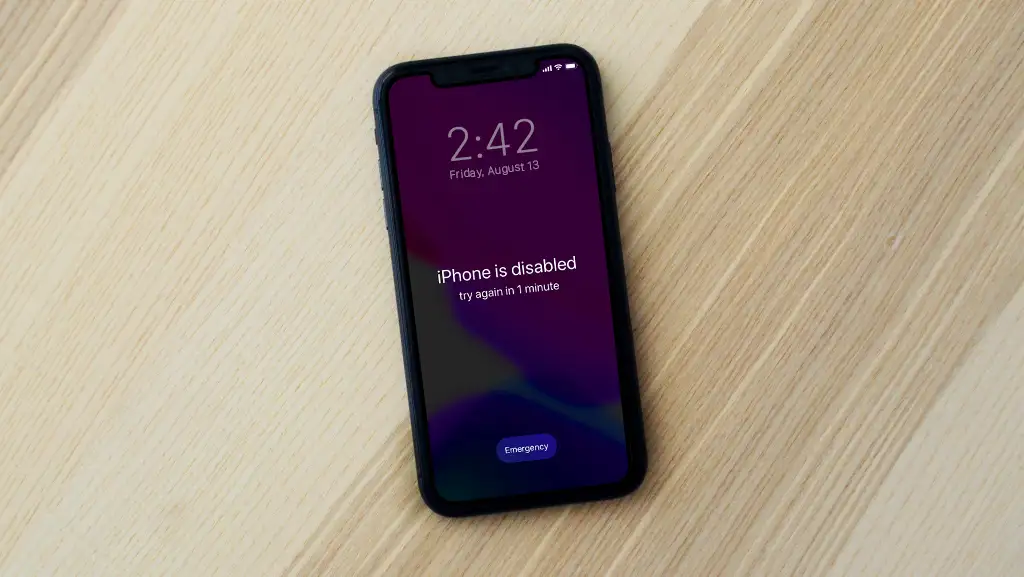
What Does “iPhone Is Disabled” Mean?
Before fixing the problem, it is important to understand what causes it.
Why iPhones Become Disabled
Apple automatically disables an iPhone after multiple incorrect passcode entries. This feature protects your personal information if the device is lost, stolen, or accessed by someone without permission.
After several failed attempts, the iPhone may show messages such as “Try again in 1 minute” or “Try again in 15 minutes.” If incorrect attempts continue, the device eventually becomes fully disabled and requires a connection to a computer.
Is Your Data Still Safe?
Yes. The disabled state is designed to secure your data. However, fixing the issue usually involves erasing the device, which may remove local data unless you have a backup.
Things to Know Before Fixing a Disabled iPhone
Preparation can save time and reduce stress.
Data Loss Considerations
Most official solutions require erasing the iPhone. If you have an iCloud or computer backup, you can restore your data after the process. Without a backup, data stored on the device may be lost.
Apple ID and Password Requirements
You will need the Apple ID and password associated with the iPhone to complete the setup after restoration. This is part of Apple’s Activation Lock security system.
Fixing “iPhone Is Disabled” Using iTunes or Finder
This is the most common and reliable solution.
Put the iPhone into Recovery Mode
Connect your iPhone to a computer and place it into recovery mode using the correct button combination for your model. Recovery mode allows the computer to communicate with a disabled device.
Restore the iPhone
Once the device is detected, iTunes or Finder will prompt you to restore it. Choose Restore to erase the device and install the latest compatible version of iOS.
Using Finder on macOS Instead of iTunes
On newer versions of macOS, Finder replaces iTunes.
How Finder Handles Disabled iPhones
When the iPhone is connected in recovery mode, Finder displays restore options similar to iTunes. The process and results are the same, ensuring compatibility with modern systems.
Advantages of Finder-Based Restoration
Finder provides a streamlined interface and integrates smoothly with macOS security and backup features.
Fixing the Error Using iCloud
If Find My iPhone was enabled, iCloud offers a remote solution.
Erasing the iPhone Remotely
Sign in to your iCloud account, locate the device, and erase it remotely. This removes the passcode and allows you to set up the iPhone again.
When iCloud Is the Best Option
This method works well if you do not have access to a computer but still know your Apple ID credentials.
What to Do After the iPhone Is Restored
Restoring the device is only part of the process.
Setting Up the iPhone Again
After restoration, follow the setup assistant. You can choose to restore data from an iCloud backup, a computer backup, or set up the device as new.
Signing in with Apple ID
You must sign in with the original Apple ID to complete activation. This step confirms ownership and prevents unauthorized use.
Common Problems and Troubleshooting Tips
Some users encounter issues during the process.
Computer Does Not Detect the iPhone
Try a different cable, USB port, or computer. Updating the operating system and restarting both devices can also help.
Forgotten Apple ID Password
If you cannot remember your Apple ID password, you must reset it before completing setup. Apple does not allow bypassing this security requirement.
How to Prevent the iPhone from Becoming Disabled Again
Prevention is better than recovery.
Use Face ID or Touch ID
Biometric authentication reduces the risk of repeated incorrect passcode attempts.
Back Up Your iPhone Regularly
Regular backups ensure that your data is safe if restoration becomes necessary in the future.
Conclusion
The “iPhone Is Disabled. Connect to iTunes” message is a security feature designed to protect your personal data. While it can be inconvenient, it is usually fixable using iTunes, Finder, or iCloud. By understanding why the error occurs, preparing properly, and following the correct steps, you can restore your iPhone and continue using it with confidence. Regular backups and careful passcode management will help prevent this issue from happening again.