


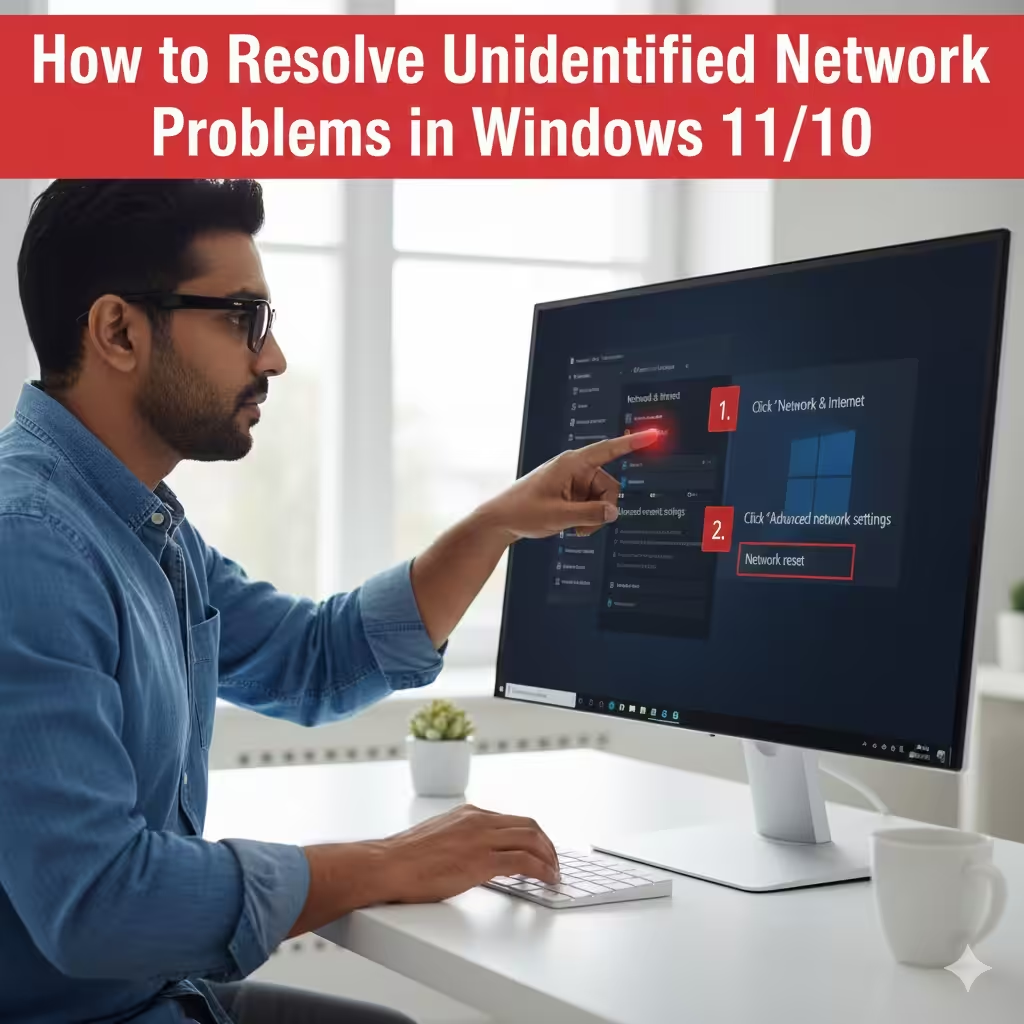
Ways to Troubleshoot Unidentified Network Problems in Windows 11/10
Seeing the “Unidentified Network” error on Windows 11 or Windows 10 can be frustrating, especially when you rely on a stable internet connection for work, gaming, or browsing. This issue usually means Windows recognizes that a network is available but cannot properly identify or connect to it. As a result, you may see “No Internet” or limited connectivity.
This error can be caused by incorrect IP settings, faulty network drivers, router issues, corrupted system files, firewall conflicts, or even simple glitches. Fortunately, there are several effective solutions you can follow step-by-step to restore your internet connection.
This comprehensive guide covers everything you need to know to fix “Unidentified Network” in Windows 11 and Windows 10.
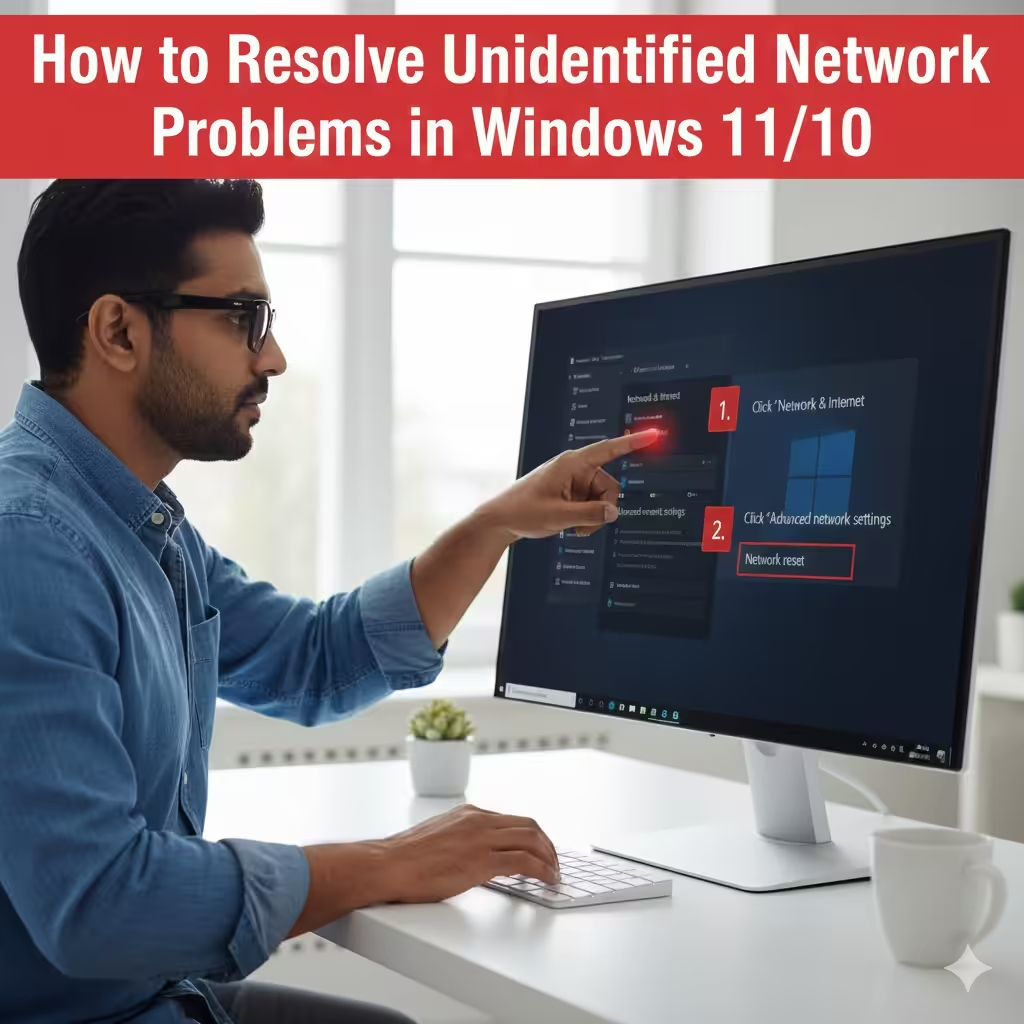
Common Causes of the “Unidentified Network” Error
Before applying fixes, it helps to understand the most common triggers:
-
Incorrect network configuration
-
Invalid IP address assignment
-
Outdated or corrupted network drivers
-
Problems with firewall or security software
-
Router or modem connection errors
-
VPN interference
-
Faulty Ethernet cables or ports
-
Network profile corruption
Identifying the root cause will help you choose the most appropriate solution.
Restart Your Router and PC
The simplest fix is often the most effective. A quick reboot can resolve temporary glitches in network communication.
How to restart your router:
-
Turn off your router and modem.
-
Unplug the power cables.
-
Wait at least 30 seconds.
-
Plug everything back in and turn them on.
Once the connection is restored, restart your Windows 11/10 PC and check whether the network is now identified correctly.
Disable and Re-enable the Network Adapter
Refreshing the network adapter forces Windows to re-establish the connection.
Steps:
-
Press Win + X → choose Network Connections.
-
Click Change adapter options.
-
Right-click your active network adapter (Wi-Fi or Ethernet).
-
Select Disable.
-
Wait a few seconds, then right-click again and choose Enable.
This resets the connection and may solve the problem immediately.
Check and Reset IP Address Settings
Invalid IP configuration is one of the most common causes of “Unidentified Network”.
Renew your IP address via Command Prompt:
-
Open Command Prompt (Admin).
-
Enter the following commands one by one:
Reset network components:
Restart your system and test the connection again.
Set a Static IP Address
Sometimes Windows fails to obtain a valid IP address automatically. Assigning a static one can resolve this issue.
Steps to set a static IP:
-
Open Network Connections.
-
Right-click your adapter → choose Properties.
-
Select Internet Protocol Version 4 (TCP/IPv4).
-
Click Properties.
-
Choose Use the following IP address.
Enter the following values (example):
-
IP address: 192.168.1.50
-
Subnet mask: 255.255.255.0
-
Default gateway: Your router’s IP (typically 192.168.1.1)
Under DNS, use:
-
Preferred DNS: 8.8.8.8
-
Alternate DNS: 8.8.4.4
Save your settings and reconnect.
Update or Reinstall Network Drivers
Outdated drivers often cause network identification failures. Updating through Device Manager may fix the problem.
To update drivers:
-
Press Win + X → Device Manager.
-
Expand Network adapters.
-
Right-click your Wi-Fi or Ethernet driver.
-
Select Update driver → Search automatically for drivers.
If no update is found, reinstall the driver:
-
Right-click the adapter.
-
Choose Uninstall device.
-
Restart your PC—Windows will reinstall it automatically.
For better results, download drivers directly from the manufacturer, such as:
-
Intel
-
Realtek
-
Qualcomm
Turn Off Airplane Mode
Windows may mistakenly enable Airplane Mode, blocking all connections.
To disable it:
-
Click the Network icon on the taskbar.
-
Ensure Airplane mode is turned Off.
Disable VPN or Proxy Settings
VPNs or proxies sometimes interfere with network identification.
Disable VPN:
-
Disconnect from your VPN app temporarily.
Disable proxy:
-
Open Settings → Network & Internet.
-
Select Proxy.
-
Turn off Use a proxy server.
After making changes, restart your PC.
Temporarily Disable Firewall or Antivirus
Aggressive firewall rules can block network access, causing the system to label the network as “Unidentified”.
Disable Windows Firewall (for testing only):
-
Go to Control Panel → Windows Defender Firewall.
-
Select Turn Windows Firewall on or off.
-
Turn it off temporarily.
If the issue disappears, re-enable the firewall and adjust your settings.
Disable third-party antivirus:
Security tools from vendors like Avast Software, Kaspersky, or Bitdefender may cause conflicts. Turn them off briefly to test.
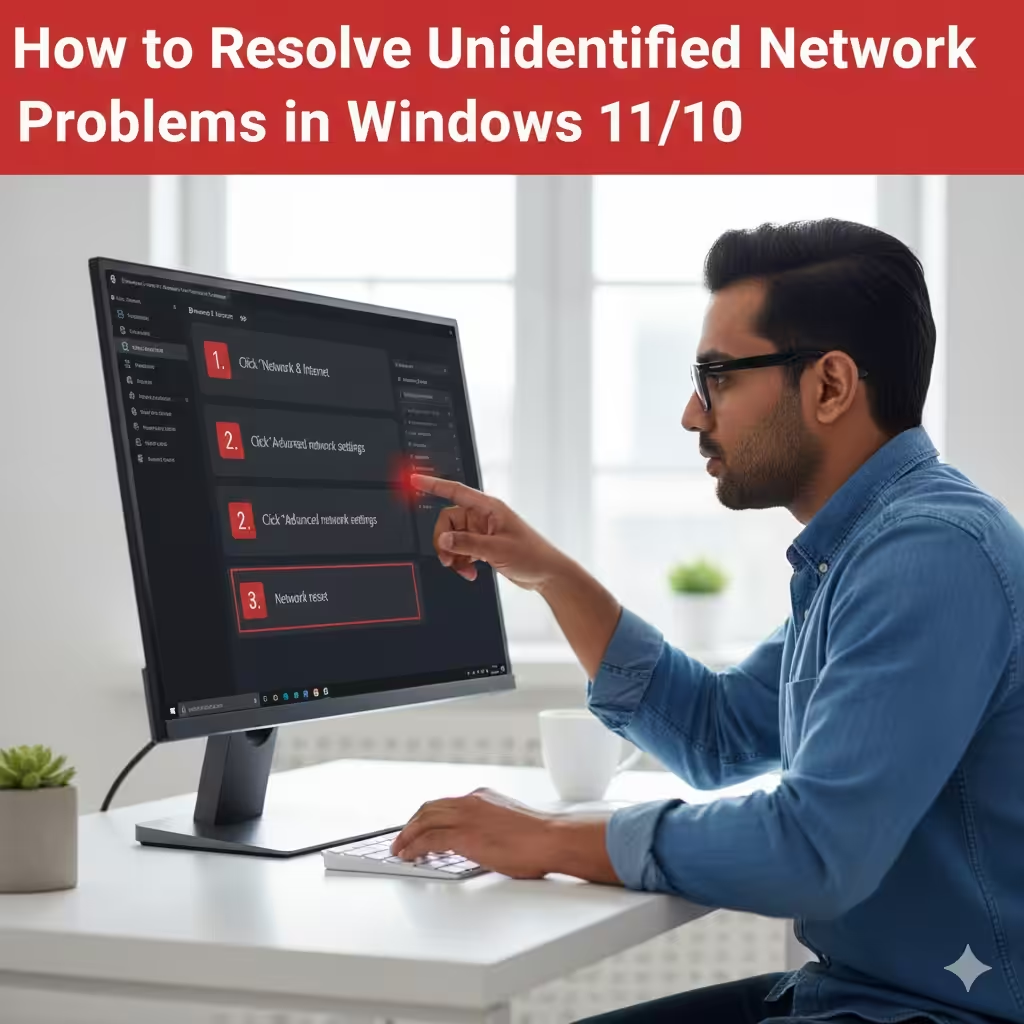
Reset Network Settings in Windows 11/10
A full network reset restores everything back to its default configuration.
On Windows 11:
-
Open Settings → Network & Internet.
-
Click Advanced network settings.
-
Select Network reset.
-
Click Reset now.
On Windows 10:
-
Open Settings → Network & Internet.
-
Select Status.
-
Click Network reset.
-
Click Reset now.
Your PC will restart, and all network adapters will be reinstalled.
Ensure Network Services Are Running
Several Windows services must be active for your connection to be identified.
Check key services:
-
Press Win + R → type services.msc.
-
Ensure the following are Running and set to Automatic:
-
DHCP Client
-
Network Location Awareness
-
Network List Service
-
TCP/IP NetBIOS Helper
-
Restart any service that is not running.
Try a Different Cable or Network Adapter
Sometimes the problem is hardware-related.
-
Replace the Ethernet cable.
-
Switch to another port on your router.
-
Test with a USB Wi-Fi adapter.
If identification works on another device or connection, the issue may involve hardware failure.
Perform a System Restore
If the problem started recently, a restore point can roll back problematic changes.
How to restore Windows:
-
Search for Create a restore point.
-
Click System Restore.
-
Choose a restore point before the issue began.
-
Follow the prompts.
This does not affect personal files.
Conclusion
The “Unidentified Network” error in Windows 11/10 can come from a range of issues including incorrect IP settings, outdated drivers, router problems, VPN interference, or corrupted network components. By following the methods in this guide—starting from simple resets and progressing to driver updates and full network resets—you can usually restore your internet connection quickly and safely.
If none of the above works, the problem may be related to your ISP or faulty hardware, and contacting your provider or replacing the network device may be necessary.