


Troubleshooting the “Specified Device, Path, or File Cannot Be Accessed” Error on Windows 10
Encountering the error “Windows cannot access the specified device, path, or file” on Windows 10 can be frustrating, especially when you urgently need to open a program or file. This issue typically appears when Windows blocks access because it cannot verify the file’s permissions, location, or safety. It can also occur when security software, corrupted shortcuts, or missing files prevent proper system access.
The good news is that this issue is usually easy to fix. This guide explains all the common causes and provides step-by-step solutions to help you regain access to your files or applications.
Common Causes of This Error
Understanding what triggers this problem helps determine the best solution. Some of the most common causes include:
-
Lack of permission to access the file
-
The file has been moved, deleted, or is unavailable
-
Windows is blocking the file due to security concerns
-
Third-party antivirus interference
-
Corrupted shortcuts or incorrect file paths
-
The file is located on a network drive that is offline
-
Damaged user profile settings
-
File has been marked as unsafe after downloading
With the cause identified, let’s move on to the fixes.
Check File Permissions
One of the most frequent reasons for this error is insufficient permissions. If your user account doesn’t have the correct access rights, Windows will prevent you from opening the item.
How to check permissions:
-
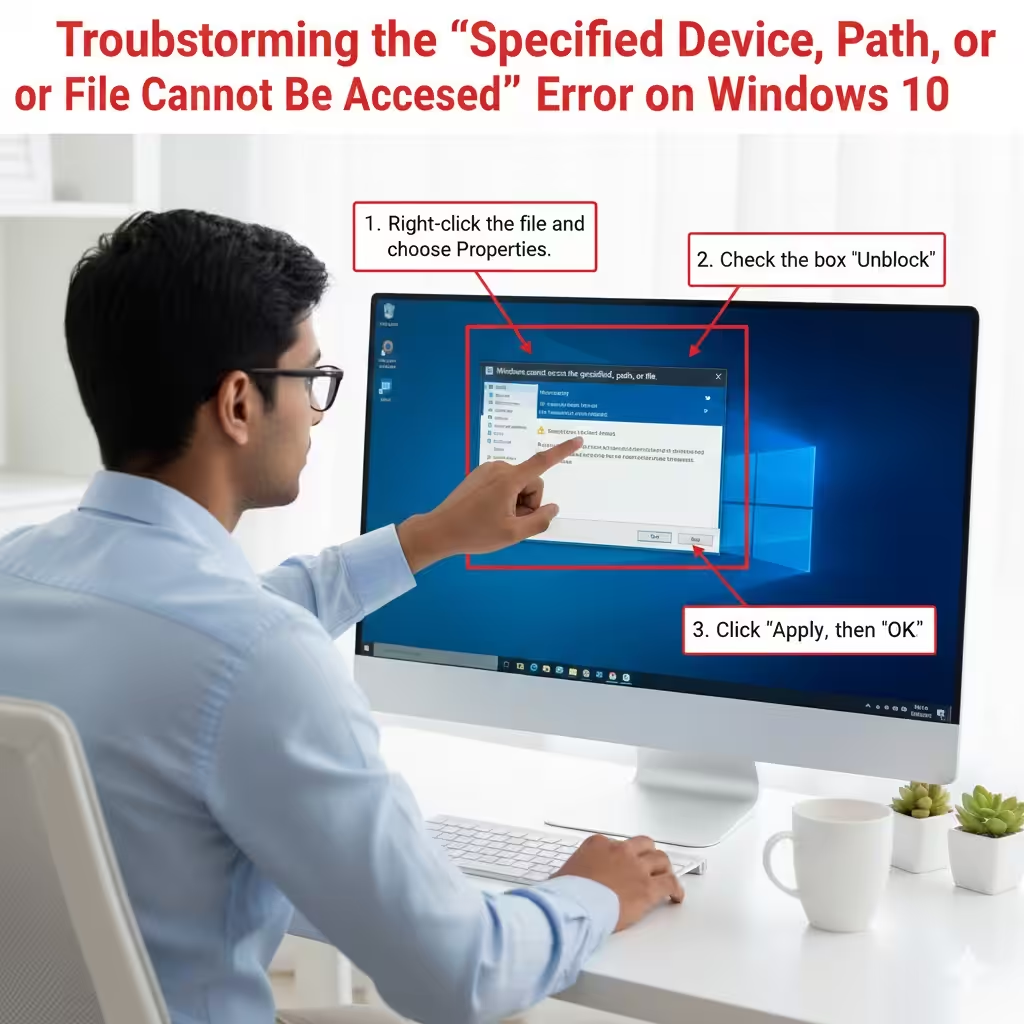
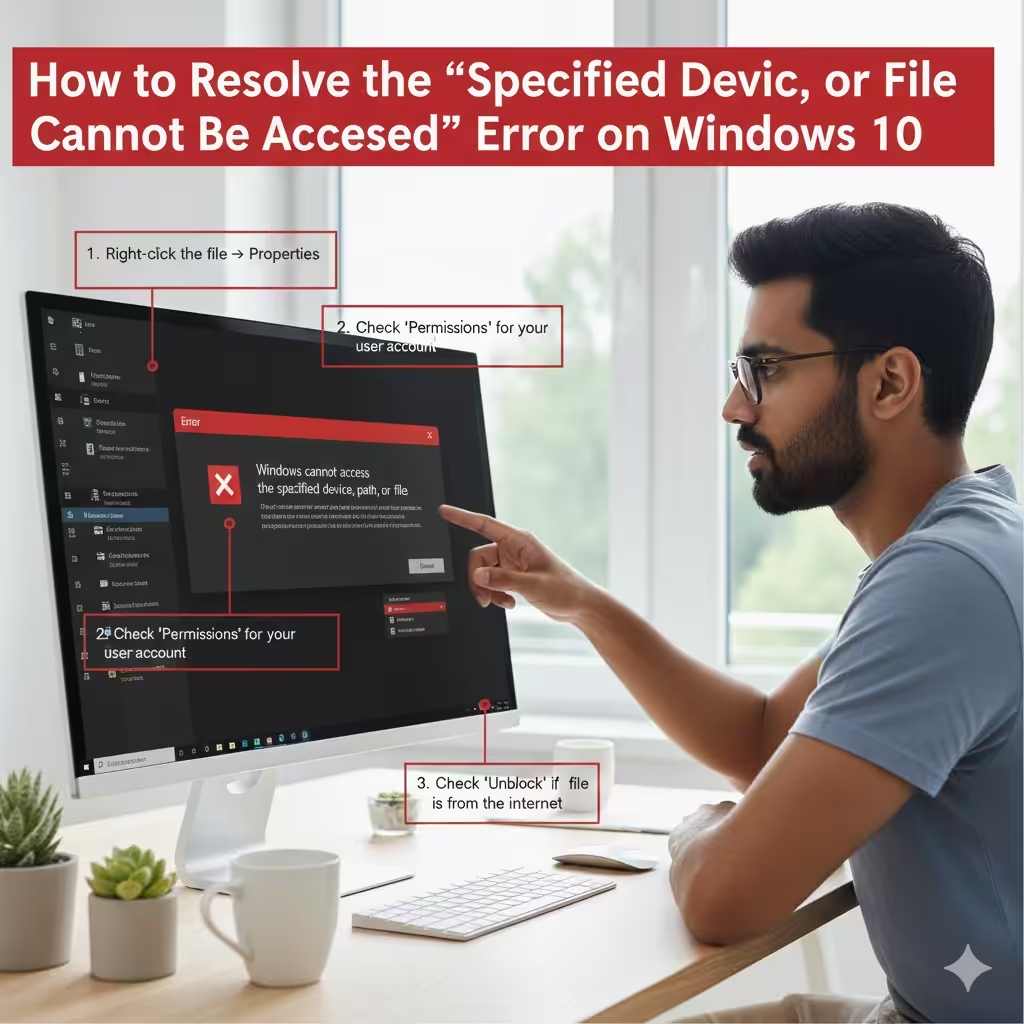
Right-click the file or folder.
-
Select Properties.
-
Go to the Security tab.
-
Choose your user account under Group or user names.
-
Ensure that Full control or at least Read & Execute permissions are enabled.
-
Click Apply, then OK.
If permissions were missing, adding them should immediately solve the problem.
Unblock the File
Windows sometimes blocks files downloaded from the internet to protect your system. When this happens, you may see the error message even if the file is safe.
To unblock a file:
-
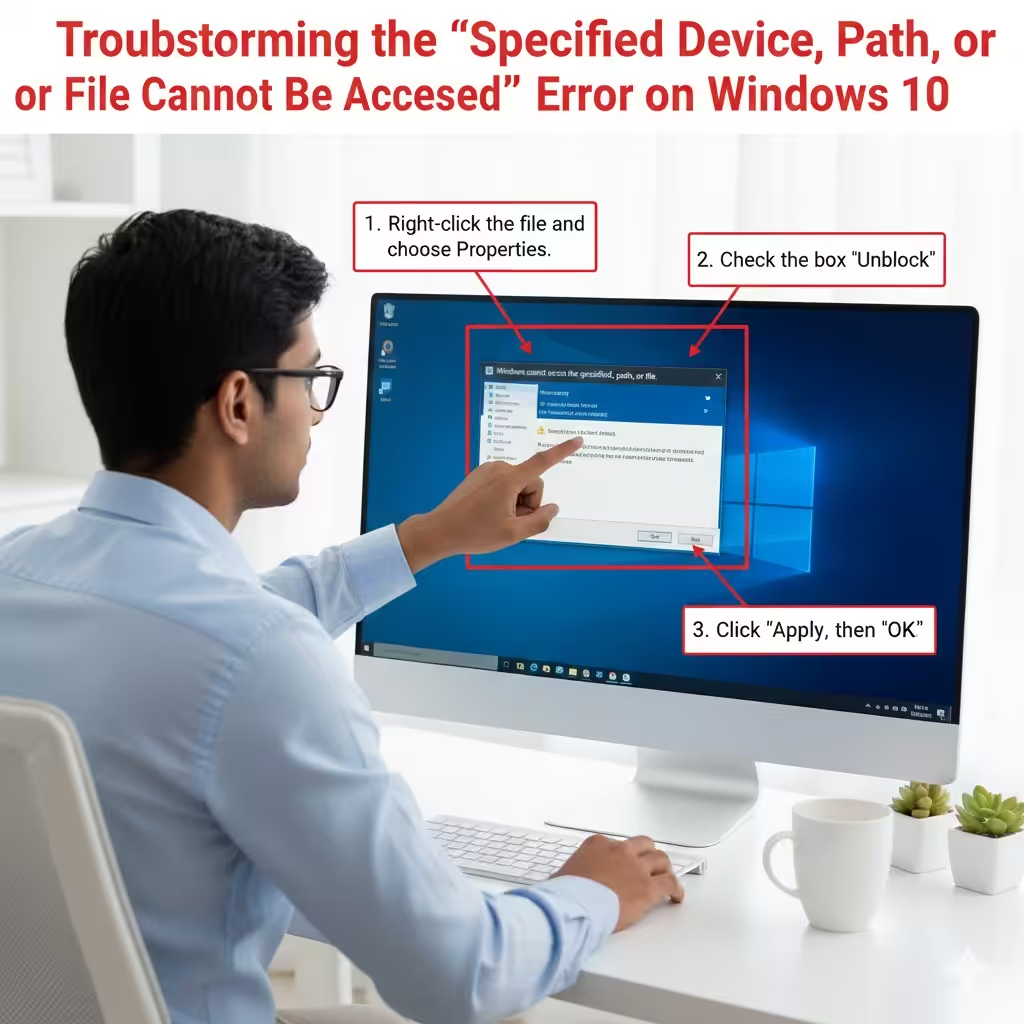
Right-click the file and choose Properties.
-
On the General tab, look for a message at the bottom saying:
“This file came from another computer and might be blocked to help protect this computer.” -
Check the box Unblock.
-
Click Apply.
Try opening the file again.
Check if the File or Shortcut Is Missing
If you are clicking a shortcut, the original file may have been moved or deleted. This causes Windows to show the error because the path no longer exists.
To verify:
-
Right-click the shortcut.
-
Select Open file location.
-
If the file doesn’t exist, the shortcut is broken.
In that case, reinstall the program or recreate the shortcut.
Remove Third-Party Antivirus Blocking
Some antivirus programs—such as those from Avast Software, McAfee, or Bitdefender—can mistakenly block safe files. These programs may prevent you from opening applications or downloaded files.
Steps to test:
-
Temporarily disable real-time protection in your antivirus software.
-
Try opening the file again.
If the file opens, add it to your antivirus “allowed list,” then re-enable protection.
Run the File as Administrator
Sometimes the file requires administrator-level permissions to open.
How to run as admin:
-
Right-click the program or file.
-
Select Run as administrator.
-
Click Yes if prompted by User Account Control.
If this works, you may need to permanently adjust the file’s permissions.
Check If the File Is Blocked by Windows Defender
If you are not using a third-party antivirus, the built-in Windows Security may have blocked the file.
To verify blocked items:
-
Open Windows Security.
-
Click Virus & threat protection.
-
Choose Protection history.
-
Look for blocked actions related to the file.
-
Allow the file if it is safe.
Ensure the File Is on an Accessible Drive
This error is common with:
-
External hard drives
-
USB flash drives
-
Network drives
-
Cloud-synced folders like OneDrive
If the drive is disconnected or offline, Windows cannot access the path.
Try the following:
-
Reconnect the external drive.
-
Ensure network drives are online.
-
Sync OneDrive files manually if needed.
Once the location is accessible, try opening the file again.
Disable Windows’ Controlled Folder Access
The Controlled Folder Access feature helps protect files from ransomware but can also block safe applications.
To disable temporarily:
-
Open Windows Security.
-
Select Virus & threat protection.
-
Under Ransomware protection, click Manage ransomware protection.
-
Toggle Controlled folder access to Off.
If the file now opens, add the program to the allowed apps list instead of keeping the feature off.
Check Group Policy Restrictions
Some Windows configurations restrict access to certain files or drives, especially on work or school computers.
If you are on a managed device, contact your administrator.
If it’s your personal computer:
Check for restrictions:
-
Press Win + R, type gpedit.msc, and press Enter.
-
Navigate to:
User Configuration → Administrative Templates → Windows Components → File Explorer -
Ensure settings like “Do not run specified Windows applications” are Not Configured.
Misconfigured group policies can block file access unexpectedly.
Run System File Checker (SFC) and DISM
Corrupted system files can interfere with file execution.
Run SFC:
Run DISM:
After running both commands, restart your PC.
Create a New User Account
If your Windows user profile is damaged, you may see this error frequently. Creating a new account helps confirm the issue.
Steps:
-
Go to Settings → Accounts → Family & other users.
-
Click Add account.
-
Create a new local or Microsoft account.
-
Log in and try opening the file.
If it works, your old profile may be corrupted.
Check for File Encryption Issues
Files encrypted with certain third-party tools cannot be opened without the proper decryption key.
If you recently restored files from a backup or another PC, verify they were not encrypted.
Reinstall the Program
If the error appears when launching a specific app, the installation may be damaged.
To fix this:
-
Open Settings → Apps → Apps & features.
-
Select the problematic program.
-
Click Uninstall.
-
Reinstall the latest version from the official website.
This resolves corrupt installation files or missing components.
Conclusion
The “Windows cannot access the specified device, path, or file” error in Windows 10 can occur for many reasons—from permission problems to antivirus blocks, damaged shortcuts, offline drives, or corrupted user profiles. By following the steps in this guide, you can systematically identify the cause and resolve the error quickly.
Begin with simple checks such as file permissions and antivirus settings, then move to deeper fixes like SFC scans, driver updates, and restoring system settings. With the right approach, you should be able to open your files and applications again without interruption.