


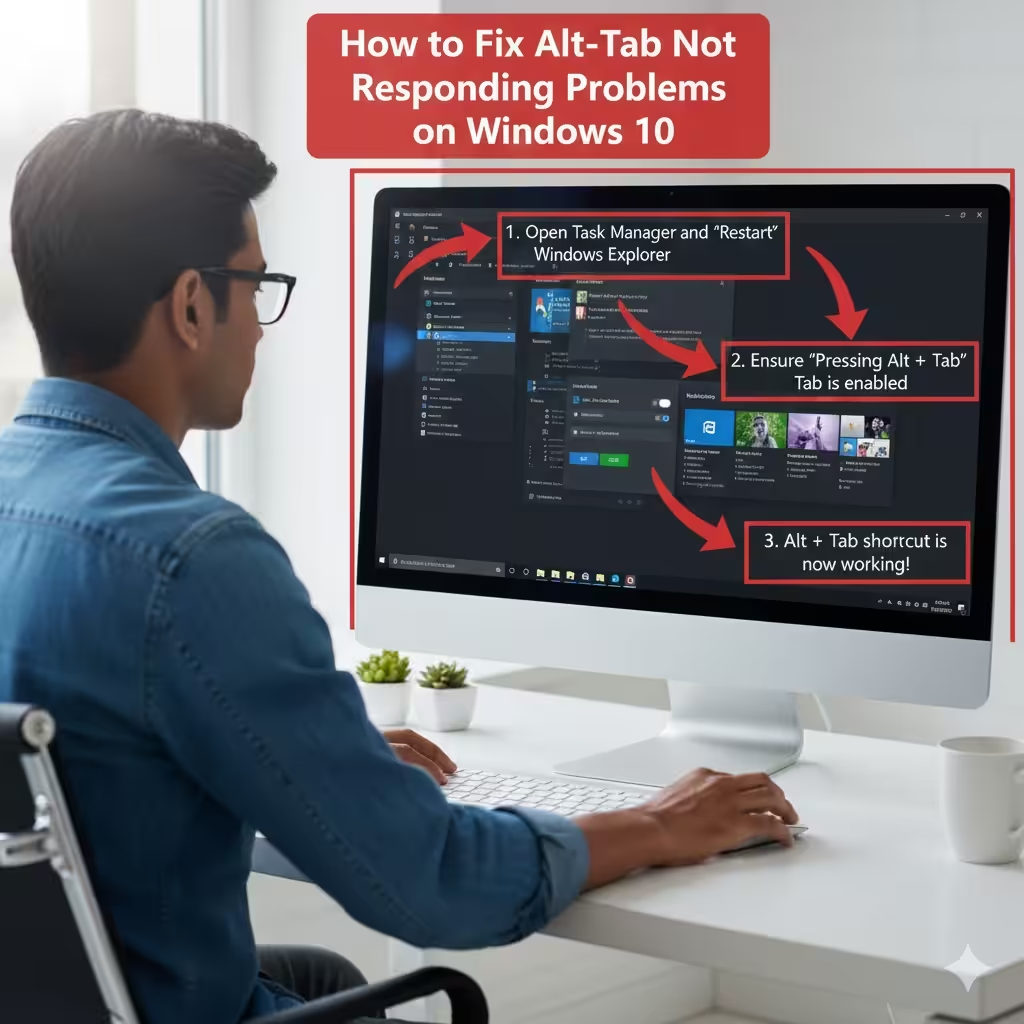
Fixing Alt-Tab Not Responding Problems on Windows 10
The Alt-Tab shortcut is one of the most useful features on Windows 10, allowing you to switch quickly between open applications. When this shortcut stops working, productivity can drop significantly, especially if you rely on multitasking. Fortunately, this issue is usually easy to fix. Whether Alt-Tab is unresponsive, slow, or only shows one window, there are several solutions to restore the shortcut to normal.
This guide explains the most common reasons why Alt-Tab stops working and provides step-by-step methods to resolve the problem.
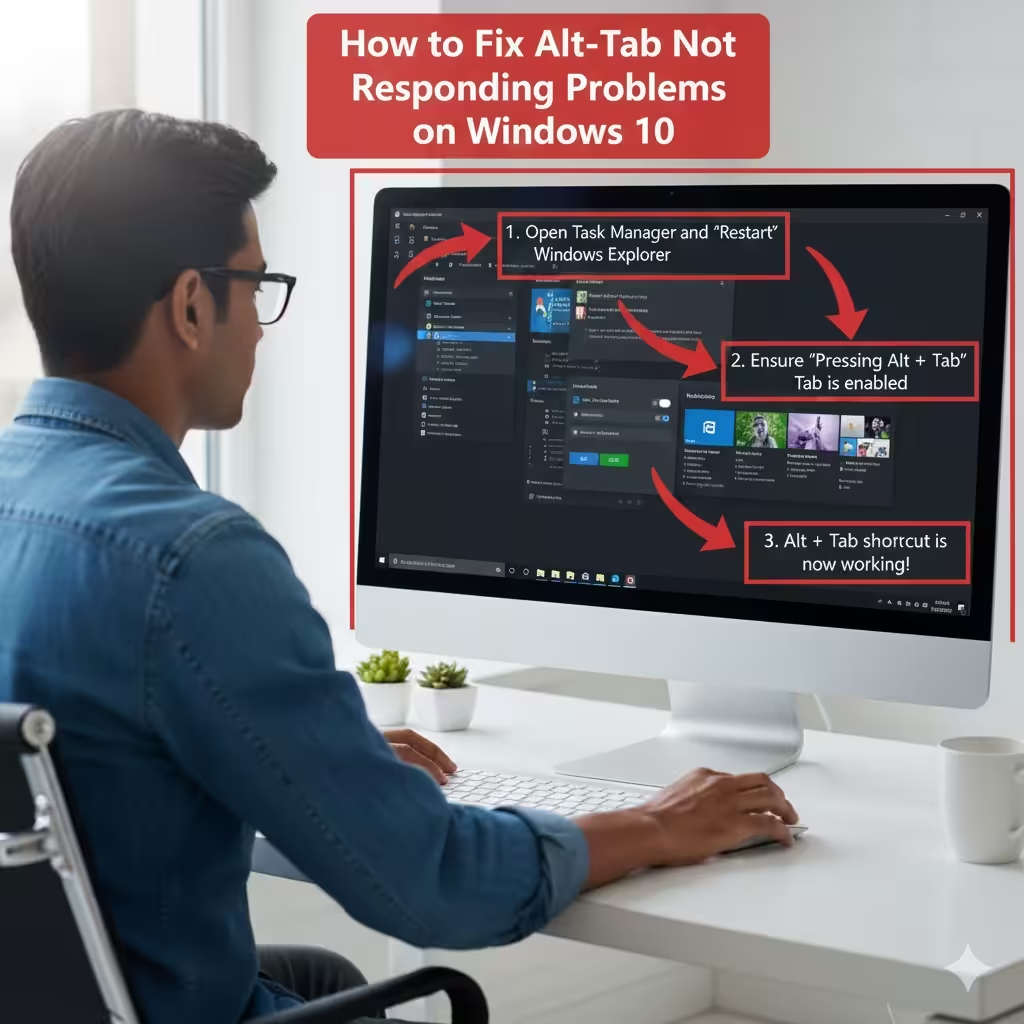
Why Alt-Tab May Stop Working
There are multiple causes for Alt-Tab malfunction:
-
Windows Explorer is frozen
-
Misconfigured multitasking settings
-
Sticky Keys or keyboard settings interference
-
Outdated or corrupted keyboard drivers
-
Background applications overriding Alt-Tab
-
Full-screen games disabling Windows shortcuts
-
Corrupted system files
-
Incorrect registry or system configuration
Understanding the source of the issue helps you choose the most effective solution.
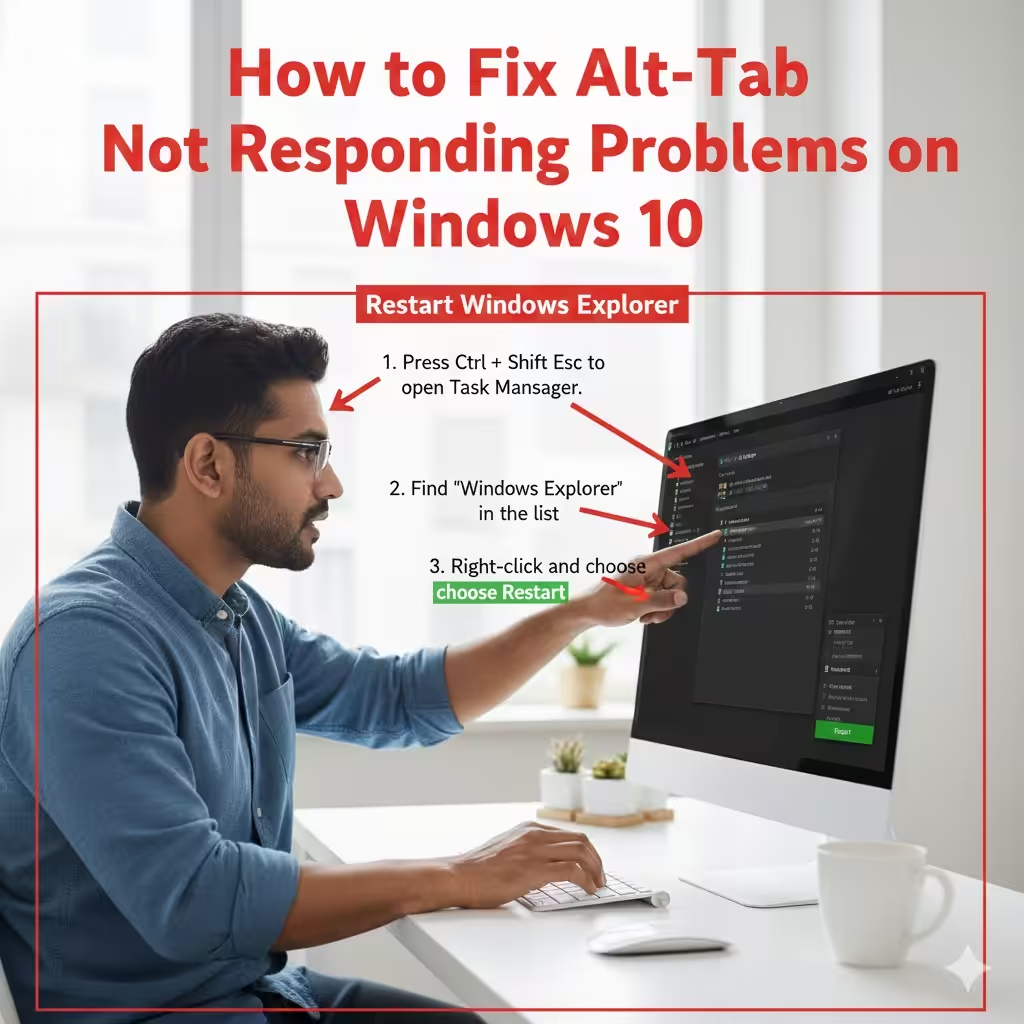
Restart Windows Explorer
A frozen or unresponsive Windows Explorer may cause system shortcuts to malfunction.
How to restart Windows Explorer:
-
Press Ctrl + Shift + Esc to open Task Manager.
-
Find Windows Explorer in the list.
-
Right-click and choose Restart.
After Explorer refreshes, test Alt-Tab again.
Check Keyboard Physical Issues
Before changing system settings, make sure the keyboard is functioning properly.
-
Ensure the Alt key is not stuck.
-
Try using both left and right Alt keys.
-
Test with another keyboard to rule out hardware failure.
-
Clean the keyboard if keys feel stuck or unresponsive.
If the issue persists, move on to software-based solutions.
Enable the Windows 10 Multitasking Feature
If the multitasking view is turned off, Alt-Tab may fail to display open windows.
To check Multitasking settings:
-
Open Settings.
-
Go to System → Multitasking.
-
Ensure “Pressing Alt + Tab shows windows that are open” is enabled.
-
In the “Alt + Tab” section, select Open windows only or Windows and tabs depending on your preference.
After adjusting these settings, test the shortcut again.
Disable or Adjust Sticky Keys
Sticky Keys or other accessibility features may interfere with the Alt-Tab shortcut.
Turn off Sticky Keys:
-
Open Settings.
-
Click Ease of Access.
-
Select Keyboard.
-
Turn off:
-
Sticky Keys
-
Filter Keys
-
Toggle Keys
-
Disabling these features often restores normal key behavior.
Update or Reinstall Keyboard Drivers
Corrupted or outdated drivers can cause shortcuts to stop working.
Update drivers:
-
Press Win + X → select Device Manager.
-
Expand Keyboards.
-
Right-click your keyboard device.
-
Choose Update driver → Search automatically.
If updating doesn’t help, reinstall the driver:
-
Right-click the keyboard device.
-
Select Uninstall device.
-
Restart your PC—Windows will reinstall the correct driver.
Check for Background Applications Causing Conflicts
Some apps override system shortcuts, especially:
-
Screen capture tools
-
Keyboard macro utilities
-
Gaming software
-
Overlay apps
Try closing these background apps:
-
Press Ctrl + Shift + Esc to open Task Manager.
-
End tasks for unnecessary background programs.
-
Test Alt-Tab again.
If the shortcut works after closing an app, uninstall it or change its settings.
Make Sure the App Is Not Running Full-Screen Exclusive Mode
Games or video players running in full-screen exclusive mode may disable Alt-Tab temporarily.
Try switching display modes:
-
Press Alt + Enter to switch to windowed mode.
-
Use the game’s graphics settings to change full-screen mode.
Once in windowed borderless mode, Alt-Tab usually functions correctly.
Enable the App Switcher Using Registry Editor
If a system update or third-party tool disabled the switcher interface, you can re-enable it through the registry.
Warning: Only follow these steps if you are comfortable editing the registry.
-
Press Win + R, type regedit, press Enter.
-
Navigate to:
-
On the right panel, look for AltTabSettings.
-
If it exists, double-click and set its value to 1.
-
If not, right-click → New → DWORD (32-bit) Value → name it AltTabSettings, set value to 1.
Restart your PC and check if Alt-Tab is restored.
Ensure Peek Is Enabled
The Alt-Tab window preview depends on the Peek feature. If Peek is disabled, previews may not appear.
Enable Peek:
-
Open System Properties (search “sysdm.cpl”).
-
Go to the Advanced tab → Performance Settings.
-
Make sure Enable Peek is checked.
-
Click Apply → OK.
This setting often restores the live preview feature for Alt-Tab.
Restart the PC in a Clean Boot State
A clean boot helps identify whether third-party programs are causing the issue.
Perform clean boot:
-
Press Win + R, type msconfig, press Enter.
-
Go to Services tab.
-
Check Hide all Microsoft services.
-
Click Disable all.
-
Go to Startup tab → Open Task Manager.
-
Disable all startup items.
-
Restart your computer.
If Alt-Tab works, re-enable programs one by one to find the culprit.
Run System File Checker (SFC) and DISM
Corrupted system files can affect Windows shortcuts.
Run SFC:
Run DISM:
Restart your PC once the scans complete.
Check for Pending Windows Updates
Microsoft frequently fixes bugs through updates.
To update Windows 10:
-
Open Settings.
-
Go to Update & Security.
-
Click Check for updates.
Install updates and reboot your PC.
Create a New Windows User Profile
If the user profile is corrupted, shortcuts like Alt-Tab may malfunction.
Create a new profile:
-
Go to Settings → Accounts → Family & other users.
-
Click Add someone else to this PC.
-
Create a new Microsoft or local account.
-
Log in with the new account to test the shortcut.
If it works, your old profile may need repair.
Conclusion
The Alt-Tab shortcut is a powerful tool for multitasking, and when it stops working, it can greatly disrupt your workflow. Fortunately, there are many solutions—from checking keyboard settings and updating drivers to restarting Windows Explorer or adjusting multitasking options. By following the steps in this guide, you can quickly restore the Alt-Tab functionality on Windows 10 and return to seamless switching between applications.
If you continue to experience issues even after trying all the methods, a system restore or clean installation of Windows may be needed.