


Fixing Audio-Video Desynchronization Problems on Windows 10
Experiencing audio and video that are out of sync on Windows 10 can be incredibly frustrating, especially when you’re watching movies, playing games, or attending online meetings. Lip sync issues, delayed sound effects, or mismatched audio cues can ruin the entire experience. Fortunately, most sync problems on Windows 10 can be resolved with simple fixes.
This comprehensive guide explains the causes behind audio-video sync issues and provides step-by-step solutions to help you restore smooth playback on your device.
Common Causes of Audio and Video Sync Issues
Before applying solutions, it helps to understand what causes sync problems. The most common reasons include:
-
Outdated or corrupted audio/video drivers
-
Network latency during streaming
-
Faulty audio enhancements
-
Improper playback settings
-
High CPU usage or hardware limitations
-
Problems with specific apps or media players
-
Corrupted system files
-
Issues with the browser or streaming service
Knowing the source will help narrow down the right fix.
Restart Your Computer and Media Player
A simple restart can sometimes resolve sync issues instantly.
Try these steps:
-
Close the video or audio player.
-
Restart your PC.
-
Reopen the media or streaming service.
Cached data or stuck processes often interfere with audio-video processing.
Check Your Internet Connection for Streaming Sync Issues
If the audio-video delay appears only when streaming online content, such as on YouTube or Netflix, your internet connection may be the issue.
Try the following:
-
Restart your router.
-
Use a wired Ethernet connection instead of Wi-Fi.
-
Pause the video and let it buffer.
-
Lower the streaming quality temporarily.
Sync issues often happen when the network cannot keep up with playback.
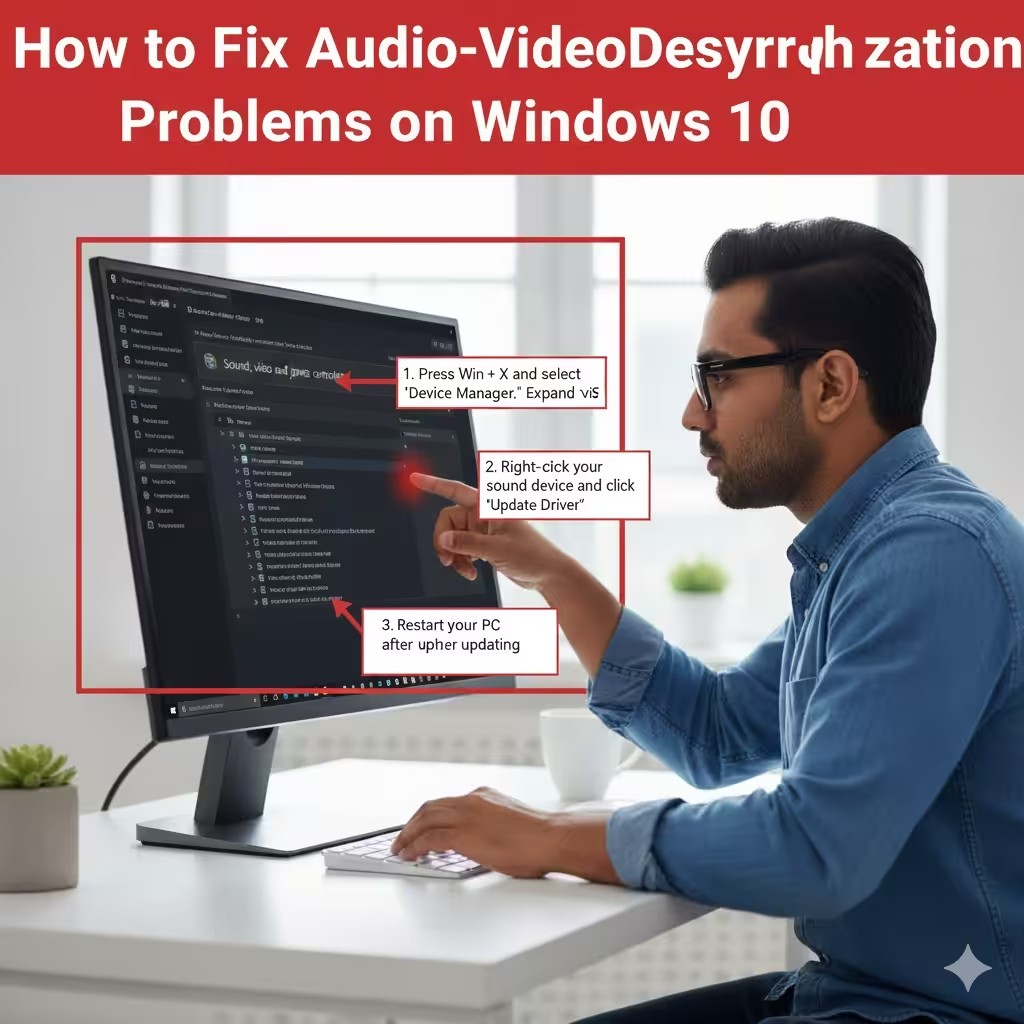
Update Audio and Video Drivers
Outdated or corrupted drivers are a major cause of sync delay.
How to update your drivers:
-
Press Win + X and select Device Manager.
-
Expand Sound, video, and game controllers.
-
Right-click your sound device (such as Realtek Audio) and choose Update driver.
-
Also check your graphics drivers under Display adapters.
-
Restart your PC after updating.
To ensure more stable performance, you can also install the latest drivers from your hardware manufacturer’s website.
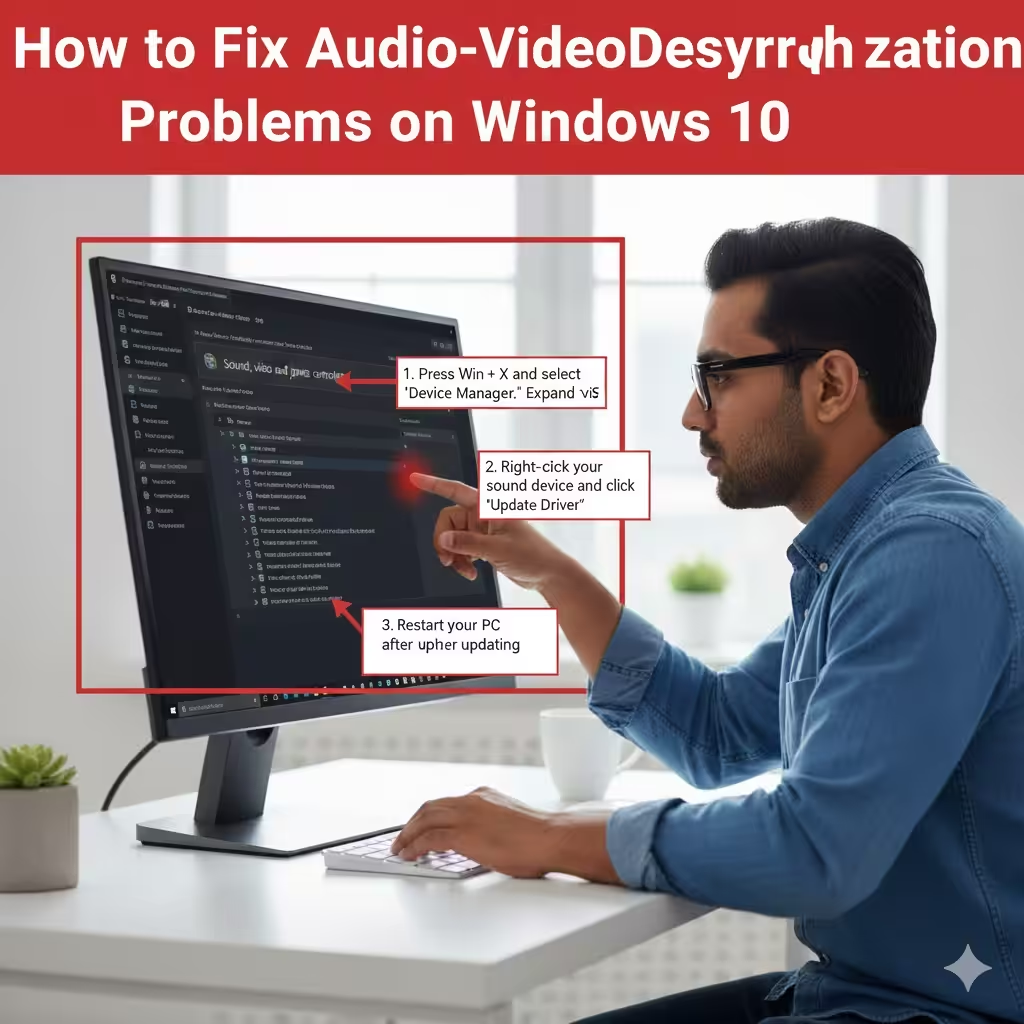
Disable Audio Enhancements
Sometimes Windows audio enhancements cause delays between sound and video.
Disable enhancements like this:
-
Right-click the speaker icon and choose Sounds.
-
Go to the Playback tab.
-
Right-click your audio device and select Properties.
-
Open the Enhancements tab.
-
Check Disable all enhancements.
-
Click Apply.
Restart playback to see if the sync issue is resolved.
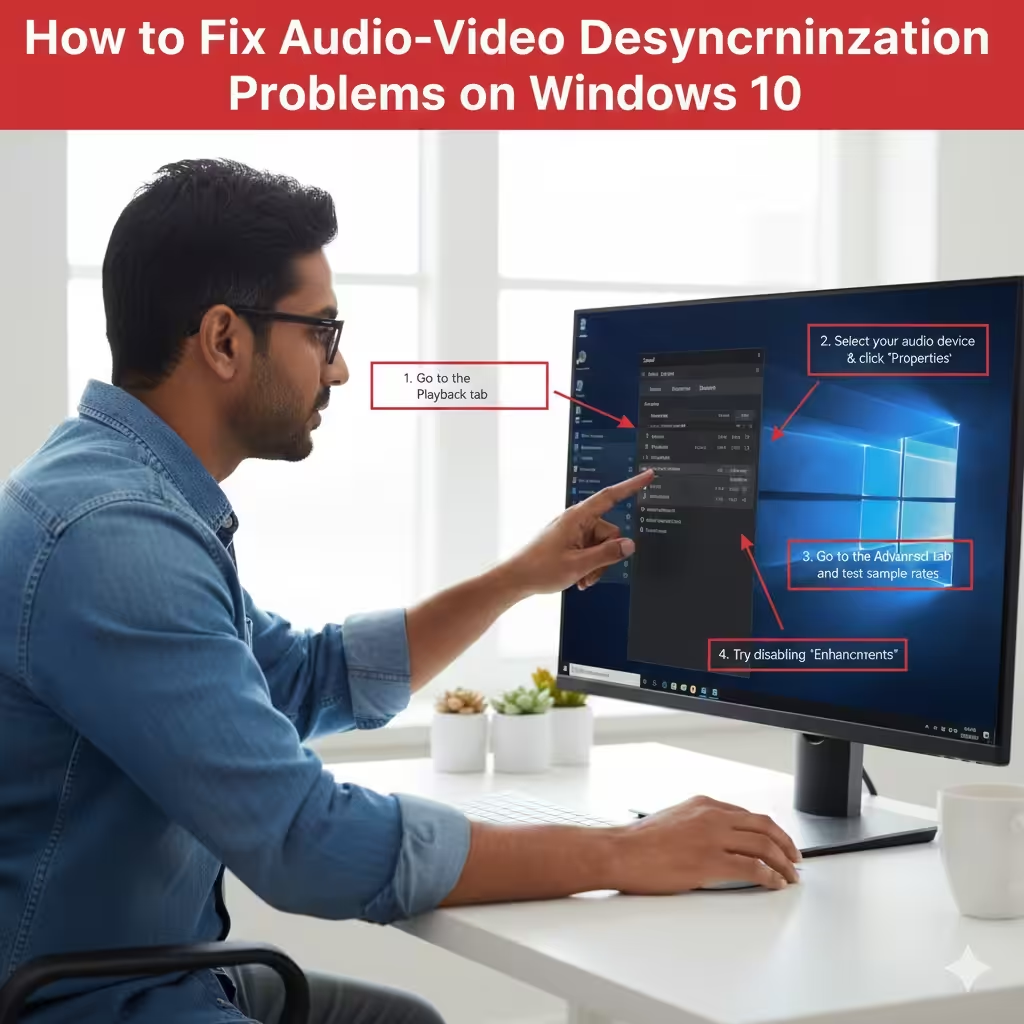
Change the Audio Format
The audio format may not be compatible with your hardware or playback device.
To change the audio format:
-
Right-click the speaker icon → Sounds.
-
Go to Playback → select your audio device → Properties.
-
Under the Advanced tab, test different sample rates such as:
-
16 bit, 44100 Hz
-
24 bit, 48000 Hz
-
-
Click Apply.
Switching formats often fixes delay issues caused by incompatible audio processing.
Check Hardware Acceleration Settings in Browser or Apps
Hardware acceleration can improve performance, but on some systems, it causes sync problems.
Disable hardware acceleration in browsers:
For Chrome:
-
Open settings.
-
Go to System.
-
Turn off Use hardware acceleration when available.
For Firefox:
-
Open settings.
-
Scroll to Performance.
-
Uncheck Use recommended performance settings.
-
Turn off hardware acceleration.
Restart the browser and test again.
Use Windows Troubleshooters
Windows 10 includes built-in troubleshooters that automatically detect and fix problems.
Run the Audio Troubleshooter:
-
Go to Settings → Update & Security.
-
Select Troubleshoot.
-
Click Additional troubleshooters.
-
Choose Playing Audio.
-
Follow the instructions.
Run the Video Playback Troubleshooter:
-
Go to Settings.
-
Select Update & Security → Troubleshoot.
-
Click Video Playback.
-
Run the troubleshooter.
These tools often fix sync issues with minimal effort.
Reduce CPU or RAM Usage
When your system is overloaded, audio and video processing may lag.
Try the following tips:
-
Close unnecessary programs in Task Manager.
-
Disable startup apps you don’t need.
-
Pause background downloads.
-
Switch to the High Performance power plan.
-
Clean temporary files using Disk Cleanup or Storage Sense.
Low system resources can cause both audio and video to become desynchronized.
Check Media Player Settings
If the problem happens only in apps like VLC Media Player, Movies & TV, or Windows Media Player, the issue may be in the app itself.
For VLC Media Player:
VLC allows manual audio delay correction:
-
Press K to decrease delay.
-
Press J to increase delay.
You can also save delay settings permanently:
-
Go to Tools → Track Synchronization.
-
Adjust audio delay until video and audio match.
If VLC is the only app with sync problems, reinstalling it may solve the issue.
Clear Browser Cache and Cookies for Online Video Issues
Corrupted cached files cause playback problems.
Clear cache in Chrome:
-
Press Ctrl + Shift + Delete.
-
Choose Cached images and files.
-
Click Clear data.
Restart the browser and try again.
Update Windows 10
System updates often include performance and compatibility fixes.
To update Windows 10:
-
Go to Settings.
-
Select Update & Security.
-
Click Check for updates.
-
Install available updates.
After updating, restart your PC and test playback.
Run System File Checker (SFC) and DISM
Corrupted system files can cause inconsistent audio and video processing.
Run SFC:
Run DISM:
Restart your PC after the scans finish.
Try Using a Different Output Device
Sometimes external speakers, Bluetooth devices, or HDMI audio introduce delay.
Solutions:
-
Test using headphones or built-in speakers.
-
Reconnect Bluetooth audio devices.
-
Change HDMI cable or port.
-
Disable unused audio devices in Sound Settings.
Different output devices process audio differently, which can cause noticeable delays.
Reinstall Audio Drivers Completely
If updating didn’t help, reinstalling the drivers may work.
-
Open Device Manager.
-
Expand Sound, video, and game controllers.
-
Right-click your audio device.
-
Select Uninstall device.
-
Restart Windows to reinstall the driver automatically.
This refreshes all audio components and resolves deeper configuration issues.
Conclusion
Audio and video going out of sync on Windows 10 can disrupt everything from entertainment to productivity. Fortunately, most sync problems can be fixed quickly by updating drivers, disabling enhancements, adjusting playback settings, or troubleshooting your system. Whether the issue appears in streaming platforms, local videos, or media players, the steps in this guide will help you restore smooth, synchronized playback across all apps.
If the problem persists after trying all solutions, it may indicate hardware issues or a deeper system problem, in which case a clean installation of Windows may be necessary.